 Static PNG
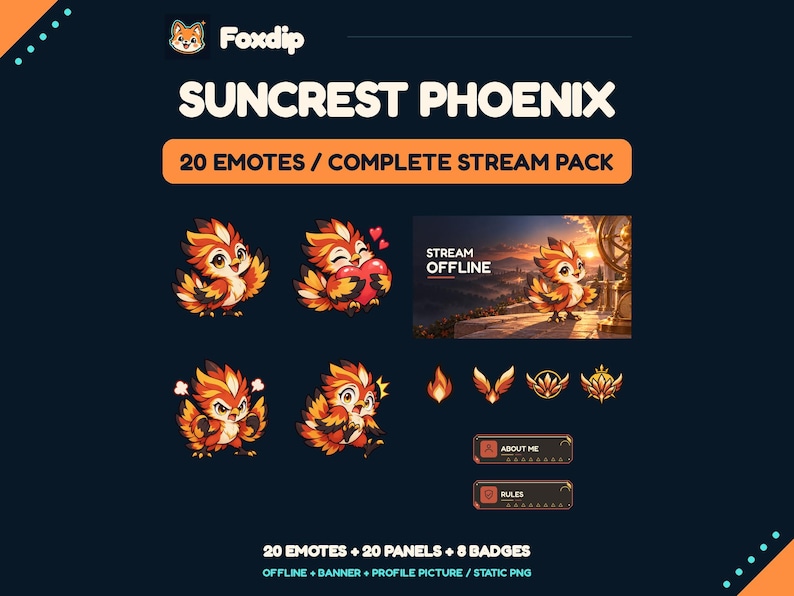
Phoenix Twitch Stream Pack - Suncrest Phoenix
PNG · SVGDownload
CA$15.74CAD
 Foxdip✦
A microphone problem, an OBS setting or a character you’ve been looking for. Start with a few words.
157 results for “OBS”
Record a short rehearsal with your mic, game and alerts, then play it back. Catch missing sound, a doubled voice or loud game audio before viewers do.
Your mic works everywhere except OBS? Check these in order: your computer's sound settings, mic permission, the device OBS uses, and the audio mixer.
Hearing your voice or game twice in OBS? Usually the same sound is being picked up two times. Here's how to find the extra one and turn it off.
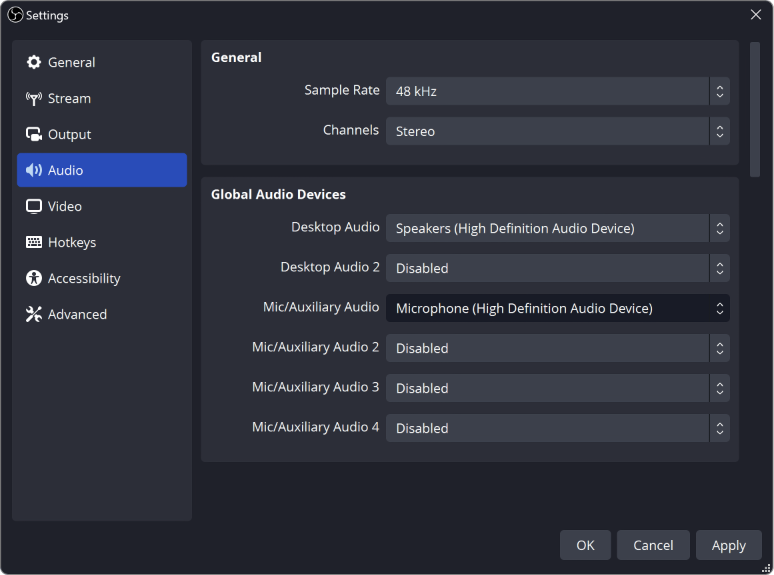
The meters move but your OBS recording is silent? Follow the sound from your mic and desktop to the recorded track, then play the right track back.
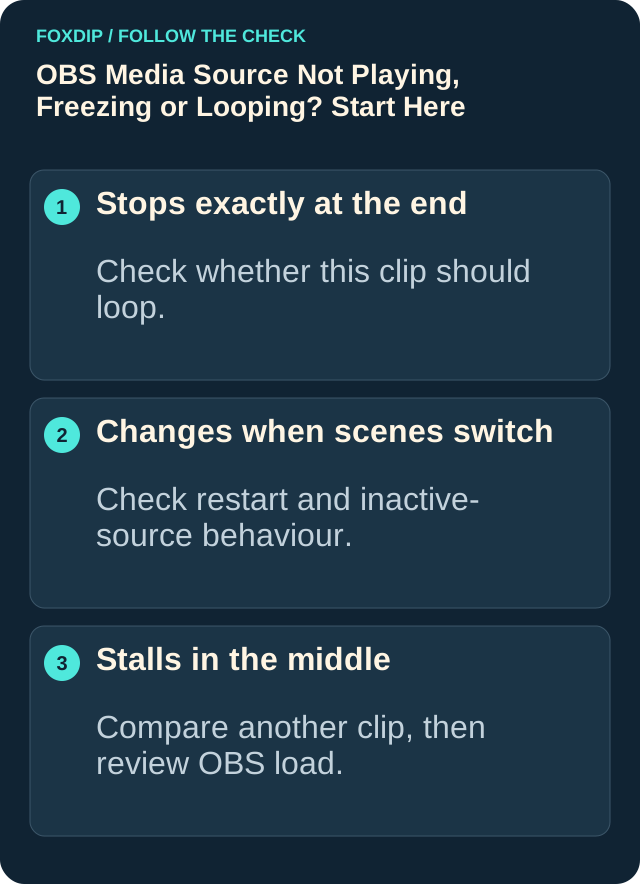
Seeing "media source is not playable" in OBS? It usually means OBS can't open that file. Here's how to find out why and get your video playing.
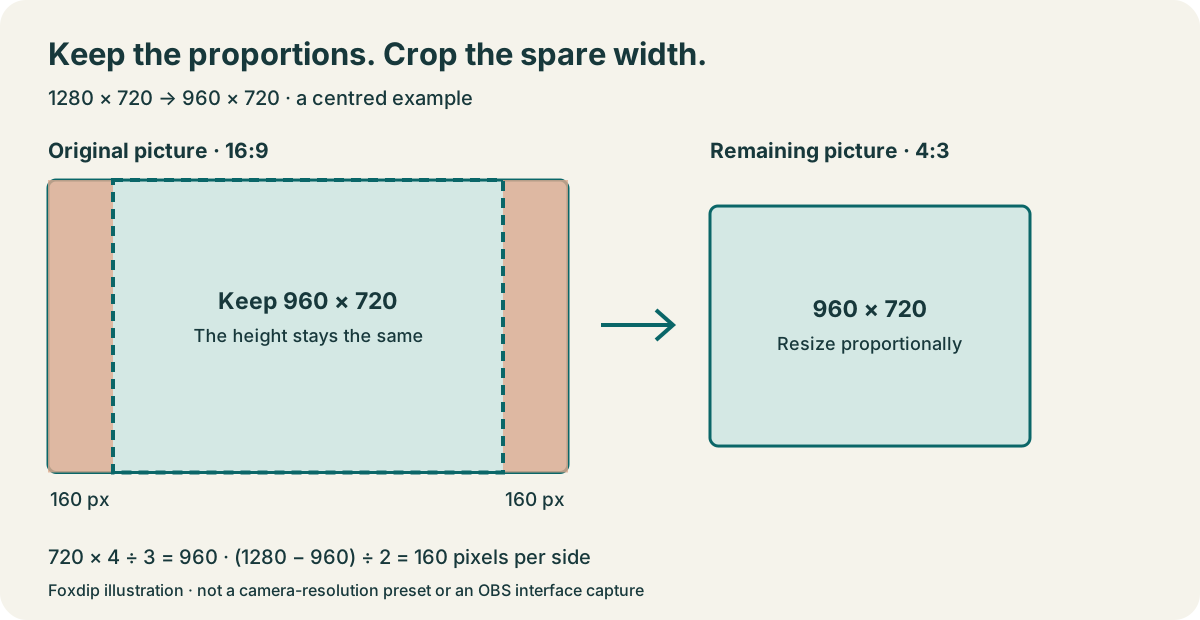
The quick way to crop your webcam in OBS: hold Alt (Option on Mac) and drag the edge. Here's how to keep your face from looking stretched.
Find out why sources cover each other in OBS. Build a three-layer scene and practise order, visibility and scene changes.
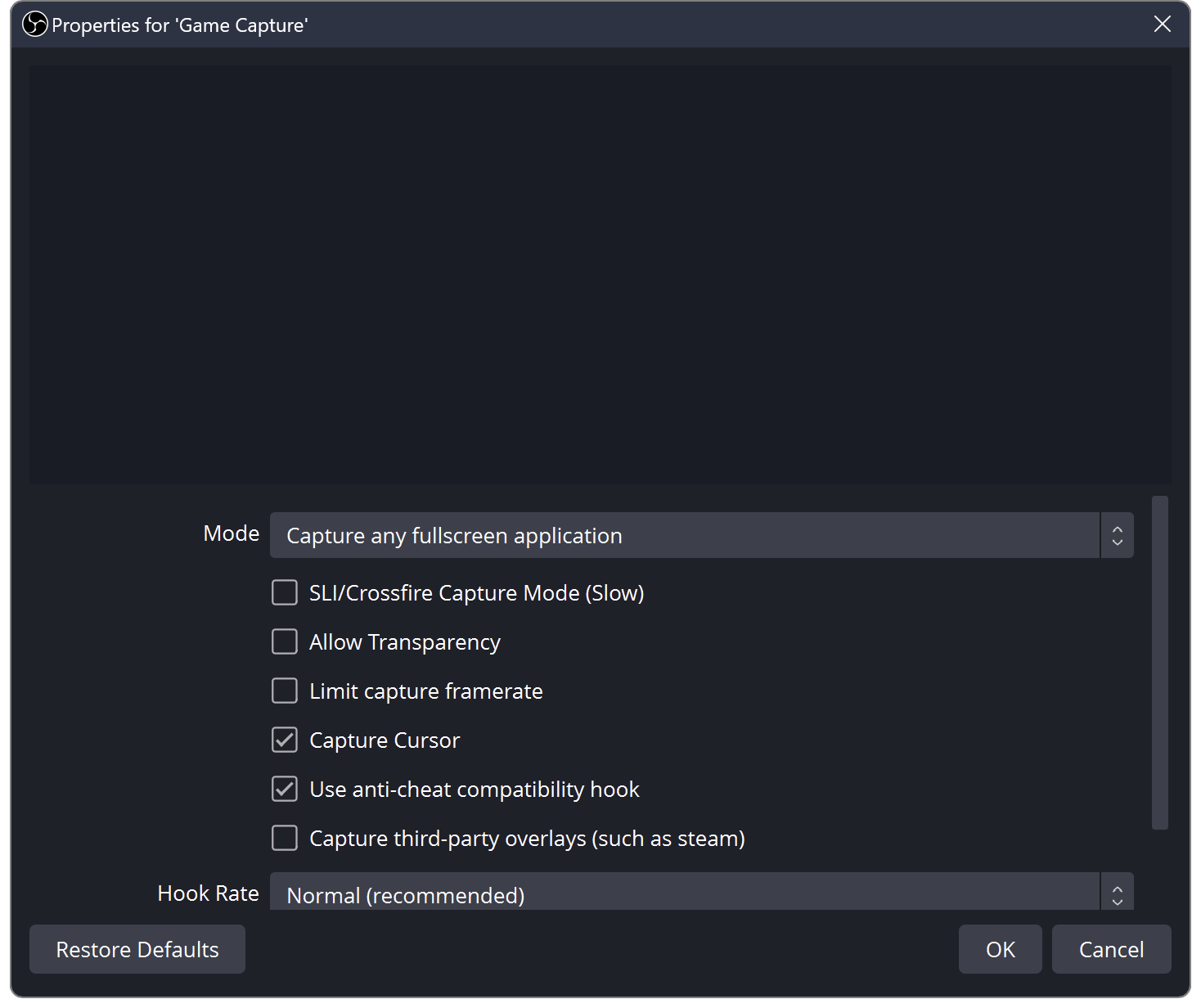
OBS shows black instead of your game or screen? Try these quick checks for Windows and Mac.
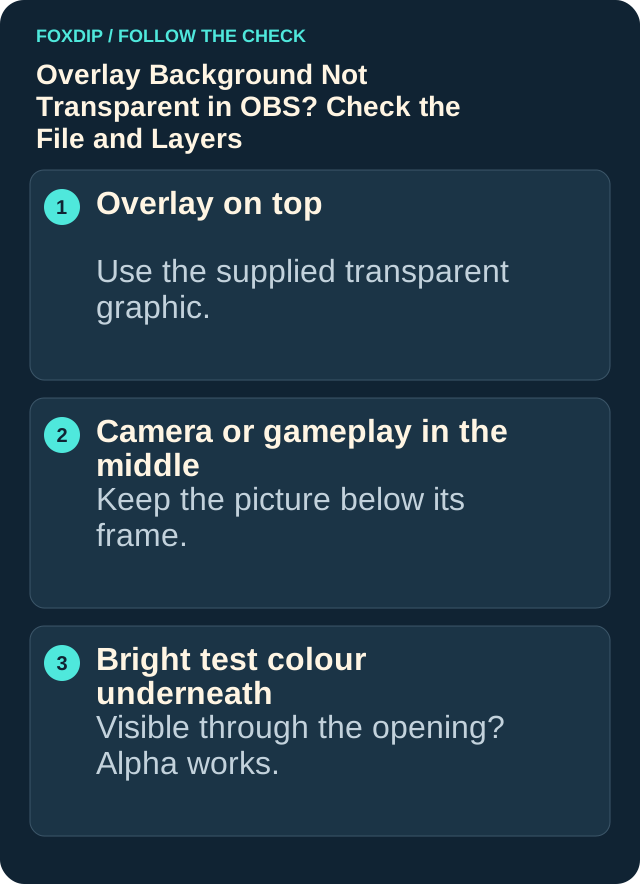
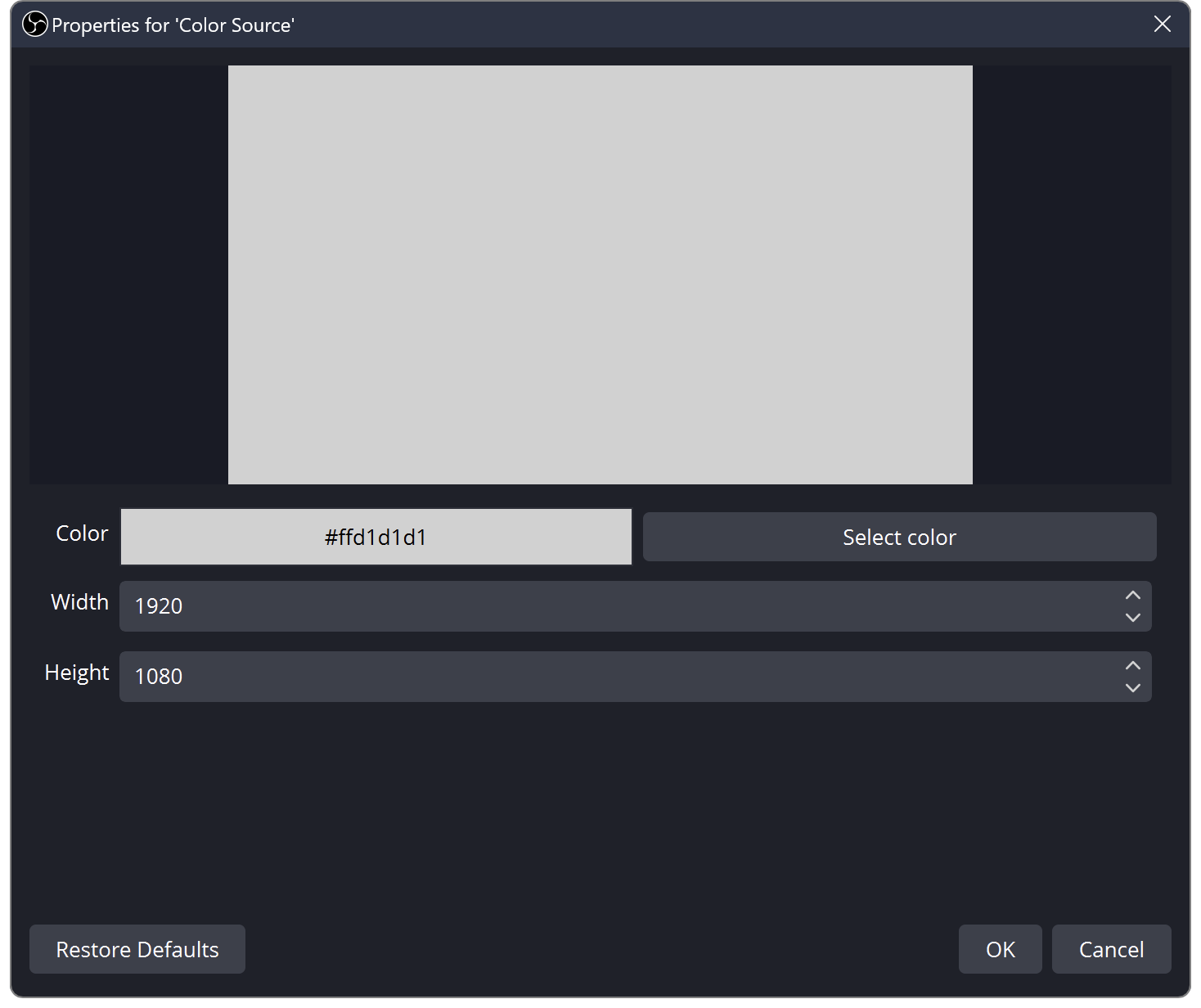
Put a bright colour behind your overlay to see if transparency works, then fix the real cause: the wrong export, the source settings or a browser page.
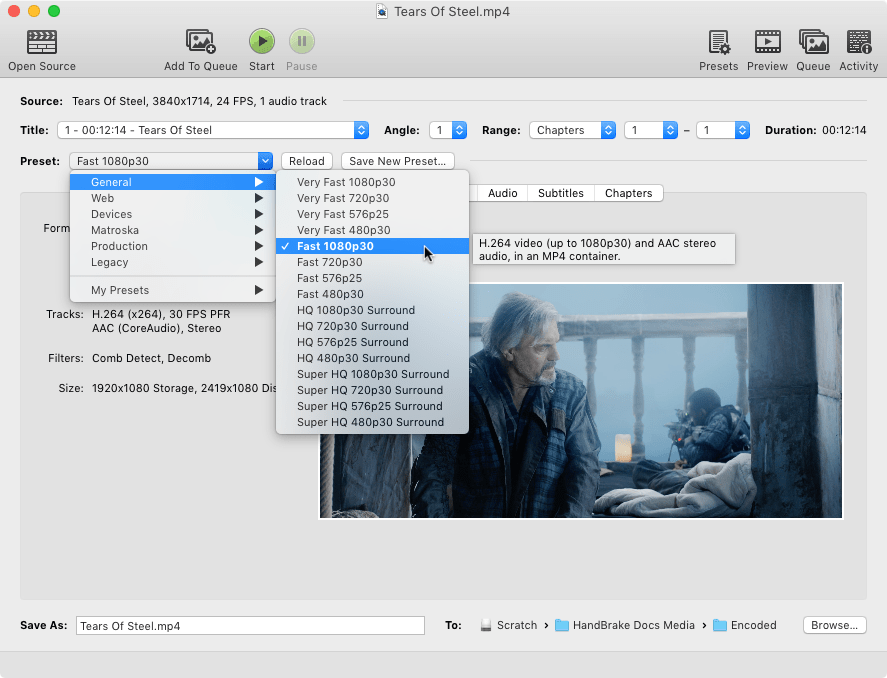
Keep your original recording, adjust a sharing copy in small steps, and check a short preview before converting the whole session.
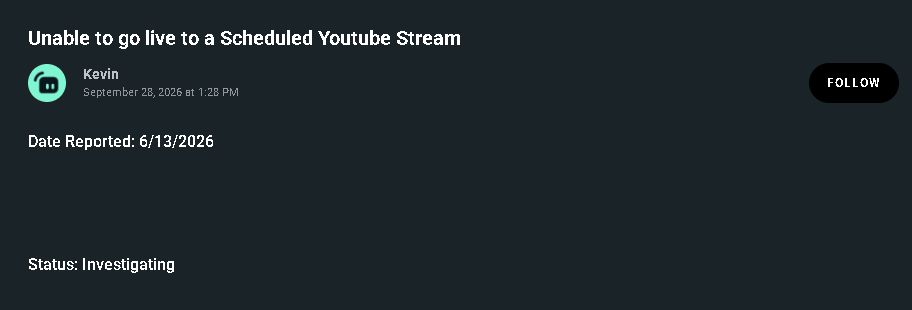
Match the scheduled YouTube failure to Streamlabs’ known-issue notice, check its current status and collect the details support needs.
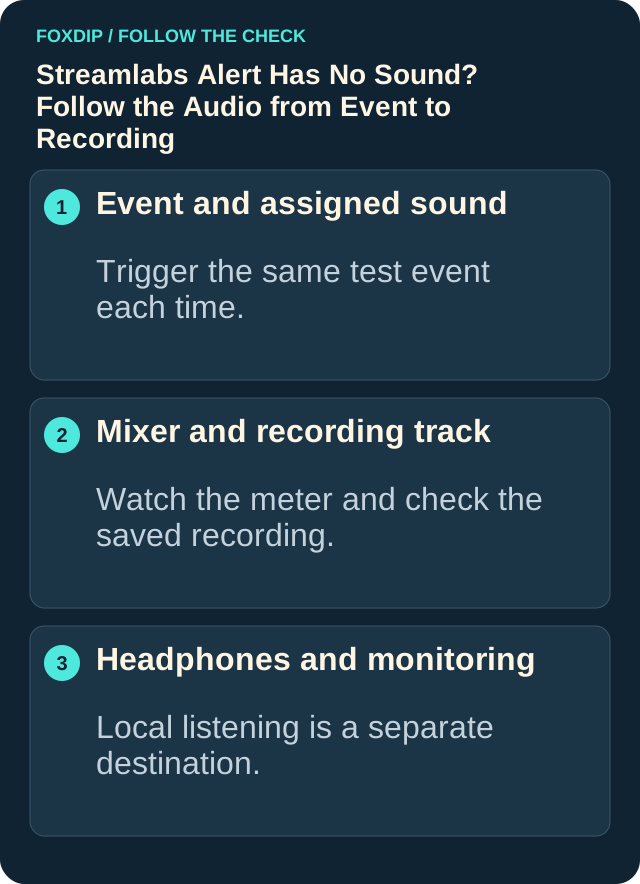
Fix a silent Streamlabs alert by checking the event sound, variations, source routing, monitoring and output tracks. Test the saved mix before going live.
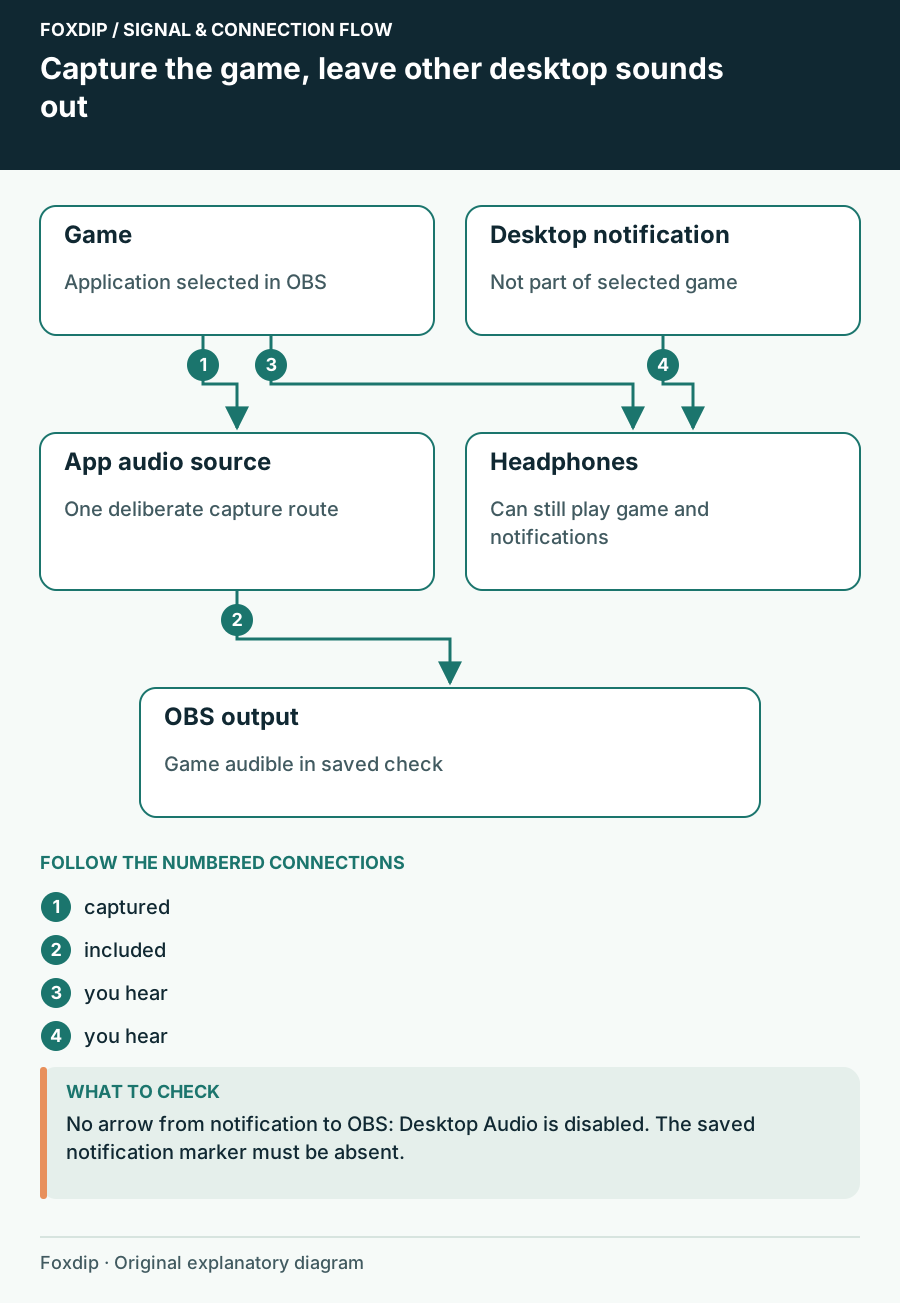
Send only your game's sound to the stream. No notifications, no Discord, no Spotify.
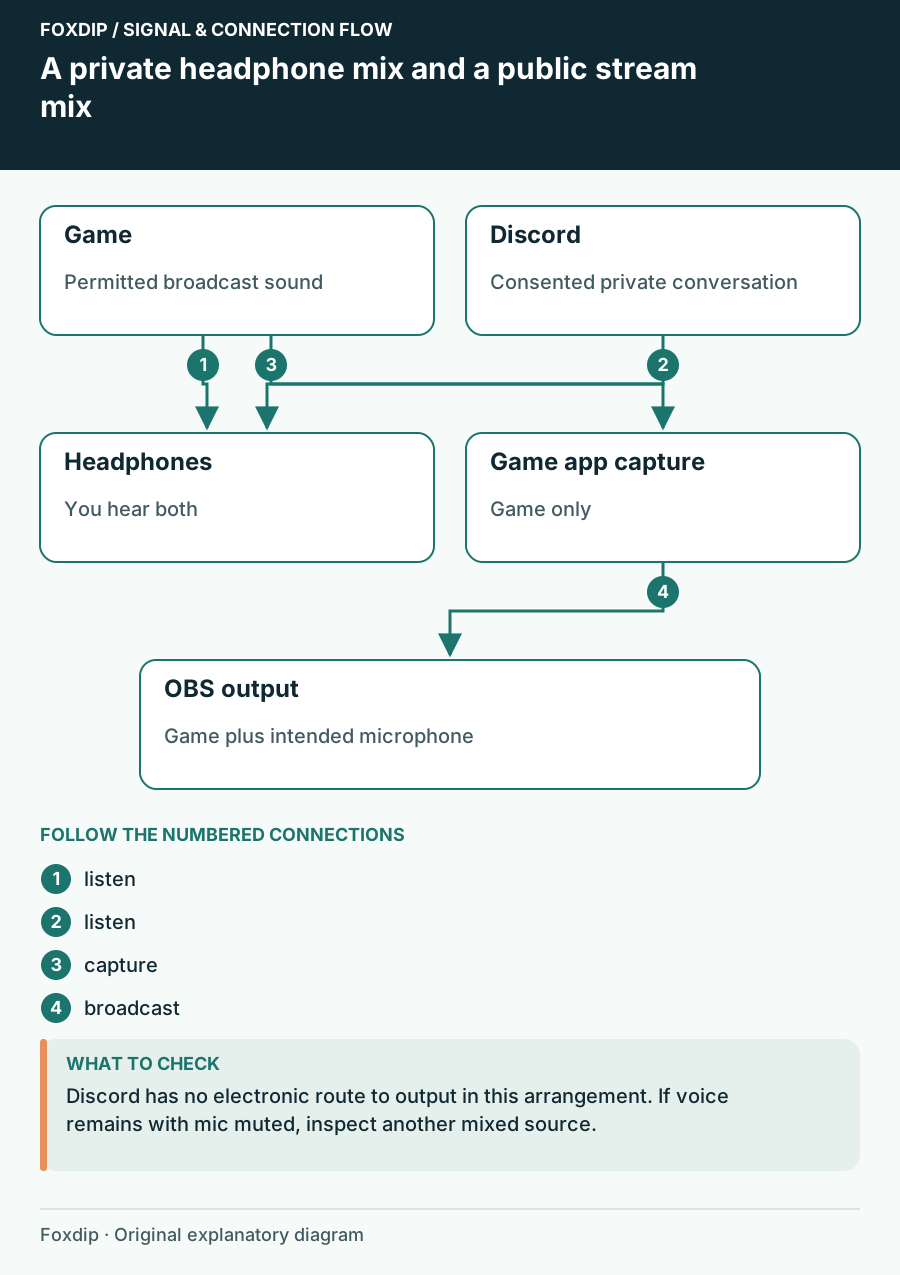
Your viewers hear your Discord call? Here's how to stop it in OBS while you keep talking to your friends.
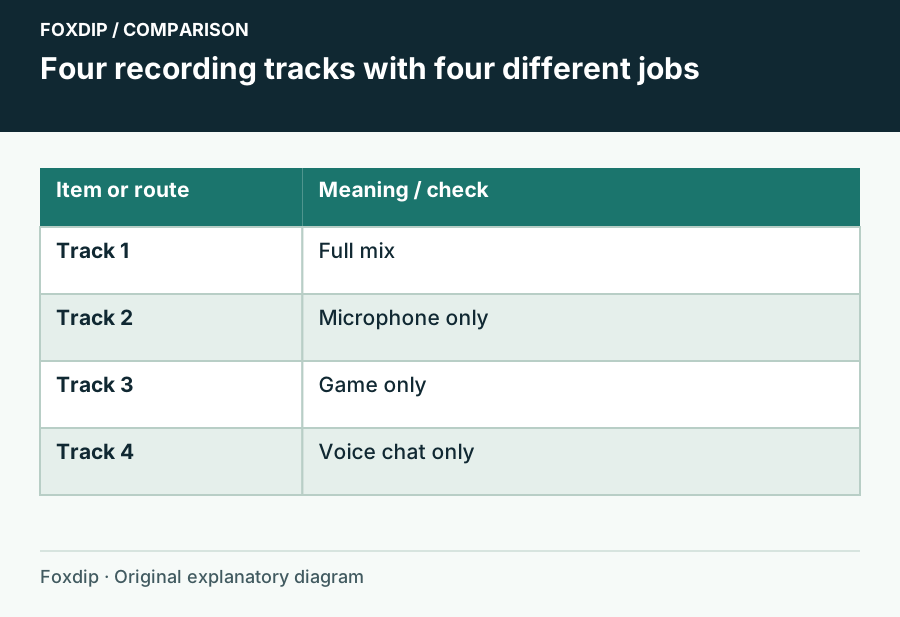
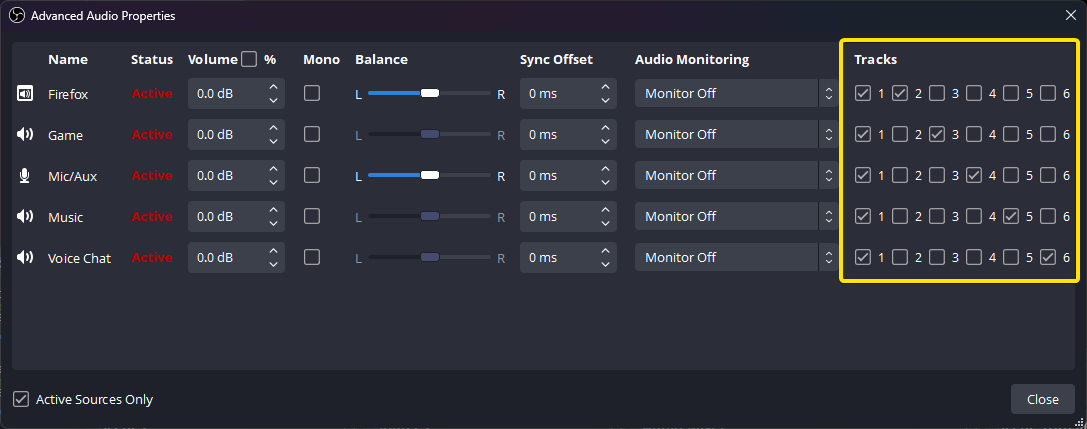
Create a playable full mix and isolated editing tracks without confusing tracks with audio channels.
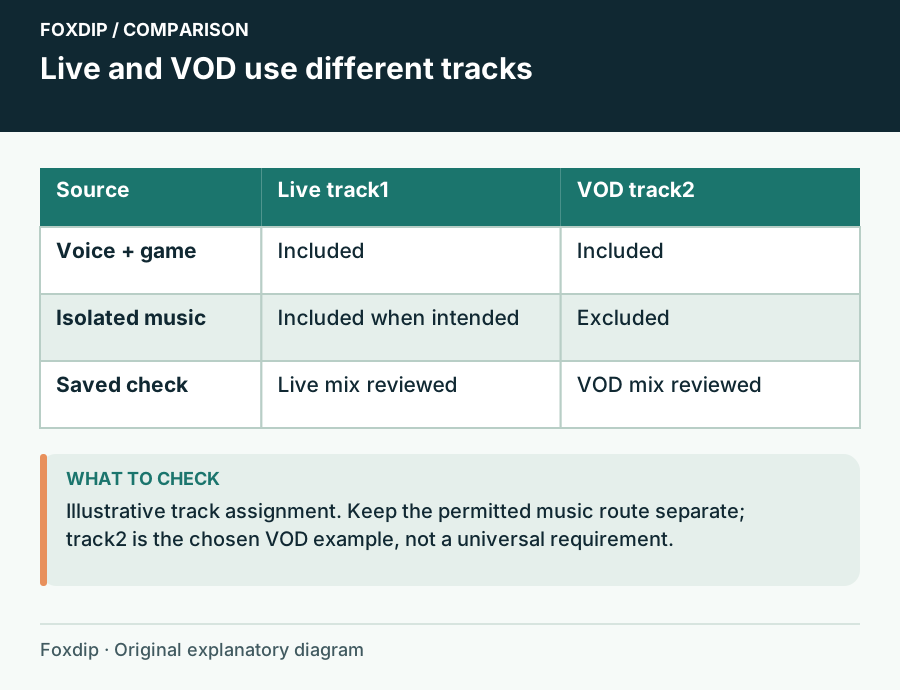
Send music to the live mix and exclude it from the VOD track while preserving voice and game audio.
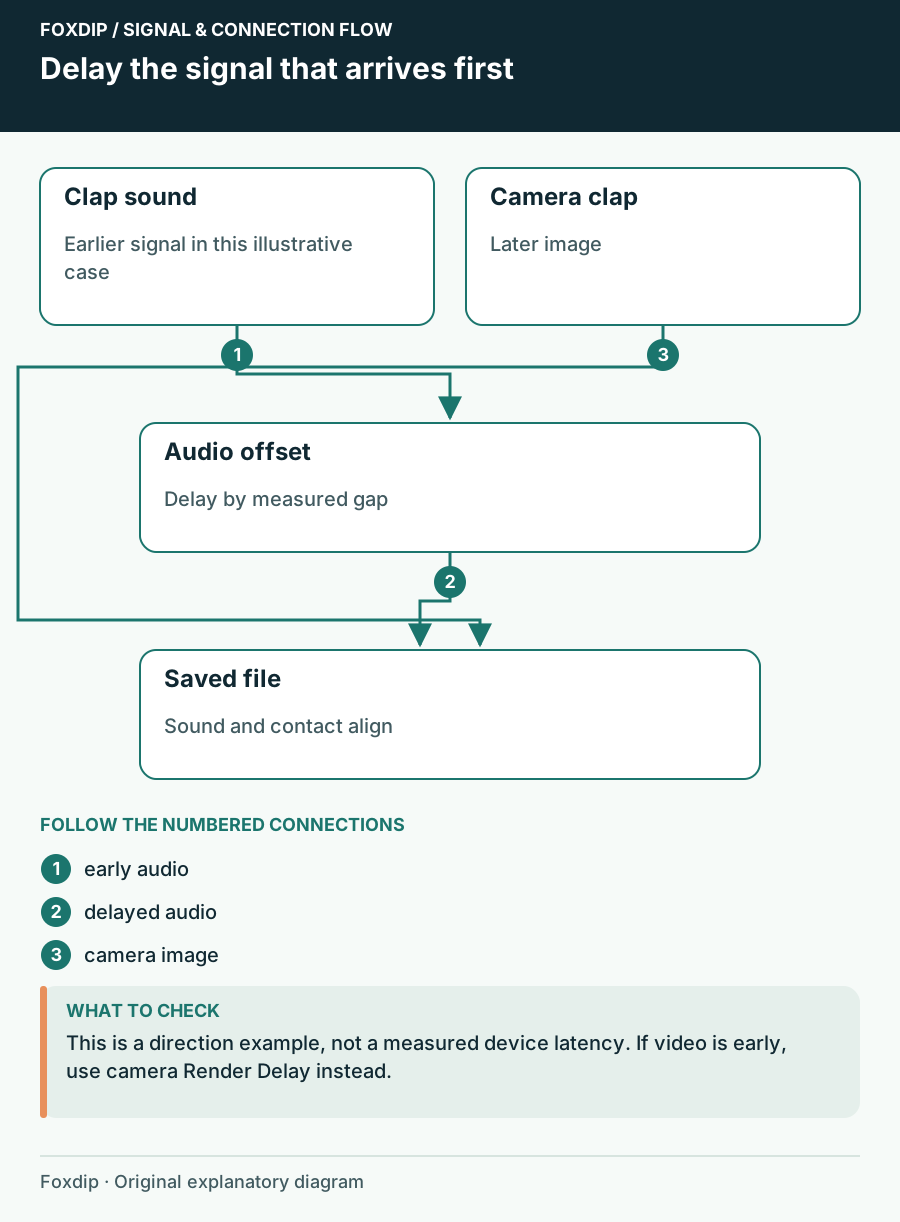
Measure which signal arrives first, delay that signal and check the saved result.
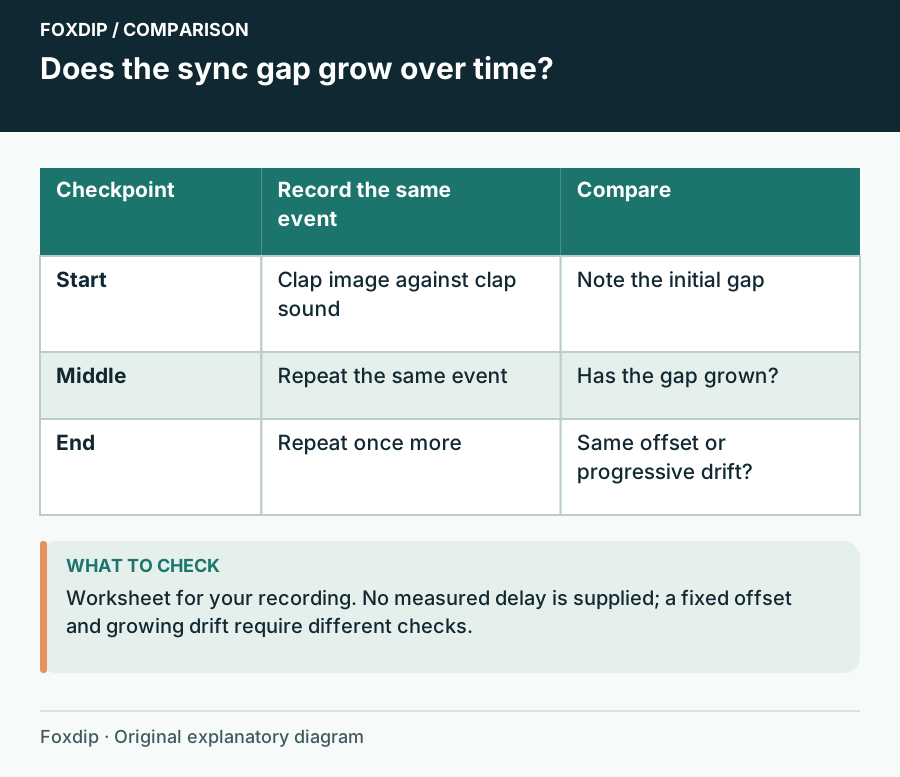
Compare timing at several points and isolate the capture path that changes over time.
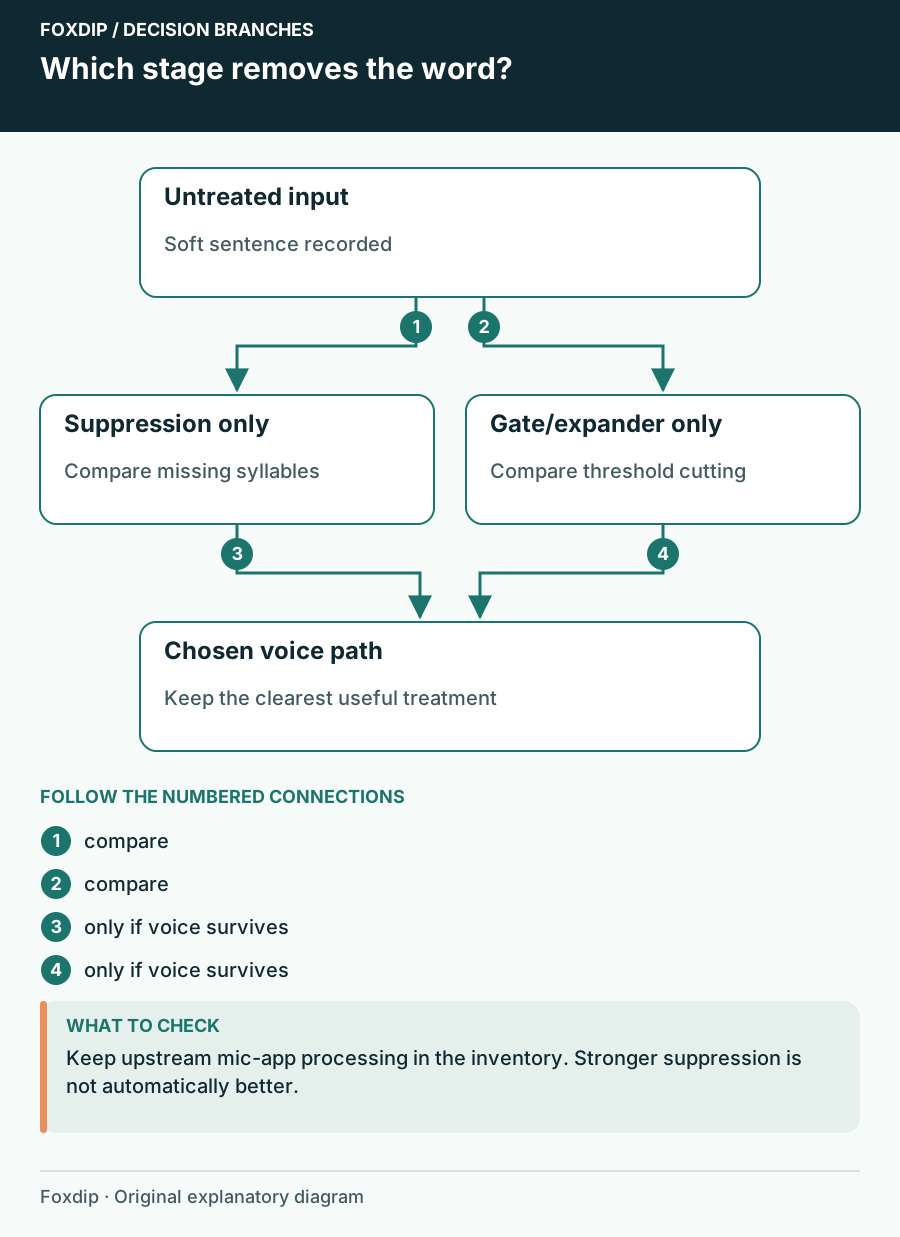
Find the processing stage removing syllables and choose a less destructive noise treatment.
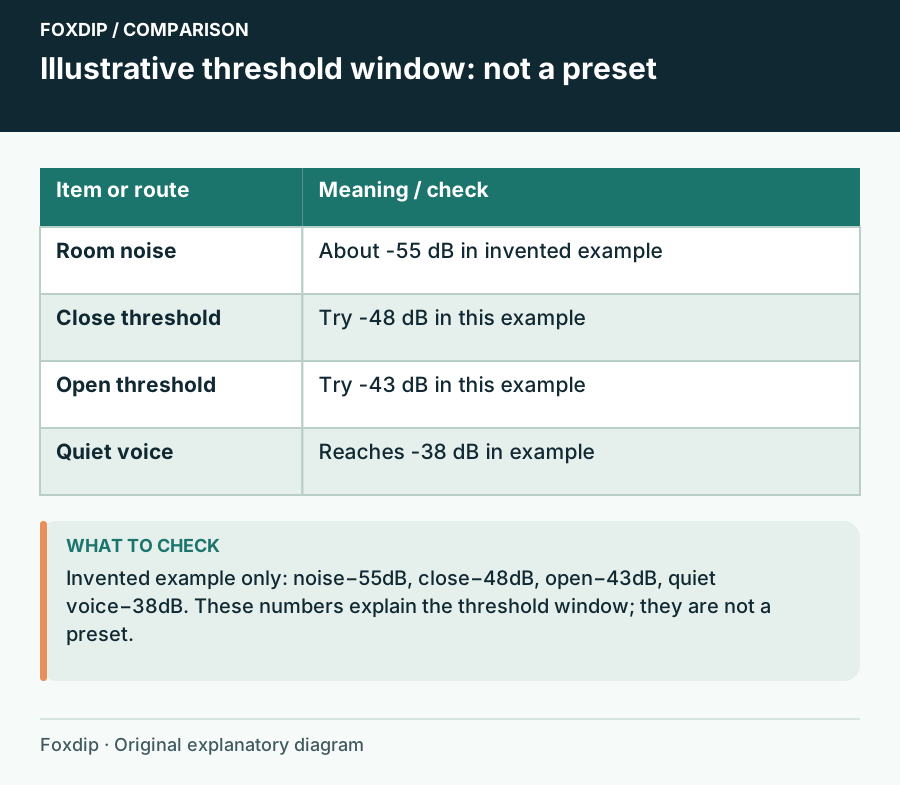
Use room noise and soft speech to set the gate instead of copying another streamer’s numbers.
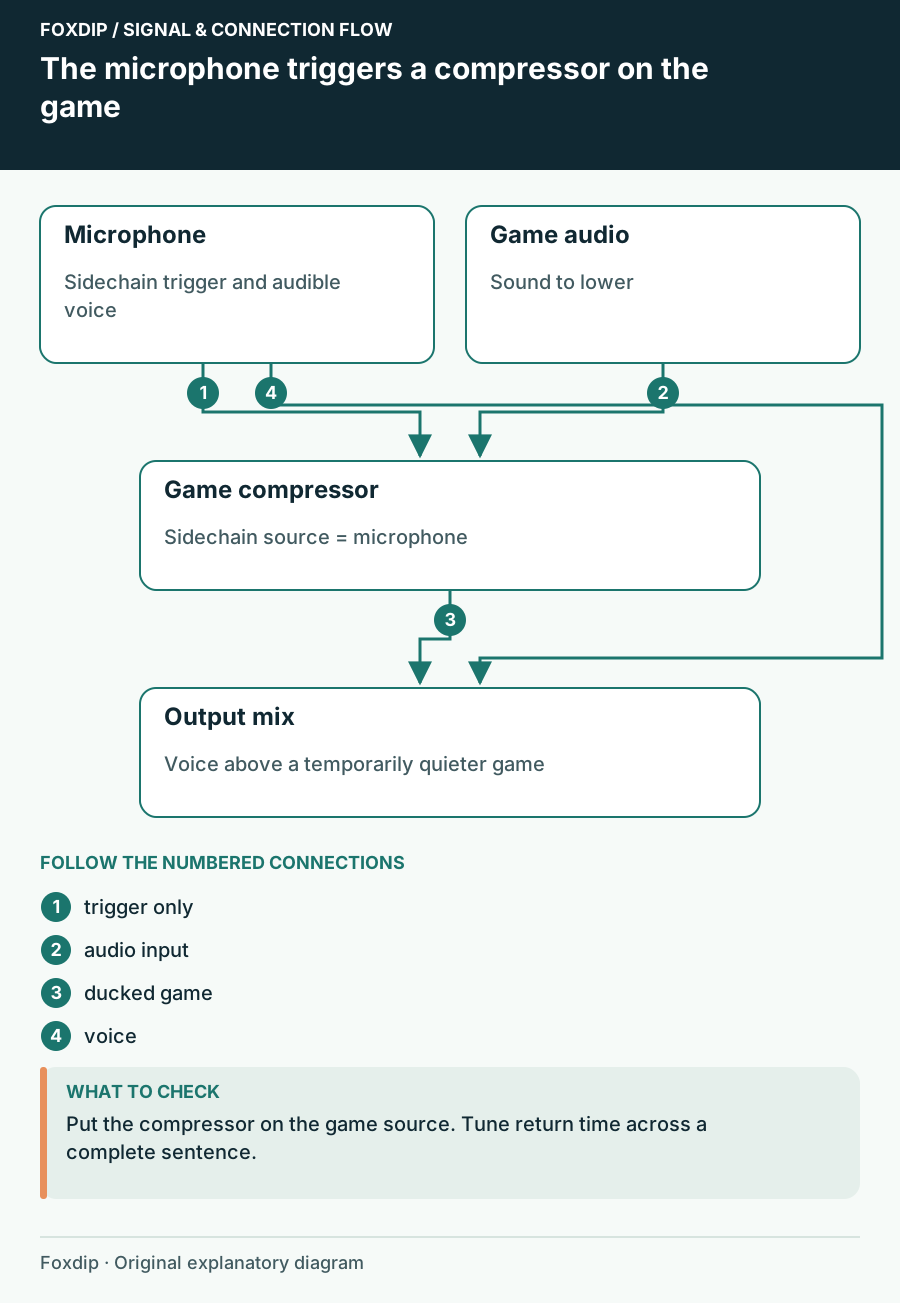
Use the microphone as a sidechain trigger and keep the game audible between phrases.
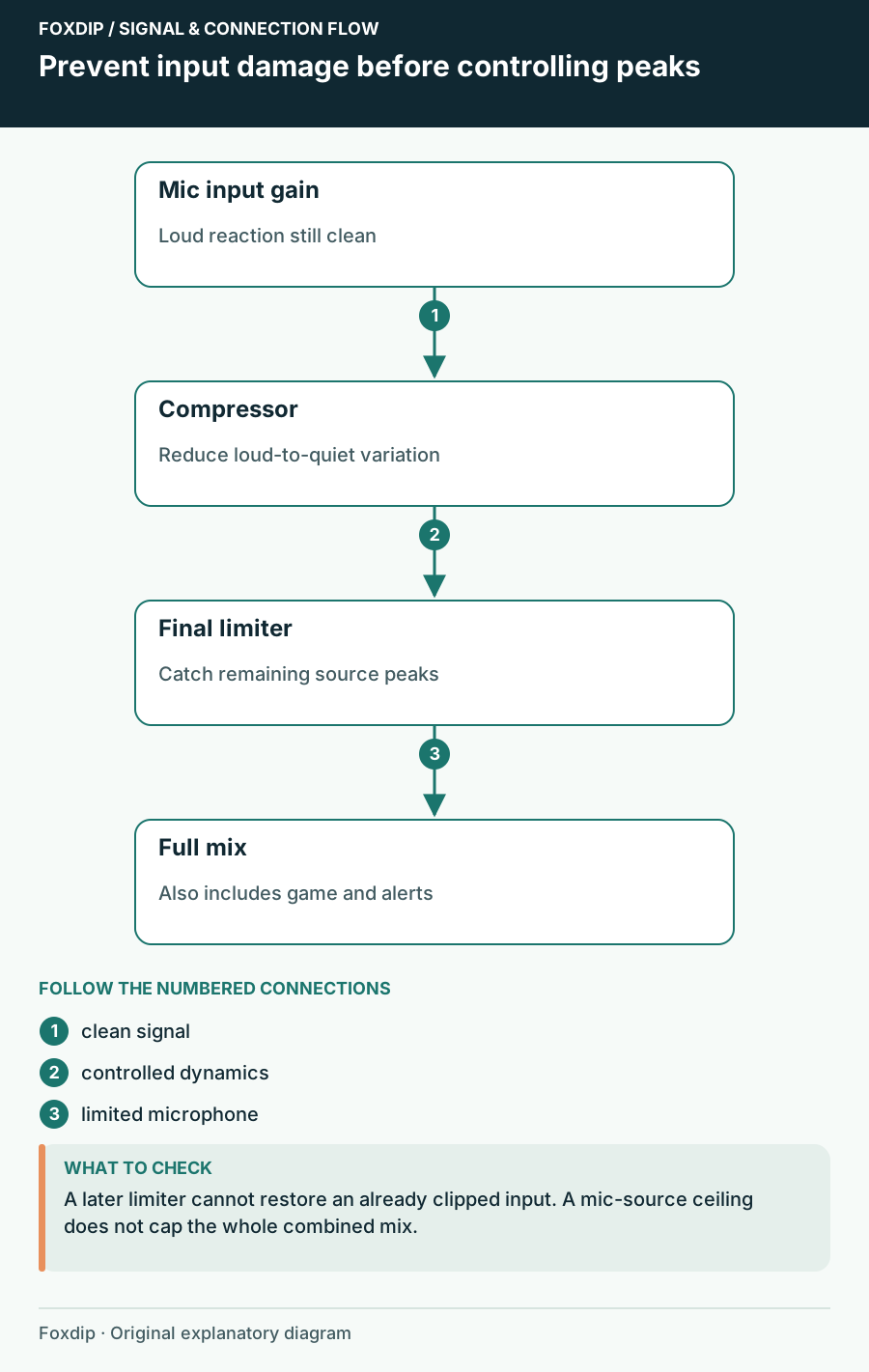
Set your mic gain first, then add a compressor and a limiter in OBS, in that order. A quick shout test shows if loud moments stay clean on stream.
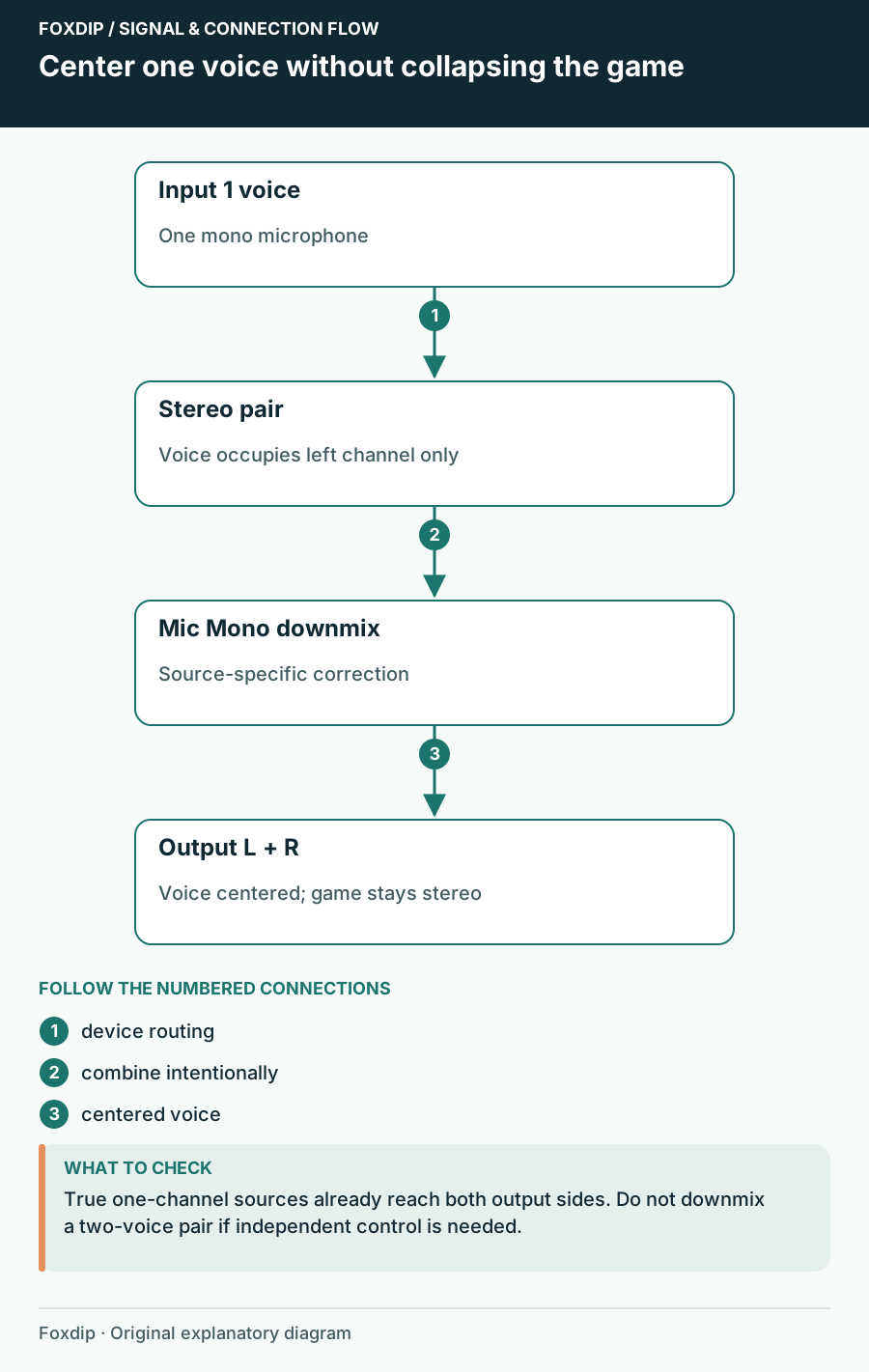
If your voice only comes out of the left side, one checkbox in OBS fixes it. Your game sound stays stereo.
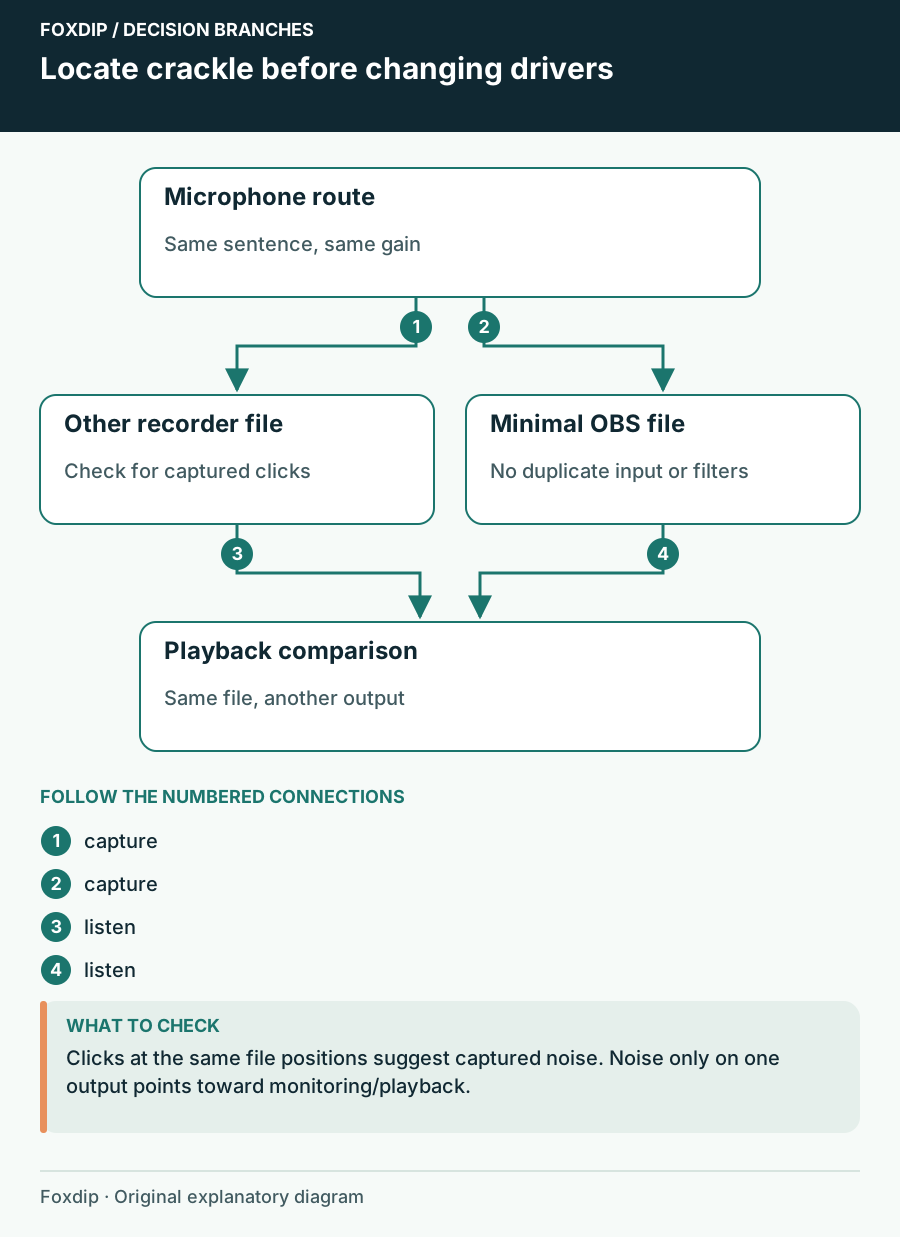
Compare the saved input, USB route and headphone playback before changing drivers.
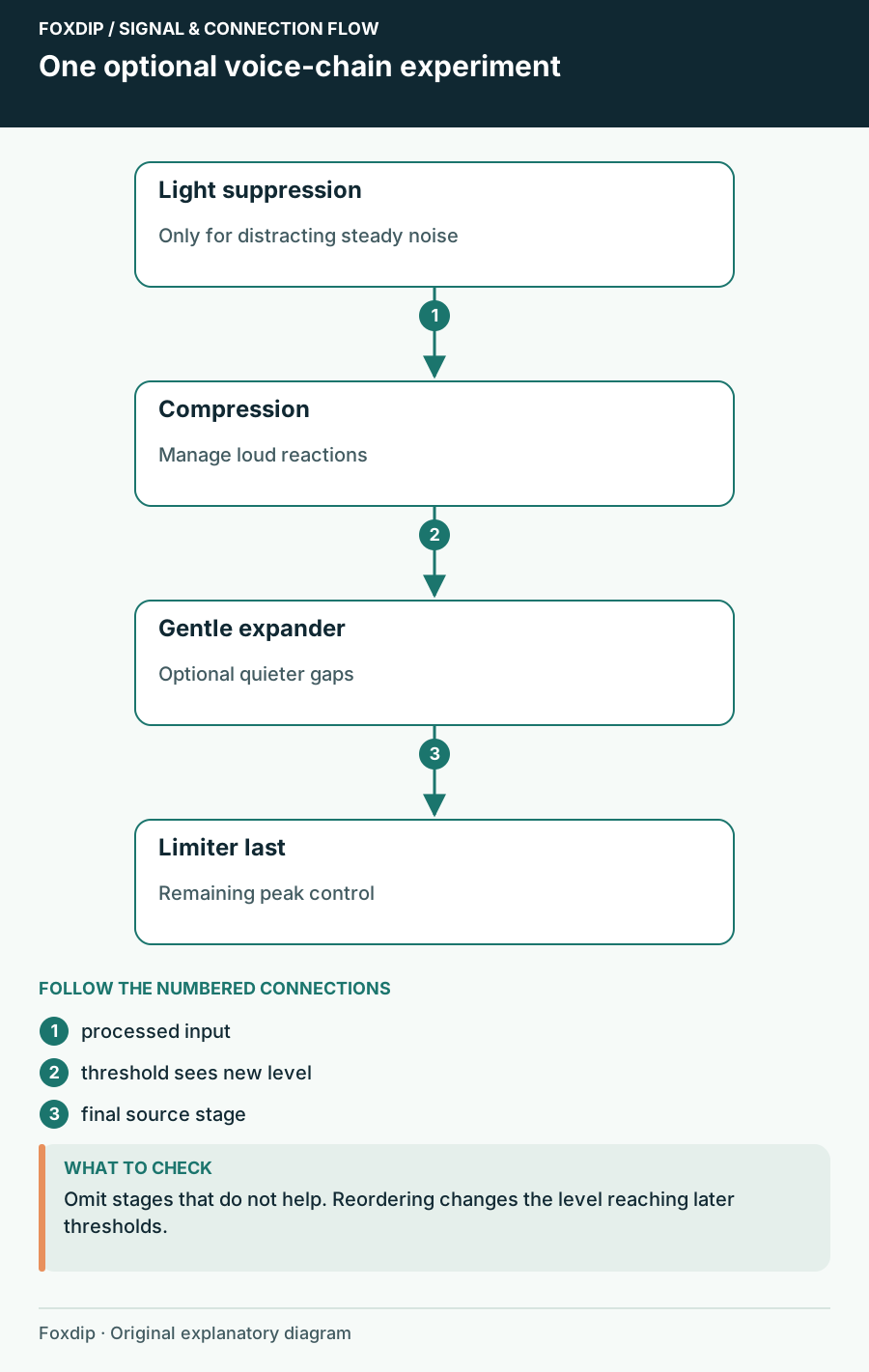
Build a microphone chain around specific problems and retune thresholds after moving filters.
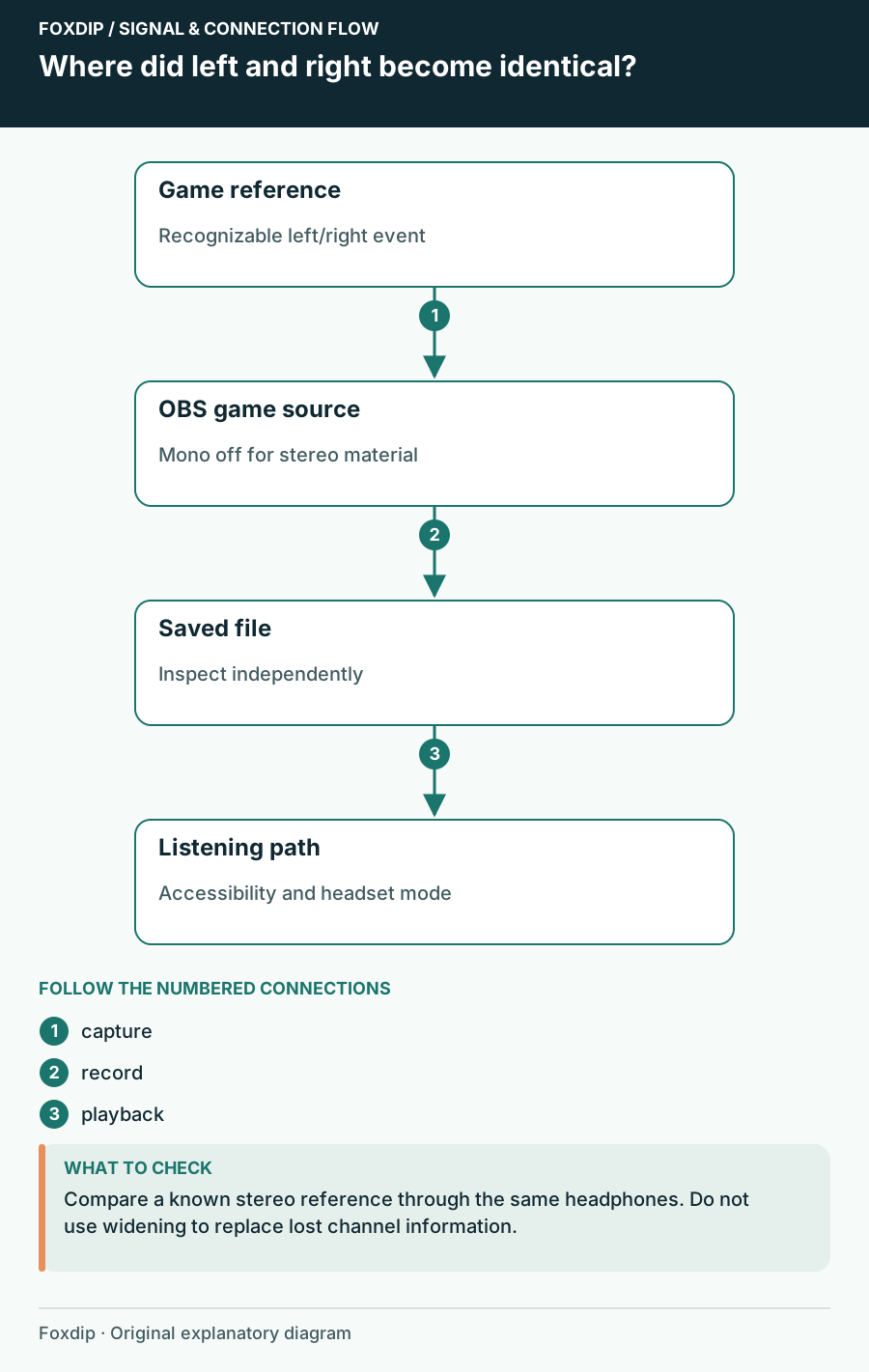
Find the point where left and right become identical before trying a widening effect.
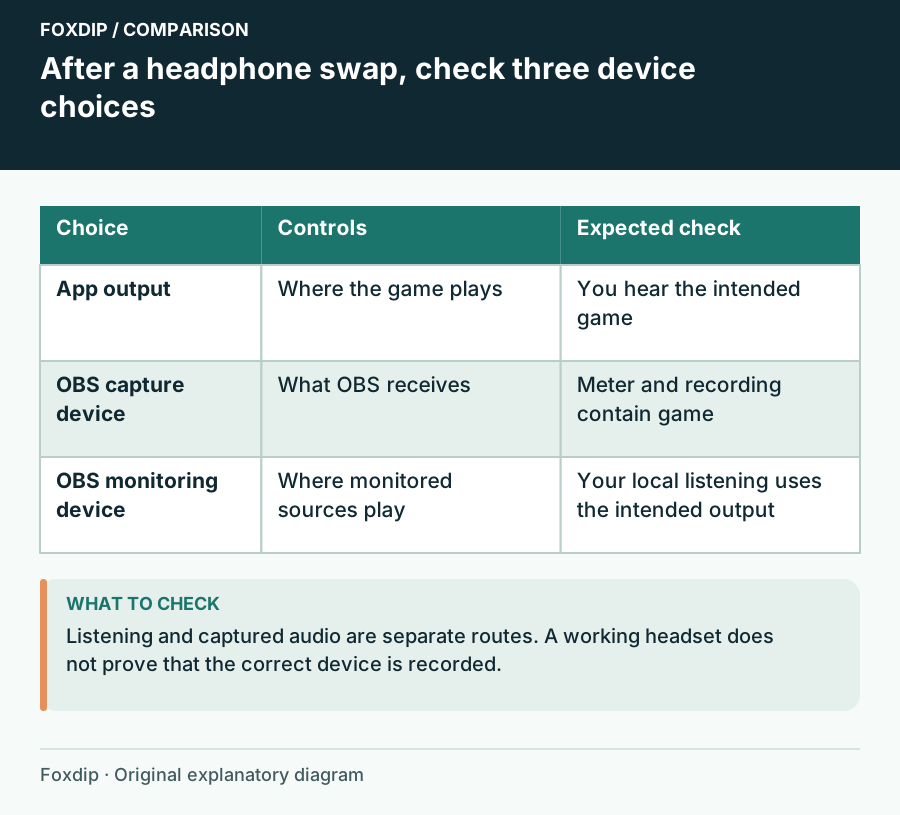
Follow Windows playback, device capture and OBS monitoring as three separate choices.
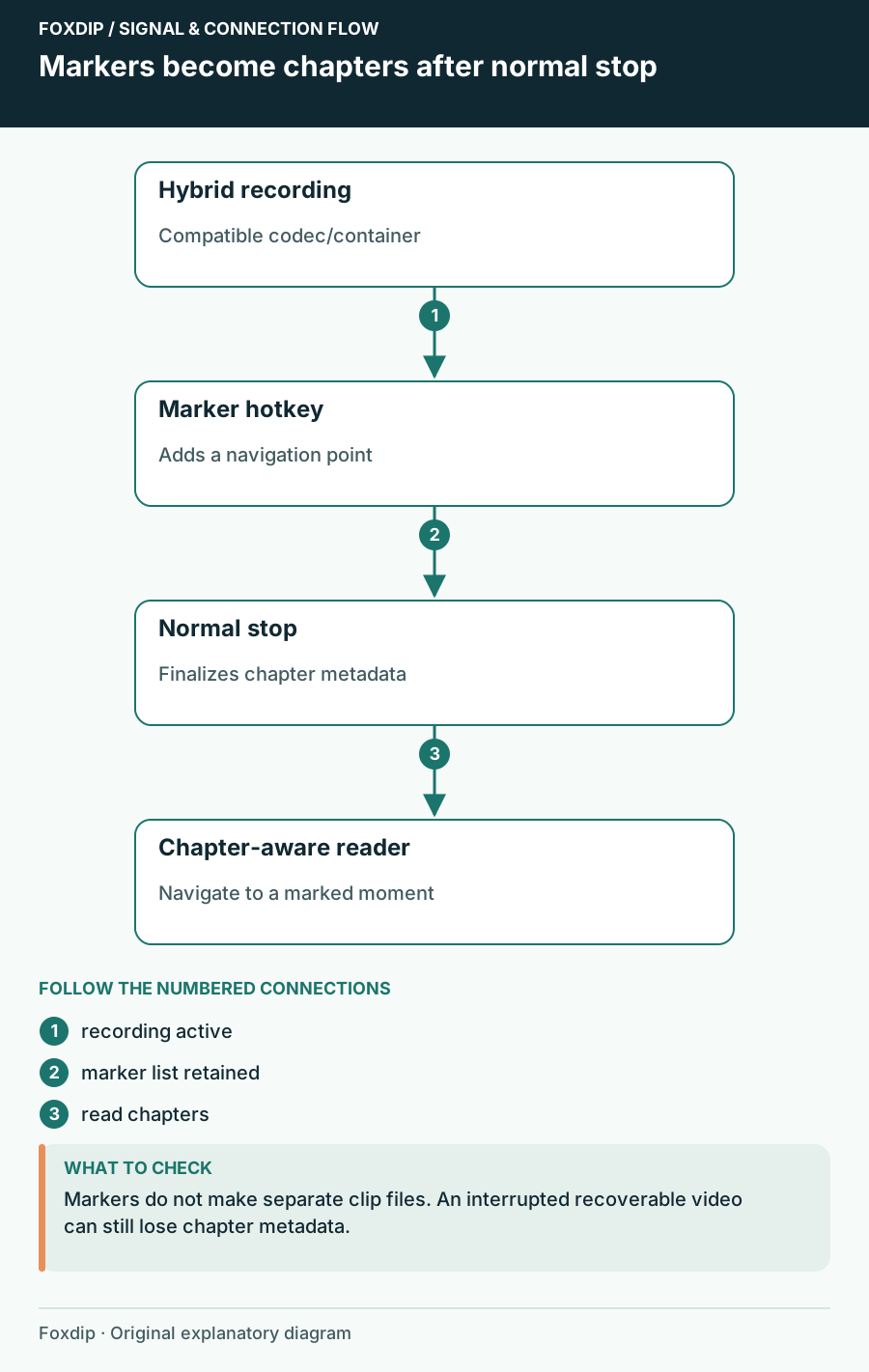
Add a chapter marker hotkey in OBS, record in Hybrid MP4 or MOV and stop normally. Then jump straight to your highlights in your player or editor.
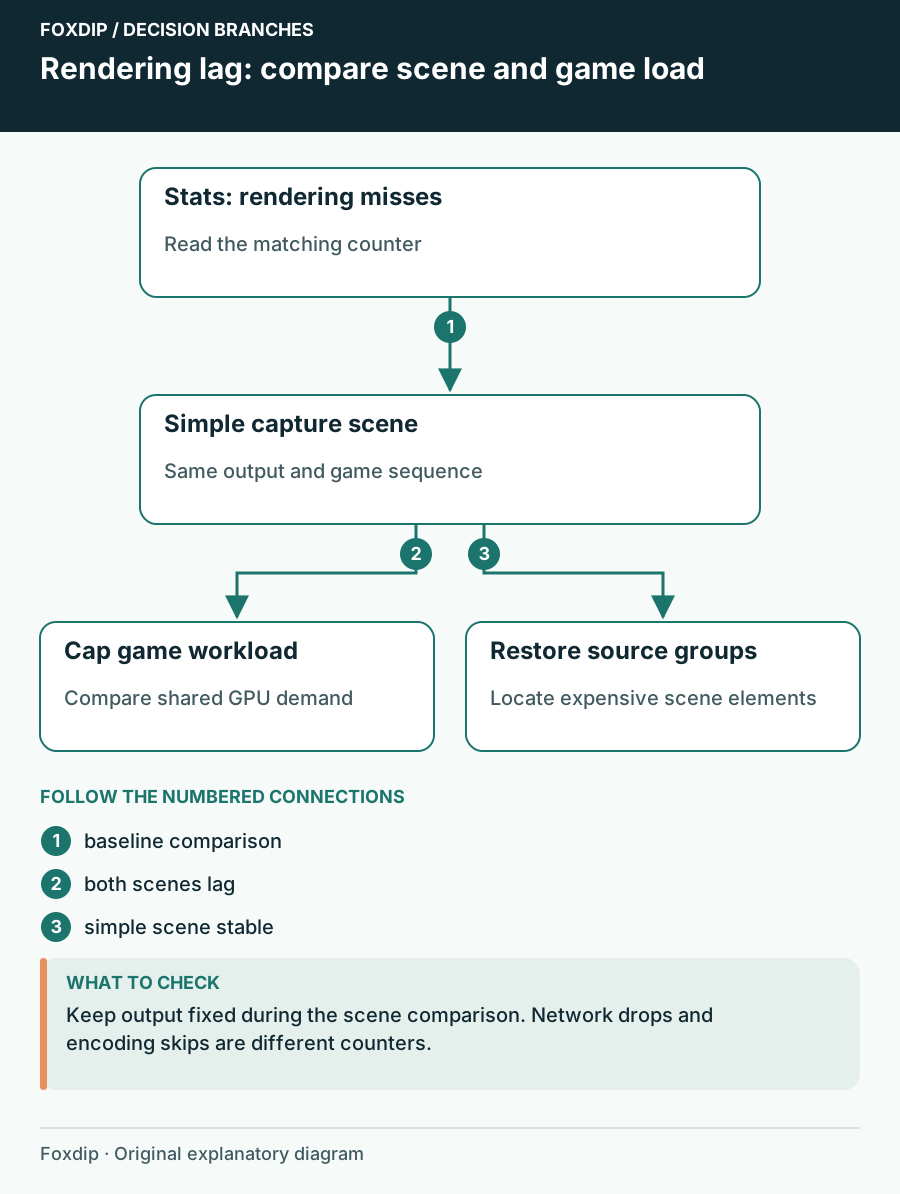
Compare scenes and game workload while watching rendering lag instead of changing bitrate blindly.
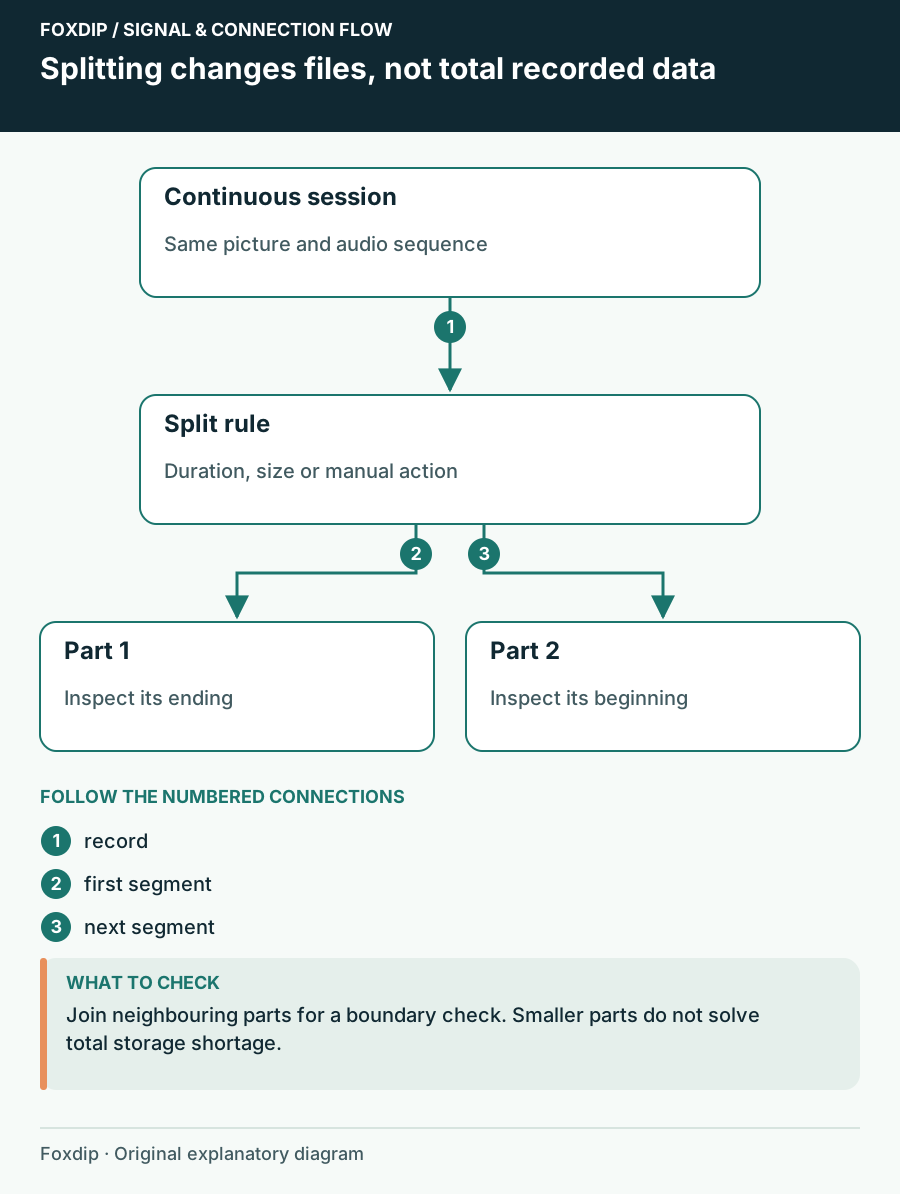
Turn on Automatic File Splitting in OBS advanced output, split by time or by size, then check two files side by side so nothing goes missing at the cut.
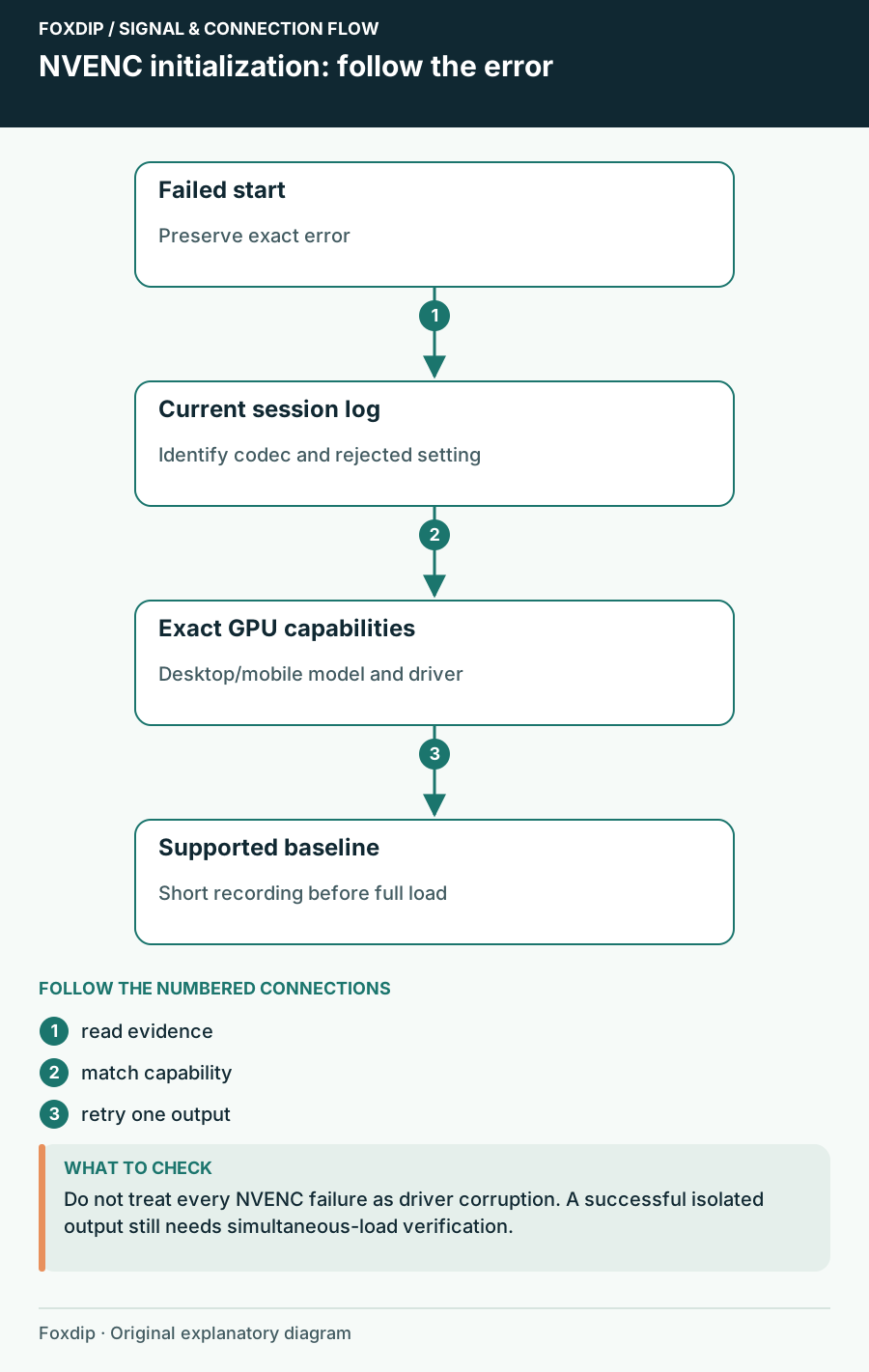
Match the failed codec and GPU capability before reinstalling software.
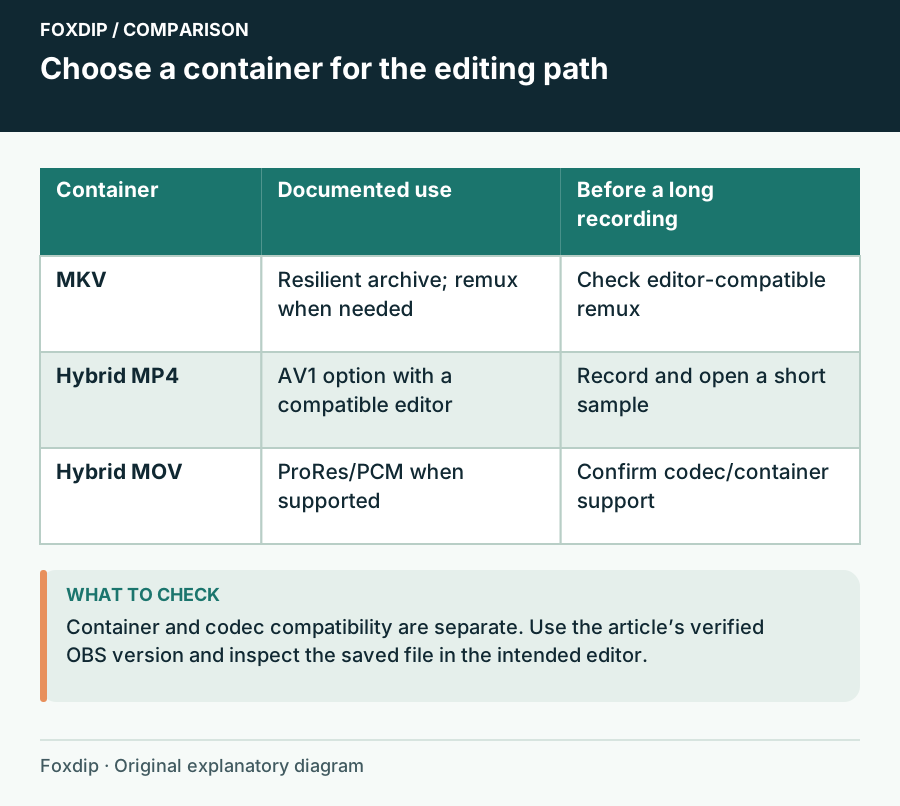
Hybrid MP4 survives a crash like MKV and opens in more editors. See when to keep MKV, when to switch, and the short test to run before a long recording.
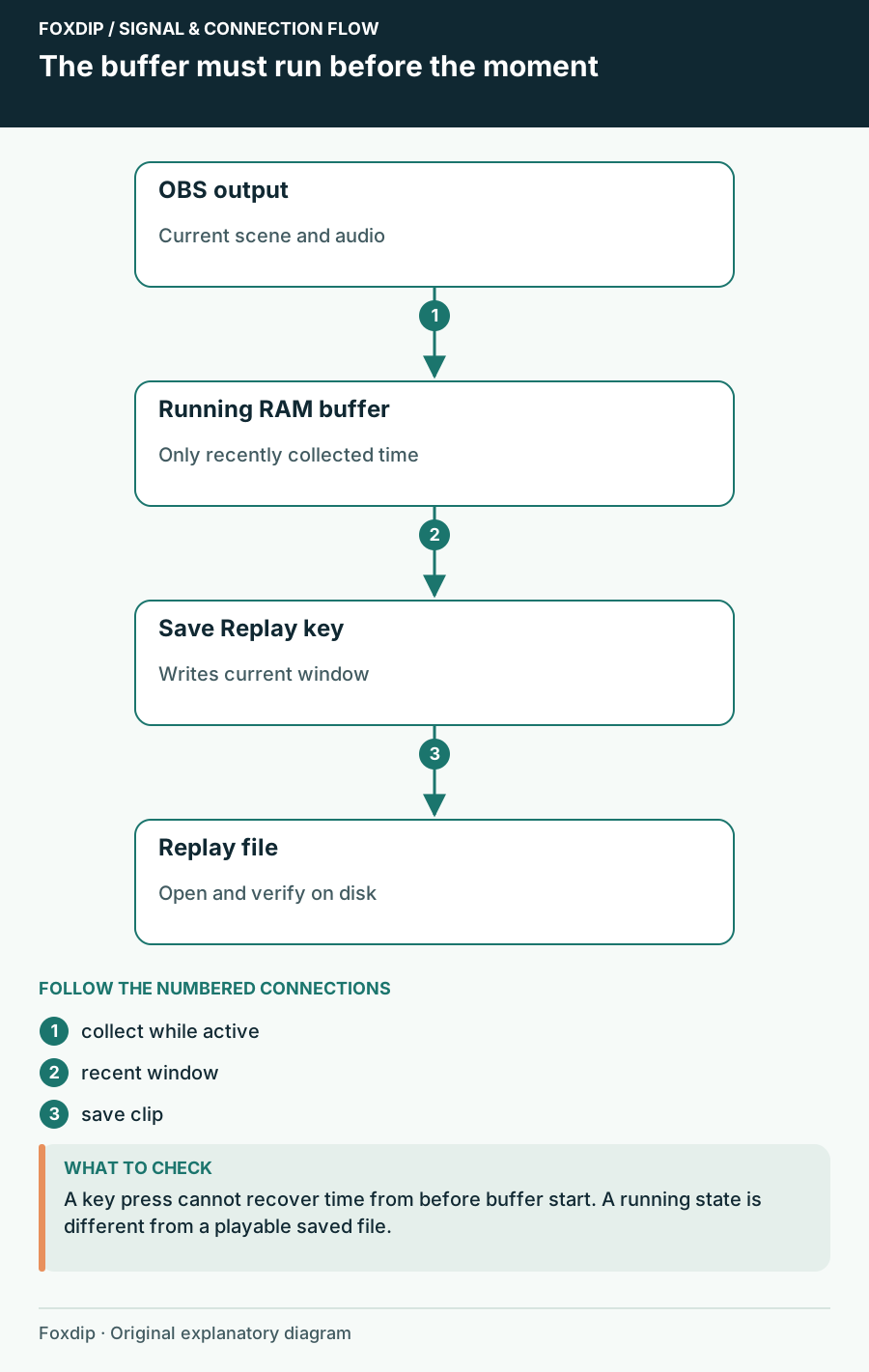
Set up the OBS Replay Buffer, give it a hotkey and save the last 30 seconds whenever something good happens.
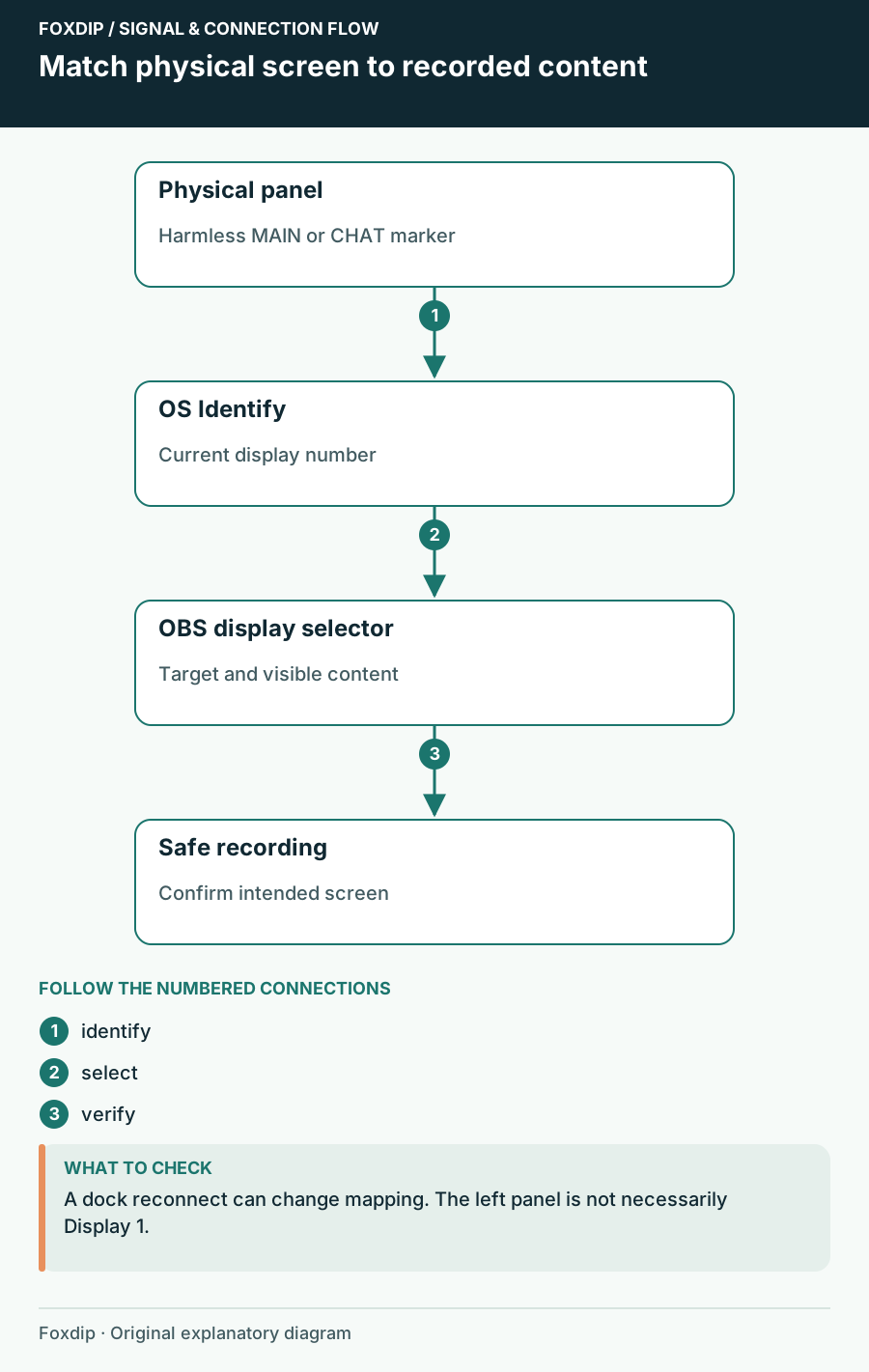
Use your system's Identify displays to match each number to a screen, then pick that display in your OBS capture source. Check again after a cable change.
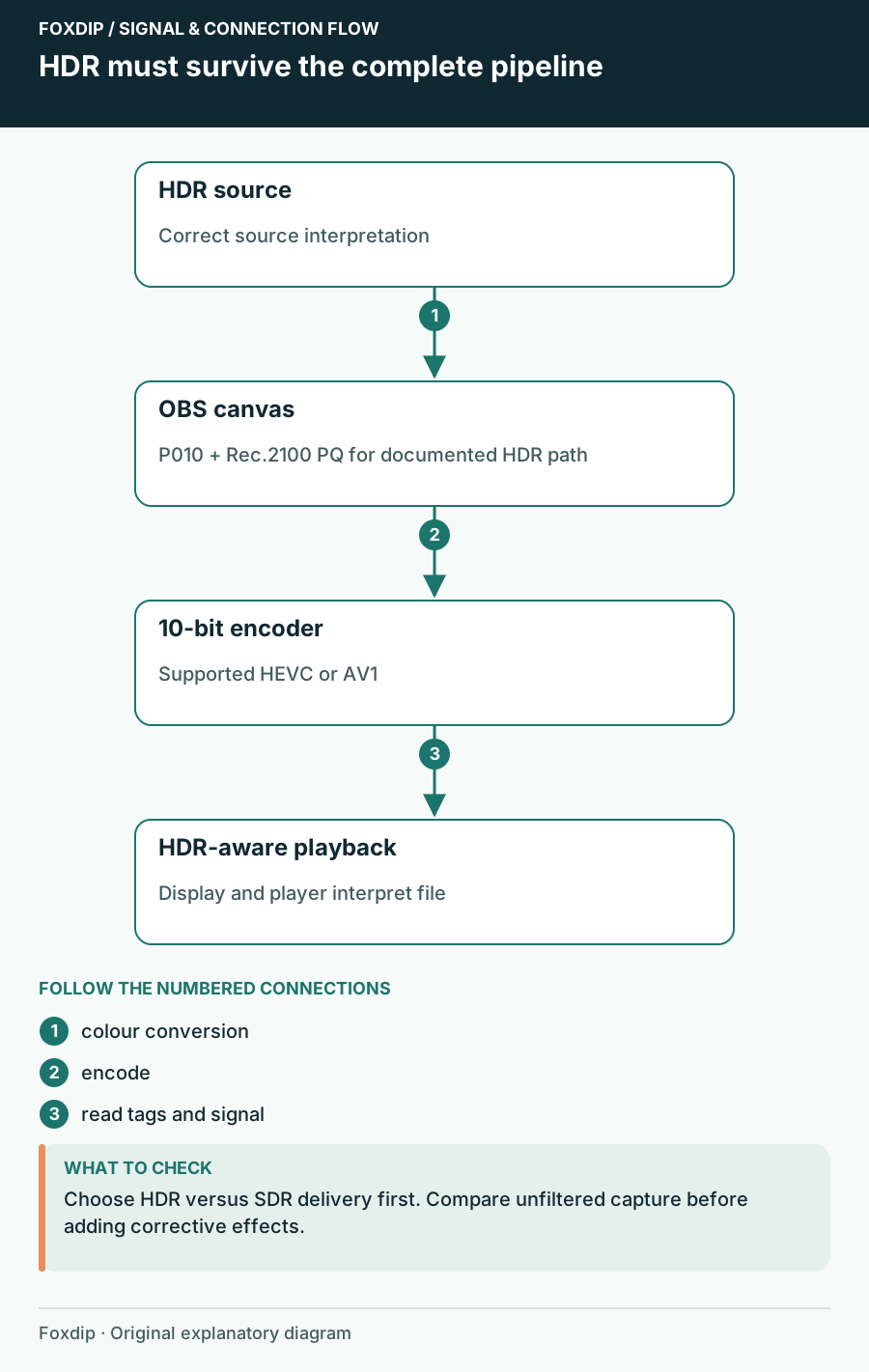
Grey, faded colours in your OBS recording usually mean HDR and SDR got mixed up. Here's how to fix it.
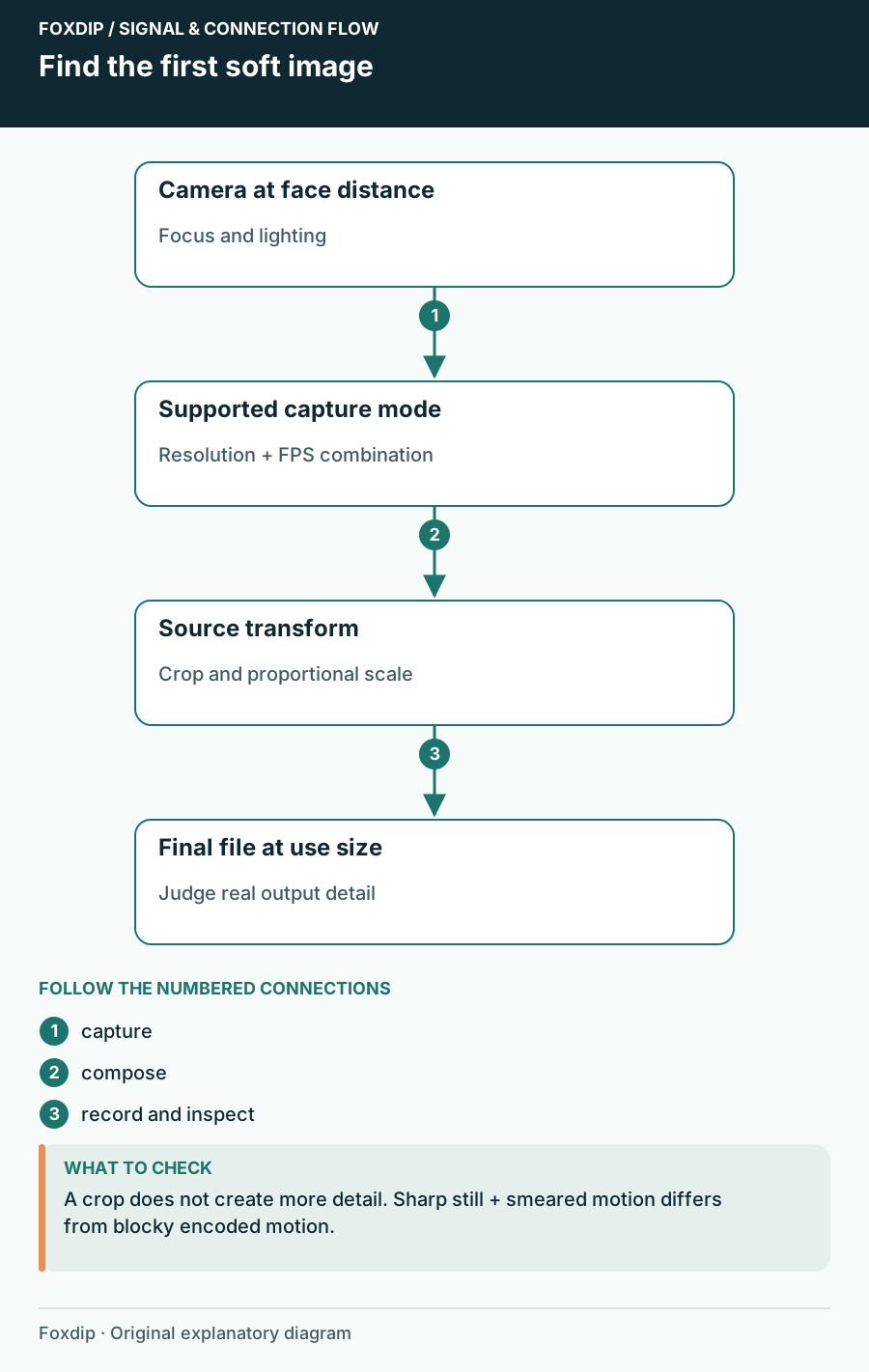
Check the resolution and FPS your camera really sends, then its focus, then how the scene scales it. You'll see exactly where the detail gets lost.
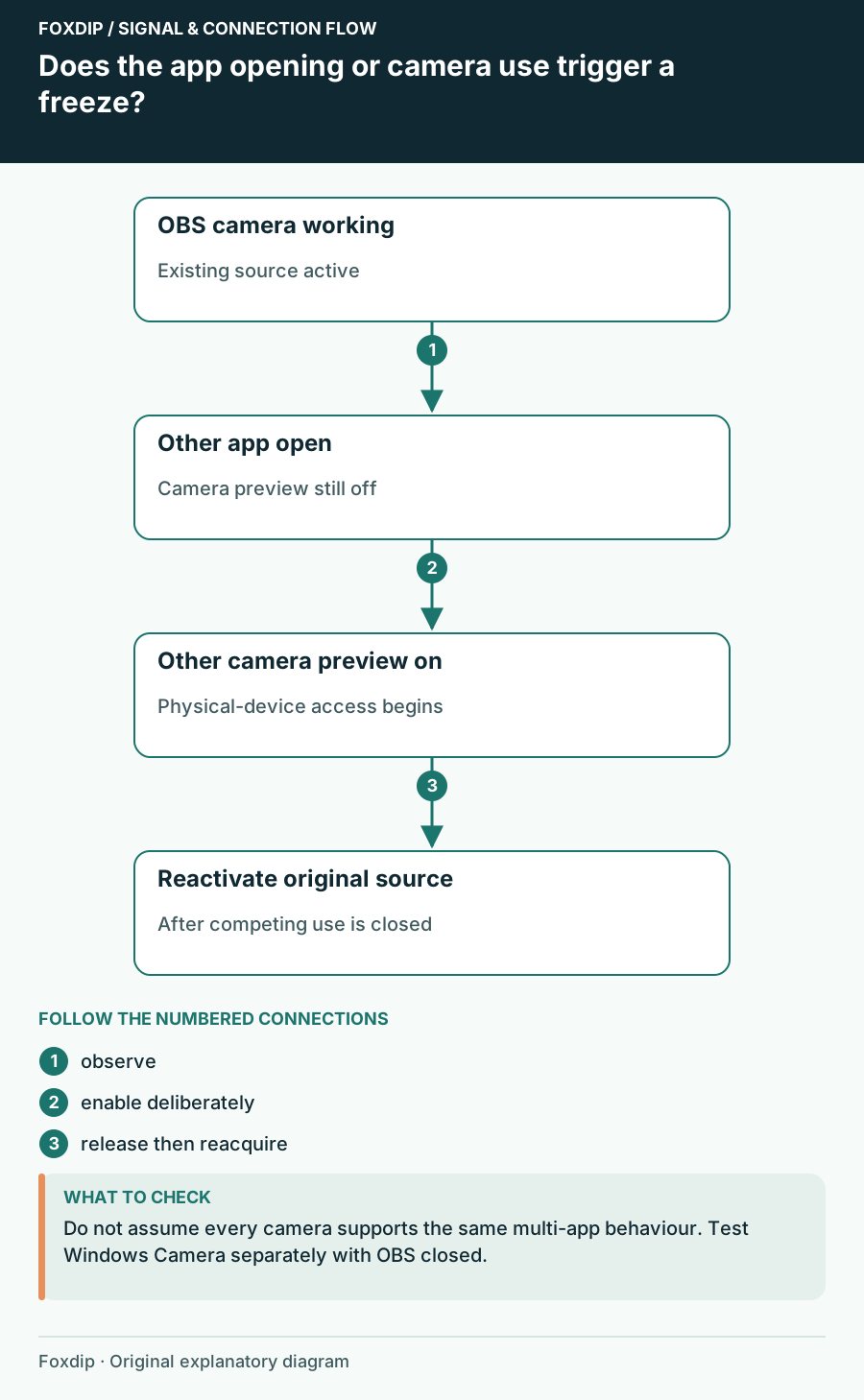
Check camera ownership and reconnect the existing source before rebuilding the scene.
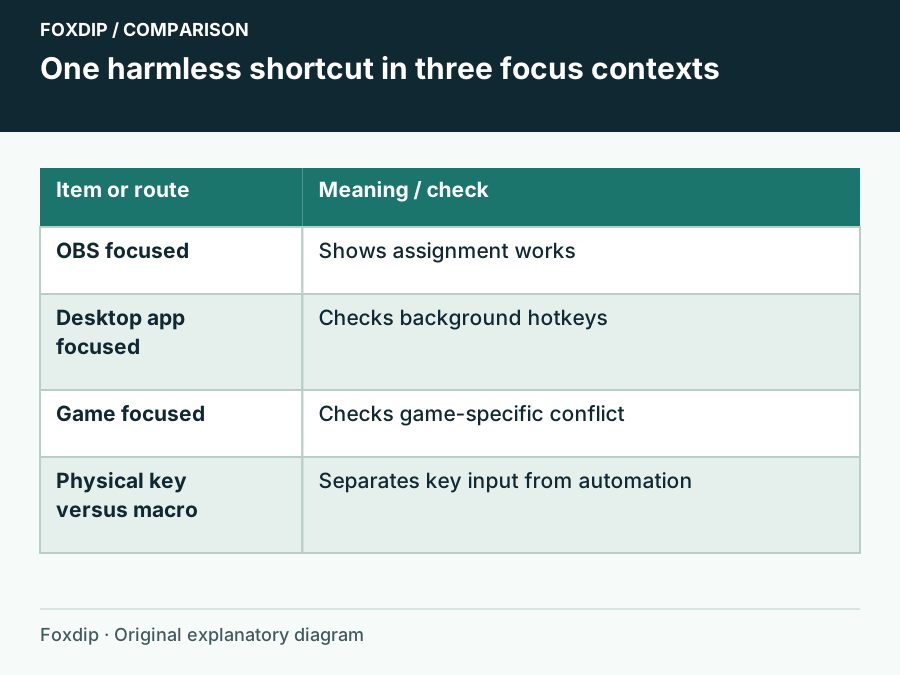
Compare the same shortcut in OBS, on the desktop and in the game before changing permissions.
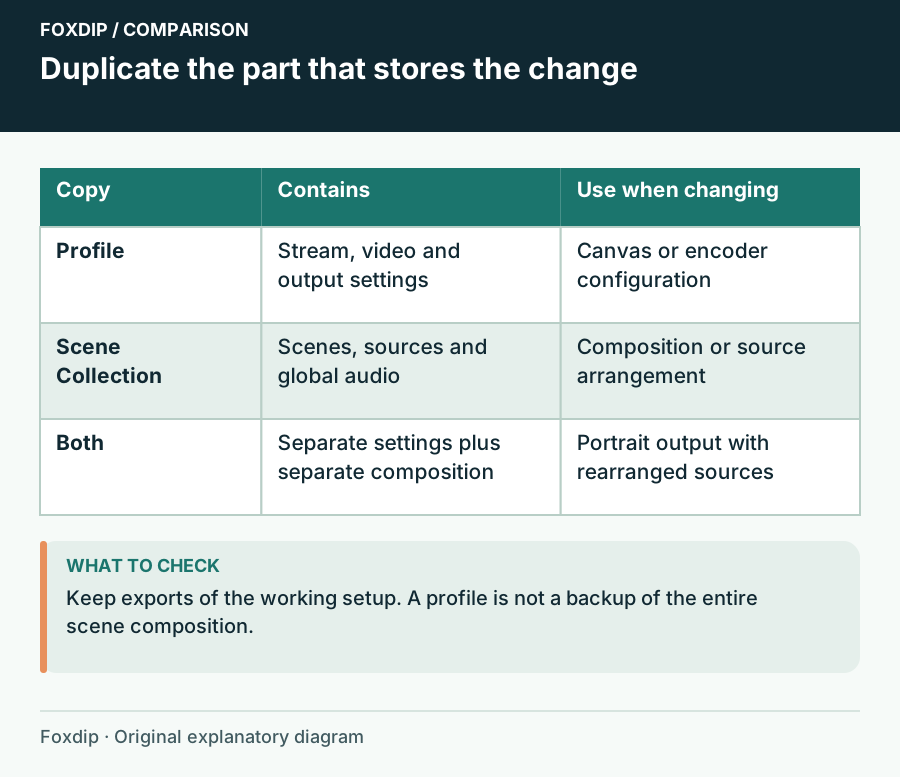
Profiles hold your stream and recording settings, scene collections hold your scenes and sources. Know which one to duplicate before you test something.
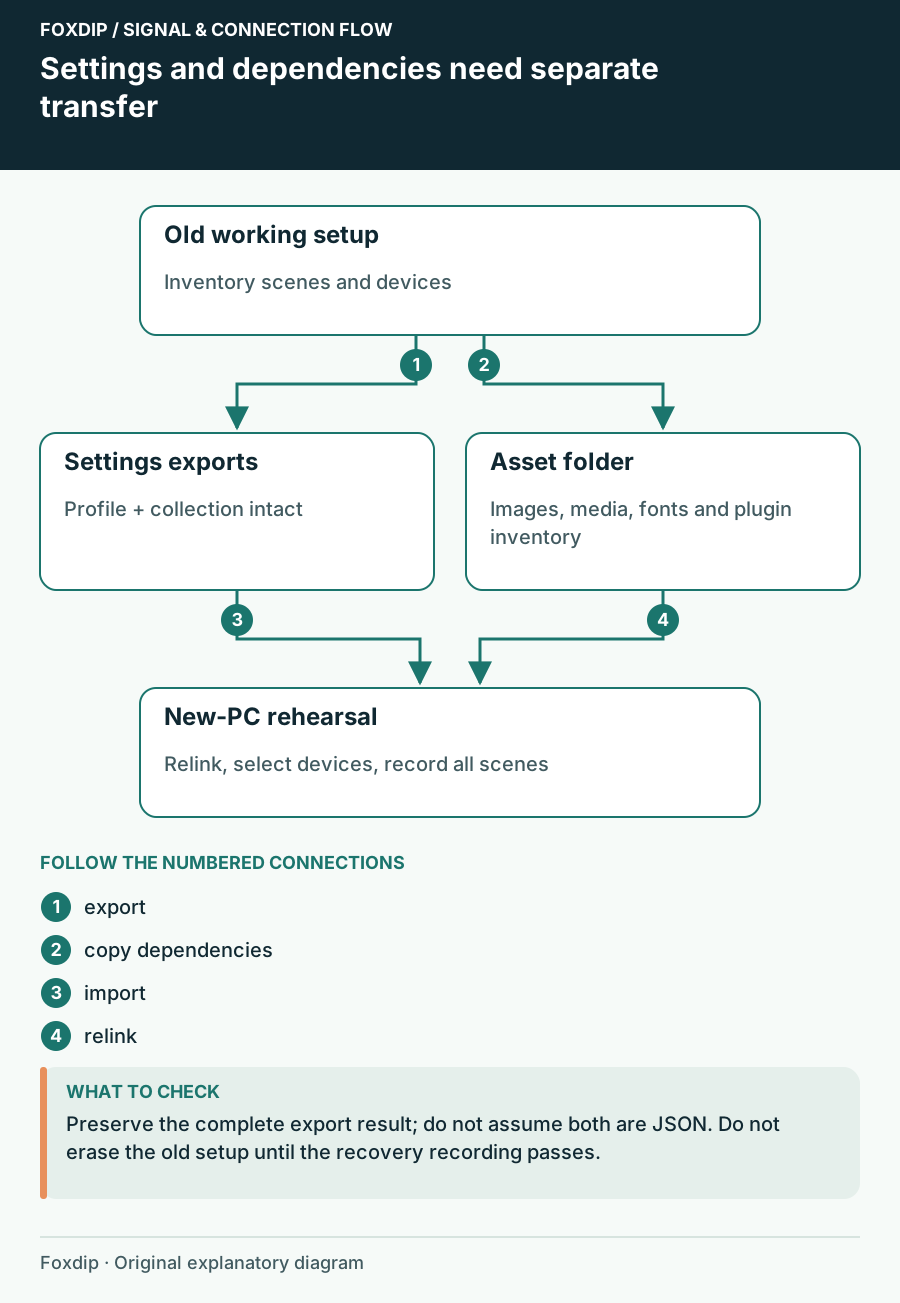
Export your OBS profile and scene collection, copy the images and videos they use, then relink them on the new PC so no source shows up missing.
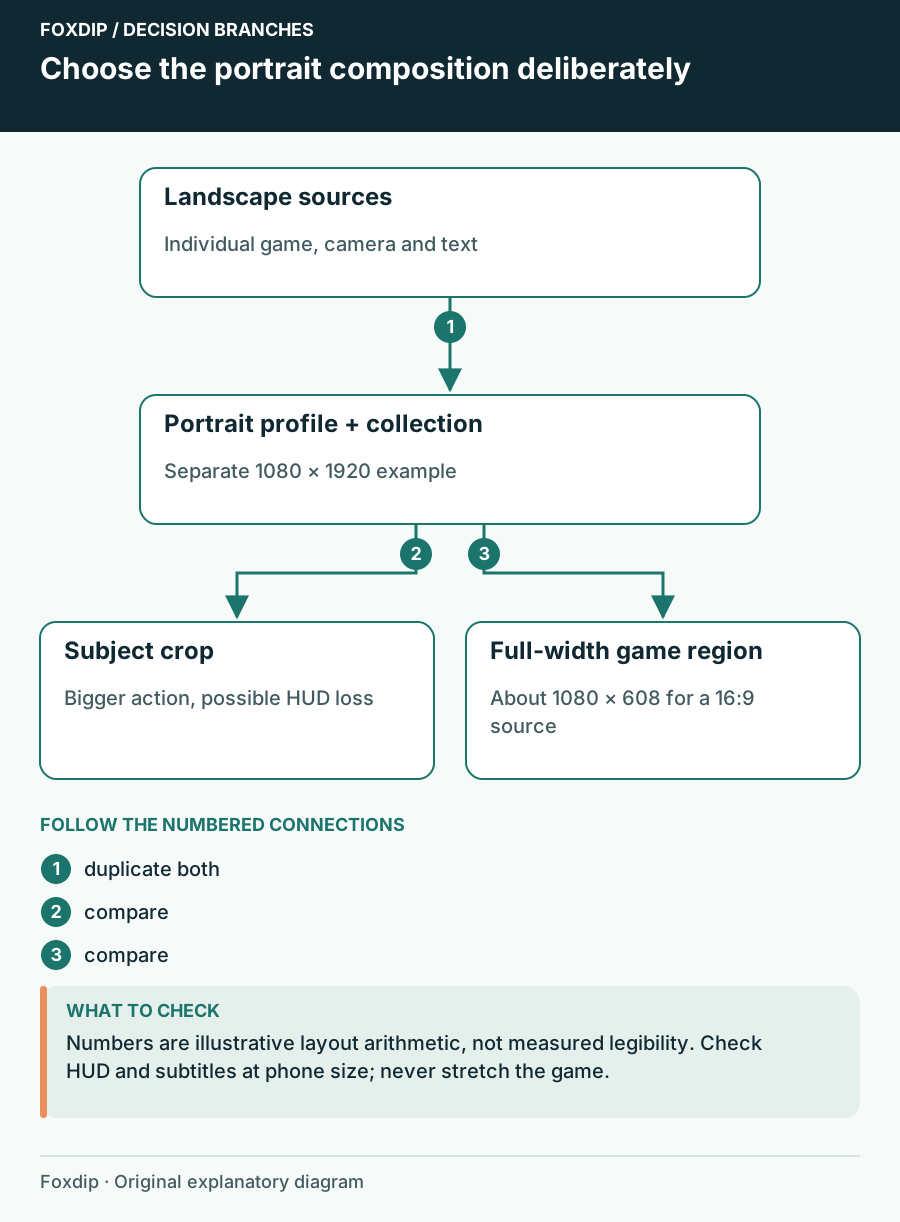
Make OBS portrait the clean way: duplicate your setup, switch to a vertical canvas, then move your game, camera and text so nothing important gets cut.
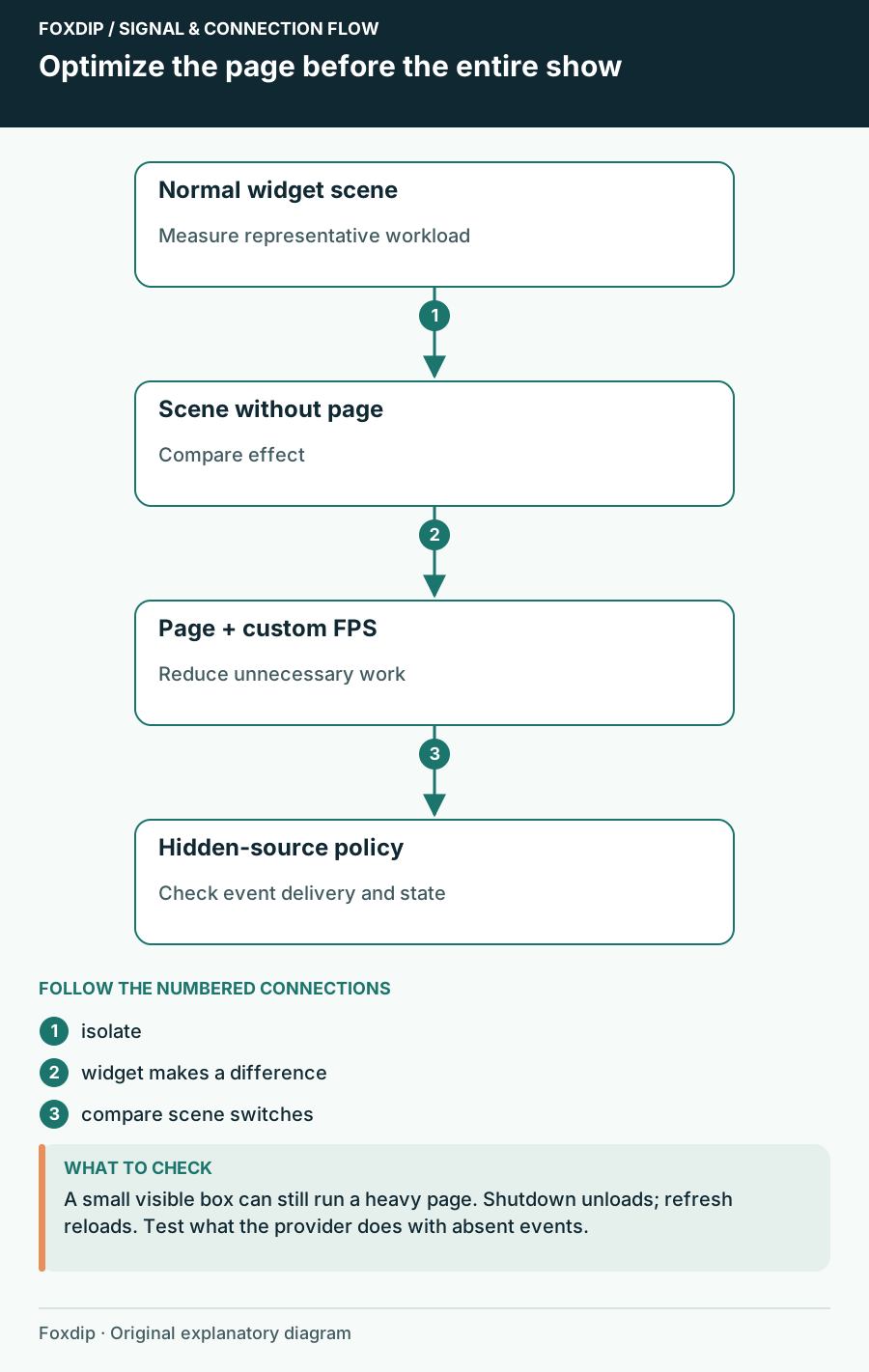
Compare the page, browser frame rate and hidden-source behaviour without losing alerts unexpectedly.
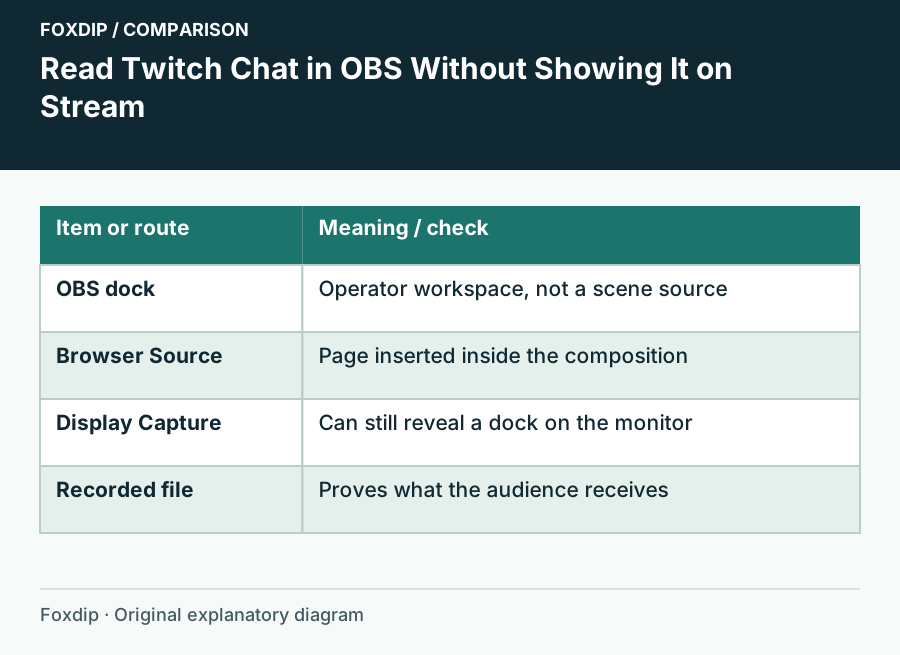
Add Twitch chat as an OBS dock so only you see it while you stream, plus the quick check that keeps chat from slipping into your capture by mistake.
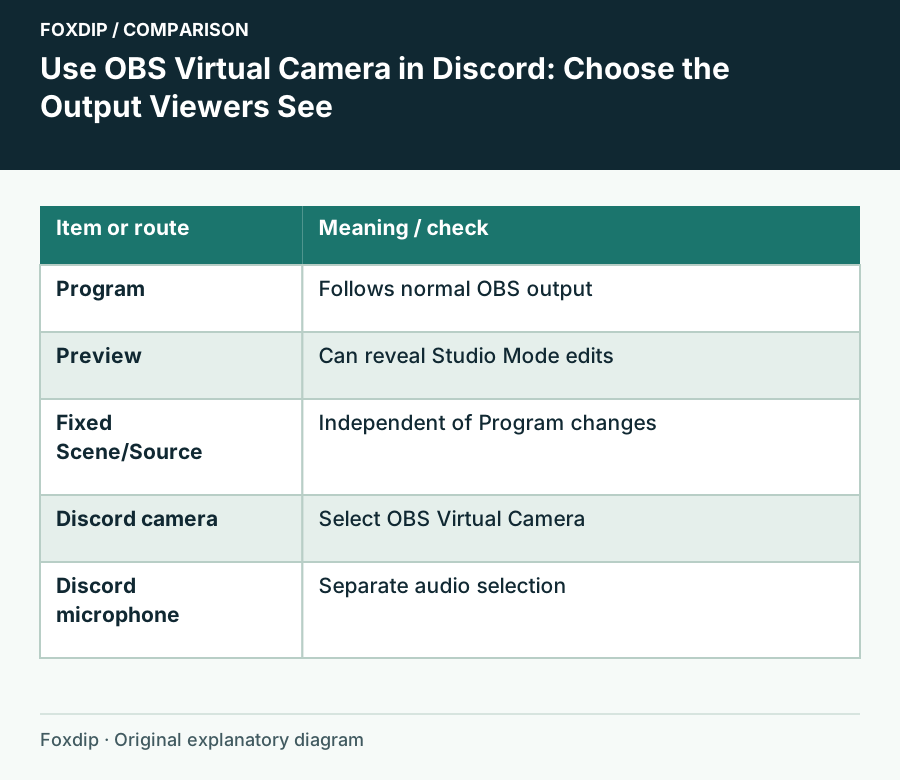
Start OBS Virtual Camera, pick it as your camera in Discord, and choose what Discord sees: the whole program, one scene or one source. Set the mic apart.
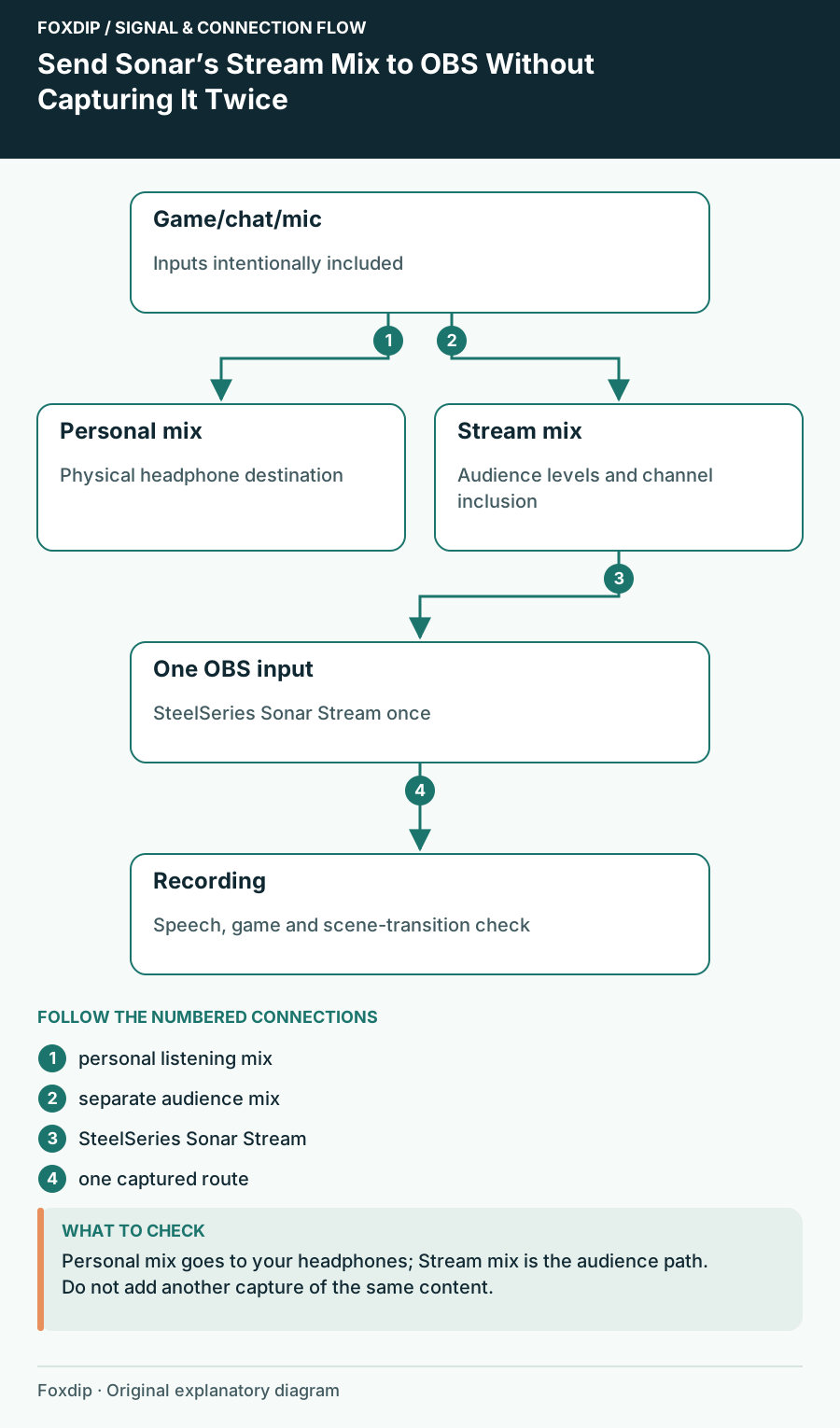
Build the audience mix separately from your headphones and check for duplicate inputs in an OBS recording.
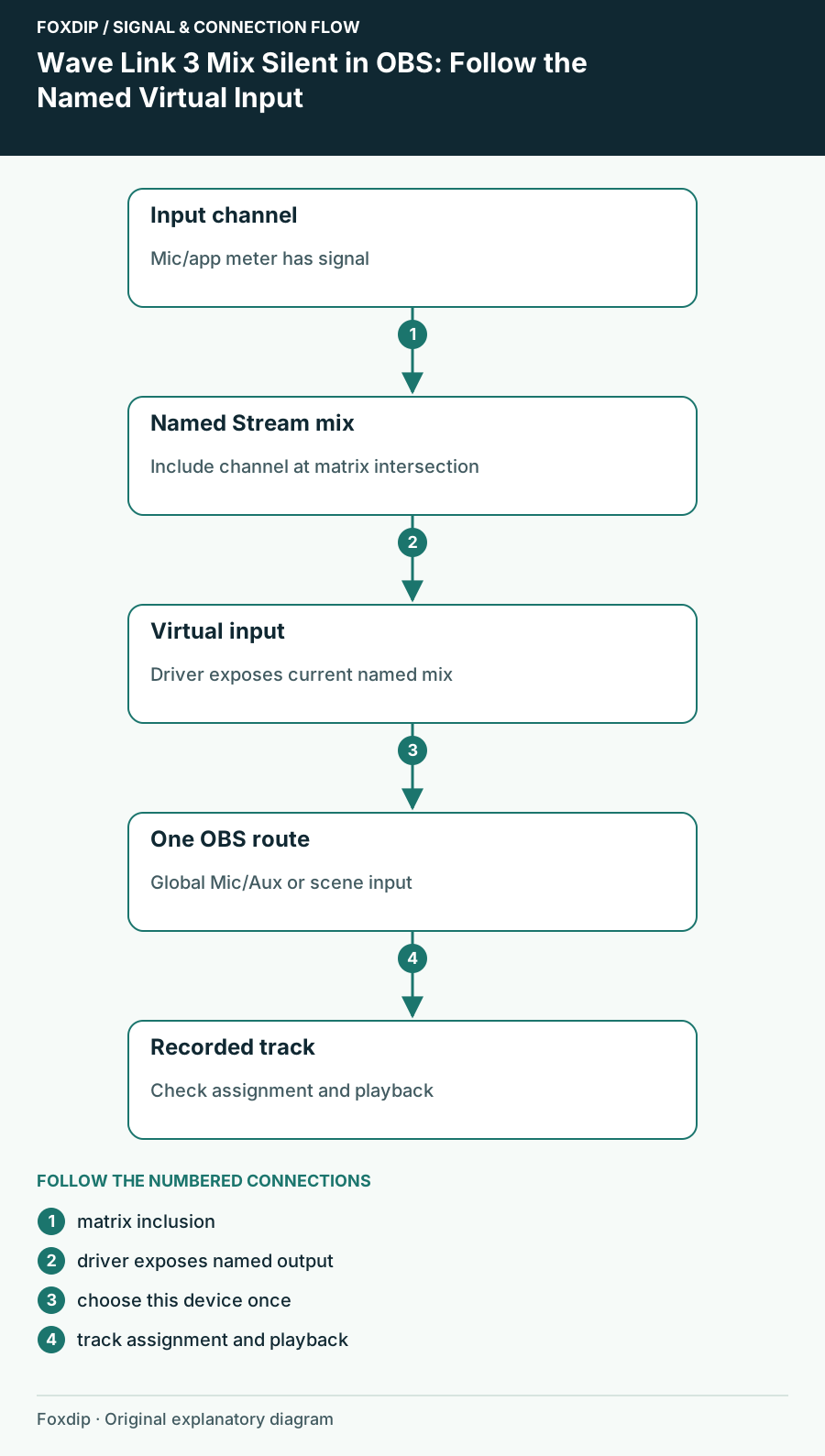
Find the mix you actually created in Wave Link 3 and trace it into one OBS input instead of relying on an old device label.
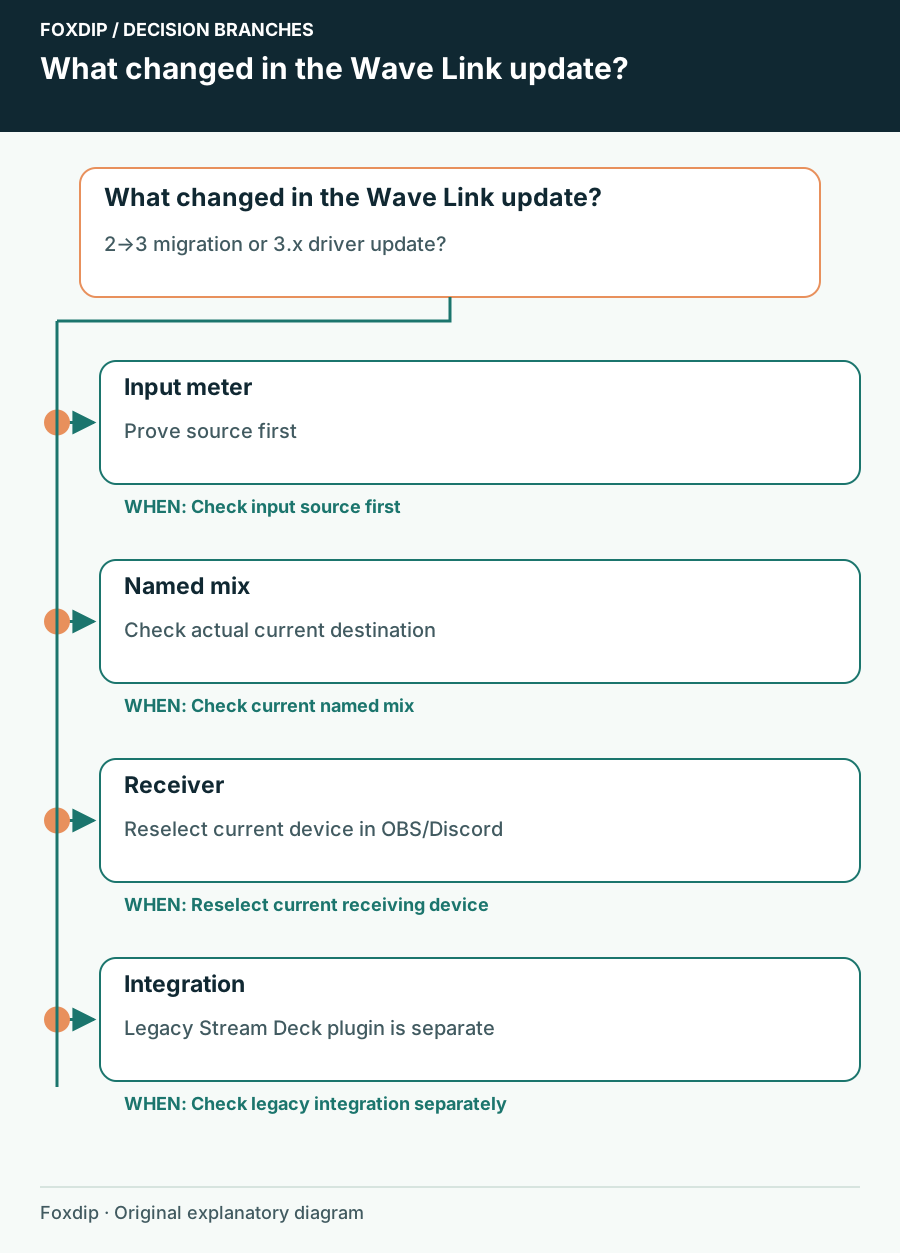
Compare current virtual-device names, application assignments and the audience mix before assuming an update damaged your setup.
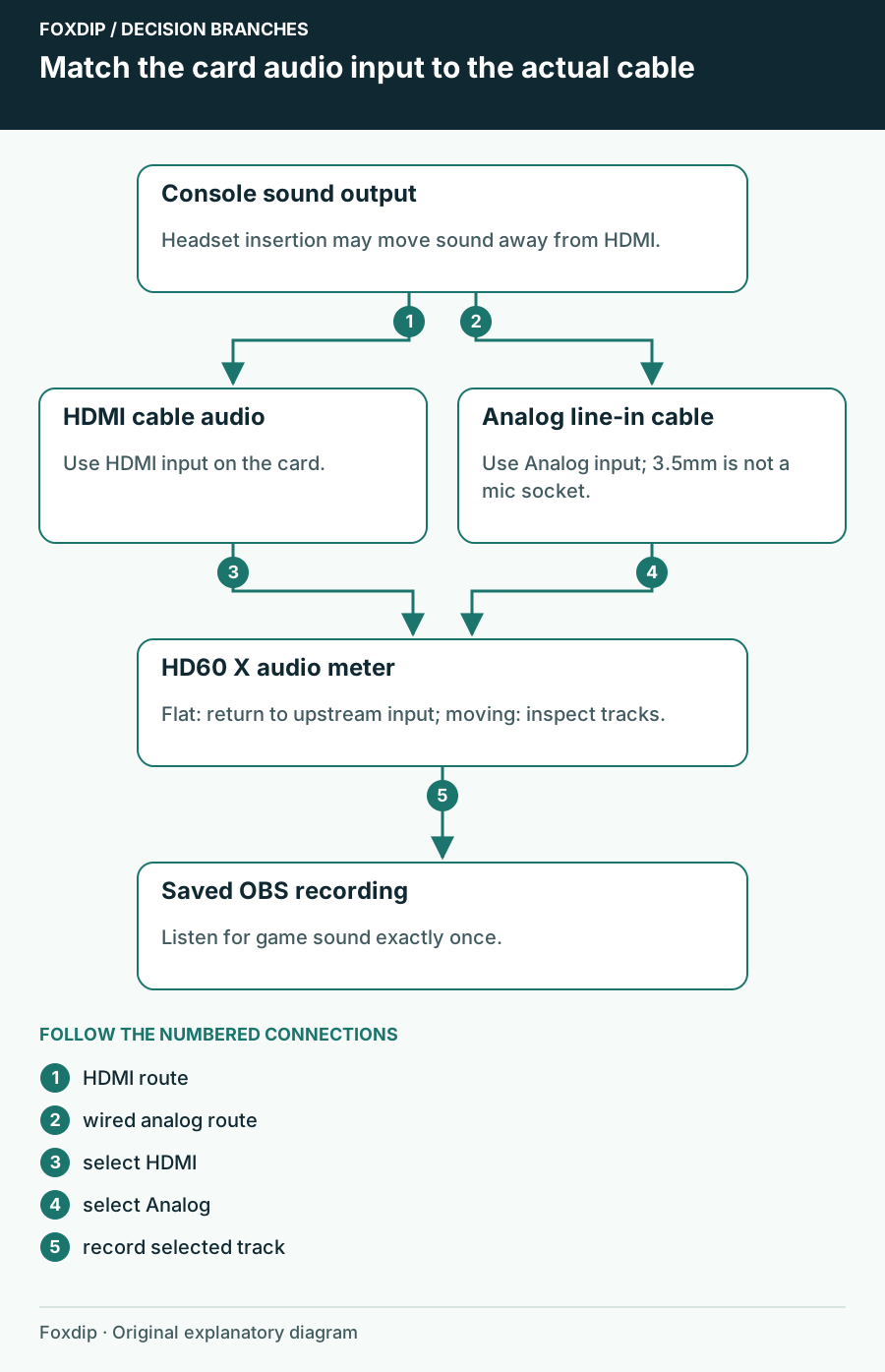
Trace game sound from the console to HDMI or analog line-in, then verify the HD60 X audio source and recording in OBS.
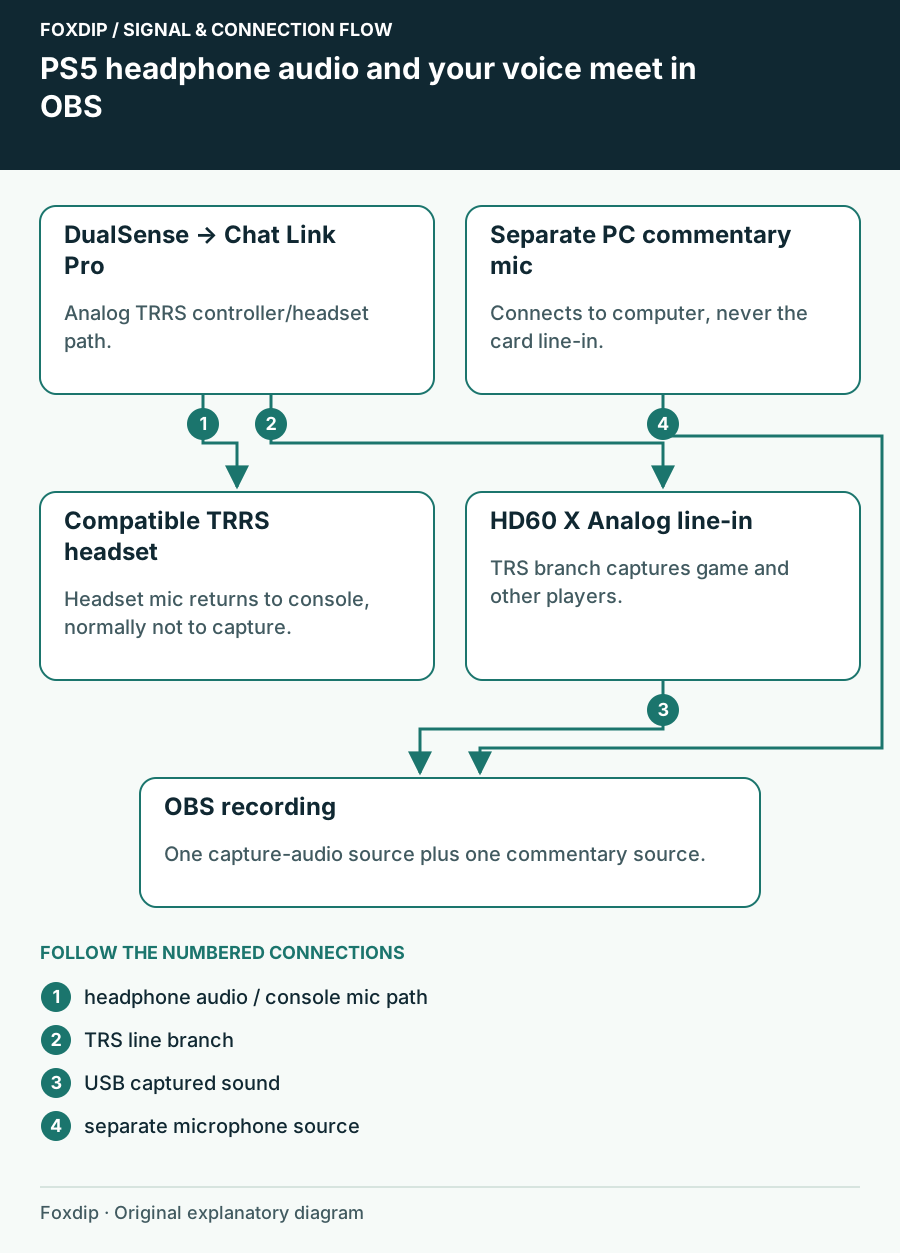
Work out whether your PS5 headset, Chat Link Pro and capture card can carry the party audio—and where your own voice is recorded.
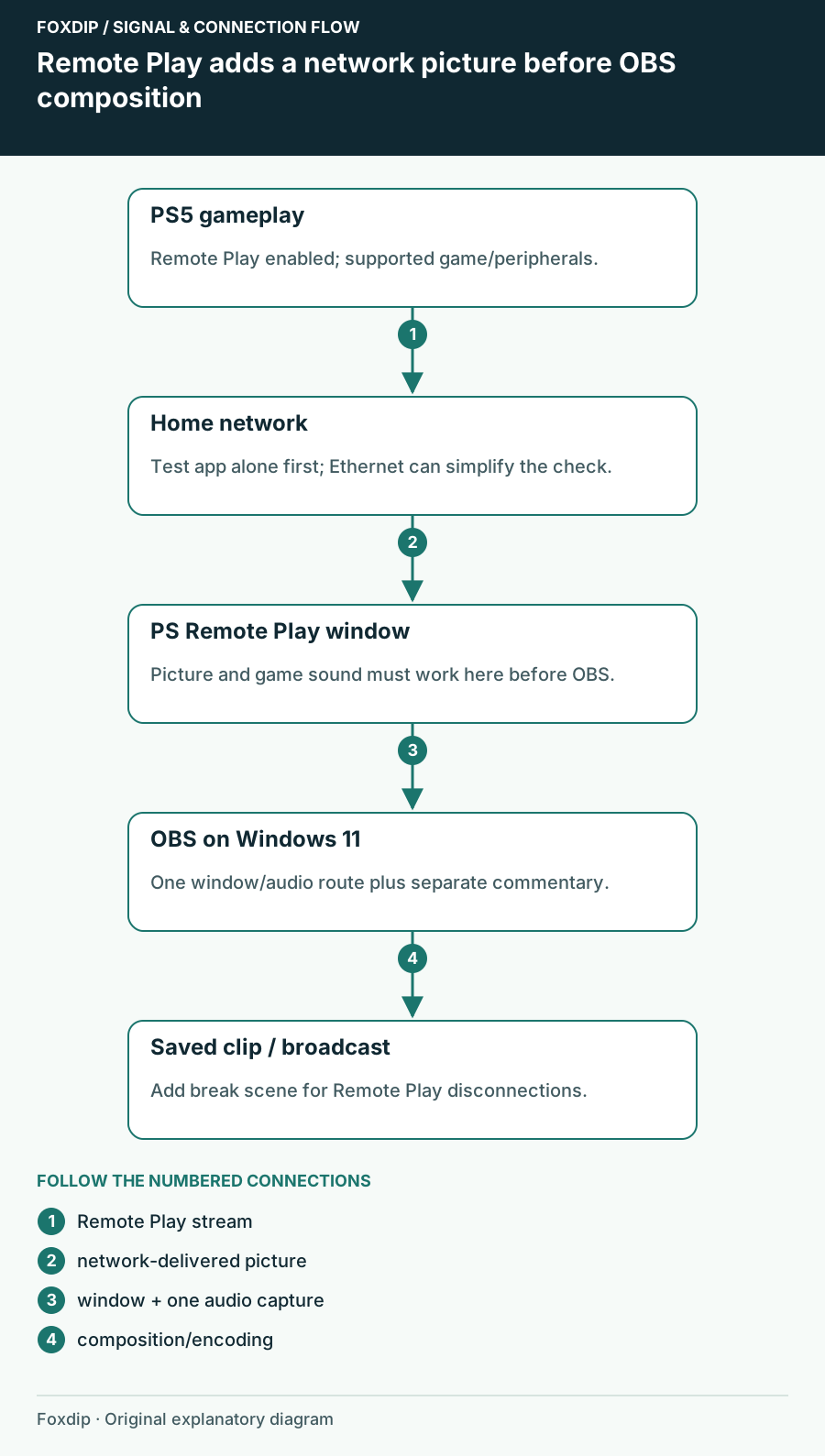
No capture card? Use PS Remote Play on your PC and capture it in OBS. Here's how, and what to watch out for.
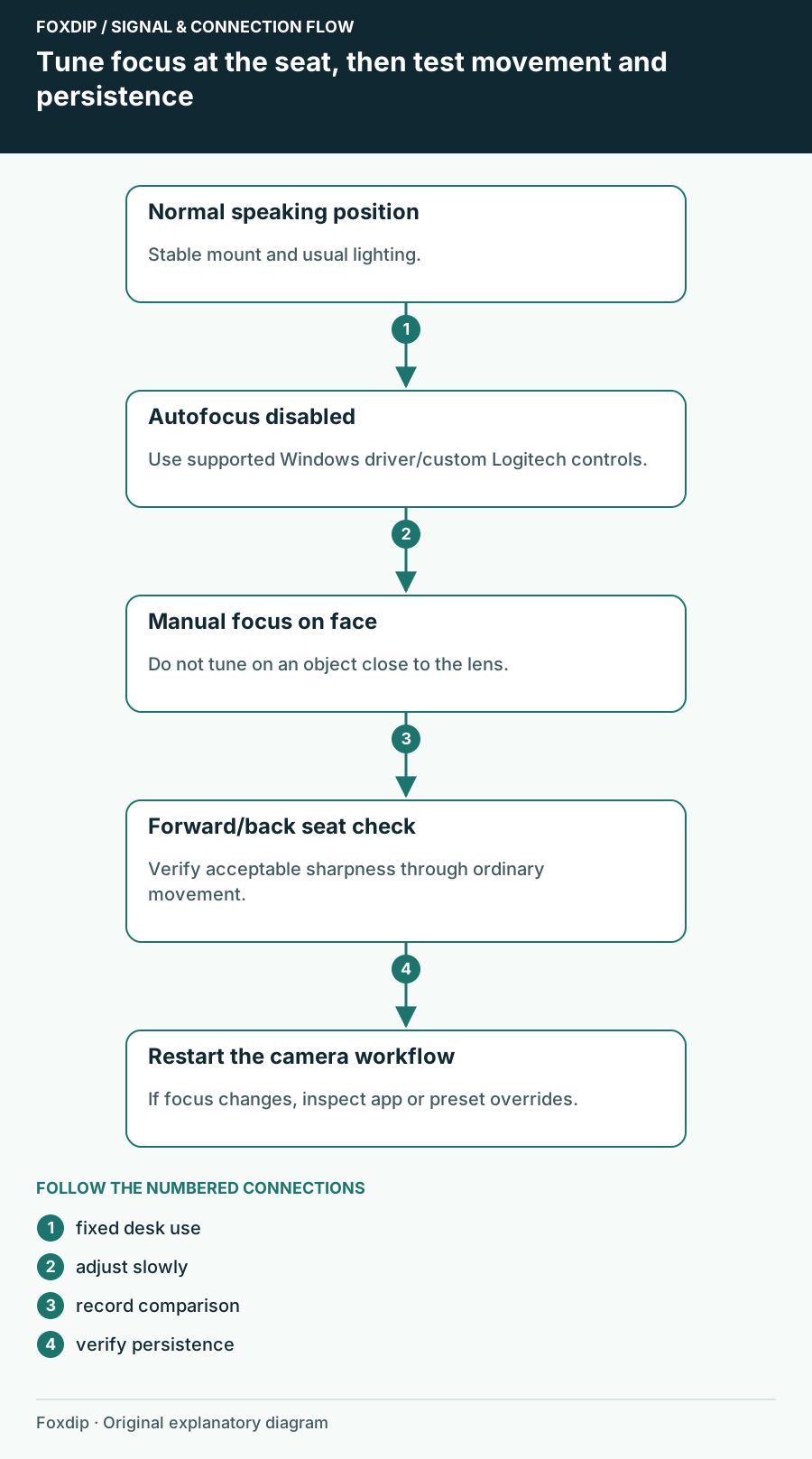
Choose autofocus or a fixed focus for your actual speaking distance, distinguish motion blur, and verify the setting after OBS restarts.
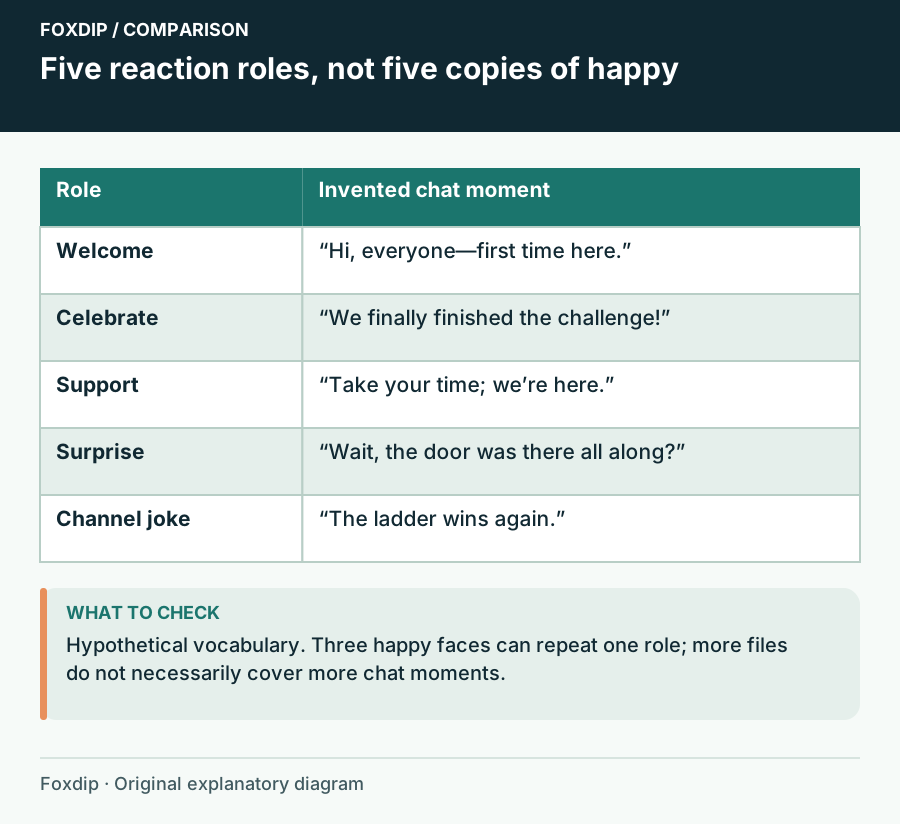
Build a first emote set with distinct jobs: greeting, celebration, support, surprise and a channel-specific joke.
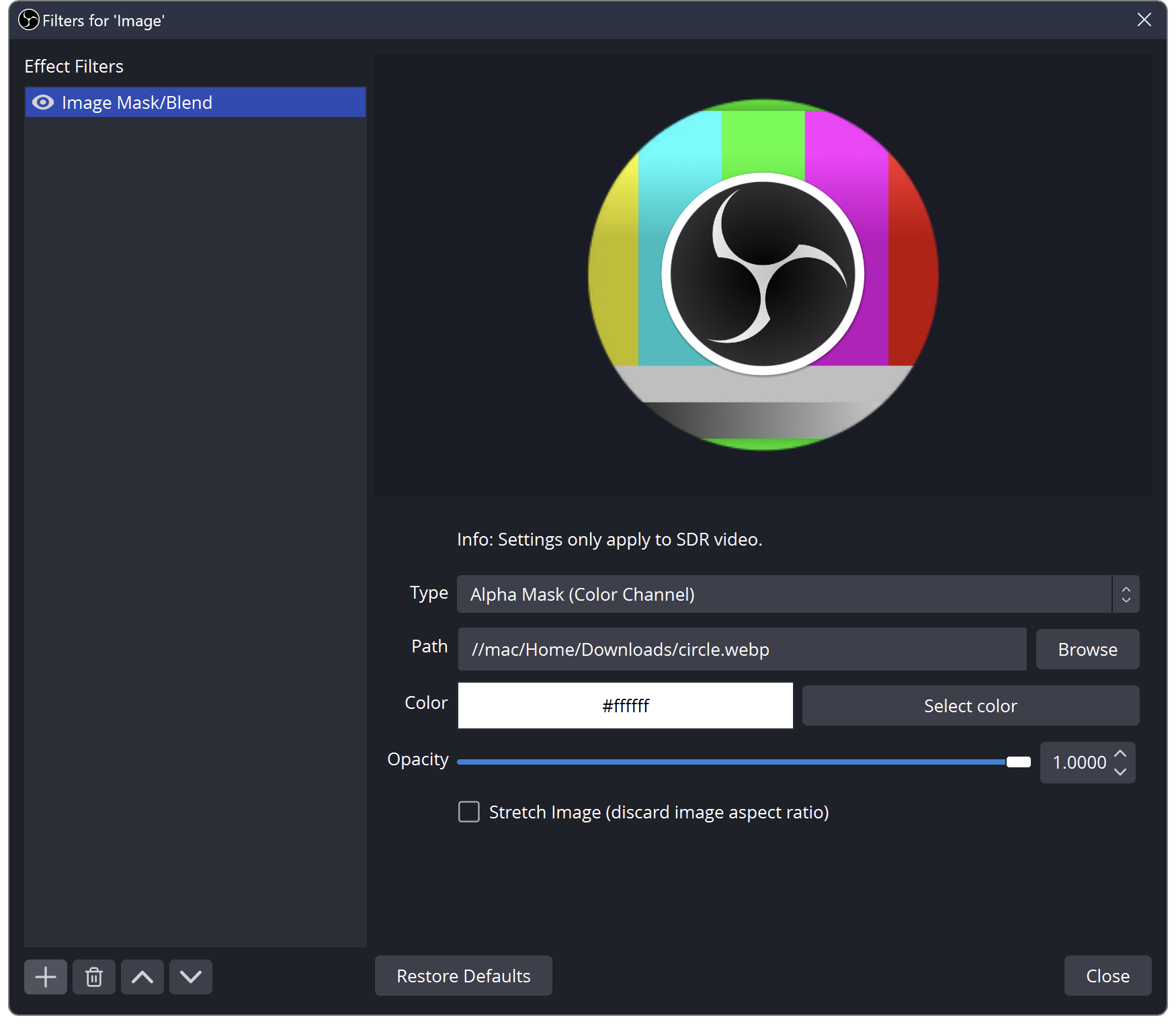
Use an alpha mask for the shape, keep your camera proportions, and distinguish the mask from a decorative frame.
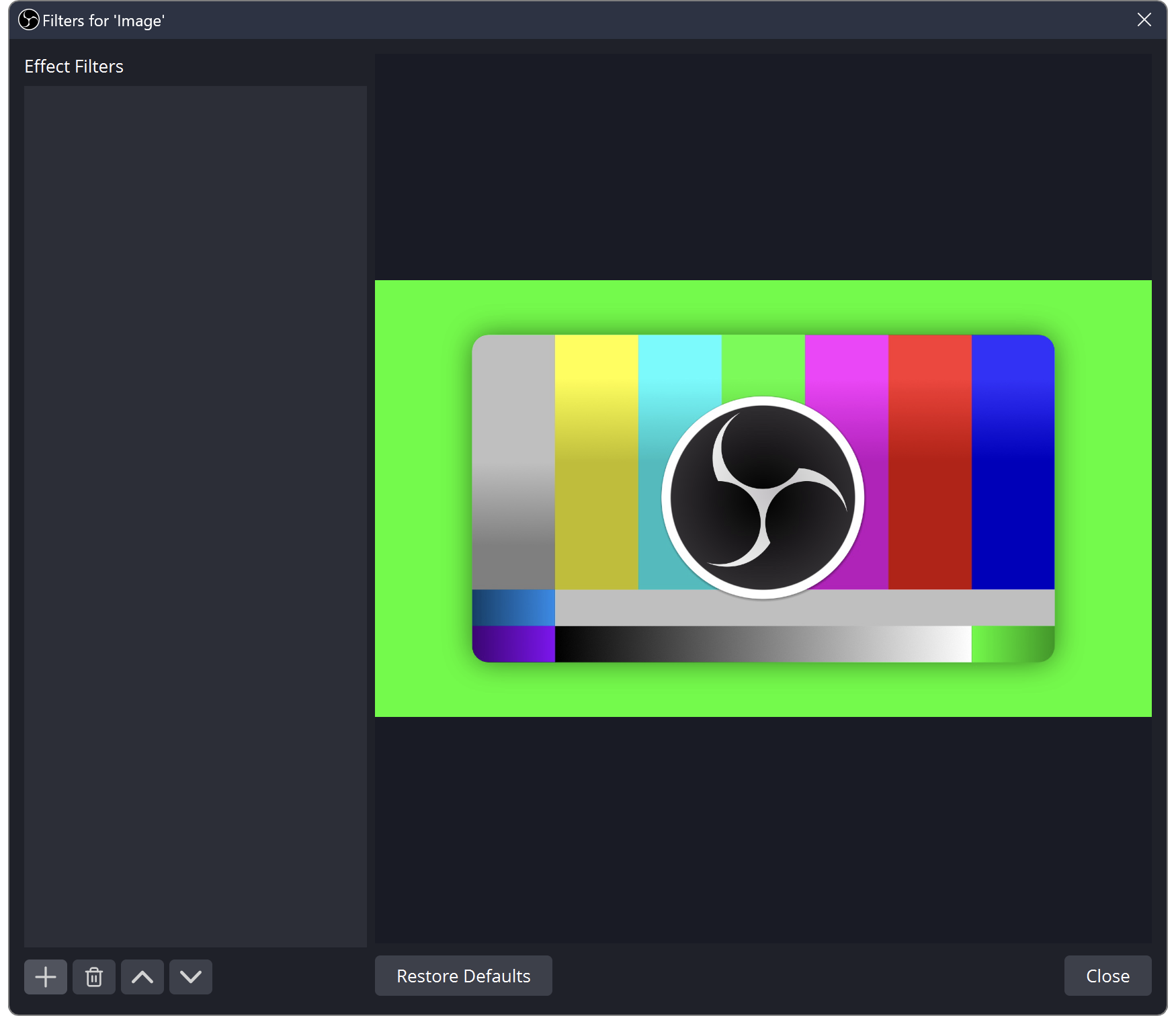
Light the backdrop, choose the camera source and adjust the key while watching hair, clothing and motion.
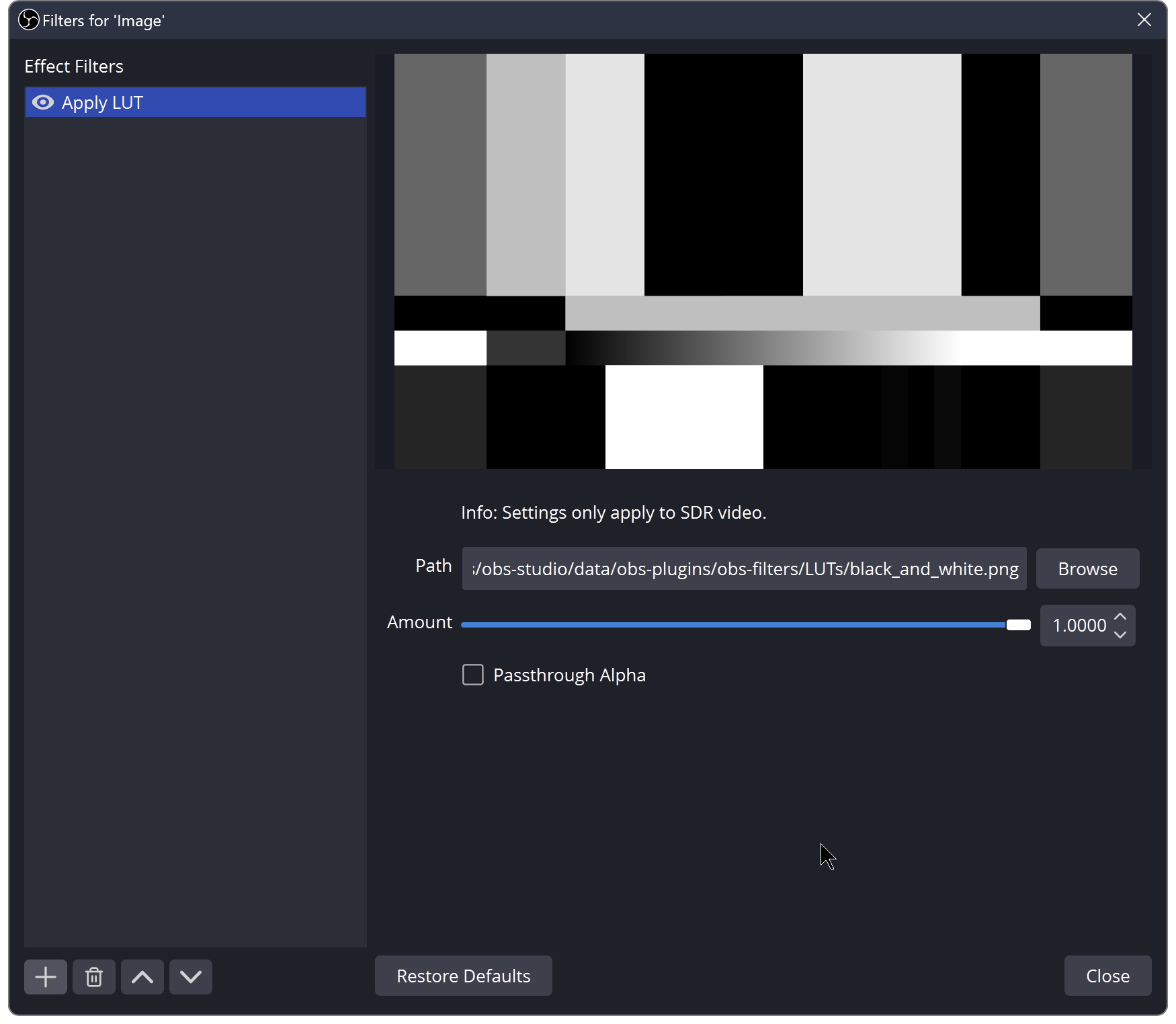
Load a PNG or CUBE look, compare it at a fixed camera setup, and avoid using a LUT to hide exposure or colour-space problems.
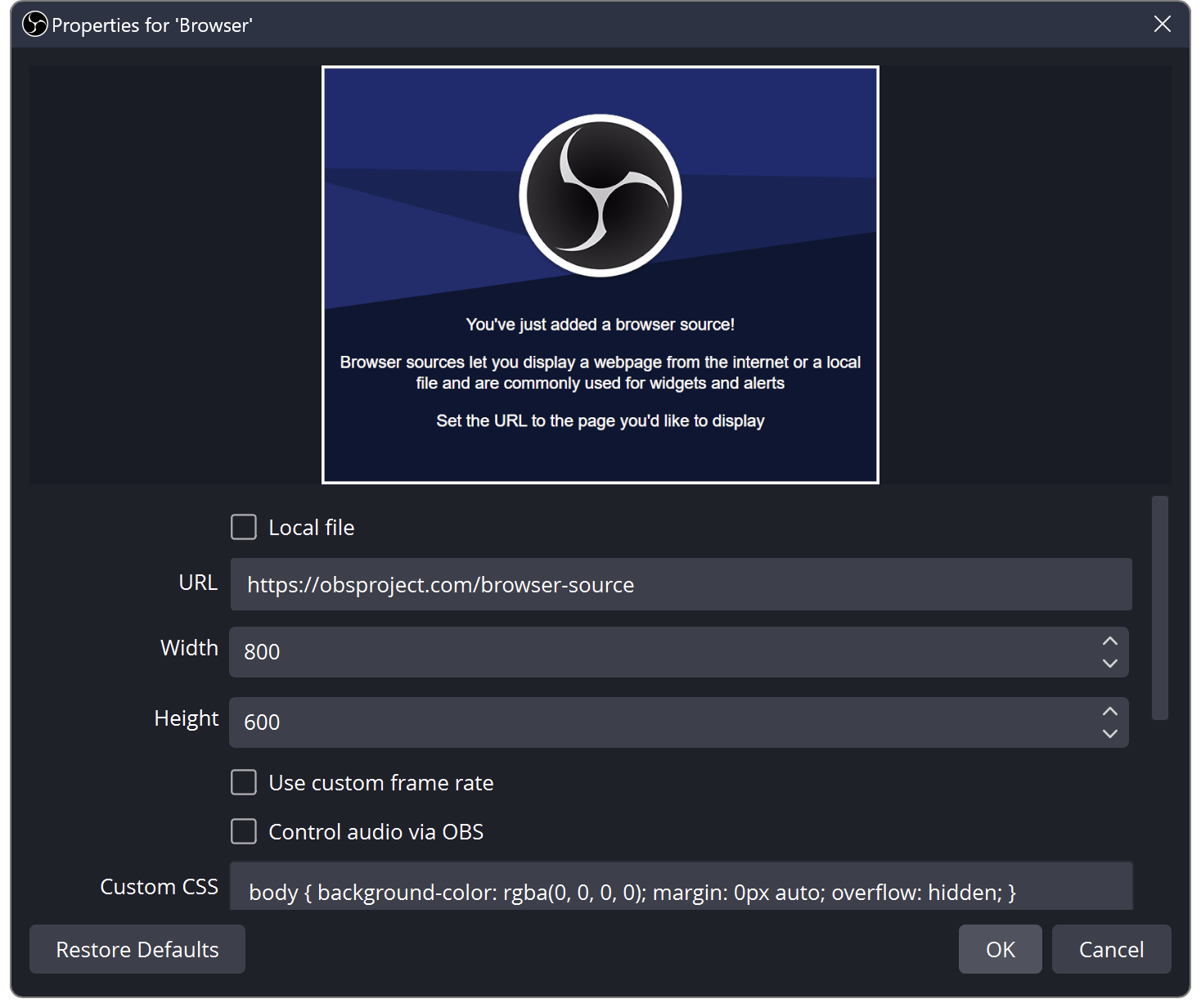
Compare the overlay editor with OBS, then check the copied URL, viewport and visible source order.

Design a recognizable channel-points currency and reward icons that tell viewers what each redemption does.

Compare the documented plugin scope before moving a working setup, especially for Dual Output, Collab Cam and platform support.
Compare the dashboard credentials and KICK's ingest requirements before changing network settings or reinstalling the encoder.
Compare normal and safe-mode launches, preserve your setup, and narrow a startup failure to a reproducible extension or scene.
Produce a useful OBS log by reproducing the fault, choosing the right session, and turning analyzer findings into one controlled next check.
Use a separate Windows ZIP installation to compare a clean OBS configuration without overwriting the setup used for your stream.
Create a clearly named OBS launcher that selects a known profile, scene collection and opening scene without starting an output unexpectedly.
Practice staging the next scene, checking what viewers currently see, and making a deliberate transition with OBS Studio Mode.
Build one reusable overlay scene, place it inside two output scenes, and check which changes should propagate across the show.
Reuse a camera or capture source across scenes, distinguish placement from shared properties, and test independent visual treatments safely.
Choose a source, scene or Program projector, route it to the intended monitor, and confirm what an audience-facing screen actually shows.
Arrange a multiview that helps an operator check cameras and upcoming scenes while keeping the current output unmistakable.
Run the wizard for the job you actually need, preserve your current settings, and test its recommendations with a realistic scene.
Locate a finished recording, verify the active recording folder, and test a new destination before trusting it with a long session.
Choose a useful recording filename pattern, keep timestamps unique, and verify the resulting names with consecutive test recordings.
Choose an encoder-appropriate quality control, compare the same difficult footage, and balance recording detail against file size.
Decide whether the local recording should share stream settings or use independent quality, then verify the combined workload and saved file.
Keep layout dimensions separate from delivery dimensions, test small text after scaling, and avoid moving every source for an output-only change.
Compare the same passage at two output frame rates and decide whether the extra motion detail is worth the system workload.

Use the native macOS audio source on supported versions, choose all desktop sound or one application, and verify what the recording includes.
Select the appropriate ScreenCaptureKit scope on a Mac, review permissions, and test which windows appear in the recorded picture.
Approve the OBS camera extension in the documented macOS 13, 14 or 15 settings location, then verify it with a harmless test scene.
Match fullscreen, specific-window or hotkey capture to the way you launch games, then test focus changes without exposing the desktop.
Use a borderless or windowed game and a targeted Window Capture when OBS documents that Game Capture cannot hook the title.
Find the Java executable used by the running game, select its high-performance GPU, and retest the matching OBS capture.
Use the correct source for the League client and the active game, then rehearse manual or automatic scene switching through a full practice cycle.
Choose a window-matching rule deliberately and test document changes, relaunches and other windows from the same application.
Distinguish a web page rendered in the wrong viewport from an OBS transform crop, then test long labels and full alert animations.
Connect a text source to a plain-text file, verify saved changes, and keep long labels inside a readable layout.
Choose slide order, timing and hidden-scene behavior, then rehearse leaving and returning to the slideshow before using it on stream.
Make an ordered video playlist, select its loop and hidden-scene behavior, and verify audio and the transition between files.
Plan which sounds belong in each scene, choose global or scene-specific device capture, and verify the transitions in a saved recording.
Reduce low-level room sound with a gentle expander while checking quiet speech, sentence endings and the transition back into conversation.
Distinguish VST2 from unsupported plugin formats, check the documented search location, and test one audio plugin without rebuilding the whole chain.
Find where a microphone becomes quiet, separate input gain from mix balance, and raise level without hiding distortion in a louder result.
Use Color Correction on the intended visual source, keep explanatory text outside that treatment, and check the result over light and dark content.
Test brightness-based keying on a graphic, preserve intentional dark or light details, and decide when an original transparent export is the better fix.
Build a short text ticker, control its visible area and loop behavior, and choose a speed that can be read at the final output size.
Choose the microphone behavior you need, assign an unambiguous key, and verify held, released and application-focused states in a recording.
Check the processed virtual-camera route, supported RTX requirements and application selection when a Camera Hub effect is missing.
Separate microphone capsule, interface input and software-mix overload so the correction happens before the damaged signal is recorded.
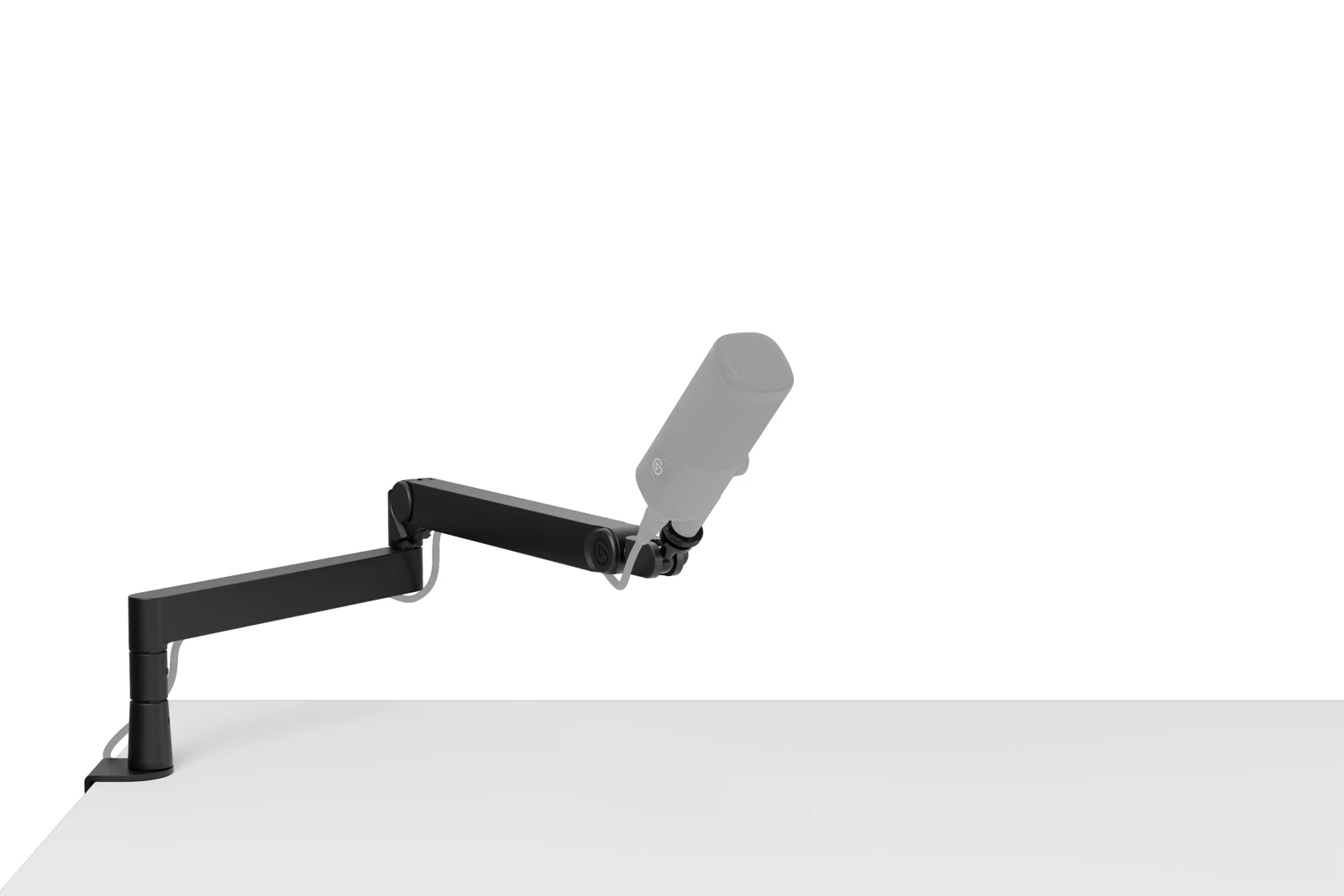
Check the clamp, microphone weight and reach before ordering an arm that has nowhere useful to go.
Find out which microphone path you’re hearing, remove an unwanted doubled voice and check what OBS actually records.
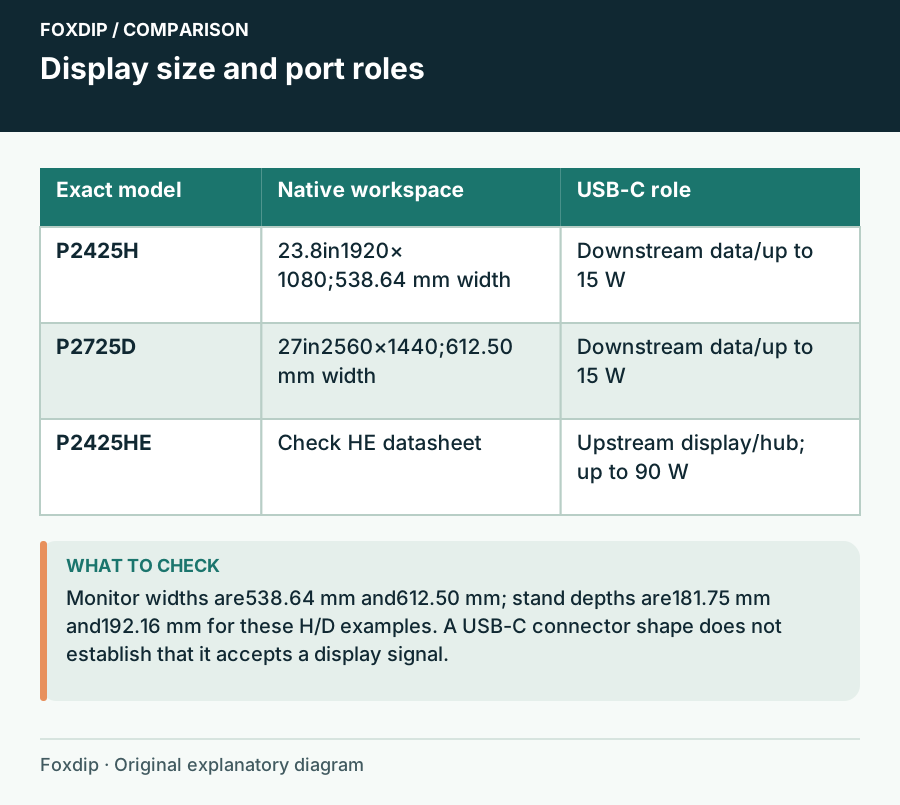
Compare a 24-inch Full HD display, a 27-inch QHD screen and a USB-C hub model around readable text, actual video inputs and desk space.
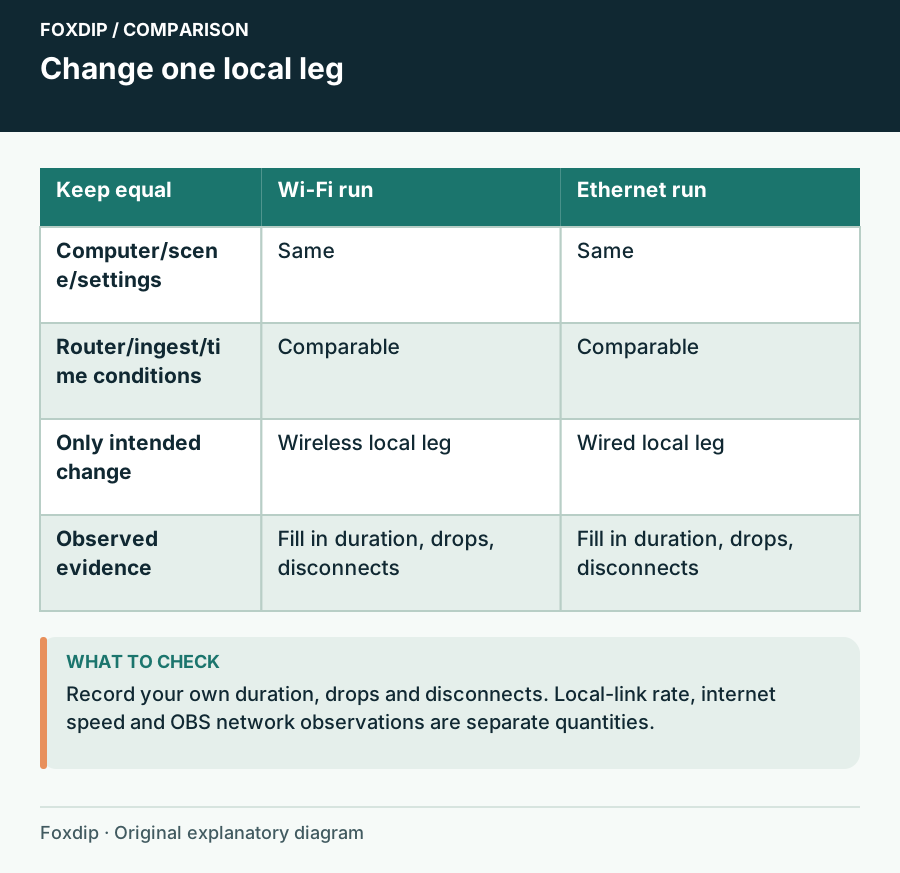
Use a controlled stream comparison to decide whether a cable or USB Ethernet adapter solves instability, without confusing a local link rating with internet upload speed.
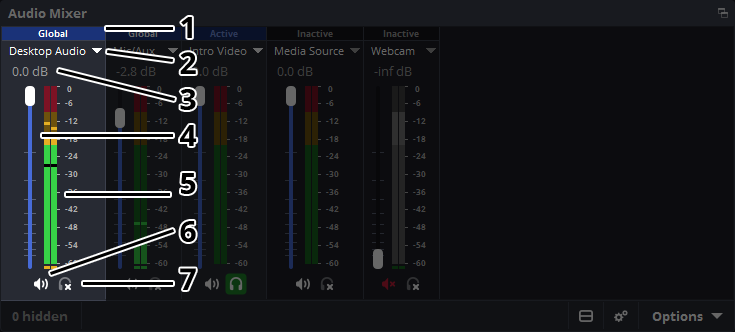
An OBS release candidate, a new home for Streamlabs controls and a question worth asking about where viewers go after a clip.
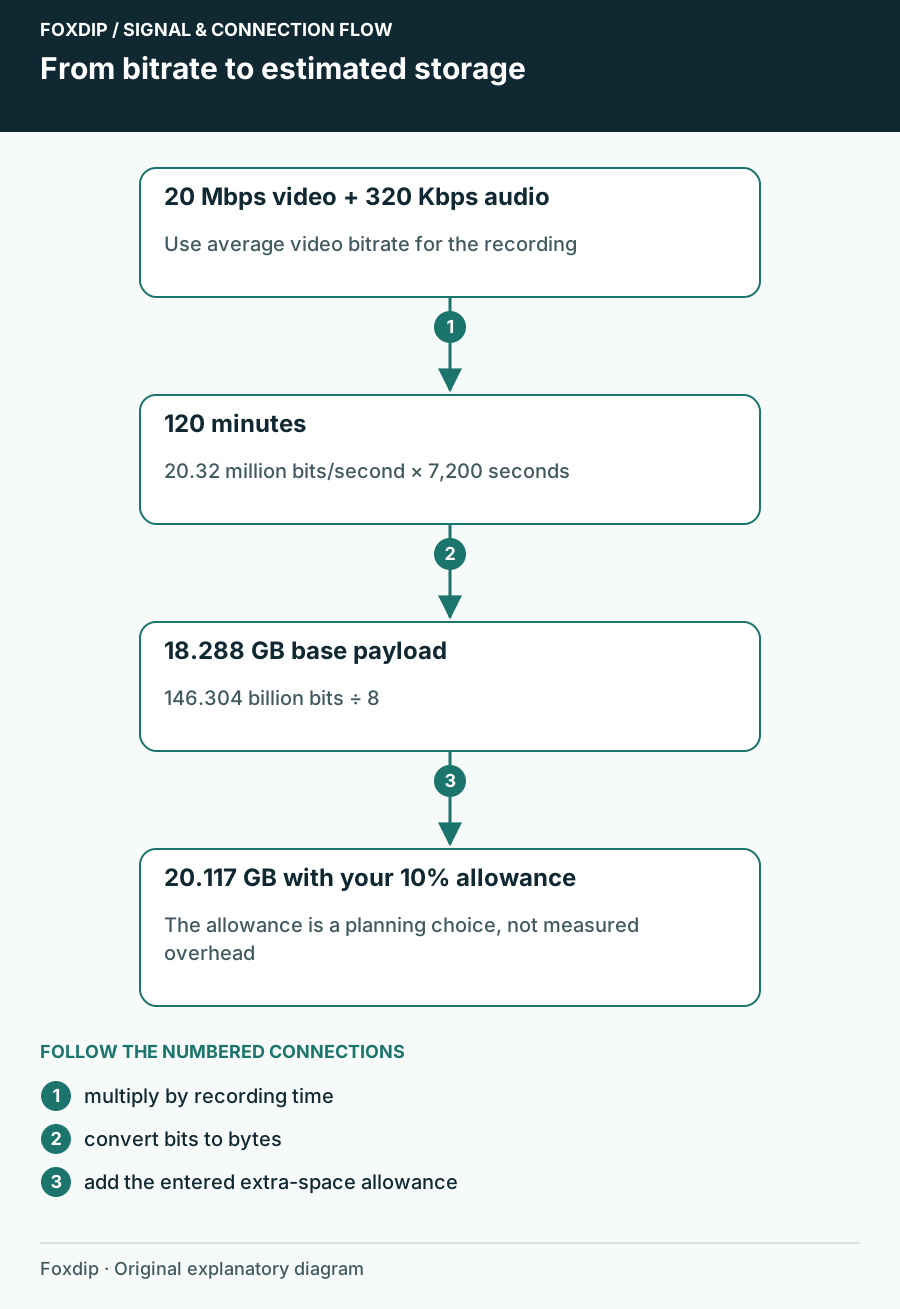
Calculate recording payload in GB and GiB, include audio, and add your own allowance before a long OBS session.
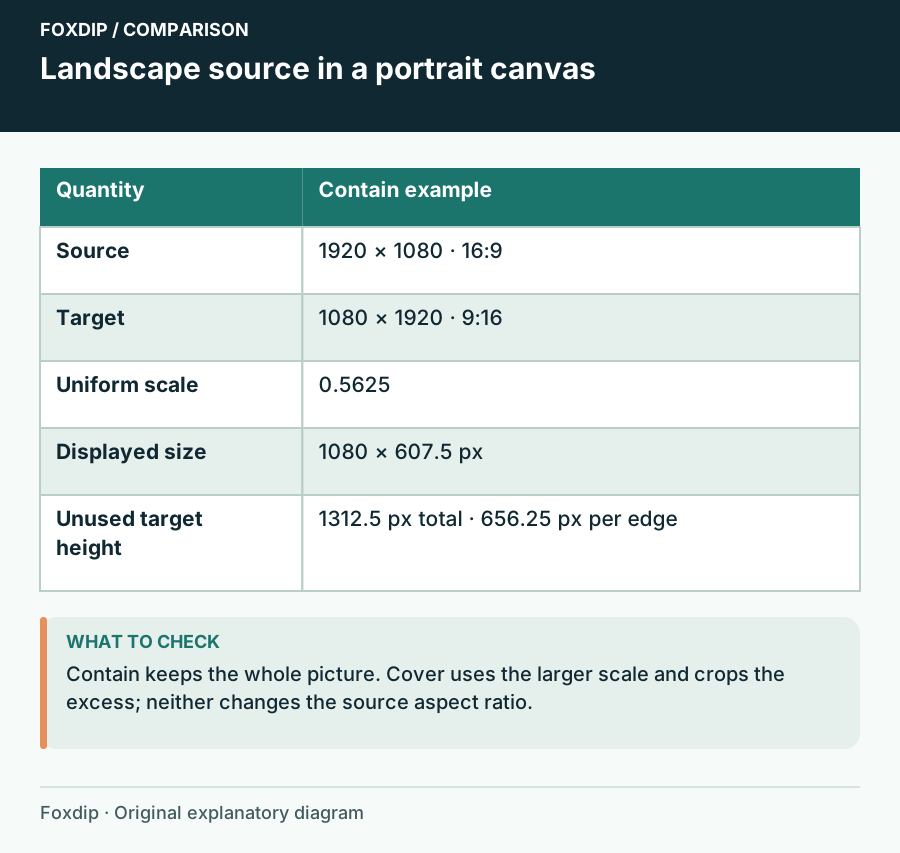
Compare proportional fit and fill for landscape, portrait or ultrawide sources before cropping an OBS scene.
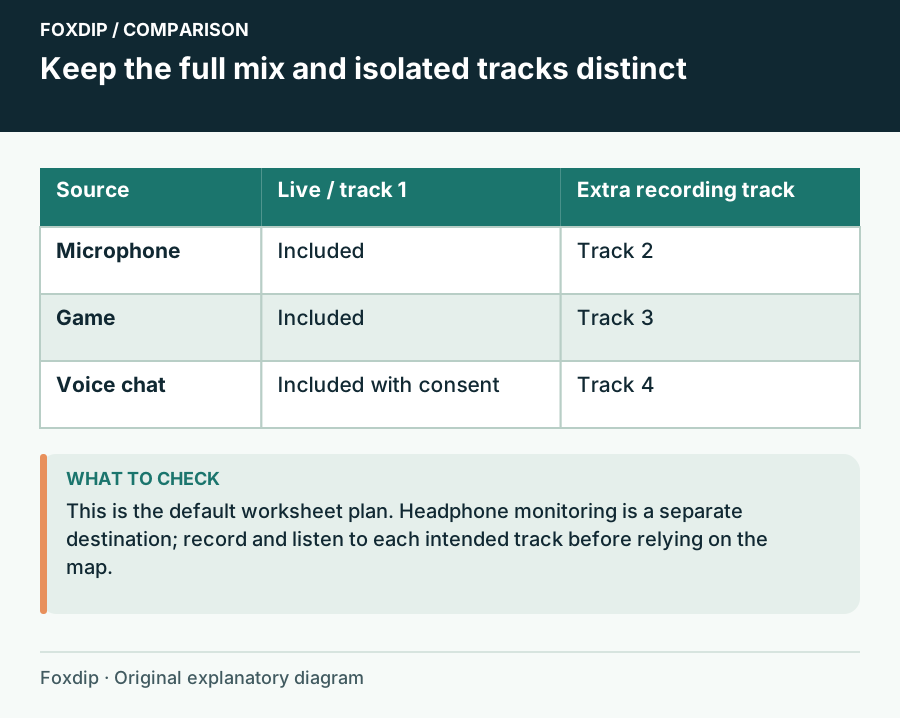
Write each source’s destinations before changing OBS, then verify the stream mix, isolated tracks and monitoring in a local recording.
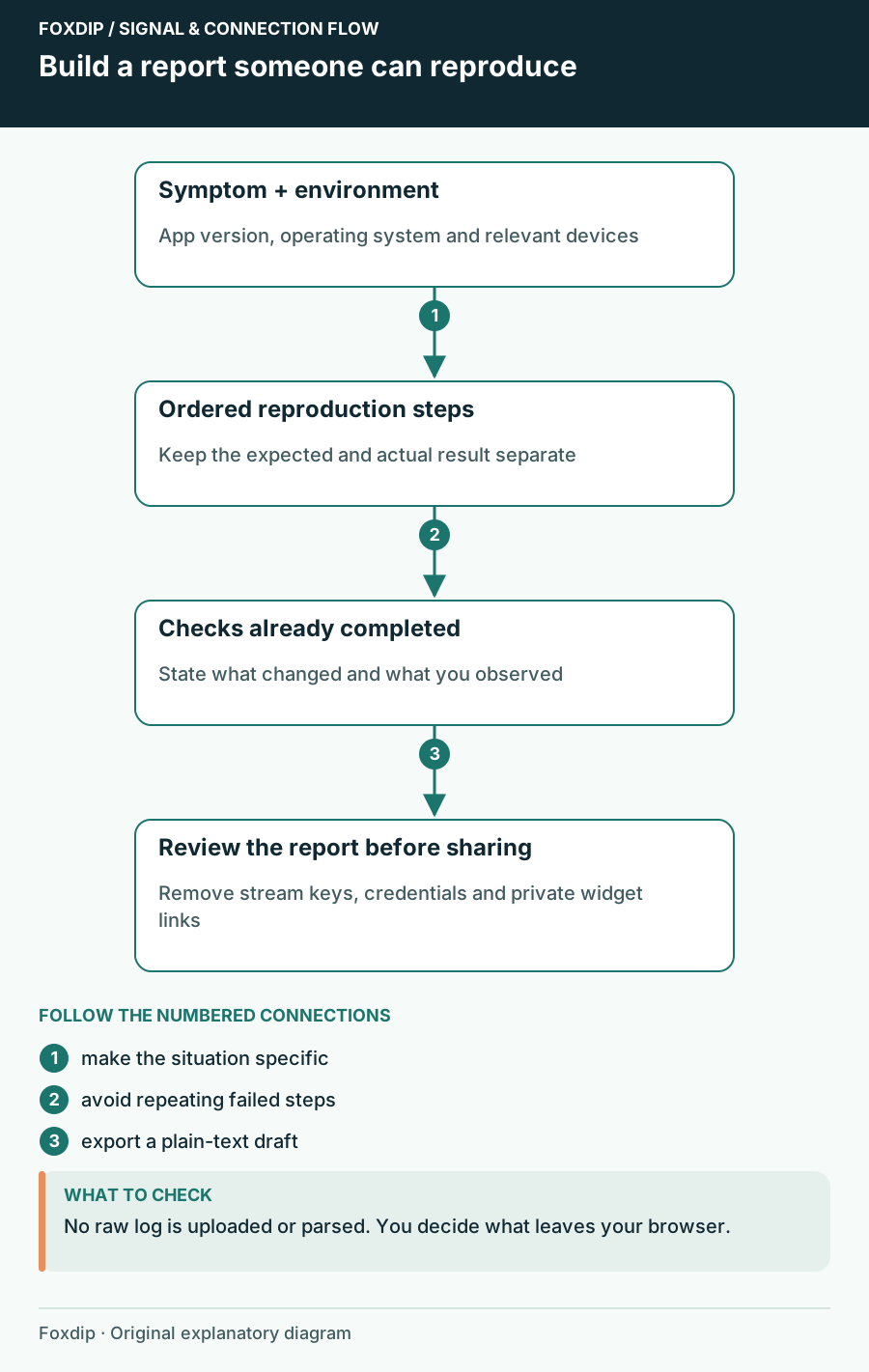
Draft a focused OBS help request with your setup, reproduction steps, expected result and checks already tried. Export it before sharing.
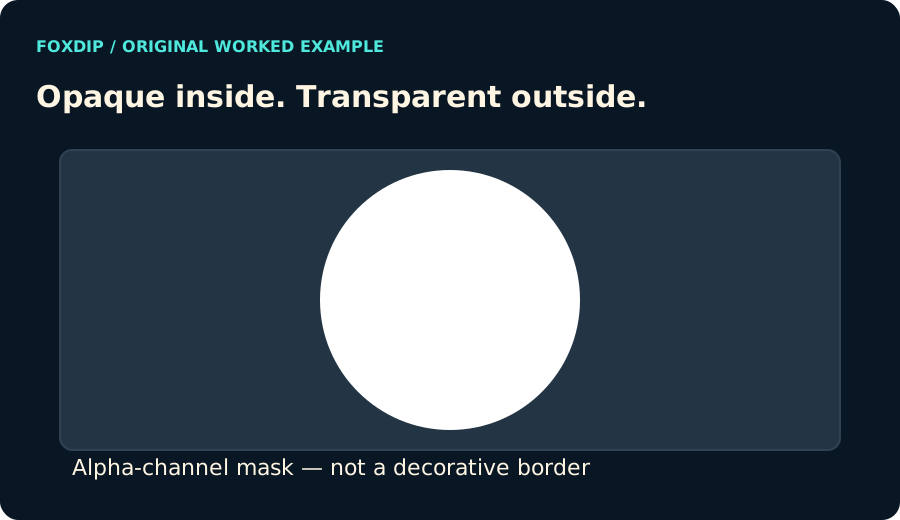
Export an original alpha-channel webcam mask at your source dimensions. Choose a circle or rounded rectangle and keep the outside transparent.
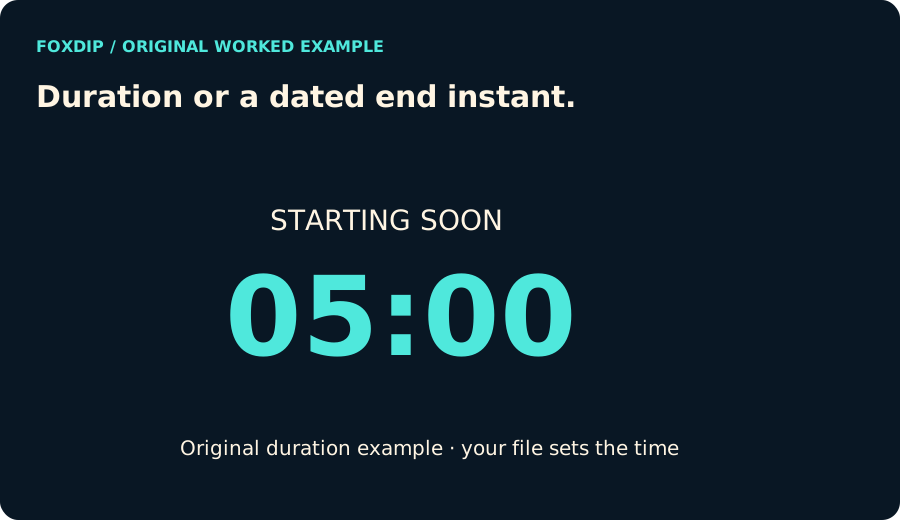
Preview a countdown and download one standalone HTML file. Choose a duration or a dated end instant, with pause/reset controls and no connected service.
Static PNGPNG · SVGDownload
CA$15.74CAD
 Static PNG
PNGDownload
CA$7.12CAD
 Static PNG
PNGDownload
CA$7.12CAD
 Static PNG
PNGDownload
CA$7.12CAD
 Static PNG
PNGDownload
CA$7.12CAD
 Static PNG
PNGDownload
CA$7.12CAD