
Start with a clean input, add only processing you need, and keep a peak limiter last. Treat changes in filter order as changes in what each processor receives.
Build a microphone chain around specific problems and retune thresholds after moving filters.
In this guide
Before you start
- A saved copy of the microphone filter settings and an untreated voice reference.
- A repeatable passage containing normal speech, soft words and a louder reaction.
Begin with a reason for every filter
Open the microphone filter list and write a purpose beside each item. Fan reduction, quieter gaps and control of loud reactions are different jobs. If two filters are both there because a preset included them, bypass them and find out which problem remains.
Do not begin by making a long chain look complete. A clean microphone in a quiet position may need very little. Keep the same physical gain and distance throughout the comparison; otherwise you cannot tell whether moving a processor changed the result or your input simply became louder.
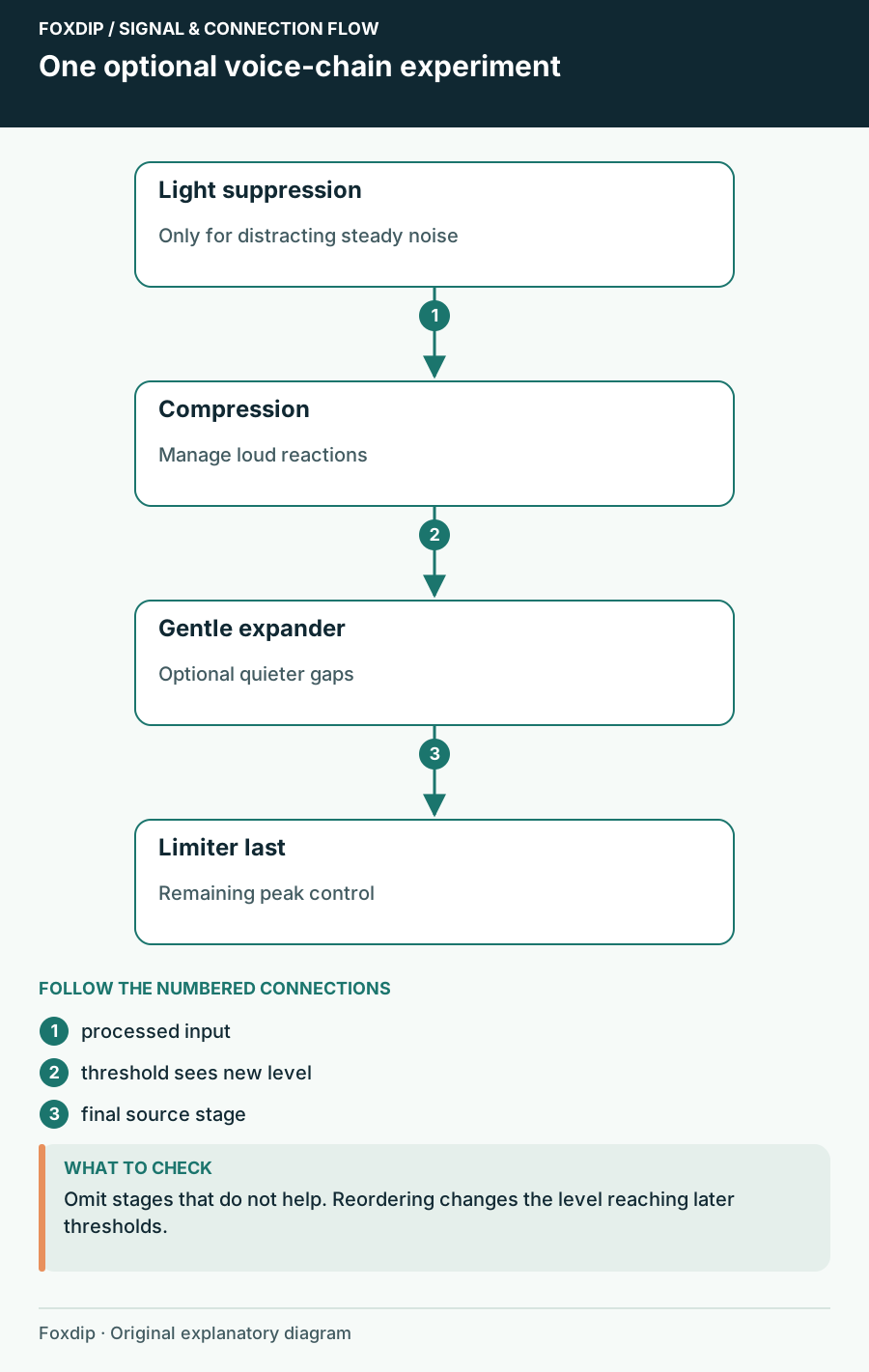
Original Foxdip schematic. Follow the labelled checks alongside the guide.
Understand what crosses a threshold
A threshold-based processor responds to the signal at its position in the chain. Gain before a gate can make more sounds open it. Compression with added output gain can raise quieter material reaching a later expander. This is why threshold values copied before reordering can stop doing the job you expected.
OBS describes the compressor as reducing loud signals, the expander as reducing low signals and the limiter as a final peak control. These roles are useful anchors. They do not mean one fixed order and set of numbers suits every microphone and delivery.
Build a small chain and compare
One starting experiment is light suppression for steady noise, compression for loud reactions, a gentle expander for gaps if needed, then a limiter. This follows the expander documentation’s suggested position after compression and before the limiter. Leave out a stage that makes no audible improvement.
| Stage | Listen for | Reason to back off |
|---|---|---|
| Noise treatment | Less distracting steady noise | Words become watery or incomplete |
| Compression | Reactions sit closer to normal speech | Every phrase sounds pressed down |
| Gentle expansion | Quieter gaps | Soft entrances fade away |
| Final limiter | Remaining peaks stay controlled | Most speech is continuously flattened |
Move one filter and retune its neighbour
Save a reference
Record the passage with the present order and note the settings.
Look for: You have a file you can return to rather than relying on memory.
If the reference already solves the problem, leave the chain alone.
Compare one move
Move one processor, repeat the passage and check the thresholds of the stages that now receive a different level.
Look for: The comparison reveals a specific change in words, gaps or peaks.
Undo the move if its benefit is unclear or requires more damage elsewhere.
Finish in the complete mix
Listen with game, alerts and chat present. A beautifully quiet mic in isolation can still be difficult to understand against a loud soundtrack. Adjust the source balance before asking another voice filter to compensate. Make sure the full mix does not repeatedly hit its limits when several sounds overlap.
Keep the final chain short enough that you can explain it later. Record the order, key settings and upstream processing in a note. When a microphone app update adds its own noise removal or automatic level control, revisit that input first rather than treating the OBS chain as an isolated system.
Use a saved file to assess the voice in its actual context. Listen to the complete OBS mix ↗
Sources & references
Based on official product documentation reviewed on 27 October 2026. Follow the recording checks below on your own setup.
- OBS — Compressor Filter ↗Checked 2026-10-27
- OBS — Expander Filter ↗Checked 2026-10-27
- OBS — Limiter Filter ↗Checked 2026-10-27
- OBS — Noise Suppression Filter ↗Checked 2026-10-27
Spotted something out of date? Let Alex know.
How we put our guides together ↗