
Measure a repeatable clap or tap in a recording. Delay early audio with Sync Offset, or delay early camera video with Render Delay; change only the affected source.
Measure which signal arrives first, delay that signal and check the saved result.
Turn an observed frame gap into time.
Count the gap in a test recording, then use that recording’s frame rate.
JavaScript powers your local preview and download.
Three frames at 60 fps are 50 ms. Delay the source that arrives first. This is a conversion of your measurement, not an automatic sync test.
No account or upload. Selected files and entered text stay on this device; exports are saved only when you ask.
In this guide
Before you start
- Camera and microphone already captured once each.
- A local recording and an editor that can step through frames and display an audio waveform.
Confirm that the gap stays the same
Make a short recording with a visible clap near the start and another near the end. Keep your hands visible and the microphone close enough to hear the impact. Inspect the saved file rather than judging your own monitored voice, which has another listening delay.
If the gap grows over time, a fixed offset cannot solve the underlying drift. Use the long-recording investigation instead. If both claps have approximately the same separation, a constant correction is a reasonable next step. Write down any existing offsets before adjusting them.
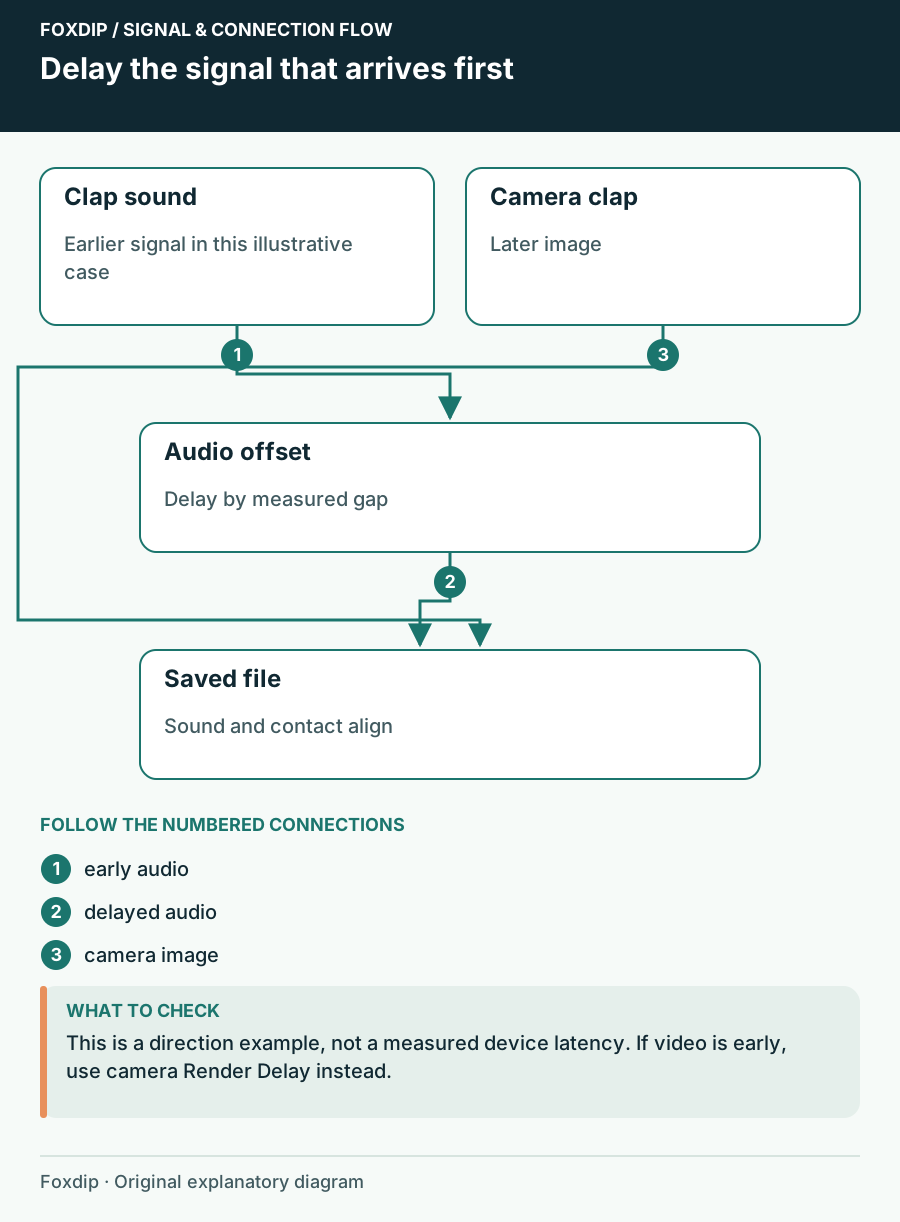
Original Foxdip schematic. Follow the labelled checks alongside the guide.
Measure the early signal
Find the frame where the hands meet, then locate the clap peak in the audio waveform. Count the difference in frames and convert it to milliseconds: frames divided by recording frames per second, multiplied by 1,000. At 30 fps, three frames are about 100 ms; at 60 fps, six frames are about 100 ms.
These are arithmetic examples, not measurements of your camera. If the waveform peak occurs before contact, audio is early. If contact appears first, video is early. Repeat the comparison at least twice so one ambiguous clap does not dictate the setting.
Delay the side that arrives first
Correct early microphone audio
Open Advanced Audio Properties and add a positive Sync Offset in milliseconds to the microphone source, starting with the measured gap.
Look for: A new recording moves the clap sound later relative to the image.
If it becomes worse, restore the old value and check whether audio was actually the late signal.
Correct early camera video
If video arrives first, add the Render Delay effect filter to that camera source and enter the measured delay.
Look for: A new recording moves the camera image later while game capture stays unchanged.
If the needed correction exceeds the control or varies between checks, investigate the camera path rather than stacking unexplained delays.
Check speech and the rest of the scene
Record a normal spoken sentence after the clap check. Watch lip movements and listen without staring only at the waveform. Then switch scenes and repeat. Reused sources share settings, while an independently created second camera source can follow different properties.
Keep an eye on other relationships. Delaying a microphone to match a slow webcam may make your reaction sound later than the game. For a talking scene this can be acceptable; for a performance with several cameras and a shared audio feed, build a timing plan for every source instead of fixing one pair in isolation.
Recheck after changes that affect latency
Camera buffering, capture-card processing, wireless audio and a different camera resolution can change the relative timing. OBS documents a buffering control for capture devices; treat a change there as a new timing configuration and measure again. Do not disable buffering solely because a guide promises universally lower latency.
Save the successful values with notes describing the camera mode and microphone route. Keep an uncorrected reference and the corrected clip. If the next session starts aligned but ends late, restore the fixed correction that was measured and investigate drift separately.
Separate monitoring latency from timing in the recorded file. Understand the delay in your headphones ↗
Convert the measured frame gap
Count the gap in a saved test recording and enter that recording’s frame rate in the calculator. Three frames at 60 fps equal 50 milliseconds; the tool converts your observation rather than detecting sync automatically.
Delay whichever source arrives first. A constant gap and a gap that grows over time need different checks, so compare the start and end of the recording before applying a fixed offset.
If you need the next part of this task. Continue with the related guide ↗
Sources & references
Based on official product documentation reviewed on 27 October 2026. Follow the recording checks below on your own setup.
- OBS — Render Delay Filter ↗Checked 2026-10-27
- OBS — Video Capture Sources ↗Checked 2026-10-27
Spotted something out of date? Let Alex know.
How we put our guides together ↗