
Try a direct Ethernet route when streaming stability is uncertain. Compare it with your existing Wi-Fi under the same stream settings before replacing the router or buying a faster network adapter.
Try a direct Ethernet route when streaming stability is uncertain. Compare it with your existing Wi-Fi under the same stream settings before replacing the router or buying a faster network adapter.
In this guide
Before you start
- An Ethernet cable/compatible adapter for a temporary comparison.
- The same OBS settings and representative time conditions.
A cable is a useful comparison, not a guaranteed cure
OBS recommends a wired connection for streaming. If your setup currently uses Wi-Fi, a temporary Ethernet cable to the router is therefore a sensible first comparison. It changes the local computer-to-router path while leaving many later parts of the internet route unchanged.
That distinction matters. If both routes struggle in the same way, a new Wi-Fi adapter may not solve the problem. If Ethernet behaves consistently better under comparable conditions, you have evidence for keeping a wired route or investigating local wireless conditions before spending on other equipment.
Compare these concrete connection plans
A desktop with a working Ethernet port can connect to the router using a suitable cable, with no network adapter purchase. A laptop without that port can use a compatible USB Ethernet adapter. TP-Link UE302C is one documented example: USB 3.0 Type-C to a 2.5 Gigabit RJ45 port, with system compatibility and driver notes on its product page.
The 2.5 Gbps rating is a local physical-link capability, not an internet-upload promise. A slower router port, cable, host connection or service can limit the complete route. Do not buy a 2.5 Gbps device solely because a live stream occasionally drops frames; first establish which part of the route is the problem.
Keep the comparison controlled
Use the same computer, scene, platform destination and stream settings for each route. Choose a comparable time of day and note other household uploads or downloads. Run long enough to include a representative part of your normal session rather than treating one quick speed test as the complete streaming result.
On Windows 11, Network & internet settings let you inspect the active Ethernet or Wi-Fi connection. Confirm which connection the comparison uses. Note the link details, but keep them separate from the observed stream behavior and the speed of an external test. Save the OBS log or observations for each run.
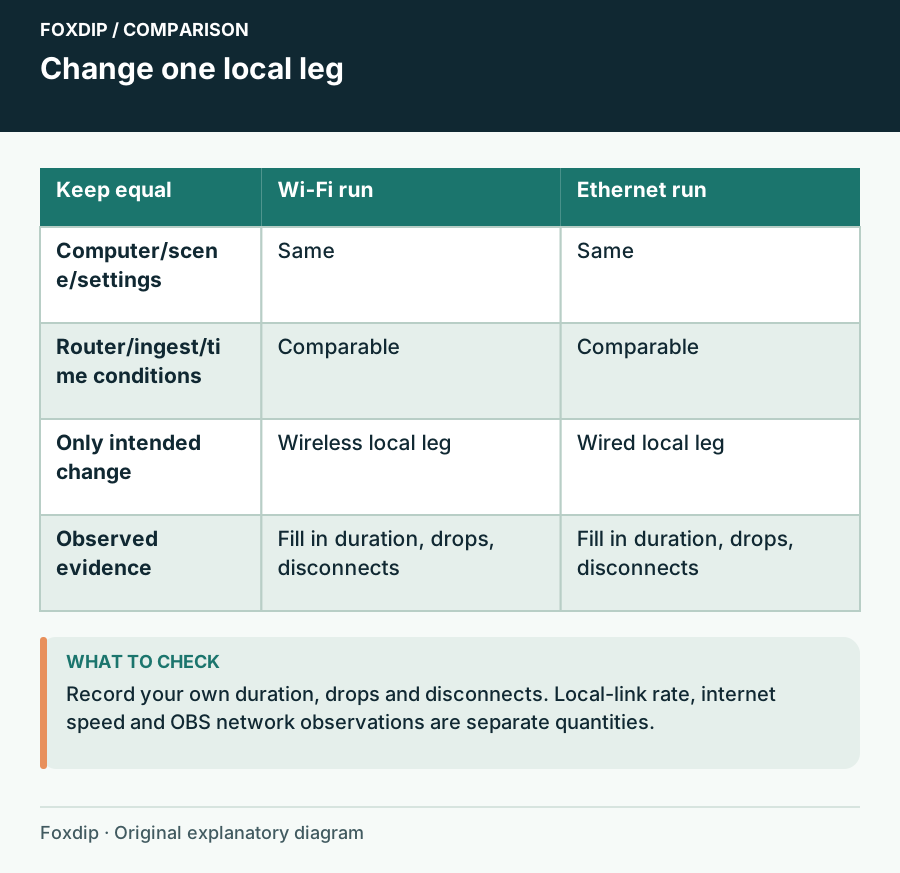
Original Foxdip schematic. Follow the labelled checks alongside the guide.
Watch the symptom that would justify the purchase
Distinguish network dropped frames or disconnects from local rendering or encoding lag. A cable cannot directly create more GPU rendering capacity. If the saved local recording stutters in the same scenes while the network remains stable, investigate the local workload before changing the router.
For network symptoms, record the duration, route, destination and whether the counter increased. A viewer buffering report is another question: OBS explains that buffering can occur even when the broadcaster has no dropped frames. Ask what the evidence actually says before treating every playback complaint as a failed home connection.
Buy only the part the comparison supports
If Ethernet improves the result and the cable route is manageable, keep it. Plan the path so it does not cross a walking route or pull on the computer. If an adapter is needed, check the available USB port, supported operating system and current driver instructions for the exact hardware version.
TP-Link lists plug-and-play support for Windows 11 and macOS 10.15 or later among other systems, while warning that OS updates may require updated drivers. It also specifies Cat5e or better for peak performance. Those are compatibility details to check, not a reason to replace a cable that already supports your required link.
Keep Wi-Fi when the evidence supports it
A stable existing Wi-Fi setup may already meet your needs, especially when a permanent cable is awkward. Repeat the comparison during the hours you normally stream and after a meaningful network change. Judge the result over representative sessions instead of upgrading because a newer wireless standard exists.
If both wired and wireless routes show network trouble, continue with OBS's connection guidance, service status and the provider route. Keep the comparison notes: they help explain what you have already isolated. A faster local-link number is a purchase feature only when that local limit matters to the work you need to do.
If the constraint is local processing instead of the network, assess the computer workload before buying. Single-PC or Dual-PC Streaming: Will Another PC Solve Your Problem? ↗
Keep bitrate and ingest server constant in the first comparison
A useful Ethernet/Wi-Fi comparison changes the local connection while keeping the destination and output settings fixed. Record session duration and the increase in network dropped frames during each run. If you also lower bitrate or change server, label that as a separate trial rather than crediting the cable for all the improvement.
When both local routes fail similarly, choose the next comparison deliberately: a lower bitrate investigates sustained capacity; a different ingest server investigates another remote route. Neither observation on its own establishes an ISP fault. Keep the OBS log from each representative trial.
| Observation | Next change | Expected result |
|---|---|---|
| Ethernet improves the same settings and destination | Repeat during a normal busy streaming period | Check whether the local-link improvement is repeatable |
| Both routes improve only at a lower bitrate | Investigate the sustainable stream load | Avoid treating a faster adapter as proven necessary |
| Only one ingest destination repeatedly struggles | Keep the local connection fixed and compare destinations | Document a route-specific symptom |
Separate network trouble from production workload before adding a PC. Single-PC or Dual-PC Streaming: Will Another PC Solve Your Problem? ↗
Sources & references
Manufacturer specifications and primary support documentation checked on 27 October 2026. Recommendations are editorial inferences from connections, placement and documented capabilities; no hands-on performance or comfort measurements are claimed. November 2026 addition: documentation-based diagnostic examples; no new hands-on hardware result or platform upload test is claimed.
- OBS Stream Connection Troubleshooting ↗Checked 2026-11-04
- TP-Link UE302C official specifications ↗Checked 2026-10-27
- Microsoft essential network settings ↗Checked 2026-10-27
- OBS Stream Buffering Troubleshooting ↗Checked 2026-10-27
Spotted something out of date? Let Alex know.
How we put our guides together ↗