
Check that the sound reaches OBS, goes to a track OBS records, and plays on the track you’ve selected. A moving meter or sound in your headphones doesn’t tell you what the file contains.
You know whether the fault is at the input, recording or playback stage, and can record a complete mix.
In this guide
Before you start
- A short recording with the problem, kept as an original.
- Access to Settings → Output and Advanced Audio Properties in OBS.
- A new test recording for each routing change.
1. Check whether the sound reaches OBS
Speak into the microphone and watch its meter. Then play a known game or application sound and check that source’s meter. If one stays still, fix that input first. Changing recording tracks can’t add a signal that never reaches OBS.
If the meters move, check output mute. You may hear a monitored source in your headphones even when it’s excluded from the output. Make a short recording and listen to the file before deciding that the moving meters have ruled out an audio problem.
2. See which track each source goes to
Open Edit → Advanced Audio Properties and look at the checked track numbers for each source. Those boxes assign sounds to tracks. The recording settings separately decide which of those tracks OBS saves.
For easy playback, put every sound you want to hear on one complete mix track, commonly track 1. You can also keep separate microphone, game and call tracks for editing. Here’s one way to arrange them; you can use different numbers as long as the assignments and recording settings agree.
| Source | Complete mix: track 1 | Optional separate track |
|---|---|---|
| Microphone | Included | Track 2 |
| Game or application audio | Included | Track 3 |
| Voice call | Included if you want it recorded | Track 4 |
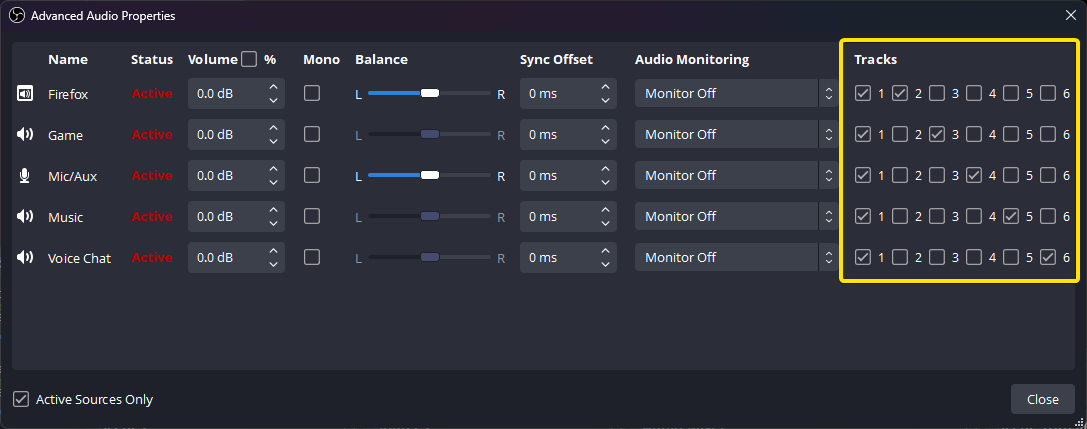
Advanced Audio Properties assigns each source to recording tracks. The highlighted example sends sources to track 1 as well as separate tracks.
If you hear an echo instead of silence, look for a second capture of the same sound. OBS Microphone Sounds Doubled? Find the Second Copy ↗
3. Tell OBS to record those tracks
Open Settings → Output and inspect the recording settings. In Advanced output mode, check the recording track selection. Enable your complete mix track and any separate tracks you need for editing.
For example, a mic assigned only to track 2 won’t appear in a recording that saves only track 1. Either record track 2 or include the mic in your complete mix as well. Leave the format and encoder alone for this first test so you can tell whether the track change helped.
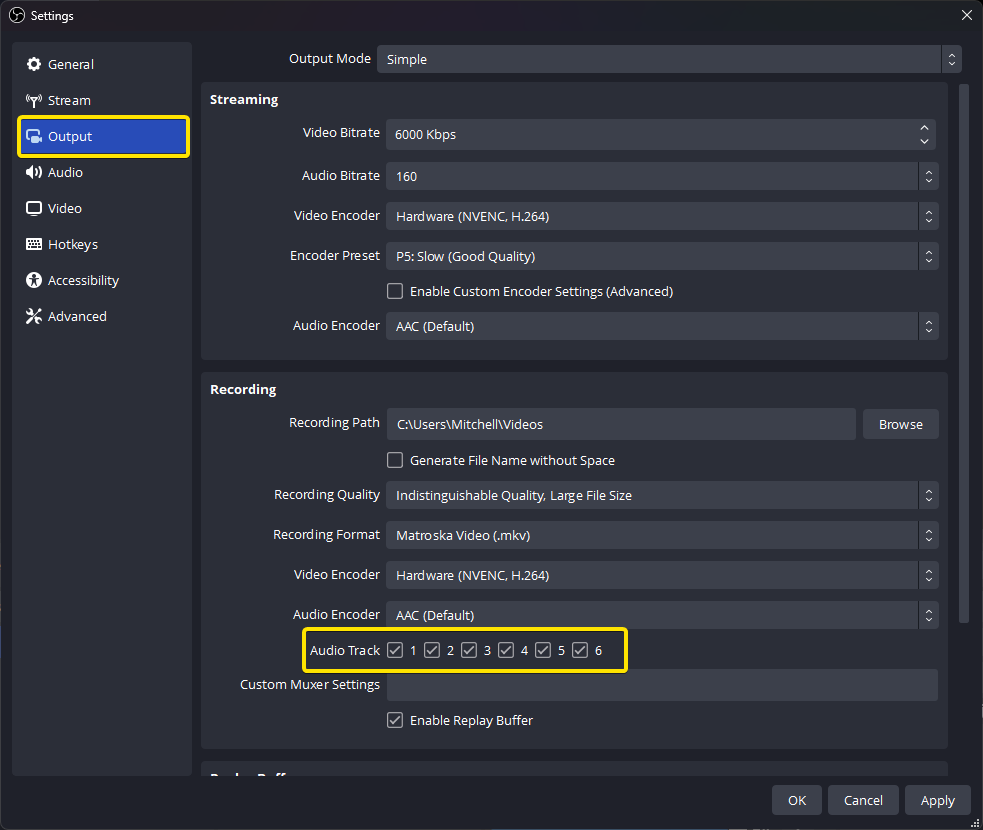
Settings → Output → Recording selects the tracks written into the file. Source assignments and enabled output tracks are separate checks.
Once the sound is back, run through voice, gameplay and alerts together. OBS Audio Check Before Going Live: Listen to the Recording ↗
4. Check which track your player is playing
Most video players play one audio track at a time. If the first track is silent and your voice sits on another, the video can sound empty even though the file contains the recording.
Try the player’s audio-track selector, or open the file in an editor that supports multiple tracks. Listen to each available track. If you find the missing sound there, keep the original for editing. Build a complete playback mix for future recordings instead of throwing away audio you already have.
5. Check the format if playback is the problem
The container and audio codec affect which apps can open a recording. OBS lists MKV as a flexible container, while FLV supports a single audio track. If an editor rejects the file or its audio, compare its requirements with OBS’s format guide.
File → Remux Recordings can change to a supported container when needed. It can’t recover sound that wasn’t recorded. Keep the original, open the converted file and check its audio before deleting anything.
6. Make a recording that’s easy to check
Record a simple sequence: say “microphone”, pause, then play the game or application sound on its own. Stop recording and open the new file. Start with the complete mix, then listen to any separate tracks.
You should hear every intended sound once in the complete mix and the right individual sounds on the separate tracks. If the new file works, keep those settings. The fix applies to new recordings; it won’t add audio that was never captured in the old one.
Tell a missing source from a missing track
Make a ten-second marker file: say “voice”, play a recognizable game sound, then say “end”. Inspect the file’s available audio tracks in a player or editor that can select them. Record which marker appears on each, rather than saying only that the file has no audio.
If one track contains the expected full sequence, preserve the original file. A player choosing another track does not mean OBS failed to record the complete mix. If every available track is silent, return to the enabled recording tracks and source assignment together.
| Observation | Next change | Expected result |
|---|---|---|
| One track contains everything; another contains only voice | Choose the full mix for ordinary playback | Recover correct playback without rerecording |
| No track contains game, but OBS showed game activity | Compare the game source’s assignments with enabled recording tracks | Identify where the game route stops |
| The file reports no audio track at all | Inspect output track selection and format support | Create a small new check before the next long session |
Keep a full mix alongside editing tracks when appropriate. Record Mic, Game and Voice Chat on Separate OBS Tracks ↗
Still stuck?
The microphone meter stays still.
Fix the input before changing recording tracks. Continue with this guide ↗
Your voice is on another track.
Keep the file. For future recordings, add the voice to your complete mix track and enable that track under Output.
The audio works in one app but not another.
Check the target app’s support for the file container and audio codec before changing a working input.
Sources & references
The track and format checks follow the official OBS guides linked below. November 2026 addition: documentation-based diagnostic examples; no new hands-on hardware result or platform upload test is claimed.
- OBS: Audio Mixer Guide ↗Checked 2026-10-18 · Published April 3, 2026
- OBS source: English interface labels ↗Checked 2026-10-18
- OBS: Multiple Audio Track Recording Guide ↗Checked 2026-11-04 · Published July 14, 2023
- OBS: Standard Recording Output Guide ↗Checked 2026-10-18 · Published May 26, 2023
- OBS: Audio/Video Formats Guide ↗Checked 2026-11-04 · Published March 26, 2023
Spotted something out of date? Let Alex know.
How we put our guides together ↗