
List each audio source once and mark its stream, recording-track and monitoring destinations separately. Then compare the plan with OBS and a saved test clip.
A source-to-destination map that exposes missing routes and duplicate paths.
Try it with your setup.
Change the example, update the preview, then keep the notes you want to use. Everything stays in this browser unless you download or print it.
Worked example
Track 1 is a planned full mix; tracks 2,3,4 isolate mic, game and voice chat. Show stream/record/monitor as separate destinations. Track 1 includes microphone, game, voice chat and alert. The private cue is excluded.
In this guide
Before you start
- Recognizable names for your microphones, game, chat and any other audio sources.
- The intended live-stream mix and recording tracks.
- Headphones and a local recording you can inspect.
Separate what viewers hear from what you hear
The live mix, the recording tracks and headphone monitoring are different destinations. Start by writing where every sound should go, without changing OBS yet. A microphone can belong in the stream and an isolated recording track while staying out of software monitoring.
Use names you recognize at the desk. 'USB mic' or 'game app' is more useful than a vague label such as 'input 2' if you cannot remember what input 2 represents. Add physical or virtual device labels in the notes, without including private paths or account details.
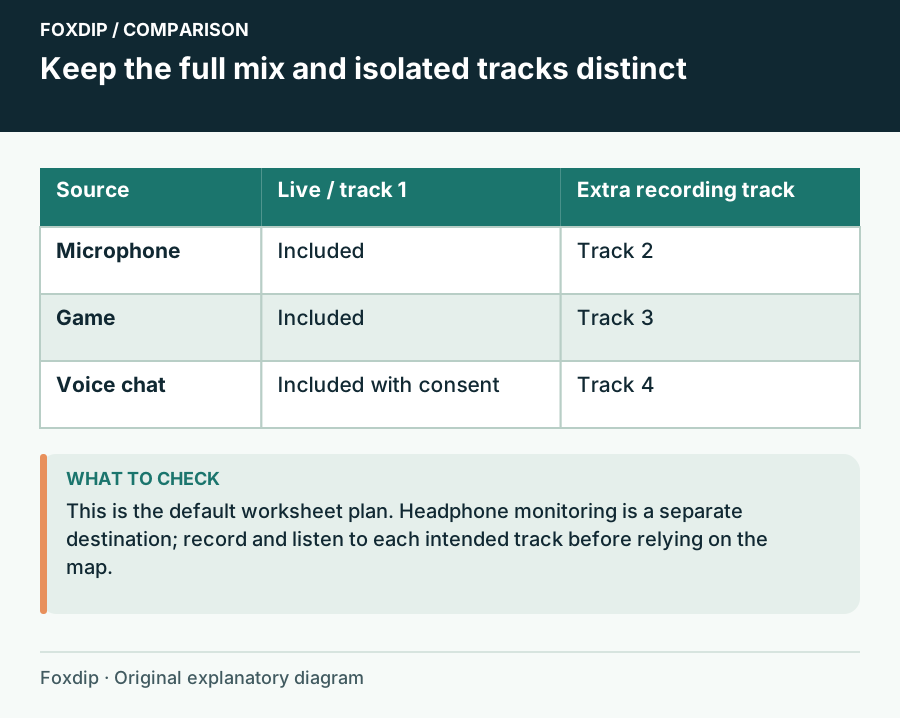
Foxdip worksheet example. Change the inputs above to make your own plan.
Give each source one row
Use the row format source, stream, recording tracks, monitor and notes. An example plan sends microphone, game and voice chat to a full mix on track 1, while tracks 2, 3 and 4 hold separate versions. That is a planning example; choose the tracks that suit your own recording and editor.
OBS documents assigning sources to tracks and separately enabling the tracks that will be recorded. Many ordinary players play one audio track at a time, so isolated tracks alone do not automatically produce a complete listening mix. Include an intentional full mix if you want that playback behaviour.
Trace the second copy before adding filters
A source name appearing twice is a prompt to inspect the route, not proof that two entries are wrong. You may deliberately record a full mix and an isolated stream. The question is whether the same sound reaches a particular destination twice.
OBS warns that a device added through a scene source can echo if the same device is also selected globally in Settings → Audio. Write both paths into the worksheet when checking an existing setup. Also note any monitoring output that returns through a captured desktop device.
Compare the plan with what the saved file contains
Choose Update preview and review the rows together. Then make changes in OBS off-air, using one source at a time. The worksheet itself does not mute devices, select tracks or change the application.
Record each sound separately
Speak while the game is quiet, trigger a game sound while you stay quiet, then ask a consenting friend to speak.
Look for: Each intended destination contains the expected sound once; isolated tracks remain identifiable.
If a sound is missing, follow that source’s row. If it doubles, inspect every path to that destination before changing sync or gain.
Preserve the map that matches the working setup
Download notes or Print keeps the routing plan beside your OBS profile notes. Save in this browser is a local draft, and Reset clears the worksheet for a different setup. Export again after you confirm a change, so the document describes the setup you actually use.
Recheck after replacing headphones, changing a virtual mixer or moving to another PC. Keep permission to use the audio as a separate decision: assigning a music source to a track does not grant rights to broadcast it. The useful map explains both the intended route and the test that confirmed it.
Give alerts and private cues their own row
The updated example includes an alert Browser Source and a private cue. Keep the alert’s stream, recording and monitoring destinations separate so you can hear it locally without capturing it twice through desktop audio.
A private cue can go to your headphones while staying out of the stream and recording. These entries only describe a plan: record a short rehearsal and listen to the files before relying on the route.
If you need the next part of this task. Continue with the related guide ↗
If you need the next part of this task. Continue with the related guide ↗
Inspect the track your editor will actually play
Select recording track 1–6 to list the sources assigned to it. Enter comma-separated numbers such as 1,2; use none for a source excluded from every recording track.
A full mix on track 1 can contain mic, game and chat, while tracks 2–4 contain separate stems. Open the track selector in your player or editor before assuming a source is missing.
Unknown track labels and repeated source names are flagged for review. The worksheet cannot read your OBS settings. Enable the chosen tracks in Output settings and confirm a saved recording before relying on the plan.
Sources & references
An original Foxdip worksheet or calculation, with linked platform references reviewed on 27 October 2026.
- OBS Project — Multiple Audio Track Recording Guide ↗Checked 2026-10-27
- OBS Project — Audio Sources ↗Checked 2026-10-27
Spotted something out of date? Let Alex know.
How we put our guides together ↗