
Duplicate a Profile for different stream, recording or canvas settings. Duplicate a Scene Collection for different scenes, sources and global audio; duplicate both when the experiment changes both.
Separate output settings from layouts so an experiment does not change the wrong setup.
In this guide
Before you start
- An existing OBS setup you want to preserve.
- Names that identify the current profile and scene collection.
Two menus preserve different decisions
A Profile stores output-related configuration, including stream, video and recording choices. A Scene Collection stores scenes and sources, including global audio sources. They can be selected independently, so the name of one does not guarantee you chose its usual partner.
For example, a portrait recording profile can be paired with the same collection as a landscape stream. That flexibility is useful, but it is also how a layout can suddenly sit on an unexpected canvas. Check both selected menu items before changing a setup you care about.
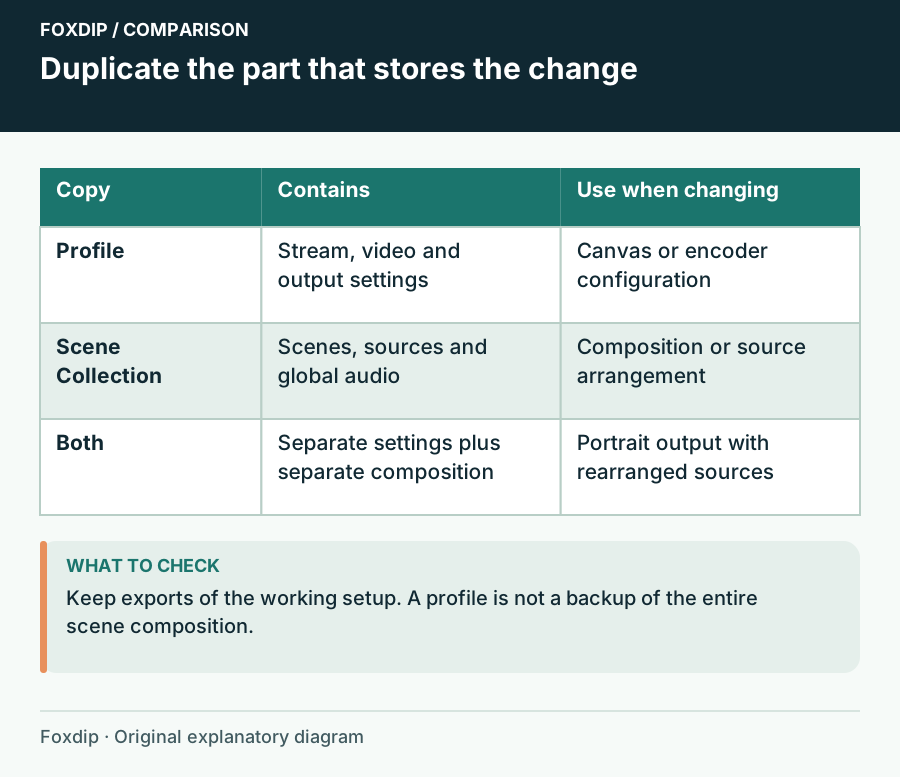
Original Foxdip schematic. Follow the labelled checks alongside the guide.
Choose based on what will change
| Planned change | Duplicate | Why |
|---|---|---|
| Different encoder, output resolution or recording tracks | Profile | These are output choices |
| Different game scenes or a recording-only layout | Scene Collection | These are scene/source choices |
| Different global microphone device | Scene Collection | Global audio sources belong to the collection |
| Portrait canvas plus rearranged overlays | Both | The canvas and the composition each change |
Make the duplicate identifiable
Preserve output settings
Open Profile → Duplicate and use a descriptive name such as Recording — portrait check. Note the original name.
Look for: The new profile is selected and the old one remains available.
If you need a new layout too, continue with a collection duplicate before moving sources.
Preserve the layout
Open Scene Collection → Duplicate and name the intended use, such as Portrait — rebuilt layout.
Look for: The duplicate holds the starting scenes and sources.
Before editing, verify the selected profile and collection together.
Understand what a duplicate does not package
A collection can refer to images, videos, fonts, plugins and devices on your computer. Duplicating its settings is not the same as copying every underlying asset into a new portable package. If both collections point to the same PNG, overwriting that file affects both references.
For an asset experiment, copy the file under a new name and point only the experimental source at it. Keep the original local file unchanged. Likewise, a duplicated collection does not create a second physical webcam or a second audio interface; hardware resources still need sensible source sharing.
Make one reversible change and return
Try a small output change in the new profile and a visible layout change in the new collection. Record a few seconds, then switch back to the original pair. Confirm the original layout and output settings are the ones you expect before considering the experiment safely isolated.
This return trip is the important part. If something appears shared, inspect whether the underlying file, device or source arrangement is still common. Do not assume a menu duplicate copied every external dependency. Keep the experiment until you understand which part moved.
Name pairs for the next session
Use names that describe the job rather than New 2 or Copy. A short note such as Landscape live = Twitch 1080 profile + Main live collection helps when several combinations are valid. Check the pair before going live and after importing a backup.
Export both items when making a recoverable backup, then preserve local assets separately. Menu duplication makes experimentation easier; exporting and copying dependencies makes recovery possible on another installation.
Global input choices can change when you switch collections. Check the selected collection’s audio ↗
Sources & references
Based on official product documentation reviewed on 27 October 2026. Follow the recording checks below on your own setup.
- OBS — Profiles ↗Checked 2026-10-27
- OBS — Scene Collections ↗Checked 2026-10-27
Spotted something out of date? Let Alex know.
How we put our guides together ↗