
Measure the gap near the beginning, middle and end. If it grows, investigate the affected device and timing path; adding a bigger fixed Sync Offset only hides one moment.
Compare timing at several points and isolate the capture path that changes over time.
In this guide
Before you start
- Enough free storage for a recording as long as the failure usually takes.
- A camera-visible clap or tap and a way to inspect the recording waveform.
Separate drift from a late starting point
A recording can begin 150 ms out of sync and remain there, or begin aligned and end a second apart. Those are different problems. Write a short timing log with recording elapsed time, visual contact frame and audio peak. Use the same visible sound at each checkpoint so you compare like with like.
For example, gaps of two, two and three frames may be measurement uncertainty. Gaps of two, ten and twenty frames suggest a changing relationship. These are illustrative patterns, not a threshold that diagnoses a device. Also check whether the problem is present in two players or your editor before blaming capture.
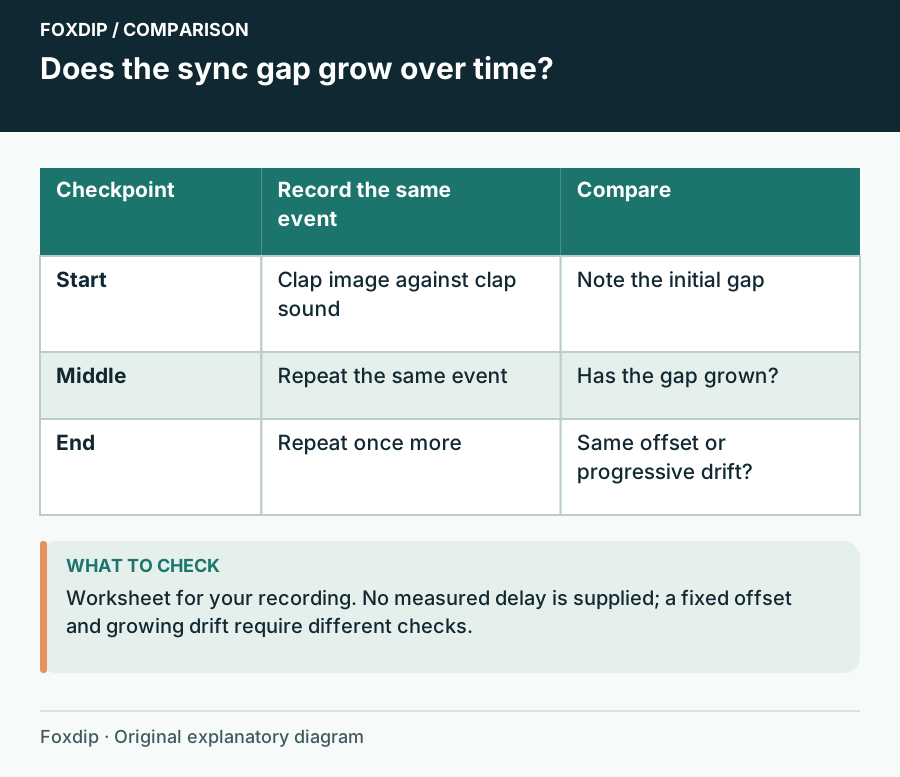
Original Foxdip schematic. Follow the labelled checks alongside the guide.
Identify which relationship changes
Include the webcam and microphone, then a game or capture-card sound with a visible on-screen event. If only the webcam/mic pair drifts, investigate that path first. If every sound becomes late relative to every picture, inspect the recording and system workload rather than changing a single microphone offset.
A sudden jump at the moment you reconnect a device is different from smooth drift. Note scene changes, cable reconnects and source reactivations. Reproduce with one camera and one mic in a temporary scene collection, keeping the original collection intact. This removes widget and duplicate-device distractions without erasing the working show.
Check device timing without a universal toggle
OBS has a Windows-only Use Device Timestamps option on supported audio input/output sources. Its purpose is to use device timing information to help synchronization; it is not a switch that every user should always disable.
Record the baseline
Note the current source setting and make a representative-length check with no other changes.
Look for: You have timing measurements for the current configuration.
If drift does not recur, repeat under the normal workload before drawing a conclusion.
Compare one timing choice
If the source exposes Use Device Timestamps, compare its other state in a separate recording of similar duration.
Look for: One setting either produces a smaller changing gap or neither improves it.
Restore the original if there is no repeatable benefit; do not copy the result to unrelated devices.
Reduce variables in the device path
Record the supported sample rate shown by the device control panel and the rate in OBS Settings → Audio. Use a common supported rate if available, then restart capture and repeat the duration check. Different displayed rates alone are not proof of the cause; resampling can be part of a functioning setup.
Connect the suspect USB device directly for a comparison and keep the camera mode unchanged. If the problem happens only with a game running, compare a scene without that workload and watch OBS Stats for local lag. A clean short clip cannot establish that an hour-long failure has gone away.
Collect evidence that survives a restart
Keep the first and last sync markers, the measured direction of drift, device models, connection route and the relevant OBS session log. OBS support guidance specifically asks for a session in which the problem occurred. Review local paths and device names before sharing a log publicly.
If the timing remains stable with a reduced setup, restore one source or workload at a time until the changing gap returns. If it drifts with the minimal setup too, bring the duration and measurements to the device maker or OBS support. That evidence is more useful than another offset guessed at the end of a stream.
Sources & references
Based on official product documentation reviewed on 27 October 2026. Follow the recording checks below on your own setup.
- OBS — Audio Sources ↗Checked 2026-10-27
- OBS — Encoding Performance Troubleshooting ↗Checked 2026-10-27
- OBS administrator — Collect a log for support ↗Checked 2026-10-27
Spotted something out of date? Let Alex know.
How we put our guides together ↗