
Reproduce the failure once, then read the current OBS log for the NVENC error. Check that the selected codec and colour format are supported by your exact GPU and driver.
Match the failed codec and GPU capability before reinstalling software.
In this guide
Before you start
- Exact NVIDIA GPU model, desktop or laptop variant, and installed driver version.
- A duplicated recording profile so settings can be changed and restored.
Keep the full error rather than a shorthand
Failed to start recording is a result, not one diagnosis. Note whether the log mentions an unsupported codec, insufficient resources, driver/API compatibility or another initialization error. Keep the text around the failure so a later reader can see which encoder and settings were involved.
Close OBS and reopen it if you need a clean comparison, reproduce the error with a short recording attempt, then use Help → Log Files to inspect the current session. OBS support guidance asks for the session that contains the problem. Review private paths and identifiers before sharing the file.
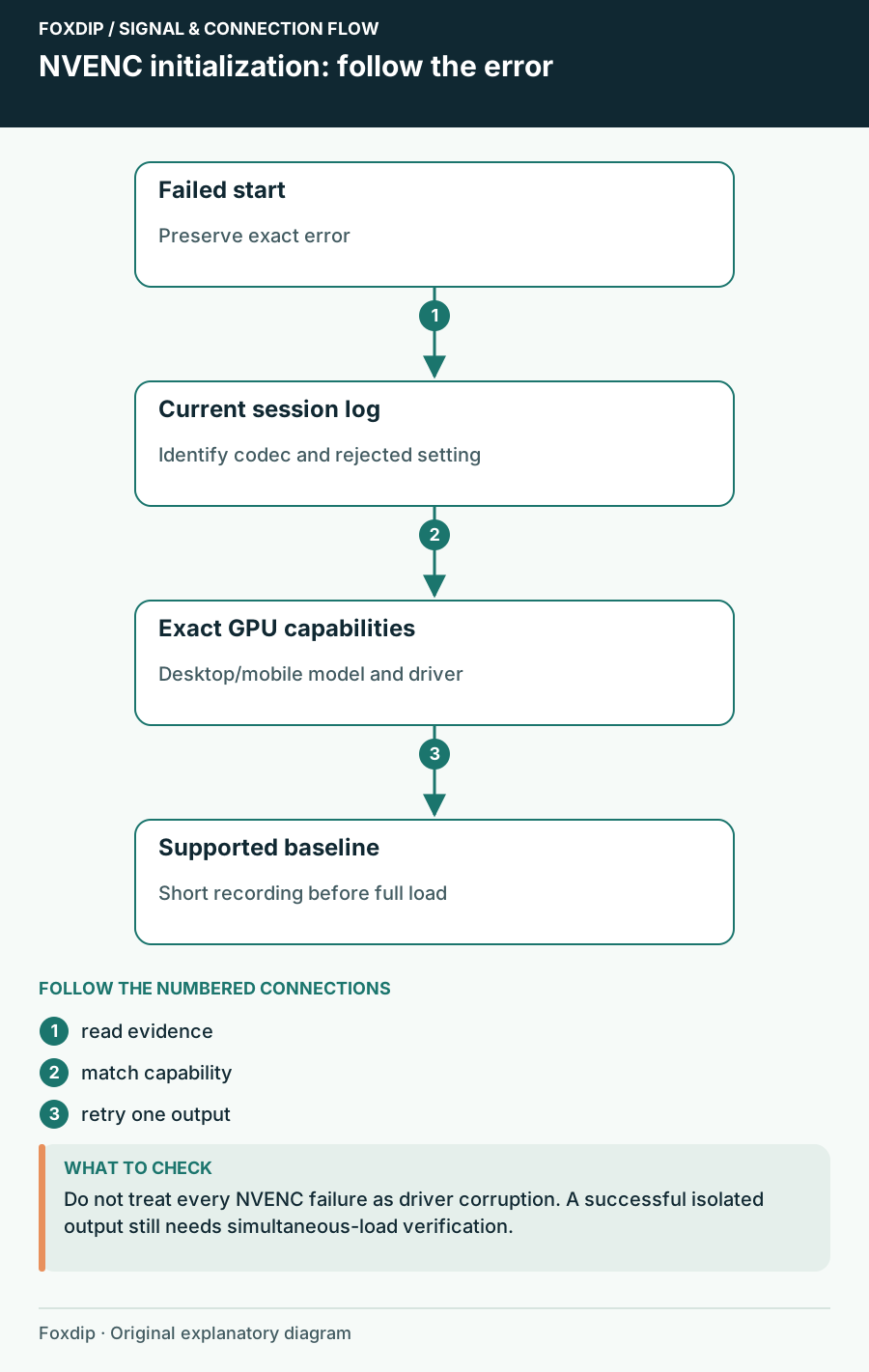
Original Foxdip schematic. Follow the labelled checks alongside the guide.
Follow the specific NVENC message
Keep the full message shown after the failed attempt. OBS’s own error strings distinguish unsupported hardware, driver/API mismatch, an incorrect GPU selection and too many concurrent sessions. Those categories call for different next changes; a general “failed to start” heading is not enough to choose one.
Use a duplicate profile for an SDR baseline so the working HDR setup remains available. After one correction, start a short recording and inspect the resulting file. If the message changes, keep both messages: the first solved condition may have exposed another.
| Observation | Next change | Expected result |
|---|---|---|
| Message identifies the selected GPU index | Restore the documented default GPU selection for a comparison | Remove an unintended encoder-device selection |
| Message identifies too many sessions | Close intentionally running competing recording outputs/apps | Retry with only the required encoder work |
| Message identifies an unsupported codec or device | Match the exact GPU capability to the selected codec | Choose a supported path rather than reinstalling blindly |
| Message identifies an unwritable path or full disk | Repair the recording destination | Keep storage failure separate from NVENC capability |
Keep the required HDR colour and bit-depth configuration with its supported codec. OBS HDR Recordings Look Washed Out: Follow the Colour Pipeline ↗
Check the exact GPU capability
Use NVIDIA’s encode support matrix for your actual model and variant. A GeForce name does not imply support for every NVENC codec, bit depth or resolution. For example, NVIDIA’s OBS guide lists AV1 encoding on RTX 40 and 50 series, while its RTX 20 and 30 series table does not.
Match the attempted codec to what the GPU supports. H.264 for an SDR comparison is a more broadly compatible starting point than assuming AV1 must work. This does not mean changing every successful HDR profile to SDR; isolate the failing setup in its duplicate.
Return one output to a supported baseline
Simplify the failed output
Stop other OBS outputs, choose a codec supported by the GPU, and remove custom encoder options in the duplicated profile. Keep a note of the original values.
Look for: A short recording either starts or returns a more specific failure.
If it starts, restore one advanced option at a time to identify the rejected combination.
Check colour requirements
For an SDR baseline use an appropriate SDR video pipeline; for HDR, follow OBS HDR guidance and a compatible 10-bit HEVC or AV1 encoder.
Look for: The encoder is no longer asked to accept an incompatible colour/codec combination.
If the log still reports capability failure, compare the exact GPU row and selected encoder again.
Consider the other encoder users
A replay buffer, separate recording, enhanced broadcast output or another capture app may also use encoding resources. Close only the capture tasks you intentionally opened and retry. Do not quote a universal session limit: NVIDIA publishes capabilities that depend on the product and current support.
If the log explicitly calls for a newer supported driver, obtain it from NVIDIA or the computer maker’s supported channel and restart as required. Record the installed version before changing it. Avoid repeated clean-driver reinstalls when the log points instead to an unsupported codec.
Prove the repair under the intended load
After a short recording starts, play it and inspect both video and audio. Then add the other intended outputs and repeat. A successful isolated recording establishes only that baseline; it does not prove simultaneous streaming and recording are stable.
Keep the error text, successful settings and driver version with your notes. If initialization still fails, send that evidence through official support. If recording starts but skipped encoding frames rise later, use the performance guide for that different symptom.
Sources & references
Based on official product documentation reviewed on 27 October 2026. Follow the recording checks below on your own setup. November 2026 addition: documentation-based diagnostic examples; no new hands-on hardware result or platform upload test is claimed.
- OBS administrator — Collect a log for support ↗Checked 2026-10-27
- NVIDIA — Video Encode and Decode Support Matrix ↗Checked 2026-10-27
- NVIDIA — NVENC OBS Guide ↗Checked 2026-10-27
- OBS — HDR Configuration ↗Checked 2026-10-27
- OBS source — NVENC and output error messages ↗Checked 2026-11-04
Spotted something out of date? Let Alex know.
How we put our guides together ↗