
Choose a duration for an informal start or a dated end instant when every reload must target the same time. Download the self-contained HTML and add it as a local Browser Source.
An on-device preview and downloadable result, with the limits described below.
A countdown you can keep.
Preview it here, then download one self-contained HTML file for a local Browser Source.
JavaScript powers your local preview and download.
Dated mode survives reload without storage. Duration mode remembers its timer in the same browser when local storage is available; a different browser starts its own timer. Open the exported file with #controls to show Pause and Reset.
No account or upload. Selected files and entered text stay on this device; exports are saved only when you ask.
In this guide
Before you start
- Use files and text you have permission to use.
- Enable JavaScript in a current browser.
Decide what a refresh should do
A duration begins when the downloaded file is first opened in a browser. It remembers its deadline in that same browser when local storage is available. A different browser, isolated OBS source profile or blocked storage can start a separate timer.
Dated mode avoids that dependency: you provide an ISO date with Z or an explicit UTC offset, and the file always counts toward that instant. A deadline in the past shows 00:00 and the finished message. It does not silently pick tomorrow.
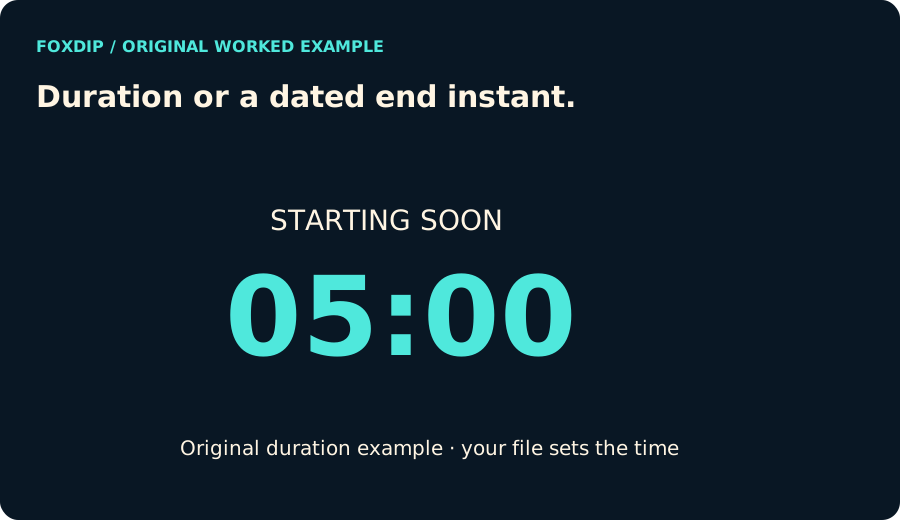
Original Foxdip diagram. The interactive tool above produces your own preview and export; this is not a platform interface screenshot.
Rehearse the end as well as the beginning
Update preview restarts the example with your chosen settings. Pause and Resume hold a duration’s remaining time; Restart returns it to the full entered duration. Dated mode deliberately disables pause because its end instant remains fixed.
Try a short duration and watch it reach zero. The timer stops there and changes the label to your finished message. It does not start a stream, switch an OBS scene or announce that a host is actually ready.
Use the file as a local Browser Source
Download the HTML, open it in a browser and check its colours and wording. The file contains its own script and styles; it does not need Foxdip to stay open or a login to keep counting. Set up a local Browser Source with the file in OBS and review its canvas size.
The exported timer hides editing controls by default. Open the local file with #controls at the end of its URL to show Pause and Reset while you prepare it. Test a reload in the actual OBS source you will use; browser storage behaviour is part of that environment.
Keep the task small
The timer has no account connection, calendar subscription or cloud widget ID. It knows only the label, colours and timing values you entered. If you need a fresh duration after a rehearsal, use Reset in its controls rather than relying on a page refresh.
Your computer’s clock determines a dated countdown. Correct a wrong system time before trusting it for an event. For a repeated weekly stream, generate and verify a new dated instance when the date or time-zone offset changes.
Sources & references
Original Foxdip browser-local tool and explanatory example. Platform or file-format guidance is linked below; account upload and moderation are separate.
- OBS — Browser Source ↗Checked 2026-10-27
- WHATWG — Canvas and bitmap serialization ↗Checked 2026-10-27
Spotted something out of date? Let Alex know.
How we put our guides together ↗