
Direct monitoring lets you hear the microphone through the device itself; OBS monitoring plays a source through OBS’s chosen output. Start with one voice-monitoring route, then play back a saved recording to check what OBS captured.
One intentional way to hear your live voice, plus a recording that confirms the saved mix.
In this guide
Before you start
- Your microphone or interface manual.
- Headphones connected to the output you plan to use.
- Your usual OBS scene and recording settings.
- MicrophoneCable & connection
- Operating systemInput & permission
- OBS mixerSource, meter & mute
- RecordingTrack & playback
Hearing your mic and recording it are separate jobs
You can hear your voice perfectly in headphones while OBS records no microphone at all. Start by identifying three things: the device receiving your voice, the output feeding your headphones and the recording you want to check. One piece of hardware may handle several jobs, but each of those questions needs its own answer.
With direct monitoring, an interface sends its input to its headphone or line output with near-zero latency, as Focusrite explains. That lets you hear the incoming voice while it is also available for recording. OBS monitoring takes a separate route through the software and its selected monitoring device. Later software processing may therefore sound different from the direct input.
| Where you listen | What it tells you | Still check |
|---|---|---|
| Device/direct monitoring | The microphone reaches this device’s listening output. | Whether OBS receives and records it. |
| OBS monitoring | OBS plays this source through its chosen monitoring device. | Which recording tracks contain the mix. |
| Saved recording | What this file contains on the track you play. | Other scenes and outputs after their settings change. |
Start with one way to hear your voice
If the microphone or interface offers direct monitoring, find that control in its manual. Set a comfortable headphone level and listen to the incoming voice. Keep the software return of the same voice off during this first check. You’ll have one clear route to listen to and fewer places to investigate if something sounds wrong.
If there is no direct-monitoring feature, or you want to hear the software route, use OBS monitoring and identify its selected output device. A headphone socket alone doesn’t tell you which kind of monitoring is available. Look for the control or diagram in the manual so you know what that socket is receiving.
On the AT2020USB-X, for example, a mix control balances microphone input against computer playback, while a separate control sets headphone volume. Turning up the headphones doesn’t turn up the microphone input. Knowing which job each knob performs saves you from adjusting the stream level when you only meant to hear yourself more comfortably.
If the headphones sound fine but the file is silent, check the recording input and tracks. OBS recording has no audio: check the input, tracks and playback ↗
A doubled voice usually needs a route check
If your voice sounds delayed or doubled in the headphones, list everything that could play it back: direct monitoring, OBS monitoring, another recording app and a live preview. Close any preview you don’t need, then isolate one return at a time. Note the original settings so you can undo each change without losing the setup you started with.
Focusrite explains that hearing both a direct input and its software return can give you two versions of the same voice. Keep the return you intend to use and disable the extra one with the relevant device or application control. Listen again before making another adjustment so you know which route caused the doubling.
Use the monitoring control when you want to change your own listening. Muting the microphone’s output can silence it for the audience as well. OBS separates those controls, so check which one you touched. If the echo appears in the saved file too, investigate the captured sources as well as the headphone returns.
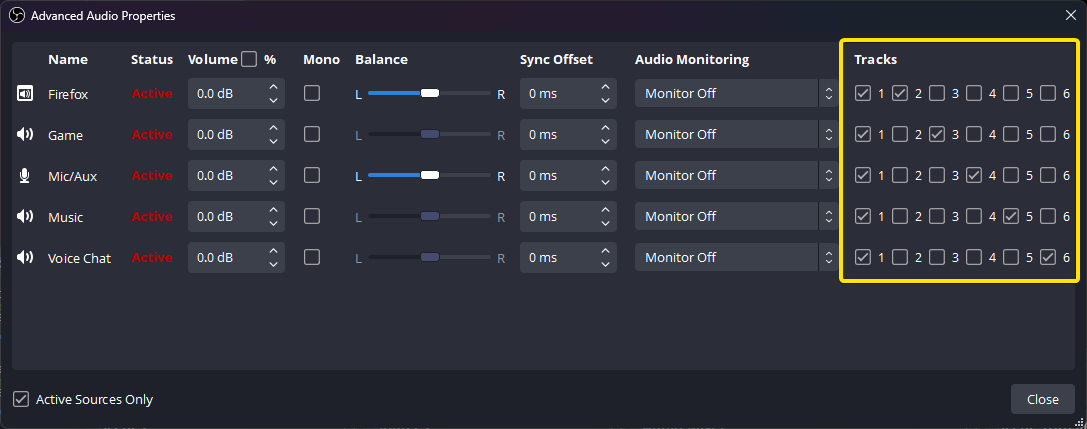
OBS monitoring controls sit beside track assignments. This example uses Monitor Off; your headphones can have another return path outside this dialog.
Settle your speaking position before comparing how loudly you hear the mic. Microphone Distance and Placement: Find Your Speaking Position ↗
Let the saved file answer the recording question
Record a short scene with speech and the application audio you want viewers to hear. Trigger an alert if one is already part of the setup. Stop recording, then remove the live microphone return while you listen back, either by closing the recording session or disabling that monitoring route. Restore your normal listening settings afterwards.
Play the file and check that voice, application audio and the intended alert appear once at usable relative levels. For a multi-track recording, inspect the tracks you intended to save. OBS notes that many players play only one track at a time. Before deciding a file is silent, check which track the player chose and which sources OBS assigned to it.
Leave yourself one clear note
Keep a sentence such as: “I hear my mic through the interface’s direct path; OBS receives that interface input; the test recording contains voice and game audio.” If you use OBS monitoring, write that instead. The note should tell you where to listen and where to look the next time the sound changes.
Repeat the saved-file check after plugging headphones into another device, changing the scene’s audio sources or adding a mixer app. Keep the working recording beside the route note. When a new issue appears, those two references help you work out whether you changed your listening, the captured audio or both.
Still stuck?
I can hear myself, but the recording has no microphone.
Check the OBS input device and recording-track assignment. The direct headphone route can keep working while the source is missing from the saved mix. Continue with this guide ↗
My voice doubles only in my headphones.
Isolate direct monitoring, OBS monitoring and other returns one at a time. Keep the route you want, then check the recording separately.
One recorded track has sound and another is silent.
Check which sources OBS assigns to each track, then select the intended track in your player. Continue with this guide ↗
Sources & references
Monitoring explanations follow Focusrite, Audio-Technica and OBS documentation checked on 18 October 2026. November 2026 addition: documentation-based diagnostic examples; no new hands-on hardware result or platform upload test is claimed.
- Focusrite: What is direct monitoring? ↗Checked 2026-11-04
- OBS: Audio Mixer Guide ↗Checked 2026-10-18 · Published April 3, 2026
- Audio-Technica AT2020USB-X user manual ↗Checked 2026-10-18
- OBS: Advanced recording guide and multi-track audio ↗Checked 2026-10-18 · Published November 23, 2021
Spotted something out of date? Let Alex know.
How we put our guides together ↗