
Compare the camera image at its native captured size, verify a supported resolution/FPS mode and focus, then judge the final scene scaling.
Find whether detail is lost at the camera, source mode or scene transform.
In this guide
Before you start
- A webcam with known supported modes and enough light to see a stationary subject.
- A temporary scene and a small object with readable text near your normal face position.
Find the first place that looks soft
Place the text object beside your face, not directly against the lens. Make a short recording with the webcam large enough to inspect. If the raw source is sharp but the final small facecam seems soft, the problem may simply be the amount of detail available at that displayed size.
A small OBS preview is not the final output. Inspect the saved file at a sensible display size rather than stretching a tiny facecam to fill a 4K monitor. This avoids trying to create detail that the camera region never contained.
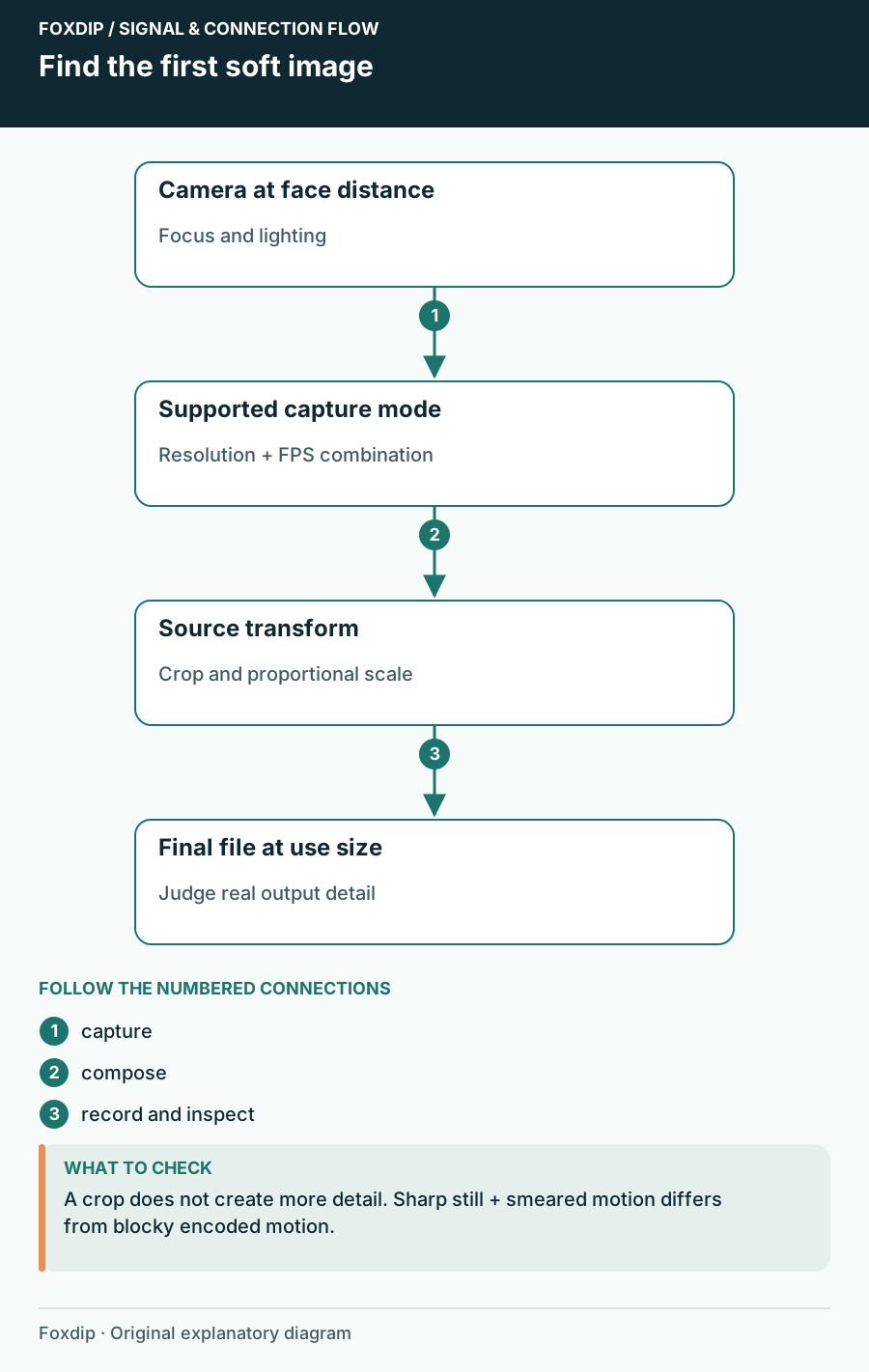
Original Foxdip schematic. Follow the labelled checks alongside the guide.
Verify the capture mode
Open the Video Capture Device source’s properties and note Resolution/FPS Type, resolution, FPS and format. OBS can use a custom mode, but the camera must support that combination. A higher number that the device cannot supply is not an upgrade.
Select one supported mode and record a short sample. Keep the camera format and USB connection stable while comparing resolutions. If the source becomes blank or unstable, restore the last working mode; do not keep an unsupported resolution simply because it is selectable.
Compare a known mode
Use a supported resolution and FPS combination from the camera’s documentation or device controls. Record the text object with no visual effects.
Look for: The camera produces a stable image whose detail you can inspect.
If it is still soft, investigate focus and lighting before increasing OBS output size.
Set focus at the distance you use
If the camera exposes focus controls, access its manufacturer configuration or Configure Video control. Place yourself at your normal distance, let autofocus settle, then compare a fixed focus if the device supports one. Keep the camera and chair position unchanged during that comparison.
If a hand or microphone near the lens draws focus away, remove it from the foreground and repeat. More appropriate lighting can help the camera operate without relying on long exposures or heavy processing, but added light will not fix a source stretched beyond its captured resolution.
Inspect the transform instead of stretching
Reset an accidental transform in the temporary scene, then fit the webcam proportionally. Cropping removes unwanted edges; it does not increase the captured detail. Stretching changes shape and can make faces look wrong. Keep a frame overlay separate so you can inspect the image beneath it.
If you crop a 1920-wide camera to a narrow region and enlarge that crop, the surviving pixel count is much smaller than 1920. Check the result at its intended output size before adding sharpening. A lower, honest facecam size may look better than an oversized crop.
Use crop and transform controls after the source itself is sharp. Fit a camera to its frame proportionally ↗
Separate motion blur from compression blur
Ask whether a still face is sharp but moving hands smear. That points toward exposure or camera processing rather than only scaling. If both the camera and game become blocky in a moving recording while the preview is crisp, inspect encoding quality and output workload instead.
Keep one still and one moving sample. Finish with the actual facecam dimensions, lighting and game load. Save the successful camera mode so a driver reset or new scene does not silently return to a low-resolution default. Replace hardware only after identifying a limitation that your current setup cannot address.
Sources & references
Based on official product documentation reviewed on 27 October 2026. Follow the recording checks below on your own setup.
- OBS — Video Capture Sources ↗Checked 2026-10-27
Spotted something out of date? Let Alex know.
How we put our guides together ↗