
Map game audio, friends’ voices and your voice separately. A compatible wired Chat Link Pro path can capture headphone sound, but normally needs a separate PC mic for your commentary.
A test recording contains game sound, friends and your commentary once each.
In this guide
Before you start
- PS5, a working gameplay capture path and a consenting party for a short sound check.
- Exact headset connection: controller 3.5mm, USB or wireless base station.
- For the wired example: Chat Link Pro, compatible analog headset and card/PC stereo line-in.
- MicrophoneCable & connection
- Operating systemInput & permission
- OBS mixerSource, meter & mute
- RecordingTrack & playback
Three sounds need three confirmed paths
Draw three rows before buying a cable: game, other players and your own speech. Beside each, write where you hear it and how it reaches the PC. Hearing a friend in your headset doesn't prove the HDMI capture receives that friend. Likewise, friends hearing your mic doesn't prove your recording contains your voice.
Use a short agreed test sentence from a party member, and tell the group when you are recording. Keep your first check local. It gives you something to listen to without discovering missing voices halfway through a public stream.
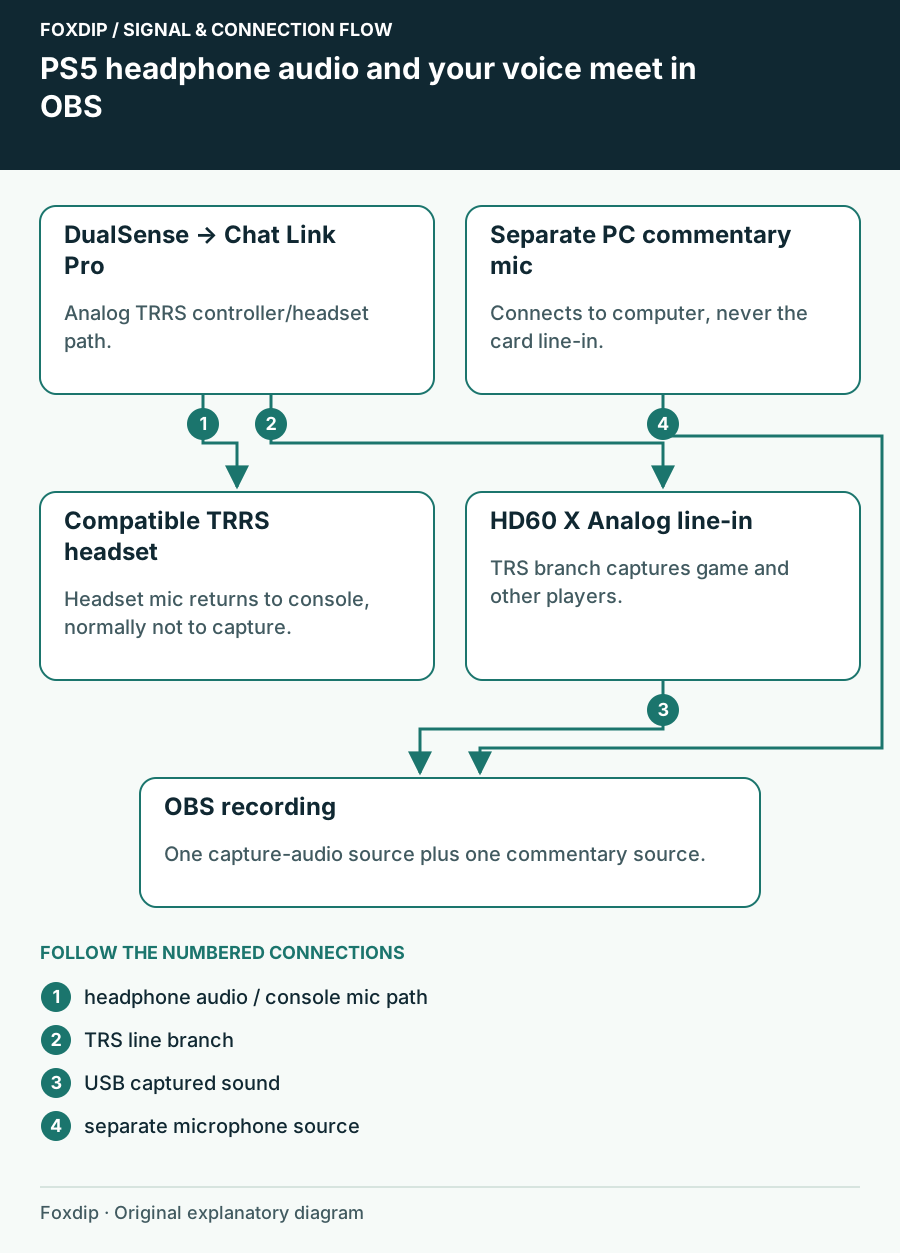
Original Foxdip schematic. Follow the labelled checks alongside the guide.
Choose a path your headset actually supports
Chat Link Pro is an analog arrangement. Its controller connection and headset socket use 3.5mm TRRS, while the capture branch uses TRS into a suitable line input. A USB-only headset or active wireless connection isn't turned into an analog output by installing OBS.
If your headset offers a wired analog mode, check its own instructions for that mode before assuming its USB features still work. If it has a base station with a dedicated stream output, use that model's documentation. These are different routes; a guide for an older optical MixAmp isn't a PS5 compatibility promise.
Build the wired controller example
Connect the Chat Link Pro controller plug to DualSense, the analog headset to its headset socket and the capture branch to HD60 X's line input. In Studio's expanded Audio tab, select Analog Audio. If the computer supplies the input instead, it must be line-in rather than a microphone socket or a headphone-only jack.
Confirm headphone audio first
Connect the headset directly to the controller and confirm you hear the game and test party voice. Then insert Chat Link and select the matching analog capture input.
Look for: The same sounds appear on the capture meter and in a short recording.
If the direct headset is silent, repair console output first. If only capture is silent, inspect the line input and Analog selection.
Your headset mic is usually absent from that recording
Elgato says Chat Link Pro normally sends the headset microphone back to the console, not to the capture card. Add your commentary microphone directly to the PC and give it its own OBS source. Don't keep increasing the capture gain to recover a voice that isn't in that cable.
Some controllers or headsets can feed mic monitoring into the sound you hear, but relying on that may make you hear yourself and can create a second commentary copy. A separate PC mic gives you a visible meter and a level you can adjust independently of the party.
Recheck output switching with the real headset connected
Sony's Audio Output settings let you select the device and automatic switching, and its microphone controls select the input used for console chat. Set those with the final headset connected. Avoid taking a successful TV-audio test as evidence that the controller route will behave identically.
Record three passes: friend speaking while you stay quiet, you speaking while the friend stays quiet, then ordinary game sound. If one is missing, return to its row in the plan. If one repeats, mute sources individually until you find the duplicate. Save the working wiring and source names; that small map is your quickest recovery after moving the controller or headset.
Sources & references
Based on the linked manufacturer and platform documentation reviewed on 27 October 2026. No hands-on hardware test is claimed.
- Elgato — Chat Link Pro Technical Specifications ↗Checked 2026-10-27
- Elgato — Chat Link Pro Setup with PS4/PS5 ↗Checked 2026-10-27
- Elgato — Chat Link Pro Cable Troubleshooting ↗Checked 2026-10-27
- Sony — Change PS5 Audio Settings ↗Checked 2026-10-27
Spotted something out of date? Let Alex know.
How we put our guides together ↗