
Create or identify the audience mix in Wave Link 3, include the intended channels and select that named mix as the OBS audio input.
Find the mix you actually created in Wave Link 3 and trace it into one OBS input instead of relying on an old device label.
In this guide
Before you start
- Wave Link 3 on supported Windows 11 or macOS 15+.
- OBS and the actual name of the intended audience mix.
Start with the mix that exists now
Wave Link 3 uses independent named mixes. Don’t assume an old Wave Link 2 tutorial’s device label proves that the current audience mix is connected. Open the mix view and identify the mix you intend OBS to receive. Give it a destination name such as “Stream” if that helps you distinguish it from headphones or a call feed.
Headphones working does not establish that this mix contains sound. You may be monitoring a different mix, and each mix can include different channels and levels. Trace a single source from its input meter to the intended audience mix before touching the OBS side.
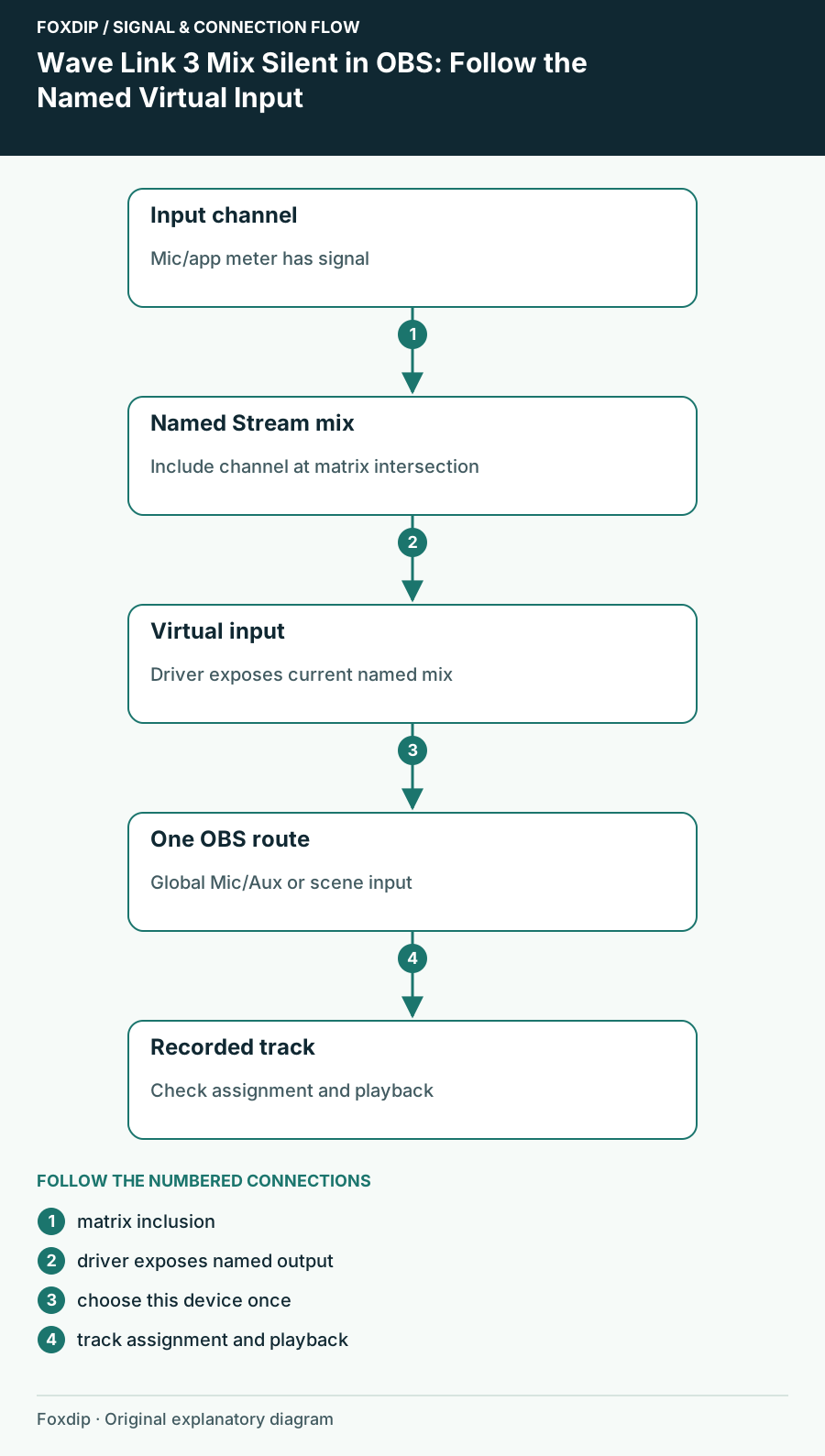
Original Foxdip schematic. Follow the labelled checks alongside the guide.
Connect the inputs to the audience mix
In Wave Link’s mix view, inputs are listed on the left and mixes across the top. Create the intended mix with the plus control if needed, then add the microphone or app channel at the intersection with that mix. Confirm it is included and audible rather than merely present in the input list.
Use one spoken phrase for the microphone and one repeatable app sound for the game. If an input has no signal, inspect that device or app first. If the input moves but the mix is silent, inspect its inclusion, mute and level in the intended mix.
Select the named mix as an input
Elgato’s Wave Link 3 mix guide describes selecting the named mix under OBS Settings → Audio → Mic/Auxiliary Audio, or adding it as an Audio Input Capture for scene-based control. Choose one route for the first test. A second capture of the same mix will not make a silent route more reliable.
Inspect the mix name
Read the mix’s actual current name in Wave Link.
Look for: You know which virtual input to look for in OBS.
Choose it in OBS
Select the matching named device through one global or scene input route.
Look for: The OBS meter responds to the included phrase or app sound.
Check mute and recording track
Unmute the intended OBS source and confirm it is assigned to the recording track you will play.
Look for: The signal has a route from the OBS meter into the test file.
If the virtual input is missing, check setup
Wave Link’s audio driver is required for its virtual channels to appear in other apps. Read any driver-missing prompt and complete the official installation process. On macOS, also check the microphone and system-audio permissions Wave Link requests. Don’t follow a Wave Link 2 device-unlock checklist for the redesigned application.
After an update, re-open the OBS device selector and inspect the current names. Elgato has documented Windows driver updates that can change how virtual devices appear. That is a reason to reselect the actual route, not evidence that every update causes an audio failure.
Record the two mixes doing different jobs
Make a short local OBS recording with microphone and game sound. Play it back outside OBS. If you hear both in the intended balance, adjust a Personal or headphone control and repeat one phrase. The recording should follow the audience mix you selected, rather than an accidental desktop capture.
If the OBS meter moves but the file is silent, stay with track assignment and playback before rebuilding Wave Link. If the Wave Link mix is silent too, stay upstream. Keep the successful mix name and OBS source name together so the next update check has a concrete route to compare.
Sources & references
Based on the official documentation linked beside the relevant sections. Follow the checks on your own setup; no hardware measurements or account tests are claimed.
- Elgato — Use Wave Link3 for Streaming ↗Checked 2026-10-27
- Elgato — Wave Link 3.0 Software Overview ↗Checked 2026-10-27
- Elgato — Create a MicrophoneFX Mix in Wave Link3 ↗Checked 2026-10-27
- Elgato — Wave Link3.2.8 Windows Release Notes ↗Checked 2026-10-27
- Elgato — Current software downloads ↗Checked 2026-10-27
- Elgato — Wave Link3.3 Windows Release Notes ↗Checked 2026-10-27
Spotted something out of date? Let Alex know.
How we put our guides together ↗