
Test the same overlay in its editor and in OBS. If it works in the editor, follow the Browser source path before changing the artwork.
In this guide
Locate where the picture disappears
Open the intended overlay and trigger a test. An alert-only overlay can be transparent between events; a blank canvas at rest is not proof that it failed. Use an intentional test event so you know when something should be visible.
If the test is also absent from the editor, inspect the enabled event and activity-feed playback state. If it appears there but not in OBS, keep the design unchanged and check the source below. Changing several parts at once hides the useful comparison.
Check URL and viewport together
Copy the intended overlay URL
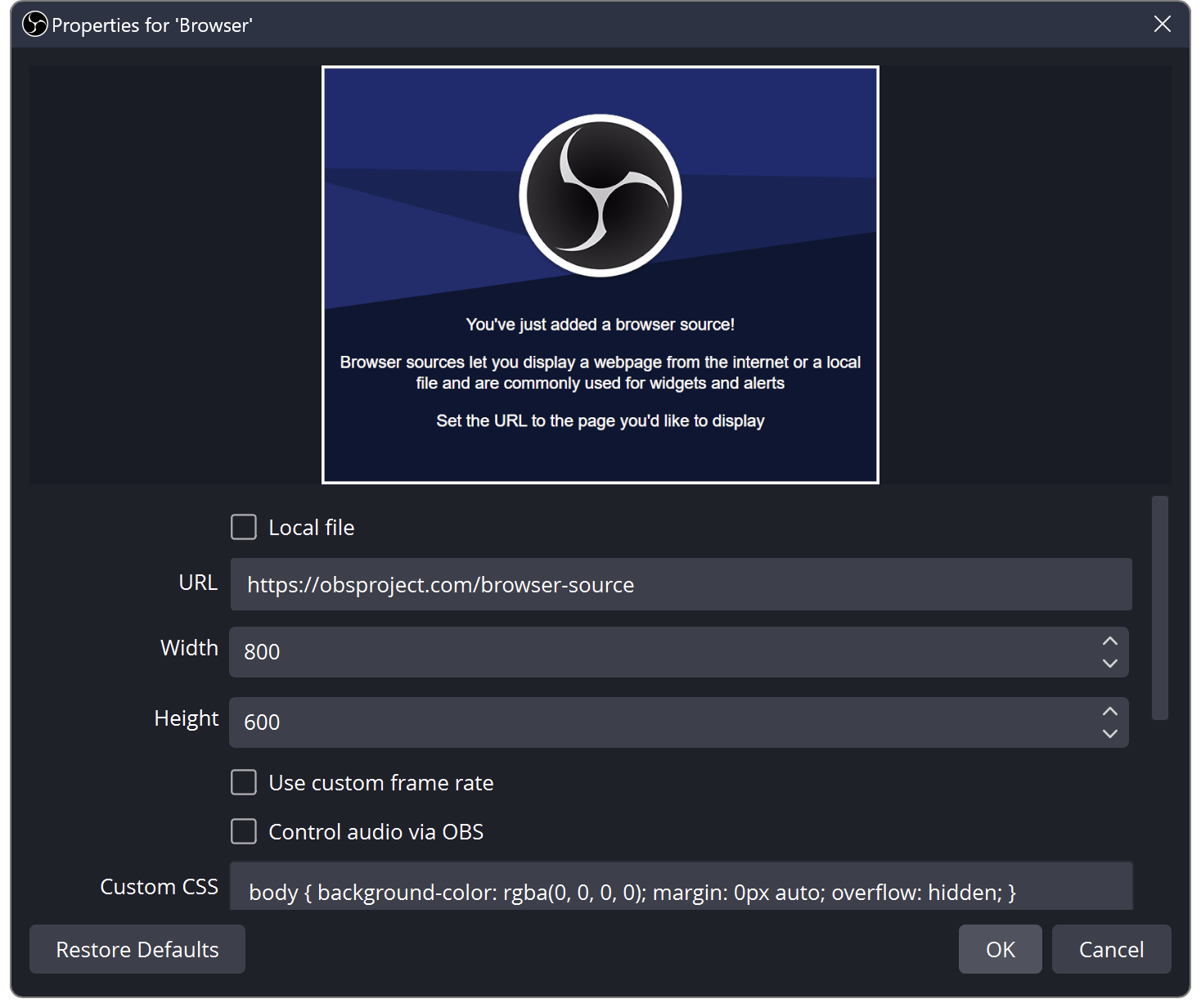
Use My Overlays and its Copy URL control for the overlay you just tested. Open the matching OBS Browser source properties and paste it there.
Look for: OBS points to the same overlay, not an editor page or an old copy.
Keep the overlay URL private; do not post it in a troubleshooting screenshot.
Match the dimensions
Set Width and Height to the overlay’s actual canvas dimensions. Use 1920 × 1080 only for an overlay built at that size.
Look for: The browser viewport matches the composition the service renders.
Check the visible source
Confirm the source eye is enabled and move it above any source that covers the alert region. Trigger the same test again.
Look for: The tested alert appears in the intended part of the OBS scene.
 123
The default OBS page and 800 × 600 values shown here are only a documentation example. Use your private overlay URL and its real dimensions.
- URL mode for the hosted overlay
- Private overlay URL
- Overlay width and height
Refresh one source before changing global settings
Use the source’s refresh control and replay the event. If it returns only after a refresh or scene switch, inspect the source lifecycle choices: shutting down a hidden source and refreshing it when active are different behaviours. Keep the setting you changed written down.
StreamElements documents a browser hardware-acceleration comparison for rendering or stuttering problems, with an OBS restart after changing it. Treat that as a later, reversible comparison after checking the URL, dimensions and layering. It is not a reason to change unrelated security or network settings.
Send a focused support description
Record whether the same event appeared in the editor, the source dimensions, the OBS version and which scene contained the source. A screenshot can show the dimensions and ordering with the private URL hidden.
If the overlay renders but makes OBS work unusually hard, use the browser-source performance guide rather than repeating the blank-picture checks. If it renders twice, follow the duplicate-source branch. Those are different results and deserve different next steps.
Use the performance branch when the picture exists but costs too much. Investigate Browser source load ↗
Use this when the same picture appears more than once. Find duplicate alert playback ↗
Sources & references
StreamElements documents the overlay checks and OBS documents the Browser source properties. The image shows OBS’s example URL and dimensions, not a connected Foxdip overlay.
- StreamElements — Overlays Troubleshooting ↗Checked 2026-10-27
- StreamElements — SE.Live troubleshooting ↗Checked 2026-10-27
- OBS — Browser Source ↗Checked 2026-10-27
- StreamElements — Add overlays and alerts ↗Checked 2026-10-27
Spotted something out of date? Let Alex know.
How we put our guides together ↗