
Make an empty test scene and add only the capture there. If it's still black, the fix depends on the source: Game Capture needs the game in focus, Window Capture needs the right window, and Mac needs Screen Recording permission.
- Make a new empty scene and add just the capture source.
- Game Capture: click into the game so it's the active window.
- Window Capture: open the source and pick the window again.
- Laptop with two graphics cards: check which one OBS runs on.
- Mac: allow OBS in System Settings → Privacy & Security → Screen Recording (called Screen & System Audio Recording on newer macOS).
- Still black? Record 10 seconds and keep the log for a support question.
You’ve found a layout, target-selection or permission problem, or have enough detail to get help with the specific capture that fails.
In this guide
Before you start
- The name of your operating system, capture source and target game or app.
- An offline test scene; stop broadcasting before checking a display or window.
- These steps cover Windows and macOS screen, window and game capture; capture cards, Linux portals and protected video need their own checks.
1. Try the capture without the rest of your layout
First pin down what’s black. Is the whole preview blank, one source missing, or the game visible until you switch away from it? Note the capture type and the exact game or application you want to show.
Put that capture in a temporary scene without the other layers. If it works there, go back to the main layout and check what’s hiding it. An opaque background above the capture can look like a capture failure. There’s no need to reinstall OBS to fix the order of two sources.
2. Windows: check the source and keep the game in focus
For a game, open Game Capture properties and check its mode and selected window. For an ordinary application window, look at Window Capture instead. Launch the app before selecting it so the intended target is available in the list.
A fullscreen game may stop rendering when you switch away to look at OBS. Record a short clip with the game in focus, then stop and play the file. If the recording has the picture, the blank preview while you were tabbed out didn’t mean the whole capture was broken.
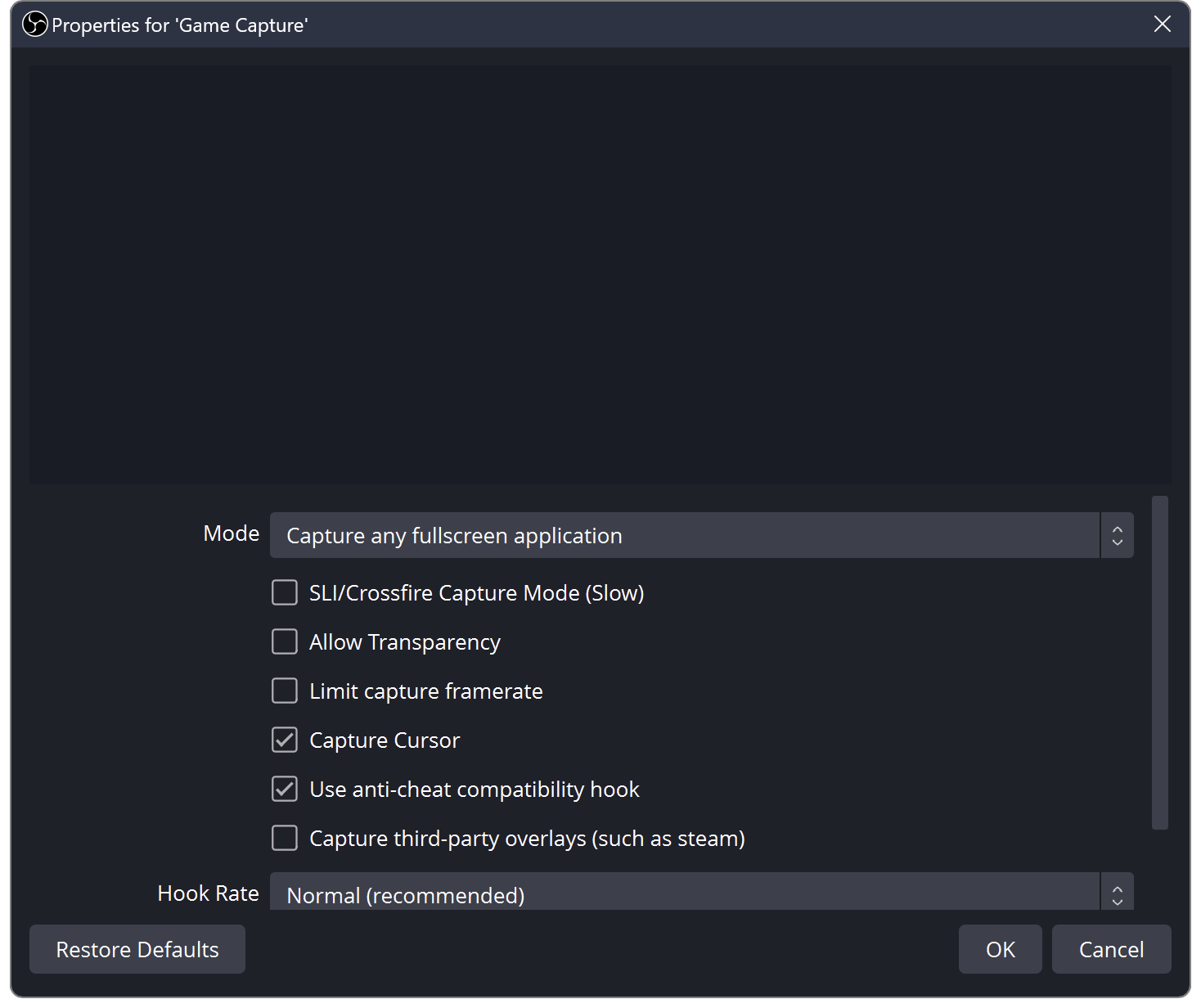
Game Capture has its own Mode control. This Windows documentation example shows Capture any fullscreen application; choose the mode appropriate to your game.
Once the capture works, put it beneath the camera and graphics you want to show. OBS Source Order: Learn Layers with Three Colour Blocks ↗
3. Windows: choose the window again
Open Window Capture properties and compare the selection with the window you have open now. OBS notes that exact-title matching can leave the source blank until a matching title appears.
Reselect the intended window after relaunching the app or changing its title. If you choose a looser matching rule, check that OBS still picks the right application. Look at the actual captured contents before returning that source to a live scene; a working capture of the wrong window is its own problem.
If the webcam is working but doesn’t fit its frame, crop the picture to the opening. Fit Your OBS Webcam to a Frame Without Stretching It ↗
4. Windows: check the game’s exception before trying more fixes
Some games don’t allow the Game Capture hook. OBS’s troubleshooting guide gives examples including Destiny 2 and Counter-Strike 2, with windowed or borderless play and Window Capture as alternatives. Read the current entry for your game rather than applying a workaround meant for a different one.
If your Windows computer has multiple GPUs, compare which one runs OBS and which runs the game. OBS documents Game Capture problems when they use different GPUs. Follow the linked GPU guide for that case instead of changing every graphics preference and hoping one helps.
5. Mac: check Screen Recording permission
Open OBS Studio → Review App Permissions and look at Screen Recording access. A working webcam doesn’t answer this question: Camera, Microphone and Screen Recording are separate permissions.
On macOS 13 or later, OBS points users to macOS Screen Capture rather than the older Window Capture route. Select your display, window or application in that source’s controls. Follow any restart or permission instruction the system gives you, then try the capture again in the test scene.
6. Keep a working clip or a specific support question
Record the intended target while it’s active, then check the file. Is it the right window, with the picture you expected? If one app still fails while another works through the same source type, keep that comparison.
For support, note your operating system, OBS version, source type, selected app and last successful check. Those details narrow the problem. Protected video, capture cards, drivers and Linux capture portals can need different troubleshooting, so don’t turn an unrelated workaround into a sweeping system or security change.
Record while the fullscreen game remains active
If a game preview turns black when you switch to OBS, make one local recording while you leave the game focused, then stop it and inspect the file. Some fullscreen games stop rendering when minimized. That behaviour can make a working capture look broken from the OBS preview alone.
Keep the capture source and graphics settings unchanged for this check. If the saved gameplay is present, investigate how you monitor the preview. If it is also absent, continue with the game-specific capture guidance. An exception for one game is not a reason to grant every app elevated privileges or alter unrelated system settings.
| Observation | Next change | Expected result |
|---|---|---|
| Saved gameplay is correct; preview was black after Alt-Tab | Compare borderless mode or a separate monitoring screen | Verify capture without minimizing the game |
| Saved file is also black | Check the selected game window and documented capture method | Diagnose the actual capture path |
| Game picture is tiny or outside the canvas | Inspect Reset Transform/Fit to Screen in a test scene | Restore framing before changing capture permissions |
Rule out a hidden or displaced source before changing capture methods. OBS Source Order: Learn Layers with Three Colour Blocks ↗
Still stuck?
The capture works in an empty scene.
Check visibility and the layers above it in your main scene. Continue with this guide ↗
The fullscreen game disappears when you switch to OBS.
Record with the game in focus, then play the file to check what was captured.
The Mac webcam works, but screen capture doesn’t.
Check Screen Recording permission. Camera permission is separate.
One game fails, but other captures work.
Look for that game in OBS’s current troubleshooting guide and note which source you’re using.
Sources & references
The Windows and Mac checks follow OBS’s official capture and permissions guides. November 2026 addition: documentation-based diagnostic examples; no new hands-on hardware result or platform upload test is claimed.
- OBS: Game Capture Source ↗Checked 2026-10-18 · Published January 11, 2022
- OBS: Game Capture Troubleshooting ↗Checked 2026-11-04 · Published January 12, 2022
- OBS: Window Capture Sources ↗Checked 2026-10-18 · Published January 11, 2022
- OBS: macOS Permissions Guide ↗Checked 2026-10-18 · Published October 4, 2022
- OBS: macOS Screen Capture Source ↗Checked 2026-10-18 · Published January 22, 2023
- OBS: GPU Selection Guide ↗Checked 2026-10-18 · Published April 24, 2023
Spotted something out of date? Let Alex know.
How we put our guides together ↗