
Choose the second screen for readable chat and controls at your normal seating distance. Check a real video input, stand footprint and scaling before paying for gaming features you will not use there.
Choose the second screen for readable chat and controls at your normal seating distance. Check a real video input, stand footprint and scaling before paying for gaming features you will not use there.
In this guide
Before you start
- Usable desk width/depth and the windows you need visible.
- Available video outputs, not only USB connector shapes.
Give the second screen a short job list
List what stays visible while you play: chat, OBS meters, scene controls, moderation or a browser. Then list daytime work such as editing, documents or calls. A second screen that only holds chat has different priorities from a screen that becomes your main workspace every morning.
Try the layout on an existing display first if one is available. Put chat and controls at the text size you can read from the chair. A physically larger monitor is not automatically easier to read if you use its extra pixels to make everything smaller.
Two sizes show the workspace tradeoff
Dell P2425H is a 23.8-inch 1920 × 1080 display; P2725D is a 27-inch 2560 × 1440 model. Both list 100 Hz maximum refresh and adjustable stands with pivot. They are concrete examples for comparing workspace and physical fit, not a claim that either improves stream quality.
QHD gives more pixels to arrange windows, but the usable difference depends on operating-system scaling and the text size you choose. Reserve space for a readable chat column rather than planning from a screenshot captured at an uncomfortable scale. A smaller display you can read with a short glance may suit a tight desk better.
USB-C on the bezel does not prove USB-C video input
P2425H and P2725D list USB-C downstream ports for data and up to 15 W charging. Their video inputs are HDMI and DisplayPort; the downstream USB-C socket is not the same as a USB-C display input for your laptop. You also need an upstream USB connection if you want their USB hub to reach the computer.
Dell P2425HE is the different model to investigate for a USB-C upstream display/hub arrangement with up-to 90 W delivery. Match its documentation to the laptop's supported video and charging features. The final letter matters: buying a similarly named screen does not guarantee the same one-cable workflow.
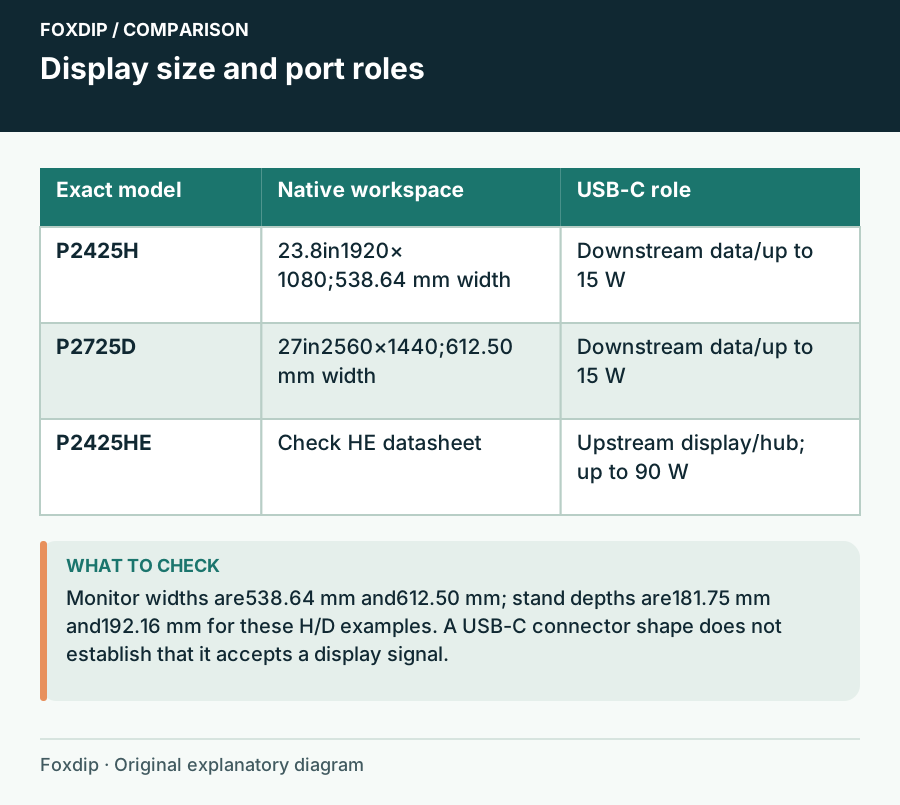
Original Foxdip schematic. Follow the labelled checks alongside the guide.
Measure where the screen and your glance will go
P2425H's published width is 538.64 mm and its stand depth 181.75 mm. P2725D is 612.50 mm wide with a192.16 mm stand depth. Mark those outlines beside the existing display and include cable bends. These are product dimensions, not recommendations for how far your chair must sit.
If you plan portrait chat, check pivot clearance above the desk and the cable path through rotation. An arm can recover a stand footprint, but it introduces a separate load, VESA and desk-clamp compatibility decision. Keep frequently used controls within a comfortable glance instead of letting a new display force constant large head turns.
Choose the feature that removes a specific obstacle
For chat and meters, prioritize readable text, suitable inputs and an adjustable position. For documents and editing beside the stream, the larger QHD workspace may be worth its extra width. For a laptop that comes and goes, the HE model's documented upstream features can be more relevant than a faster refresh rate.
| Your obstacle | Option to compare | Check first |
|---|---|---|
| Little desk width; mostly chat | P2425H-size 23.8-inch FHD setup | Can chat remain readable beside the main screen? |
| More windows during desk work | P2725D 27-inch QHD setup | Will scaling and added width fit the seat and desk? |
| Laptop cable clutter | P2425HE USB-C hub setup | Does the host support video over USB-C and the needed charging power? |
An existing screen may already be the right second screen
Keep an older monitor if its text is readable, inputs match and it occupies a comfortable spot. A stream-control display does not need to match the main gaming monitor's specifications. Check current regional availability and return terms for any new purchase; a documented model can be temporarily unavailable in your local store.
Once connected, arrange displays in the operating system to match their physical positions and rehearse the stream layout. Confirm the pointer and important windows behave as expected. Buy only when this exercise exposes a real limitation, such as unreadable text, missing video input or a stand that crowds the microphone.
Check the rest of the equipment footprint before giving the new screen the available desk width. How to Fit a Streaming Setup on a 100 cm Desk ↗
Use a scene rehearsal to choose the screen position
Put a chat line, the OBS audio meter and the scene control you use most often on the proposed second screen. Rehearse reading the line, speaking to camera and changing scene. Record the camera view so you can see whether every glance turns your face away from the microphone.
If the extra screen will hold OBS while a fullscreen game runs, it can also help diagnose capture: some games stop rendering when minimized. A black preview after switching away from the game is therefore a different observation from a black recording made while the game is active.
| Observation | Next change | Expected result |
|---|---|---|
| Chat is readable only with a long head turn | Change the window position or screen placement first | Read chat while staying near the useful mic angle |
| Preview goes black only when leaving fullscreen play | Check a recording made with the game active | Avoid a monitor purchase based solely on a minimized preview |
| The screen fits but its controls crowd the mouse | Mark the stand and normal hand movements together | Choose a workable footprint rather than diagonal size alone |
Keep the chat glance inside the useful microphone position. Microphone Distance and Placement: Find Your Speaking Position ↗
Sources & references
Manufacturer specifications and primary support documentation checked on 27 October 2026. Recommendations are editorial inferences from connections, placement and documented capabilities; no hands-on performance or comfort measurements are claimed. November 2026 addition: documentation-based diagnostic examples; no new hands-on hardware result or platform upload test is claimed.
- Dell P2425H official specifications ↗Checked 2026-10-27
- Dell P2725D official specifications ↗Checked 2026-10-27
- Dell P2425HE official product specifications ↗Checked 2026-10-27
- OBS — Game Capture Troubleshooting ↗Checked 2026-11-04
Spotted something out of date? Let Alex know.
How we put our guides together ↗