
Export both the Profile and Scene Collection, copy their local media dependencies, then relink files and reselect hardware on the new PC before retiring the old setup.
Transfer settings and media separately, then reconnect devices and make a complete recovery recording.
In this guide
Before you start
- Both computers or an intact backup of the old setup.
- A private transfer folder and access to the original licensed graphics and plugin installers.
Inventory the dependencies while the old PC works
Open each important scene and list image, media, slideshow, stinger and local browser-file paths. Include fonts, plugins, scripts and virtual audio devices separately. A collection can preserve references without carrying the referenced files. Do not wait until the old drive is erased to discover which folder held an alert animation.
Put the assets you own or are licensed to transfer in a project folder. Keep the original purchases and license notes privately. A backup for your own workstation is not permission to publish paid source files in a shared scene package.
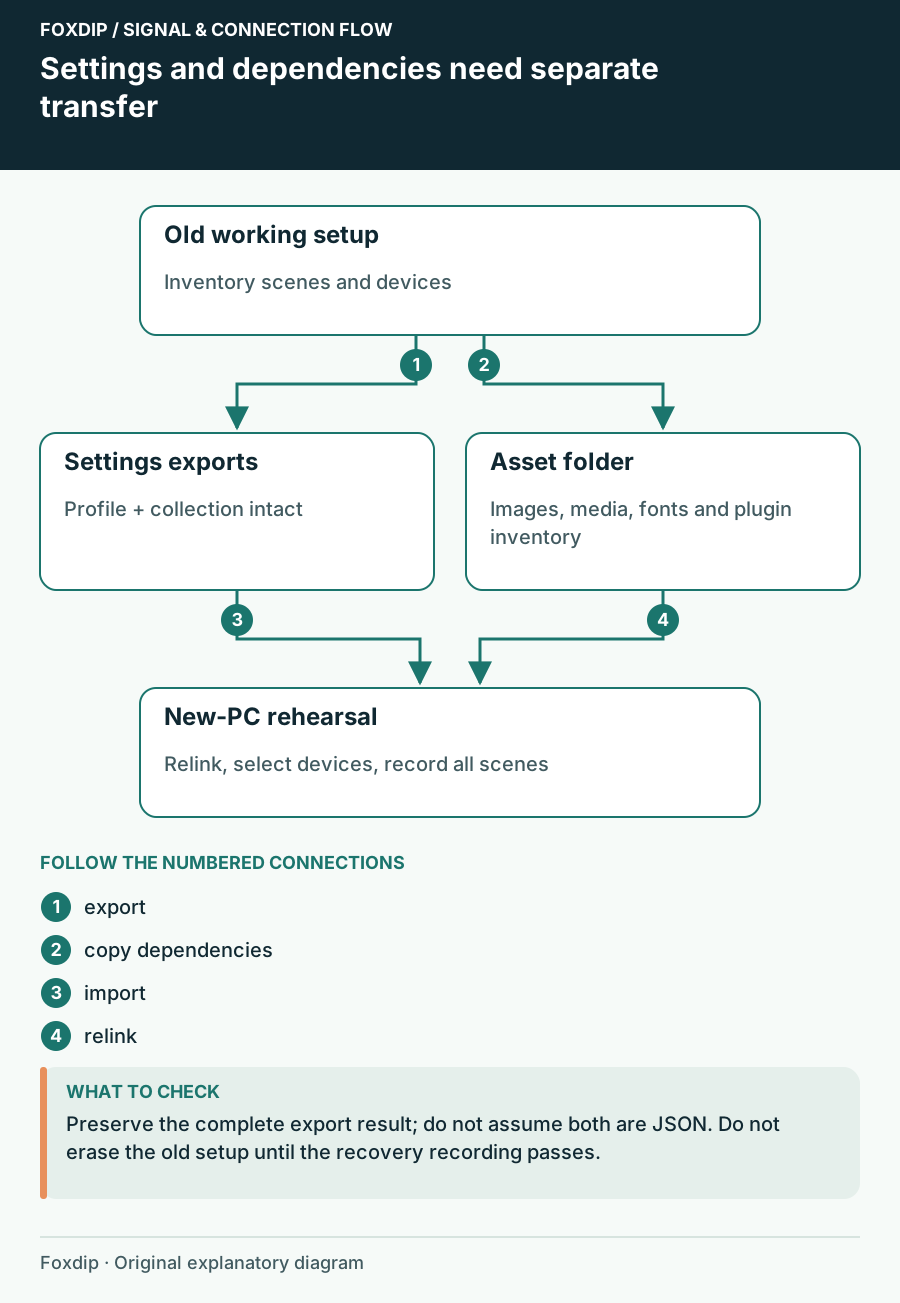
Original Foxdip schematic. Follow the labelled checks alongside the guide.
Export both kinds of settings
Export the active Profile and Scene Collection through their own menus. Preserve the complete result that each export produces: collection export and profile export are different objects, so do not rename everything to JSON or discard an exported directory because it looks unfamiliar.
Profiles store output choices; collections store scenes, sources and global audio. Keep a note of which pair worked together. Treat the backup as private because stream configuration can include account-linked information. Record the OBS version and plugin versions alongside it.
Restore settings before repairing links
Install the supported base
Install OBS from the official project and add compatible plugins from their original publishers. Import the preserved profile and scene collection with their corresponding menus.
Look for: The expected scenes appear on the new installation.
If a plugin source is missing, install the supported plugin before replacing the scene with a different source type.
Relink the assets
Use the Missing Files dialog or source properties to point missing references to the copied project assets. Check matching filenames rather than accepting an unrelated file with the same name.
Look for: Images, media and transitions load from the new location.
If a third-party source is absent from the dialog, inspect its own properties; plugin support for missing-file detection varies.
Reconnect what a file cannot transfer
Reselect microphone, headphones, webcam and capture card by their new device names. Check game/window targets, recording destination and monitoring output. A path that existed on the old computer may not exist on the new drive, even when the scene appears complete.
Check fonts and text wrapping at the output size. Reconnect browser widgets using the provider’s normal account flow when needed; do not post private widget tokens in a public support log. If a profile import fails, preserve the exports and inspect the failure instead of overwriting configuration folders blindly.
Record a recovery rehearsal
Make one recording that visits Starting Soon, game, chatting, break and ending scenes. Trigger a permitted test alert, speak into the mic, play game sound and inspect the intended recording tracks. Open every local media file at least once and check that a stinger transition completes.
Then close and reopen OBS and repeat the essential inputs. Only retire the old setup after the new recording, exports and asset folder are backed up. Keep the old computer or drive unchanged during that handover if possible; a successful import is only the beginning of a successful move.
Use source-specific checks after restoring the file path. Check a media source that did not survive the move ↗
Sources & references
Based on official product documentation reviewed on 27 October 2026. Follow the recording checks below on your own setup.
- OBS — Profiles ↗Checked 2026-10-27
- OBS — Scene Collections ↗Checked 2026-10-27
- OBS — OBS Studio 27 Released: Missing Files Dialog ↗Checked 2026-10-27
Spotted something out of date? Let Alex know.
How we put our guides together ↗