
Put chat in an OBS dock or a separate browser window; adding a Browser Source puts a web page into the scene instead.
Use an operator-facing chat dock and check the video output for accidental desktop capture.
In this guide
Before you start
- OBS with browser docks available, or a separate browser popout.
- A local recording scene matching the next broadcast.
Choose the operator surface
An OBS dock belongs to your workspace. A Browser Source belongs to a scene. That distinction is the starting point when you want to read chat without displaying it to viewers. Don’t add a chat URL under Sources just because it opens a page inside OBS.
A dock is still visible on your monitor. If a Display Capture source records that monitor, the dock can enter the broadcast through the screen capture. Private placement therefore depends on both the chat surface and the sources that can see your desktop.
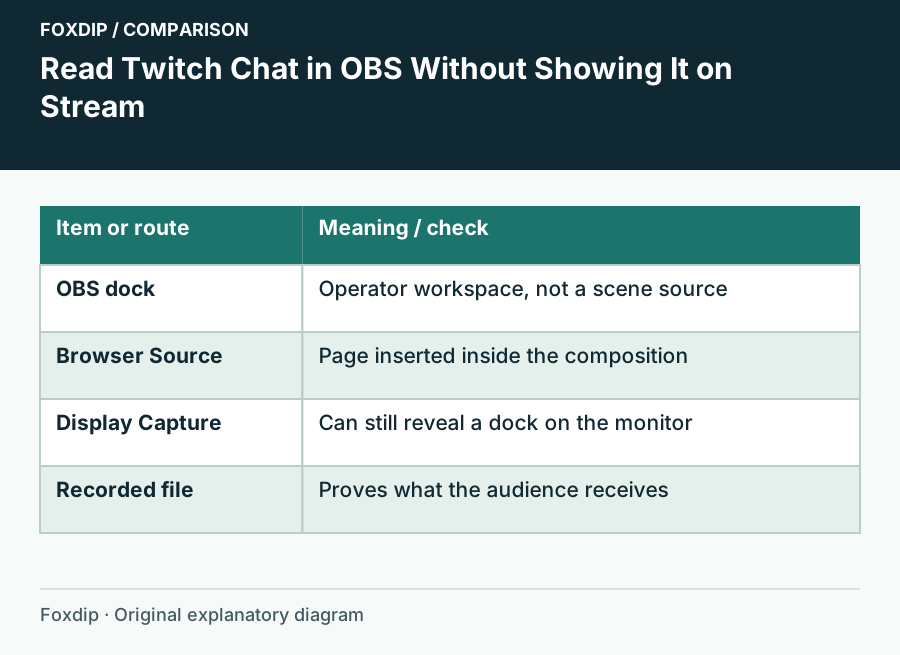
Original Foxdip schematic. Follow the labelled checks alongside the guide.
Open chat as a dock
If your OBS installation offers Twitch account connection under Settings → Stream, connect the correct account and look in the Docks menu for the available chat panel. Menu availability varies with the OBS package and platform. A working stream key alone doesn’t prove that account-linked chat panels are available.
When you need a custom browser dock, open your channel’s Twitch popout chat in the browser, copy that popout URL, then use OBS’s Custom Browser Docks control from the Docks menu. Give the entry a name such as “My channel chat.” If browser docks are unavailable in your package, keep popout chat in a separate browser window instead of changing the scene.
Make the workspace comfortable
Drag the dock into a readable place beside the preview and adjust its width so messages don’t become a tall stack of single words. Keep the microphone meter visible too. A private dock that hides important controls can make the next troubleshooting problem harder.
Check the channel heading before sending a message. If you have several channels or test accounts, a familiar-looking chat panel can still belong to the wrong one. Log in only through the service’s real page, and avoid including account details or private moderation notes in any screenshot you later share.
Record what the audience actually receives
Create a short local recording with the exact scene you plan to stream. Send a harmless test message and move the chat dock. Play the recording back in another player rather than relying only on what the OBS workspace looks like.
Inspect Sources
Check for an unintended chat Browser Source and for Display Capture sources that can see OBS or the chat window.
Look for: You know every route through which chat might enter the video.
Record movement
Move or resize the dock while recording, without starting a public stream.
Look for: The clip includes a deliberate privacy test.
Review the file
Watch the recorded scene and confirm the chat and operator controls are absent.
Look for: You have evidence about the audience video, not just the local interface.
Keep the test relevant after layout changes
If chat appears, identify the source carrying it. Hide or remove an unintended chat source, or change the captured window or display so it includes only the content you mean to show. Use a dedicated Game Capture or suitable window capture when that fits the task, then record again.
Repeat the quick check whenever you add a full-desktop scene or move OBS to another monitor. A private operator layout can become visible through a newly added source. Once the recording is clean, save the workspace arrangement and keep the chat URL with your private setup notes.
Sources & references
Based on the official documentation linked beside the relevant sections. Follow the checks on your own setup; no hardware measurements or account tests are claimed.
- OBS — Browser Docks announcement ↗Checked 2026-10-27
- OBS — Browser Source ↗Checked 2026-10-27
Spotted something out of date? Let Alex know.
How we put our guides together ↗