
Enable Twitch VOD Track in OBS and exclude only the music source from that track. Keep your voice, game and intended alerts assigned to both live and VOD feeds.
Send music to the live mix and exclude it from the VOD track while preserving voice and game audio.
In this guide
Before you start
- A Twitch account connected in OBS and VOD storage configured as desired on Twitch.
- Music isolated as its own source, with permission for the use you intend.
Start with isolated music
A VOD checkbox cannot separate a song from game audio already mixed into Desktop Audio. Give the music player a dedicated source first. Keep the game, microphone and voice chat separate too, so excluding one item will not remove the rest of the show.
Choose music you are allowed to use live. Removing it from the saved video does not grant permission for the live broadcast or guarantee protection from a platform action. If you are uncertain about a track, leave it out of the live show as well.
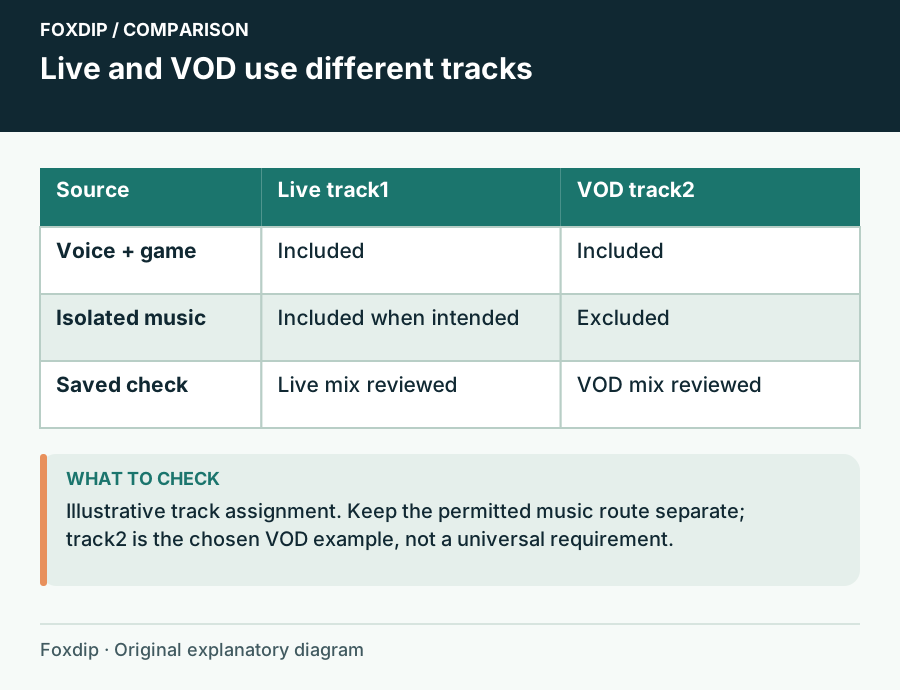
Original Foxdip schematic. Follow the labelled checks alongside the guide.
Choose the live and VOD destinations
OBS provides a dedicated Twitch VOD feed. Its official example uses track 1 for live and track 2 for the VOD. You can keep that convention unless another recording plan already uses those numbers.
Enable the separate feed
Connect the Twitch account under Settings → Stream. In Output, enable Twitch VOD Track; in Simple mode the official guide first exposes this through Enable Custom Encoder Settings. Confirm the chosen VOD track number.
Look for: The VOD option is enabled and you know which numbered track it uses.
If the controls differ in Advanced mode, identify the streaming and VOD track selectors before proceeding.
Assign the music deliberately
Open Advanced Audio Properties. Send music to the live track and clear its box for the VOD track. Assign microphone, game and other intended sounds to both.
Look for: Only the music row differs between the two mixes.
If all sources vanish from track 2, restore the required voice and game boxes.
Check the two mixes before the show
Record the live and VOD track numbers in a local multitrack check. Play a permitted music clip, speak over it and trigger a game sound. In an editor, solo the live track, then the intended VOD track. Voice and game should remain in both; music should appear only in the first.
This local check confirms the assignment matrix. It does not prove Twitch received the separate feed. When you next make a permitted short test broadcast, inspect both the live result and its saved VOD after processing. Keep the check content free of private conversations.
When the VOD is completely silent
A common routing mistake is clearing the whole VOD column instead of the music row. Reopen Advanced Audio Properties and compare the source names against your plan. Also confirm that the track number in Output matches the column you configured.
If music persists, temporarily mute every source except the microphone and game during a local check. Music audible through either source indicates an upstream combined route or speaker pickup. Fix that path before repeating the broadcast check. A second music copy inside Desktop Audio defeats the exclusion even when the dedicated player row is correct.
Keep recording tracks separate from the promise
You may want a complete local archive or isolated stems for editing. Write those choices down alongside the live/VOD matrix; tracks 3–6 can serve additional recording purposes. Do not assume the local file automatically matches what Twitch stores.
After changing music apps, virtual mixers or OBS profiles, check both track selectors and source assignments again. The useful stopping point is a live feed with the intended mix and a saved VOD with audible commentary and game sound, not simply an unchecked box.
Use the track checks when a local comparison appears silent. Follow missing audio through recording tracks ↗
Give alerts and scene music an explicit VOD decision
A dedicated music-player row is not the only place music can enter. A BRB Media Source, a browser alert or a nested scene may contain its own soundtrack. Play each permitted sound once in a local multitrack check and inspect the planned VOD track as well as the live track.
Write whether that whole source belongs in each destination. If an alert contains both wanted speech and unwanted music in one mixed file, a track checkbox cannot separate those parts. Use a suitable alternate asset or revise that source before relying on the VOD exclusion.
| Observation | Next change | Expected result |
|---|---|---|
| Music is absent in Live but returns in BRB | Inspect the BRB media source assignments | The exclusion survives scene changes |
| Only alerts bring music into the VOD track | Inspect the alert source or its combined audio file | Choose the intended complete alert for each destination |
| Local VOD track is correct but the saved platform video differs | Check the selected dedicated feed and the processed VOD | Keep local routing evidence separate from platform delivery |
Check BRB media behaviour after changing its source configuration. OBS Media Source Not Playing? Check the File, Loop and Scene ↗
Sources & references
Based on official product documentation reviewed on 27 October 2026. Follow the recording checks below on your own setup. November 2026 addition: documentation-based diagnostic examples; no new hands-on hardware result or platform upload test is claimed.
- OBS — Twitch VOD Track Guide ↗Checked 2026-11-04
- OBS — Multiple Audio Track Recording Guide ↗Checked 2026-10-27
- OBS — Media Sources ↗Checked 2026-11-04
Spotted something out of date? Let Alex know.
How we put our guides together ↗