
Enable Sonar for Streamers, send its Stream virtual input to OBS once, then compare an audience recording with your Personal mix.
Build the audience mix separately from your headphones and check for duplicate inputs in an OBS recording.
In this guide
Before you start
- Sonar on Windows with Streamer mode available.
- OBS and a note of existing audio captures.
Decide what your audience should hear
Sonar’s Personal mix feeds your headphones; its Stream mix feeds the audience. Use that separation to keep callouts comfortable for you while balancing speech and game sound for viewers. A Personal mix that sounds right does not establish the Stream mix’s levels or channel inclusion.
Write a short list of intended audience sources before adding anything in OBS. For a simple show that might be microphone, game and agreed voice chat. A notification channel or private communication route belongs only where you deliberately choose to include it.
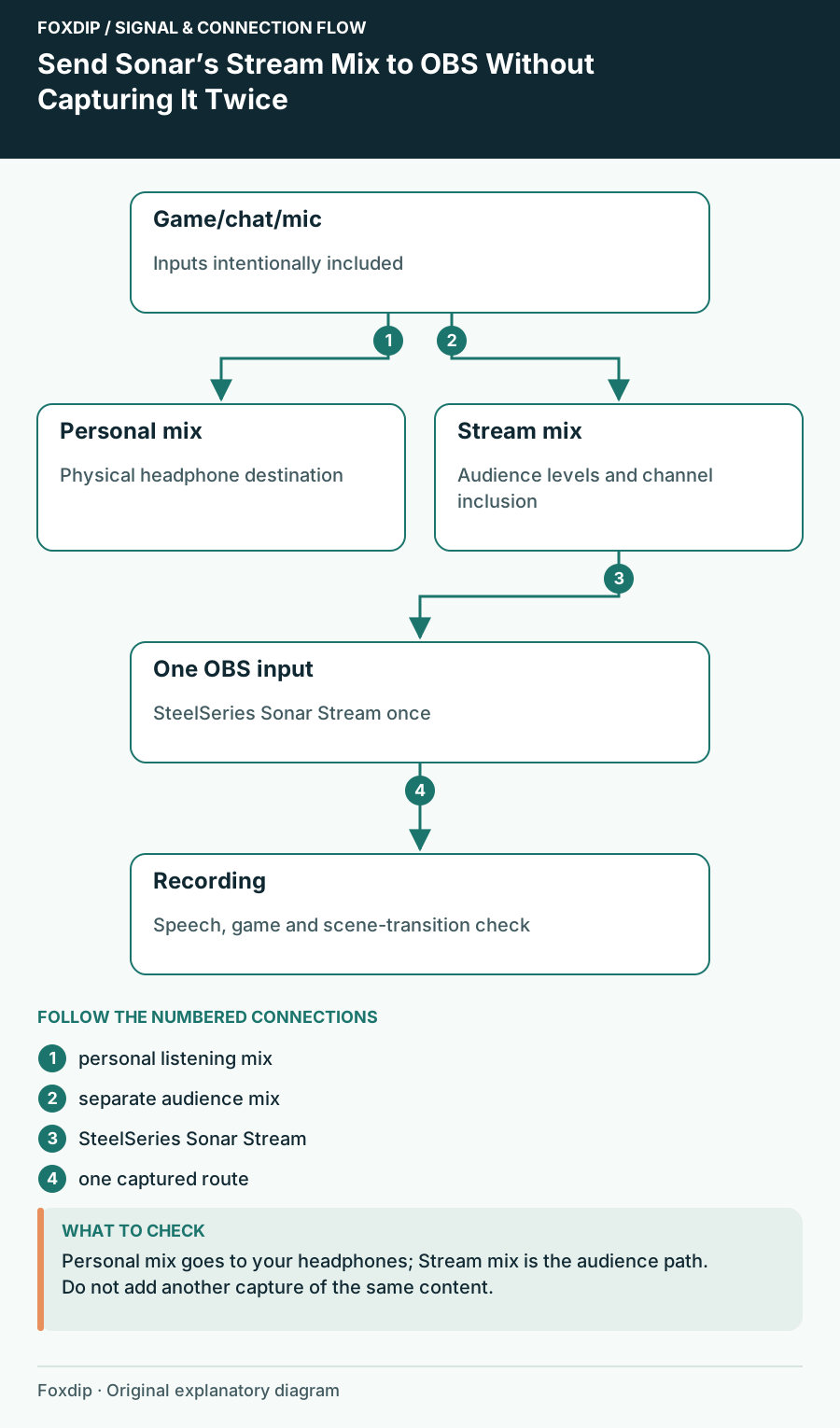
Original Foxdip schematic. Follow the labelled checks alongside the guide.
Build and inspect the Stream side
Enable Sonar for Streamers in Sonar and select your physical Personal playback device and microphone input. Inspect the Stream level and inclusion controls for each intended channel. Play the game alone, then speak alone, so you can recognize the relevant meters rather than watching all channels move at once.
Use Sonar’s audience listening control when you need to audition the Stream mix. Return to your usual monitoring after the check. Keep the output at a comfortable level: auditioning the audience mix is a routing comparison, not a reason to increase the headphone volume.
Add the Stream input once
SteelSeries names the audience endpoint SteelSeries Sonar Stream in its OBS instructions. Select the matching input in OBS Settings → Audio under a Mic/Aux entry, or use one Audio Input Capture source if you want scene-based control. Avoid enabling both for the same mix.
Inventory existing OBS audio
Read global audio devices and the Audio Mixer’s scene sources before adding a new route.
Look for: You can identify any source already carrying game, mic or the Stream mix.
Select the Sonar audience endpoint
Add the Stream virtual device through one chosen OBS route and give it a recognizable name.
Look for: Its meter responds to sources included in Sonar’s Stream mix.
Remove the duplicate route
Disable or mute a second capture of the same game or microphone after confirming it is already in the mix.
Look for: One sound reaches the intended recording track once.
Check that your Personal changes stay personal
Record a short passage. While the game plays, change its Personal level without changing the Stream control. Listen to the recording afterward. Then make one small Stream-side change and record the same passage again. This gives the two mix controls distinct jobs you can hear.
If the recording follows every headphone adjustment, inspect whether OBS is capturing the physical desktop output in addition to, or instead of, the Stream endpoint. If the microphone sounds doubled, inspect any raw mic source left enabled beside the combined Sonar mix.
Prove the full show before broadcasting
Record normal voice, a louder reaction, game sound and one chat participant who has agreed to the test. Include a scene change and confirm the intended mix remains present afterward. Watch the mixer for clipping and listen to quiet sentence endings; meters alone do not reveal balance.
Keep the successful device labels and the OBS track selection in your setup note. If you later add an isolated mic recording track, treat it as a deliberate additional route with its own track assignment. Don’t silently add the raw mic to the same audience track that already contains it.
Sources & references
Based on the official documentation linked beside the relevant sections. Follow the checks on your own setup; no hardware measurements or account tests are claimed.
- SteelSeries — Setting up Sonar for Streaming ↗Checked 2026-10-27
- SteelSeries — Sonar for streamers OBS ↗Checked 2026-10-27
Spotted something out of date? Let Alex know.
How we put our guides together ↗