
Match HD60 X audio input to the cable carrying sound, then watch the dedicated capture meter and play back a short OBS recording.
Game sound appears once in the saved recording, with a separate route for your commentary.
In this guide
Before you start
- HD60 X already shows stable gameplay video.
- Know whether console sound travels over HDMI or a wired Chat Link/line-in connection.
- Headphones and a local recording destination.
- MicrophoneCable & connection
- Operating systemInput & permission
- OBS mixerSource, meter & mute
- RecordingTrack & playback
Name the sound you are trying to recover
First test ordinary game sound without a party call. Play an in-game menu sound and check whether you hear it at the TV, in a controller headset or both. A headset can change the console's selected output, so a working picture alone doesn't show where the audio went.
Write the intended route in one sentence: console HDMI to card, or controller/headset output to the card's analog input. Avoid starting with OBS monitoring. Monitoring can make an existing source audible locally, but it cannot create sound at an input that receives nothing.
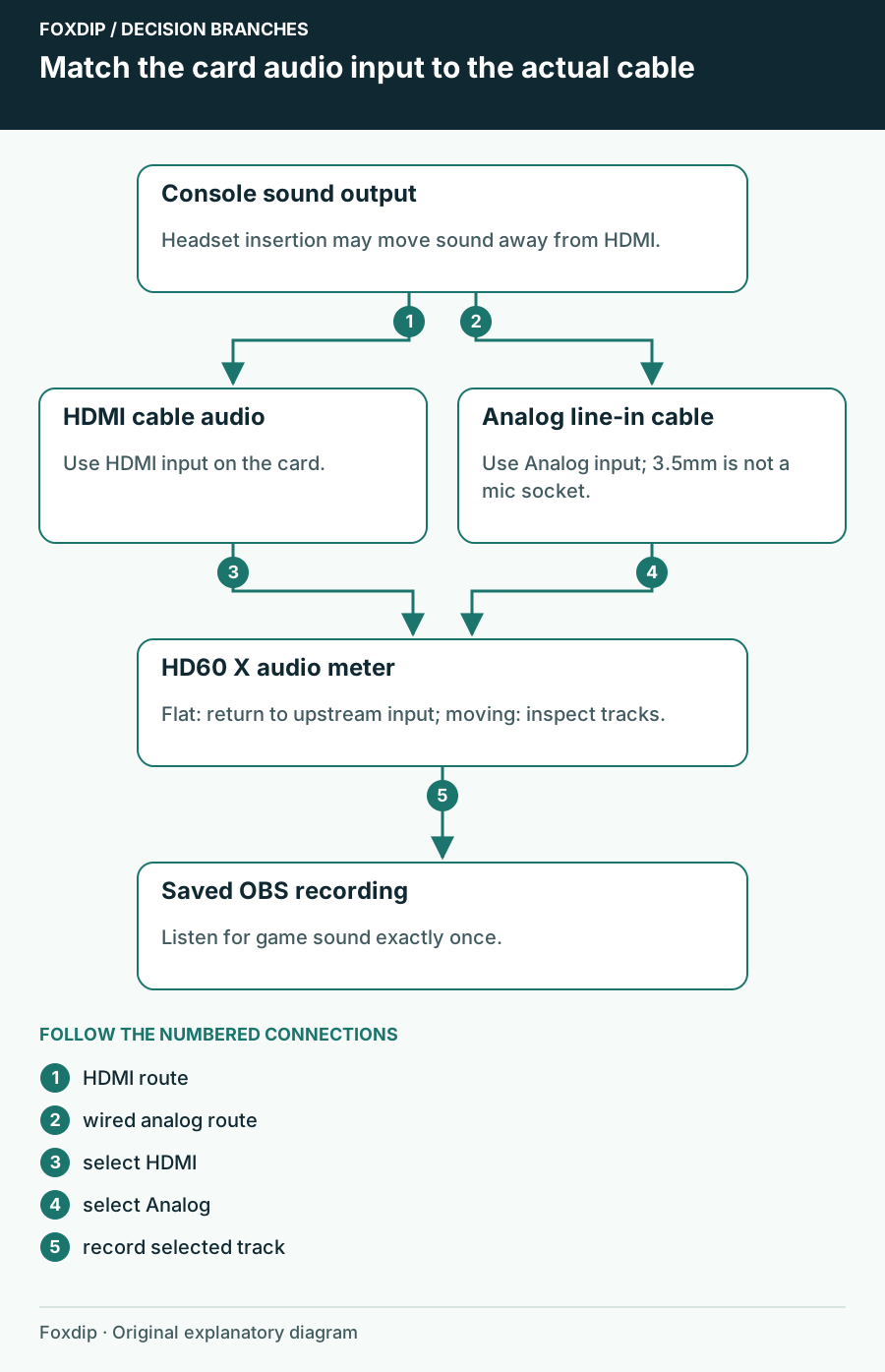
Original Foxdip schematic. Follow the labelled checks alongside the guide.
Choose HDMI or analog to match that route
In Elgato Studio's expanded Audio controls, select HDMI for sound embedded in the HDMI cable, or Analog for a compatible line-level cable entering HD60 X's 3.5 mm socket. That socket is a stereo line input, not a microphone input. Selecting Analog with nothing connected gives you a perfectly plausible silent source.
If you recently used Chat Link, recheck this selection before rebuilding the OBS scene. For a simple HDMI-only test, temporarily disconnect the headset and use the console's speaker output. Note the previous setting so you can restore your comfortable listening arrangement afterwards.
Use stereo PCM for the capture test; Elgato does not support Dolby/DTS bitstream or surround capture on this route. On PS5, the actual menu starts at Settings → Sound → Audio Output. Preserve your usual output choice before changing it.
Verify the capture source before monitoring
On Windows, inspect the HD60 X Video Capture Device properties and its audio configuration. OBS separates capture-only audio from sending it to the desktop output. Keep one deliberate capture route while diagnosing, and mute duplicate copies of the card in the mixer.
On macOS, Elgato's documented setup adds a separate Audio Input Capture source and selects HD60 X as the device. A video source showing a game does not replace that audio selection. Grant the capture app microphone permission when macOS requests it; capture-device audio can require that permission even when it isn't your speech microphone.
Watch one source
Play a repeatable game sound and watch only the HD60 X audio meter.
Look for: The dedicated meter moves in time with the game.
If it stays flat, return to the console output and card input. If it moves, keep the input unchanged and inspect recording routing.
A moving meter is only the halfway point
Make a short local recording using the audio track you intend viewers to receive. Speak, pause, then trigger a game sound. Stop recording and play the file outside OBS. Listen for game audio, your voice and an unwanted second copy; the mixer meter can't tell you which tracks the file actually contains.
If the recording contains game sound but your headphones don't, the missing piece is local monitoring. If the meter moves but the recording is silent, inspect mute state and the selected recording tracks. If game sound doubles only while monitoring is enabled, look for the monitor output returning through Desktop Audio.
Use this branch when the capture meter works but the file is silent. OBS Recording Has No Audio? Check the Tracks ↗
Add the headset and chat after the simple test
Restore the headset and repeat the same recording. If sound disappears only now, you have isolated a console-output change rather than an OBS video failure. A wired Chat Link arrangement can carry the audio you hear to analog capture, but your own headset microphone needs separate planning.
Keep your commentary mic clearly named and separate from the card. The finished check is simple: normal headset listening, game sound in the saved file, a single commentary voice and no echo. Save the working console output and card input choices together so reconnecting a headset next time doesn't feel like a new mystery.
Sources & references
Based on the linked manufacturer and platform documentation reviewed on 27 October 2026. No hands-on hardware test is claimed.
- Elgato — Studio Software Interface ↗Checked 2026-10-27
- Elgato — HD60 X PS5 Setup ↗Checked 2026-10-27
- Elgato — Switching HDMI/Analog audio on macOS ↗Checked 2026-10-27
- OBS Project — Video Capture Sources ↗Checked 2026-10-27
- Elgato — HD60 X OBS setup on macOS ↗Checked 2026-10-27
- Elgato — No Game Sound From Capture Device ↗Checked 2026-10-27
- Sony — Change PS5 Audio Settings ↗Checked 2026-10-27
Spotted something out of date? Let Alex know.
How we put our guides together ↗