
Install PS Remote Play on your Windows PC and connect to your PS5. Once it works on its own, add the Remote Play window and its sound in OBS. It's free, but your stream now depends on your home network, so test it first.
- Install PS Remote Play on your PC and sign in.
- Connect to your PS5 and play for a few minutes with OBS closed.
- In OBS, add a Window Capture of the Remote Play window.
- Add an Application Audio Capture for Remote Play, so you get the game sound.
- Do a 10-minute test stream. Watch for lag or blurry moments.
- Make a backup 'Be right back' scene in case the connection drops.
A local OBS recording contains the intended PS5 window, game audio and PC commentary without revealing sign-in screens.
In this guide
Before you start
- PS5 with Remote Play enabled and current supported system software.
- Windows 11 PC, official PS Remote Play app, same PlayStation account and USB-connected compatible controller.
- OBS Studio and a stable network; Ethernet is worth trying before troubleshooting a crowded Wi-Fi link.
- MicrophoneCable & connection
- Operating systemInput & permission
- OBS mixerSource, meter & mute
- RecordingTrack & playback
Use it when your network is ready for another video path
Remote Play lets the PC receive gameplay without an HDMI capture card. The PC then captures that app for your stream. This adds a network-delivered picture before OBS encodes the broadcast, so judge motion, responsiveness and stability with your actual game instead of expecting it to behave like direct HDMI passthrough.
Sony recommends at least 5 Mbps up and down, or 15 Mbps for best performance, for Remote Play. Those figures concern Remote Play, not the combined guarantee for your outgoing stream and every device at home. Leave room to test both tasks running together.
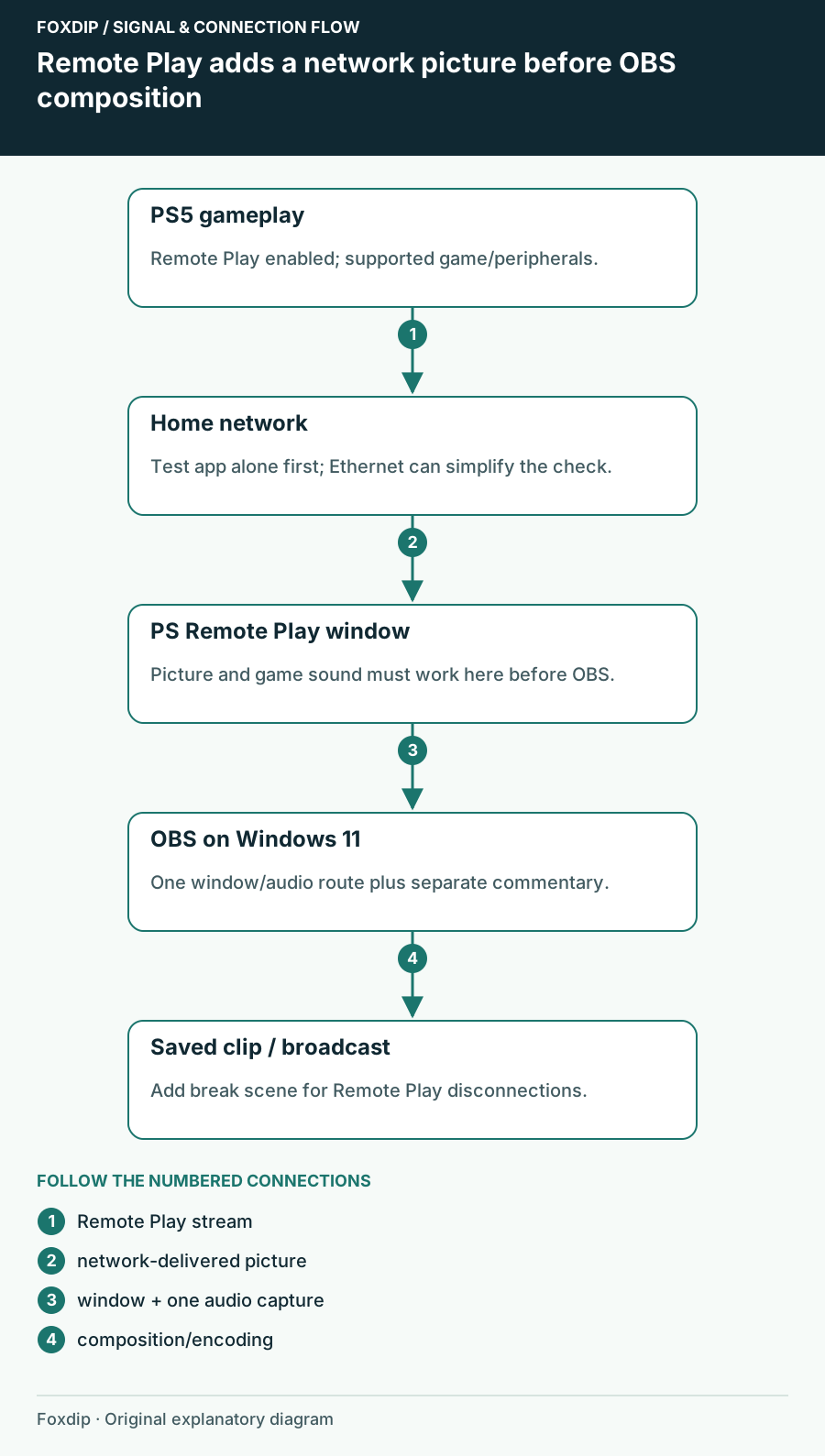
Original Foxdip schematic. Follow the labelled checks alongside the guide.
Get Remote Play working before opening OBS
Install the official desktop app, enable Remote Play under PS5 Settings → System → Remote Play and sign in with the same account. Connect a supported controller to the PC by USB for this documented setup. If you want to wake the console from rest mode, configure Sony's network wake and internet-in-rest-mode options separately.
Prove the app alone
Connect to PS5 and play a short section while OBS is closed.
Look for: The Remote Play window has moving gameplay and audible game sound.
If it freezes or disconnects here, use the network/setup diagnostic first; adding OBS cannot fix that baseline.
Select the app, then verify its audio
In OBS on Windows, add Window Capture and select the Remote Play gameplay window. Fit that source to the scene. Keep account sign-in and settings windows out of the production scene, and repeat the window selection if a reconnect leaves the wrong content visible.
Use the Window Capture source's documented Capture Audio option, or a separate Application Audio Capture source selecting the same app. Don't enable both copies. Keep a separate PC microphone for commentary and remove an unintended duplicate Desktop Audio route. Some applications are incompatible with per-app capture, so the meter and saved recording decide whether this choice works on your PC.
Run the test at normal streaming load
Record a few minutes while moving the camera in game, speaking and displaying your normal overlays. Watch Remote Play and OBS separately. If Remote Play itself stutters, check the network. If Remote Play is smooth but the recording struggles, inspect OBS rendering/encoding load and the chosen recording settings.
Sony's troubleshooting suggests a wired PC/Mac connection where possible, or 5GHz Wi-Fi and reducing competing network traffic. Start with those reversible checks. Don't copy PS4-only resolution-menu instructions into a PS5 setup, and don't change router security settings just because an OBS preview froze.
Keep a backup scene for interruptions
Prepare a simple break scene you can switch to when Remote Play disconnects. Reconnect off that live gameplay scene, verify audio and only then return. An account prompt or an unrelated desktop window should not become the replacement picture viewers see.
Some games and peripherals don't support Remote Play, and Sony restricts video services, discs and cloud-streamed games in this path. Respect those limits. If network picture quality or interruptions keep disrupting your sessions, an appropriate HDMI capture workflow may solve that specific dependency; compare the whole setup before buying a card merely to add a decorative overlay.
Sources & references
Based on the linked manufacturer and platform documentation reviewed on 27 October 2026. No hands-on hardware test is claimed.
- Sony — PS Remote Play on PC and Mac ↗Checked 2026-10-27
- Sony — Troubleshoot Remote Play ↗Checked 2026-10-27
- OBS Project — Window Capture Sources ↗Checked 2026-10-27
- OBS Project — Application Audio Capture Guide ↗Checked 2026-10-27
- OBS Project — Download ↗Checked 2026-10-27
Spotted something out of date? Let Alex know.
How we put our guides together ↗