
Record the microphone outside OBS, then in a minimal OBS scene. If both crackle, inspect the USB/device path; if only playback crackles, investigate the listening output.
Compare the saved input, USB route and headphone playback before changing drivers.
In this guide
Before you start
- A short phrase and headphones or another playback device.
- A suitable USB data cable and a direct computer port if the microphone uses detachable USB.
Determine whether the crackle is in the file
Save a short microphone recording and replay it on another output if possible. If the same clicks occur at the same moments, they are probably captured in the file. If they move around or appear only in one headphone connection, the listening device needs attention first.
Microsoft documents playback enhancements, output formats and drivers as possible crackle causes. Those output checks are relevant to what you hear; they do not establish that your USB microphone is sending bad audio. This distinction prevents an output problem from becoming an unnecessary microphone replacement.
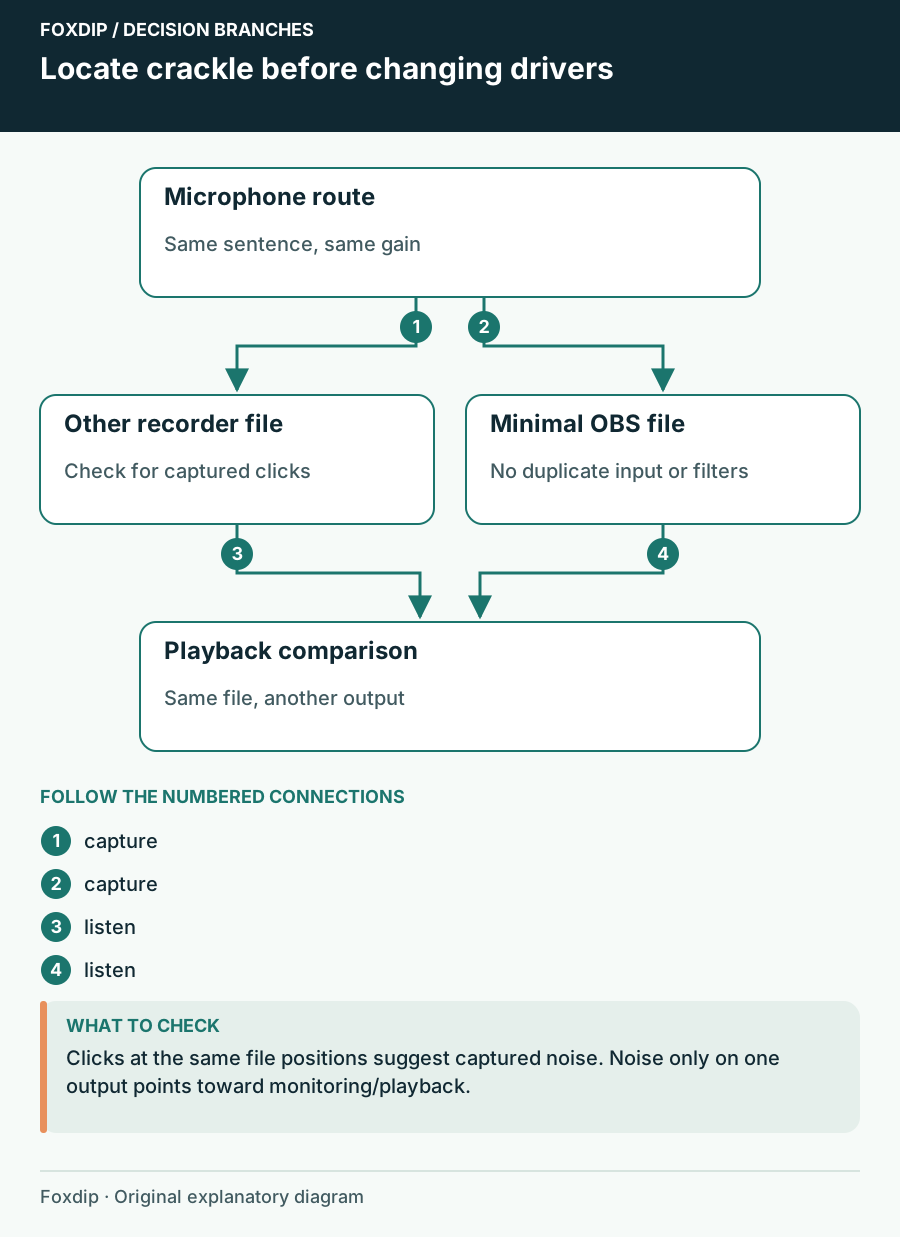
Original Foxdip schematic. Follow the labelled checks alongside the guide.
Compare OBS with another recorder
Close applications that actively use the microphone. Capture the same sentence in a simple recorder, then in OBS with suppression and third-party filters bypassed. Keep the input level low enough that a normal loud phrase does not distort.
If both files are damaged, focus on the microphone, cable, port and device software. If only OBS is damaged, use a temporary scene collection with one explicit Audio Input Capture and no duplicate global input. A virtual mixer can be another processing stage; compare the physical mic endpoint with that route when both are available.
Simplify the physical connection
Test a direct connection
Stop recording, connect the mic directly to an appropriate computer USB port and use the supplied or known-good data cable. Avoid moving a powered connector during the check.
Look for: The device is recognized and a new file either loses or retains the crackle.
If it disappears, restore the hub or extension one part at a time to identify the failing route.
Check supported formats
Note the microphone format in its control panel or OS input settings and OBS Settings → Audio. Select a common supported sample rate if offered, then reopen capture.
Look for: You can compare recordings made with a known, documented configuration.
If the problem remains, restore settings that did not help instead of accumulating changes.
Compare idle and game load
Make one recording at the desktop and one with the usual game running. If noise appears only under load, inspect local performance and USB devices sharing the connection. Keep the same mic gain and port for this comparison so the workload is the main variable.
A sample-rate difference is a configuration clue, not proof that it caused the crackle. Likewise, a clean ten-second clip is not enough for a fault that arrives after twenty minutes. Extend the check to the typical failure duration before declaring a result.
Use model-specific support for the remaining fault
Record the exact microphone model, cable arrangement, OBS version, supported input format and whether the problem occurs outside OBS. If it started after device software changed, consult that manufacturer’s release notes and supported recovery steps. Install drivers or firmware only from the relevant maker.
If you need a stable session immediately, return to the last connection and format that produced clean files. Keep a damaged sample and a clean comparison for support. Avoid broad USB power or registry changes before the simple input-versus-output comparison tells you which part is failing.
Use the input guide if reconnecting leaves the source silent instead of crackling. Restore a missing microphone input ↗
Sources & references
Based on official product documentation reviewed on 27 October 2026. Follow the recording checks below on your own setup.
- OBS — Audio Sources ↗Checked 2026-10-27
- Microsoft — Fix distorted or crackling audio in Windows ↗Checked 2026-10-27
- OBS — Encoding Performance Troubleshooting ↗Checked 2026-10-27
Spotted something out of date? Let Alex know.
How we put our guides together ↗