
Add your game as an Application Audio Capture source, then turn off Desktop Audio. Your viewers hear only the game. You still hear everything in your headphones like before.
- In Sources, click + and add Application Audio Capture.
- Pick your game's window from the list.
- Go to Settings → Audio and set Desktop Audio to Disabled.
- Remove any other source that captures your whole headphone output.
- Play a notification sound and record 20 seconds.
- If the game goes silent after the launcher closes, pick the game window again.
Build a game-only audio source, remove the desktop copy and prove that notifications stay out.
In this guide
Before you start
- OBS Studio on Windows 11, or Windows 10 version 2004 or later for application capture.
- A running game that is already making sound; headphones and a local recording folder.
Decide what the audience should hear
Write down the three sounds you intend to broadcast: perhaps game, microphone and an alert. A Windows notification is a fourth sound with a different job. If everything enters OBS through one Desktop Audio meter, you cannot remove the notification afterward without also affecting the game.
Keep a copy of your existing scene collection before changing routing. Name the new source after the game, rather than Audio 2. A descriptive meter makes a missing sound easier to identify when you switch titles next week.
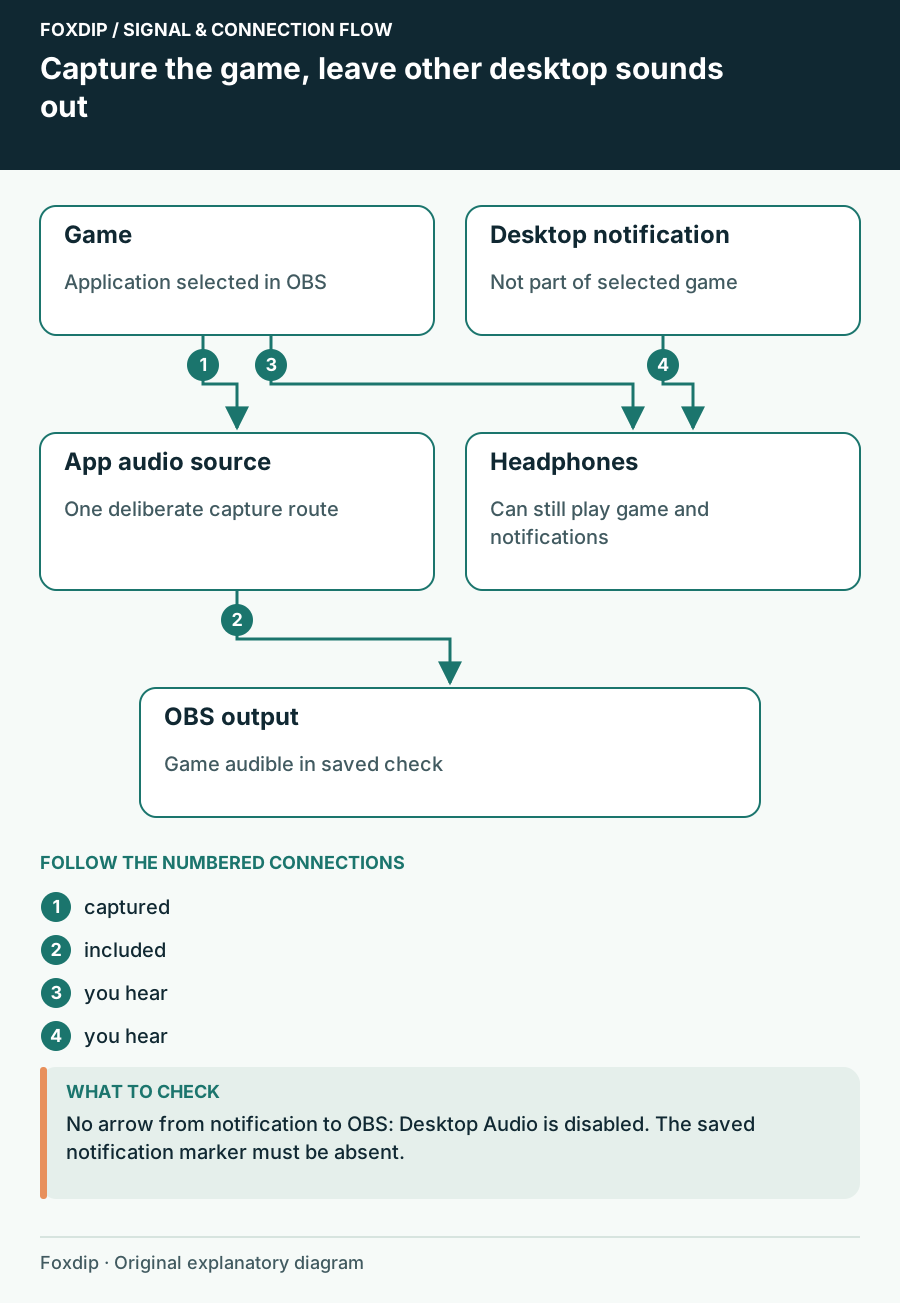
Original Foxdip schematic. Follow the labelled checks alongside the guide.
Choose one capture route
OBS documents per-application capture from version 28. From 30.1, Game Capture and Window Capture can include application audio too. Pick one route for the game; enabling both creates two copies rather than a backup.
Add the running game
In Sources, add Application Audio Capture and select the game window. Start in the game menu with a repeating sound.
Look for: The newly named audio meter moves with the game.
If it stays still, confirm the selected process is the actual game, not its launcher.
Remove the broad copy
In Settings → Audio, disable the global Desktop Audio devices that carry the same headphones. Also inspect the scene for an Audio Output Capture of those headphones.
Look for: The game meter still moves after the desktop source disappears.
Restore the previous setting if the game has no independent meter, then investigate capture compatibility.
Run an exclusion check
Make a local recording with three spoken markers: game, notification and microphone. During game, trigger a recognizable game sound. During notification, play a harmless Windows sound or notification that you are comfortable recording. During microphone, speak your marker normally.
Listen to the saved file with headphones. The game and intended microphone should be audible, while the desktop-only sound should be absent. Seeing a game image in the preview does not establish which audio was recorded. Keep the check file until the routing survives a restart.
When a game will not follow its window
Some applications are incompatible with the application source. A silent source is not a reason to keep adding duplicates. First reopen its properties while the game is running and reselect the window. If the game changes its window title, choose a matching rule that follows the executable rather than a transient title.
If application capture still fails, OBS documents a virtual-cable route. That adds a driver and monitoring decisions, so plan that change separately. You can return to the old desktop capture for a session that needs it, but acknowledge that it also captures other sounds on that device.
Keep the next game isolated
Open the next title before checking the selected process. A launcher update can introduce a different game executable. Repeat the notification check when the source target changes, after a major game update or when you rebuild the audio setup.
If the stream needs Discord later, give voice chat its own source and fader. Keep the game-only source intact. You will then be able to choose a different balance for a recording without undoing the isolation work.
Check the complete mix after the game-only route works. Listen to an OBS audio check ↗
Check the executable after the launcher hands off
A launcher, title screen and actual match may not use the same process or window title. Keep the game running in the state where sound is missing, reopen the application source properties and inspect the available target. Compare the executable-based matching choice when the title changes between sessions.
After reselecting the target, replay a harmless desktop-only sound while recording the game. The useful result is game audio returning while that unrelated sound stays absent. Restoring Desktop Audio can make the game audible, but it also changes the exclusion promise of the setup.
| Observation | Next change | Expected result |
|---|---|---|
| Launcher sounds work; the actual game is silent | Select the running game target rather than the launcher | Capture follows gameplay |
| Capture breaks when the title text changes | Compare matching by executable where supported | A transient window title no longer defines the route |
| Game returns only when Desktop Audio is enabled | Check application compatibility and the intended fallback | Acknowledge any unrelated sounds the fallback also includes |
Recheck chat exclusion after changing the captured application. Keep Discord Out of OBS While You Still Hear Your Friends ↗
Sources & references
Based on official product documentation reviewed on 27 October 2026. Follow the recording checks below on your own setup. November 2026 addition: documentation-based diagnostic examples; no new hands-on hardware result or platform upload test is claimed.
- OBS — Application Audio Capture Guide ↗Checked 2026-11-04
Spotted something out of date? Let Alex know.
How we put our guides together ↗