
Close the competing app’s physical-camera use, then deactivate and reactivate the existing OBS camera source. Compare one app at a time before changing drivers.
Check camera ownership and reconnect the existing source before rebuilding the scene.
In this guide
Before you start
- A saved scene collection and the names of apps that may use the webcam.
- A local camera check with private calls and sensitive browser tabs closed.
Use the trigger as a clue
If the camera freezes exactly when a meeting app, browser call or manufacturer preview opens, record that sequence. Some camera and driver combinations cannot provide the requested stream to multiple clients simultaneously. Other failures involve permissions or resources, so the timing is evidence rather than proof of one universal limit.
Distinguish a frozen last image from a blank source or a missing device name. Note whether OBS audio and the rest of the scene continue. If only the camera stops while the game remains smooth, begin with the camera client and connection rather than changing the entire encoder.
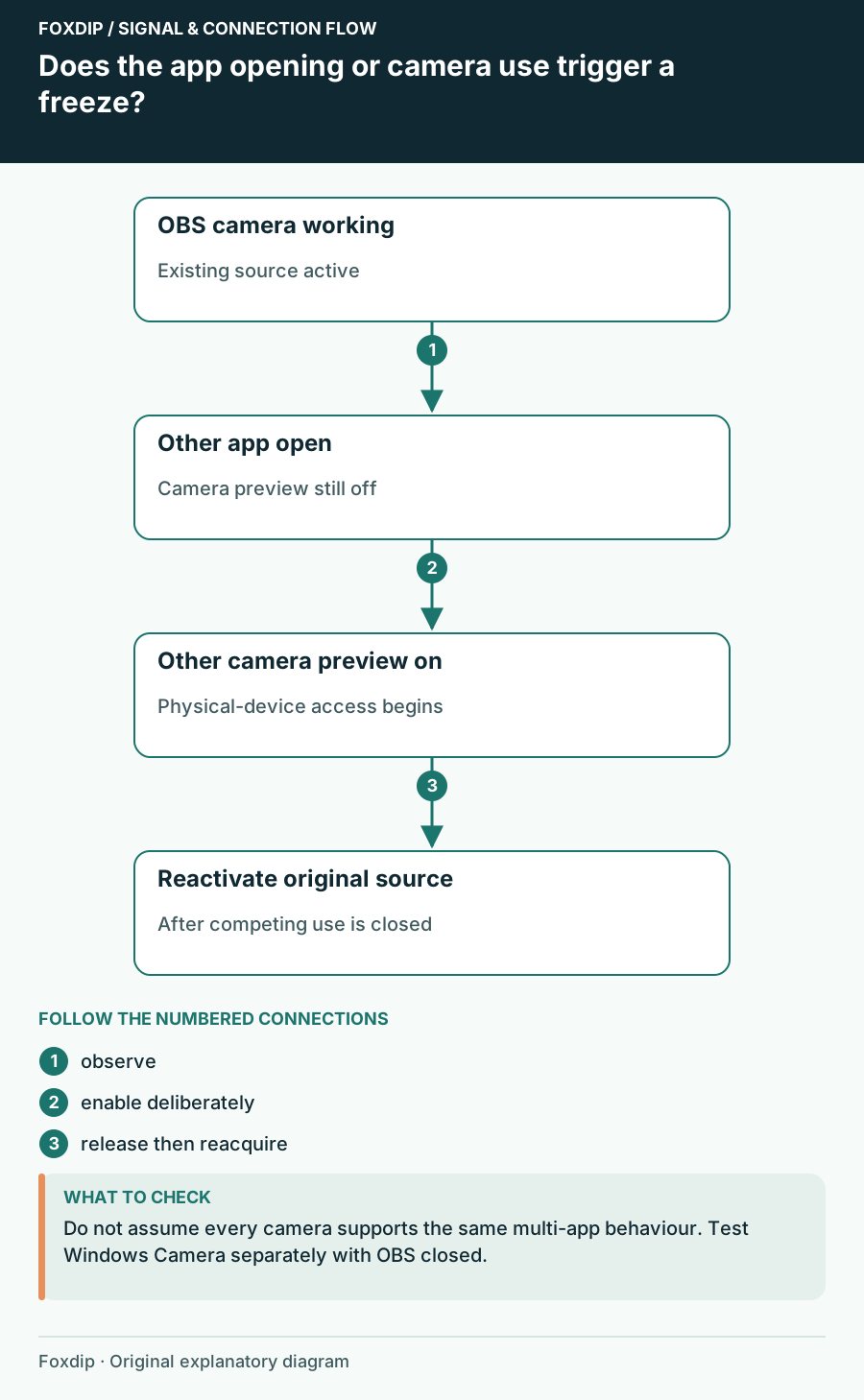
Original Foxdip schematic. Follow the labelled checks alongside the guide.
Release the physical camera
Save any call work and close camera previews you opened in meeting apps, browser tabs and vendor software. A window minimized to the tray may still use the device. Reopen OBS alone and check the original source.
Microsoft’s camera guidance identifies other camera-using apps and privacy access as troubleshooting branches. It also recommends comparing with the Windows Camera app. Run that comparison separately with OBS closed, so the check itself does not create a second competing camera client.
Reactivate the source you already use
Restart camera capture
Open the existing Video Capture Device source’s properties and use Deactivate, then Activate. Keep the device and mode unchanged.
Look for: Live motion returns if the source can reacquire the camera.
If not, close OBS, test the camera alone in its normal app and return after that app is closed.
Test the suspected trigger
With OBS camera motion working, open the suspected app without enabling its camera, then deliberately enable that app’s physical camera preview.
Look for: You can tell whether opening the app or starting its camera stream causes the failure.
If only camera use triggers it, choose a supported sharing workflow rather than adding more physical-camera sources.
Escalate only the remaining problem
If the camera fails even with one app, a direct USB connection and a supported mode, check manufacturer support for the exact model and driver. If Windows cannot see it, verify the physical privacy switch, connection and camera access settings. Do not weaken security software as a routine first step.
For simultaneous use, choose a manufacturer-supported multi-app feature or an intentional virtual-camera arrangement and confirm each app’s selected camera. The important distinction is which app owns the physical device. Keep a short record of the opening sequence and successful recovery so support can reproduce the trigger.
Use the source checks if the camera never returns after competing apps are closed. Check a camera source that stays blank ↗
Sources & references
Based on official product documentation reviewed on 27 October 2026. Follow the recording checks below on your own setup.
- OBS — Video Capture Sources ↗Checked 2026-10-27
- Microsoft — Camera does not work in Windows ↗Checked 2026-10-27
Spotted something out of date? Let Alex know.
How we put our guides together ↗