
Duplicate the profile and collection, set a portrait canvas, then reposition individual game, camera and text sources. Cropping one finished landscape scene gives you less control over what survives.
Build a portrait composition around the subject and HUD instead of stretching a finished landscape scene.
In this guide
Before you start
- A landscape layout with access to its individual sources.
- A portrait destination size, such as 1080 × 1920, and copies of the working profile and collection.
Define what must survive the narrow frame
List the essential content before changing the canvas: player character, score, health, facecam, captions and alert area. A wide game may spread these across opposite edges. Decide which items can remain smaller, move into separate regions or require a different in-game HUD arrangement.
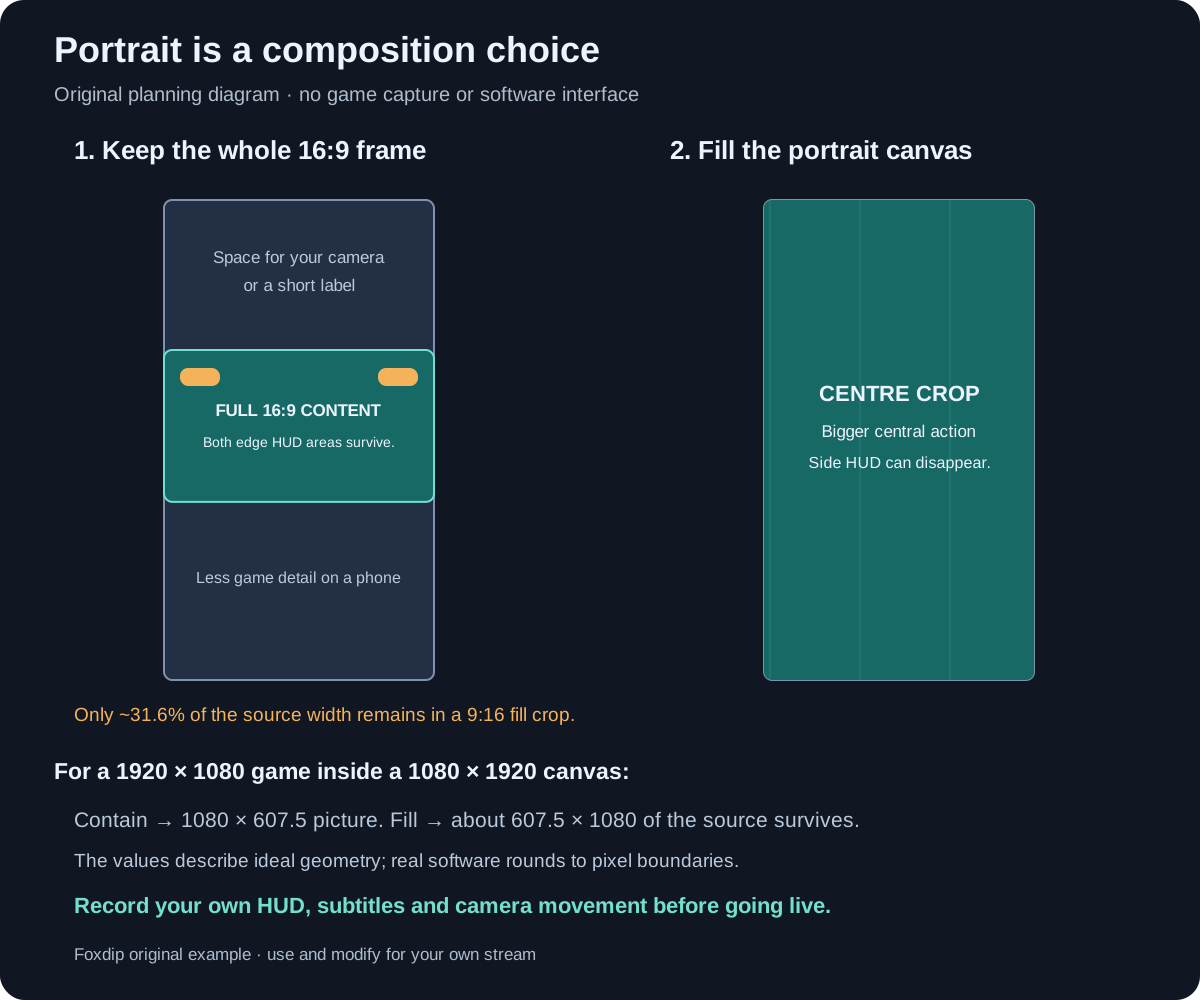
A portrait crop is an editorial choice. Centering the player can remove the map or subtitles. Showing the full game with space above and below can preserve information at the cost of smaller detail. Pick that trade-off for the actual game rather than assuming filling the entire frame is always better.
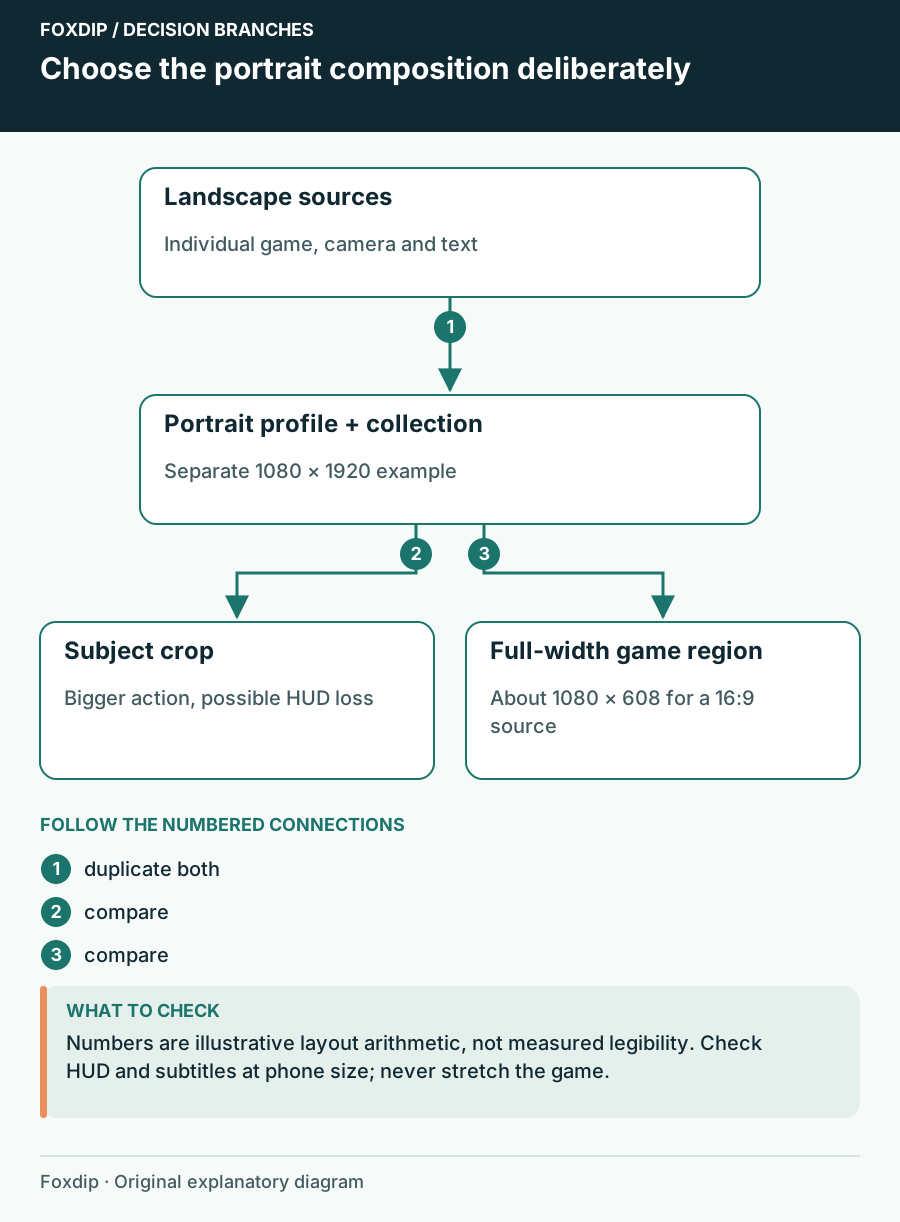
Original Foxdip schematic. Follow the labelled checks alongside the guide.
Choose the output route before rearranging the scene
A portrait layout and simultaneous portrait-plus-landscape delivery are separate jobs. You can prepare a standalone portrait recording without connecting a live platform. For two outputs, choose a documented workflow and check the account, plugin and hardware requirements before changing your working broadcast.
The current platform routes below were checked against their official help pages. Use the controls shown for your account and software. A centre crop generated by a platform is not the same as an independently composed vertical canvas.
| Your destination | Documented route | Check before changing anything |
|---|---|---|
| Standalone portrait recording | Separate OBS profile and collection | Canvas, output aspect ratio and original source sharing |
| Twitch horizontal + vertical | Current Enhanced Broadcasting / SE.Live dual-format workflow | OBS minimum, current beta/plugin guidance and hardware/upload requirements; added server transcoding is account-dependent |
| YouTube horizontal + vertical | Live Control Room layout tools or separately configured encoder output | Choose the vertical layout and correct key/protocol before starting; inspect your account controls |
| SE.Live portrait canvas | Create a separate 1080 × 1920 canvas and choose it for the intended output | Confirm scene links and selected output canvas |
Create an isolated portrait setup
Duplicate both the Profile and Scene Collection and name them for portrait recording. Profiles contain video settings including canvas resolution, while collections contain the composition. In Settings → Video, choose the intended portrait canvas and a matching output aspect ratio.
This guide builds a separate portrait workflow. It does not assume that changing one profile creates simultaneous independent landscape and portrait outputs. If you need both at once, establish that output architecture separately before rearranging your main live setup.
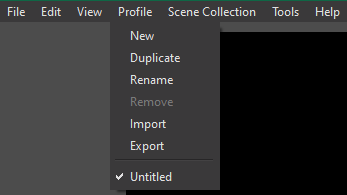
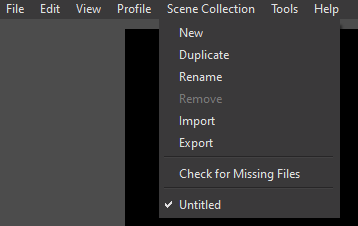
Place the source, then choose its crop
Start with the game alone
In the portrait collection, show only the game source. Fit it proportionally first so you can see what the full picture contains.
Look for: You have an honest view of the whole game inside the portrait canvas.
If essential HUD is tiny, compare a subject crop with a full-width game region before adding decoration.
Crop deliberately
Use Edit Transform or the documented Alt/Option drag crop. Adjust one edge at a time while checking the important HUD and subtitles.
Look for: The selected game region keeps the information you intended.
If it cannot, use the full game in a shorter region rather than stretching its shape.
Rebuild supporting regions
Add camera, text and alerts as individual sources with enough room around the game.
Look for: Each element can move without moving the entire game crop.
If changing a filter affects the original layout, check whether you are modifying a shared source or external file.
Use simple portrait arithmetic
For an illustrative 1080 × 1920 layout, a full-width 16:9 game region is about 1080 × 608. The remaining height can hold camera or context, but the game’s small text may still be difficult to read on a phone. This is a layout calculation, not a promise of legibility.
Record a representative moment and view it at the intended phone size. Check subtitles, corner HUD, name labels and fast action. Readability depends on the captured content and platform display, not just the export dimensions. Remove a secondary label if it competes with the only readable game area.
Check transitions and return to landscape
Visit every portrait scene and trigger a sample alert. Wide stingers, full-width captions and lower thirds may need separate portrait assets or deliberate placement. Keep overlays away from platform interface areas according to the destination’s current requirements.
Save a portrait recording, then switch back to the original profile and collection and confirm the landscape setup still behaves as expected. Keep both pairs clearly named. When the game changes, repeat the HUD check; the crop that protected one title’s score may remove another title’s health bar.
Apply proportional cropping to the separate facecam region. Fit the camera without distortion ↗
Compare a full-width game with a deliberate crop
The original layout examples below use labelled geometric regions, not a game capture or a screenshot of OBS. One keeps the complete 16:9 region inside a portrait frame; the other illustrates the narrower part a fill crop can retain. Compare what each choice sacrifices before adding text and decoration.
For an actual stream, put a representative HUD and subtitles into your own test recording. A portrait image can be neatly aligned while the only useful score or dialogue is still outside the frame.
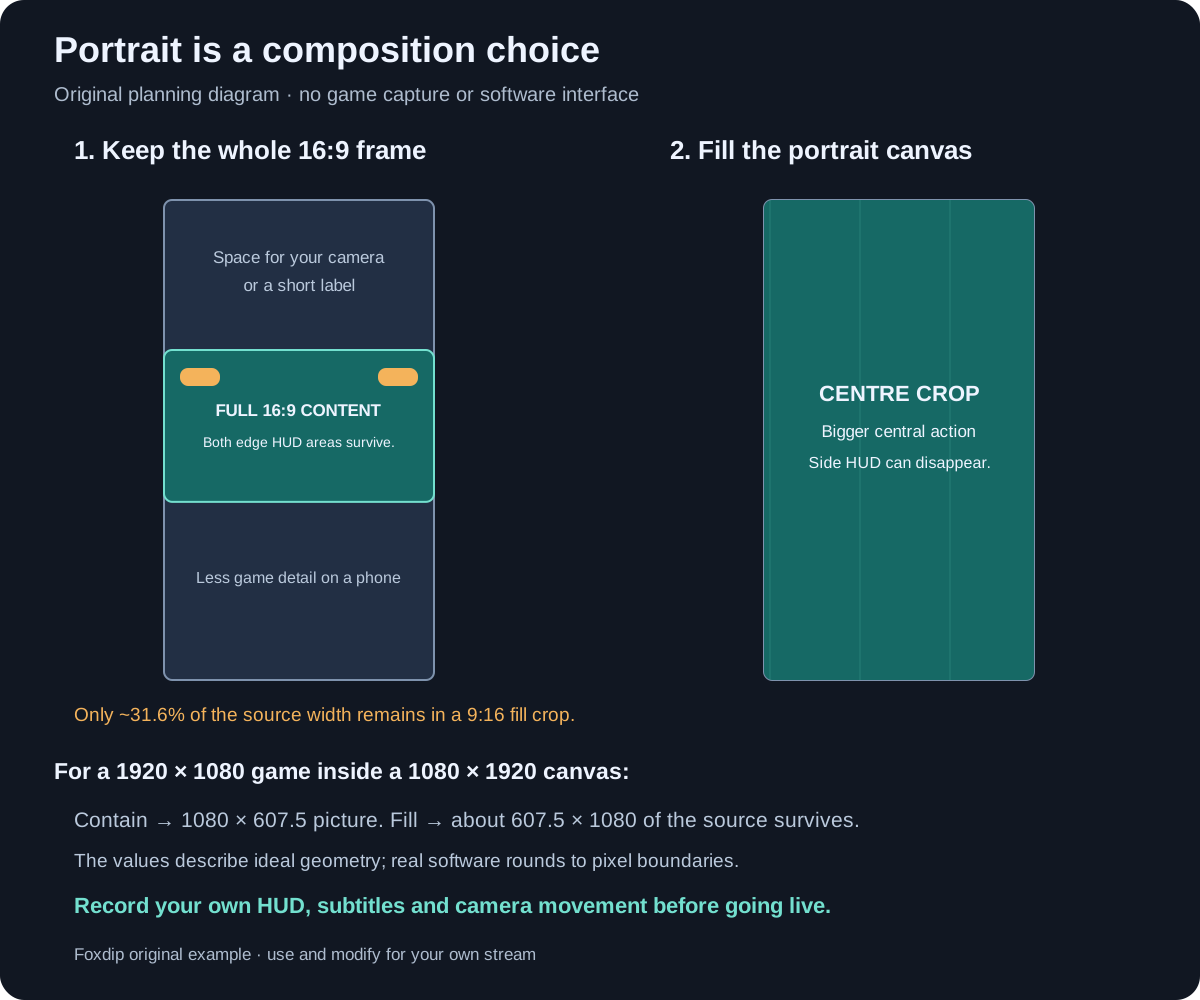
Keep the full game region and it gets smaller; fill the portrait canvas and the side HUD may disappear. Plan around the information your viewer needs.
Use the labelled regions as a planning exercise. Open the original portrait composition example ↗
Preview your actual image with the available layout tool. Check your own scene image ↗
Want graphics that already fit? Browse animated overlays ↗
Sources & references
Based on official product documentation reviewed on 27 October 2026. Follow the recording checks below on your own setup.
- OBS — Profiles ↗Checked 2026-10-27
- OBS — Scene Collections ↗Checked 2026-10-27
- OBS — Sources Guide ↗Checked 2026-10-27
- StreamElements — Create a vertical canvas ↗Checked 2026-10-27
- StreamElements — Stream in dual format on Twitch ↗Checked 2026-10-27
- Twitch — Dual Format Streaming ↗Checked 2026-10-27
- YouTube — Get started with live streaming ↗Checked 2026-10-27
Spotted something out of date? Let Alex know.
How we put our guides together ↗