
Check the recorded file, then the game source’s mono setting, OBS output channels and upstream mixer. Preserve the two channels before adding effects.
Find the point where left and right become identical before trying a widening effect.
In this guide
Before you start
- A game or permitted test file with a recognizable left/right event.
- Stereo headphones and a second playback route if available.
Check whether the recording is actually narrow
Listen to a familiar stereo reference using the same headphones and player. Then play your OBS file elsewhere if possible. If every file sounds centered on that headset, inspect the listening configuration. Do not change a correct recording to compensate for one playback device.
Windows has an Accessibility → Audio mono option that deliberately combines stereo for listening. Keep that option if you need it; use another suitable route to evaluate the stereo recording. The accessibility setting and the broadcast source are separate decisions.
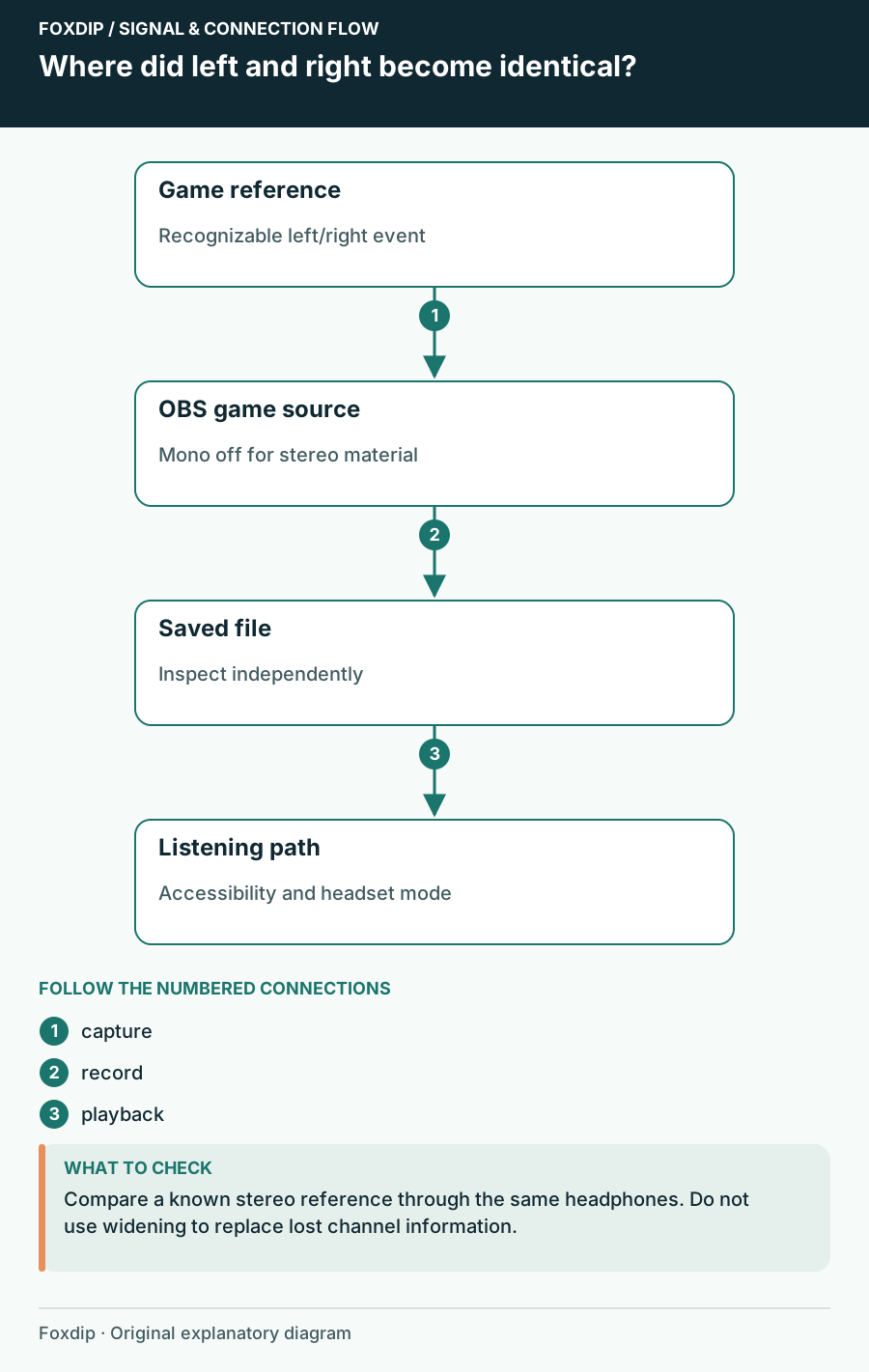
Original Foxdip schematic. Follow the labelled checks alongside the guide.
Use a controlled left/right event
Choose an in-game sound whose position you can repeat, such as an object moving from the left side of your character to the right. Keep the microphone muted for the check so your room does not add another copy. Save a short file and watch the source meters while it records.
Different left and right meter movement is a clue, but it does not guarantee a convincing stereo image. Some game moments are naturally centered. Use a sequence you recognize rather than expecting every explosion or piece of menu music to prove the channel arrangement.
Inspect the source and output
In Advanced Audio Properties, confirm Mono or Downmix to Mono is off for the game source. In Settings → Audio, confirm the output channel arrangement matches your intended stereo workflow. Check upstream virtual mixers for a mono switch or a single-channel cable.
Compare the source setting
Note the current state, disable unintended game mono downmix and record the same event.
Look for: Left/right movement returns if this was the stage collapsing it.
If it does not, restore unrelated changes and trace the upstream mix.
Remove a duplicate path
Mute any second capture of the same game for another recording.
Look for: The game has one clean route into OBS.
If width changes, keep the single route and investigate why the copies differ.
Consider headset mode changes
If the sound changes exactly when a Bluetooth microphone opens, inspect the connection mode. Microsoft documents stereo while the microphone is active only for supported Windows, PC, driver and Bluetooth LE Audio combinations. Unsupported combinations can use mono playback during microphone use.
Compare with a wired or USB listening route if you have one. Do not assume every Bluetooth headset has the same limitation, and do not promise that a Windows toggle can add hardware support. This comparison locates a monitoring change without altering the captured source blindly.
Keep direction, then consider creative effects
Once the route preserves the intended channels, listen with the rest of your mix. Voice should remain comfortably centered while game direction is available. If the game itself uses binaural headphone processing, choose its intended output mode and avoid stacking several virtual-surround systems without comparison.
A widening effect cannot recover left/right information that was already combined. It may create an impression of space while changing phase and mono compatibility. Keep a clean reference and use effects as a deliberate creative choice after the routing check, not as the repair for a hidden mono switch.
Use this distinction when headphones change but the saved file does not. Separate listening and recording routes ↗
Sources & references
Based on official product documentation reviewed on 27 October 2026. Follow the recording checks below on your own setup.
- OBS — Audio Mixer Guide ↗Checked 2026-10-27
- OBS — Audio Sources ↗Checked 2026-10-27
- Microsoft — Make Windows easier to hear ↗Checked 2026-10-27
- Microsoft — Configure Bluetooth LE Audio quality ↗Checked 2026-10-27
Spotted something out of date? Let Alex know.
How we put our guides together ↗