
Open OBS Stats and look for frames missed due to rendering lag. Compare a simple scene, then restore sources and game workload one at a time.
Compare scenes and game workload while watching rendering lag instead of changing bitrate blindly.
In this guide
Before you start
- A scene-collection backup and a repeatable game section.
- OBS Stats visible during a local recording.
Read the counter that matches the problem
Rendering builds the composed scene before the encoder compresses it. A game can look smooth on its own monitor while OBS misses its rendering deadlines. Network dropped frames describe another stage, so lowering upload bitrate is not a direct repair for a scene that cannot be composed in time.
Open View → Stats or the Stats dock in your layout. Observe frames missed due to rendering lag during a representative recording. Reset the counters between comparisons where available, or note starting totals and elapsed time. An old accumulated percentage is not a fair comparison with a new five-second clip.
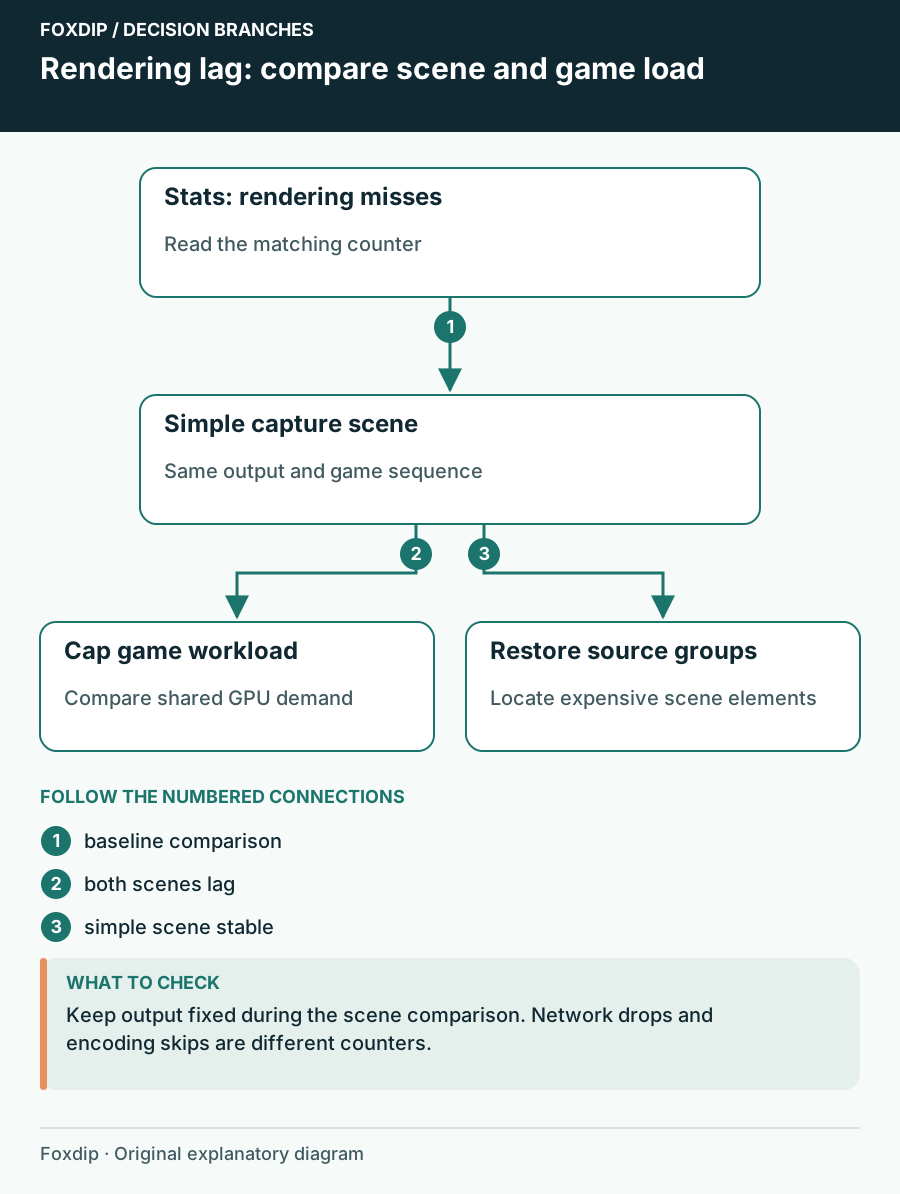
Original Foxdip schematic. Follow the labelled checks alongside the guide.
Create a small comparison scene
Duplicate your collection and build a scene containing only the capture needed for the game. Leave out camera effects, animated media and browser widgets for this comparison. Use the same recording output and game sequence.
If the stripped scene is stable but the full scene is not, you have a scene-complexity lead. If both miss frames, check the game and other GPU workloads before blaming one alert. This experiment narrows the search; it is not a recommendation to permanently remove everything you enjoy from the layout.
Give OBS room beside the game
Cap the game deliberately
Set a game frame limit you can compare with the previous uncapped workload. Keep OBS output settings fixed for this recording.
Look for: Rendering misses decline if the game was consuming the available GPU time.
If there is no change, restore the preferred cap and compare other workload sources.
Close a known competing task
Pause an export, second game or other GPU-heavy application you intentionally opened.
Look for: The comparison isolates one shared workload.
Do not end unfamiliar system processes; investigate their role before acting.
Restore sources in meaningful groups
Bring back the camera first, then its filters, then media and browser widgets. Record a similar interval after each group. If rendering lag returns when one group comes back, divide that group further. A source can be cheap in one mode and expensive at another resolution or frame rate.
Browser sources can run scripts and animations even when their visible area is small. Media can have a much larger native resolution than its on-screen frame. Simplify the expensive element at its origin where possible; shrinking its transform alone is not proof that the underlying work fell.
Save the least disruptive successful change
You might keep a game cap, reduce one widget’s frame rate or use a lighter scene for a demanding title. Evaluate those changes with the audience’s view and your own game experience. A consistent 60 fps output can be more useful than a complex scene that repeatedly stalls.
Finish with the complete production load, including recording, camera, alerts and transitions. If rendering is stable but skipped encoding frames still rise, compare encoder workload using OBS’s performance troubleshooting reference. Keep the two findings separate in your notes so the next adjustment targets the remaining bottleneck.
Sources & references
Based on official product documentation reviewed on 27 October 2026. Follow the recording checks below on your own setup.
- OBS — Encoding Performance Troubleshooting ↗Checked 2026-10-27
- OBS — Browser Source ↗Checked 2026-10-27
Spotted something out of date? Let Alex know.
How we put our guides together ↗