
For a fixed desk position, turn off autofocus in a supported C920 control surface and adjust focus at your speaking distance. Recheck the result after changing apps.
Your face stays acceptably sharp through normal seated movement without repeated background refocusing.
In this guide
Before you start
- Logitech HD Pro Webcam C920 and a stable mount.
- Normal desk lighting and a seat position you can repeat.
- Windows 11 example using OBS or supported Logitech camera controls.
- MicrophoneCable & connection
- Operating systemInput & permission
- OBS mixerSource, meter & mute
- RecordingTrack & playback
Watch focus, brightness and movement separately
Sit still for a short clip, then lean forward and wave a hand without moving the camera. If the background becomes sharp while your face softens, focus selection deserves attention. If your face is sharp while still but smears only during movement, exposure and motion blur may be the better starting point.
Don't compensate for every soft frame by adding sharpening. That can make edges harsher without putting your face in focus. Keep the original clip and note the seat position so your next adjustment has a fair comparison.
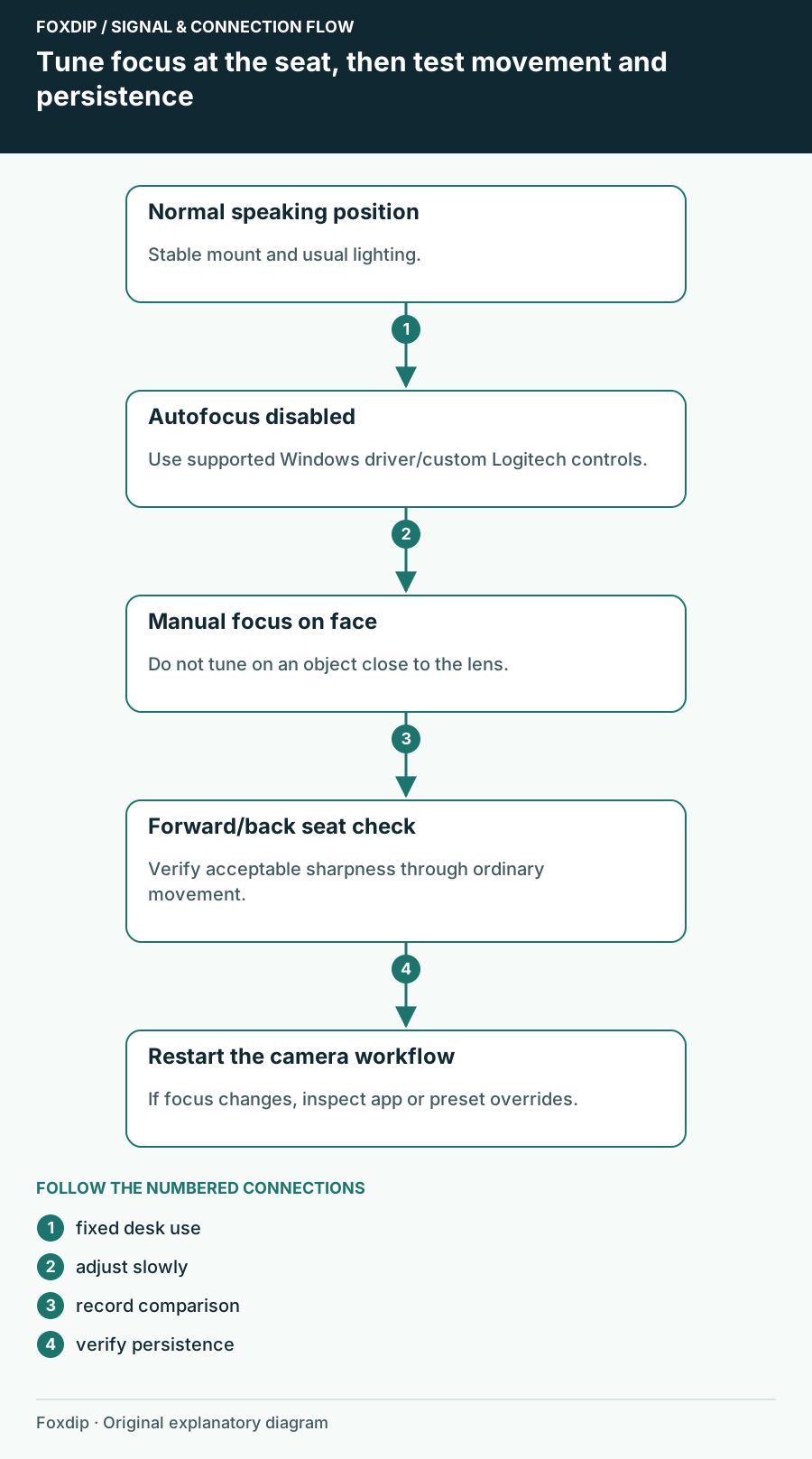
Original Foxdip schematic. Follow the labelled checks alongside the guide.
Set the distance you actually use
Mount the C920 securely and sit where you normally speak while playing. Remove a hand or object held close to the lens during setup. If you tune focus on something much closer than your face, the result may be impressive on that object and poor on the person viewers need to see.
Choose a realistic movement range: looking toward a second monitor, leaning back slightly and reaching for the mouse. Manual focus works best when that range is fairly predictable. If you frequently stand up or present objects at several distances, autofocus may remain the more suitable choice for those segments.
Disable autofocus before moving the manual control
Logitech documents C920 auto/manual focus. On Windows, OBS Video Capture Device properties offer Configure Video to open camera-driver controls. If manual focus is available there, disable the automatic focus option and adjust gradually while watching your face at the chosen seat position.
Alternatively, use the C920's supported Logitech control app. G HUB currently lists build 2026.7.992920; its documentation distinguishes built-in camera presets from custom modes that can be adjusted. Don't assume every screenshot from older Logitech Webcam Software describes the current app layout.
Tune on your face
With autofocus disabled, move the manual focus control slowly until facial detail is sharp at the normal seat position.
Look for: The face remains sharp when a hand briefly enters the frame, rather than triggering a new focus search.
If the control is unavailable, use a supported custom camera mode. If no supported interface exposes it, improve lighting/position with autofocus before changing software.
Check both ends of your normal movement
Record your usual posture, a small lean forward and a small lean back. Review the file at the camera size used on stream as well as a larger preview. A fixed setting chosen for one pose should not be accepted if ordinary mouse movement takes you outside the sharp area.
For demonstrations, consider a separate camera mode with autofocus enabled or place the demonstrated object at a planned distance. Switch deliberately between those uses. It is easier to make two honest modes work than to expect a fixed seated focus setting to follow every object held against the lens.
Find the app that changes it back
Close and reopen OBS, then repeat the hand test. If autofocus has returned, inspect any Logitech app, camera preset or other video application that reapplies controls. Logitech's current guidance warns that other apps can override settings, so keep the settings owner consistent while troubleshooting.
This guide's driver-control procedure is for Windows. Logitech documents different UVC control availability on macOS, including manual overrides. On a Mac, use a supported app and that model's current options instead of searching for the same Windows driver dialog. Save a short reference clip once the result survives the normal startup sequence.
Sources & references
Based on the linked manufacturer and platform documentation reviewed on 27 October 2026. No hands-on hardware test is claimed.
- Logitech — C920 Quick Start Guide ↗Checked 2026-10-27
- OBS Project — Video Capture Sources ↗Checked 2026-10-27
- Logitech — G HUB Update Release Notes ↗Checked 2026-10-27
- Logitech — Webcam Settings Grayed Out in G HUB ↗Checked 2026-10-27
- Logitech — Optimize Webcam Settings ↗Checked 2026-10-27
- Logitech — UVC Support on macOS versus Windows ↗Checked 2026-10-27
Spotted something out of date? Let Alex know.
How we put our guides together ↗