
Check where the app now plays, what device OBS captures and where OBS monitors. A new headphone output can change one of those routes while the other two stay on the old device.
Follow Windows playback, device capture and OBS monitoring as three separate choices.
In this guide
Before you start
- Both old and new device names where available.
- A known game sound and a short local recording to separate missing capture from missing monitoring.
Identify what disappeared
Play the game and watch its OBS meter. If you hear it but the meter is still, capture is probably aimed at a different endpoint. If the meter moves and the saved file sounds correct elsewhere, focus on monitoring. If neither Windows nor OBS receives sound, begin with the app’s playback choice.
Write three lines: app output, OBS capture source and OBS monitoring device. Include the full names, such as USB headset rather than Headphones. A virtual mixer may sit between them, so include its destination too. This small route map is more informative than changing every device to Default.
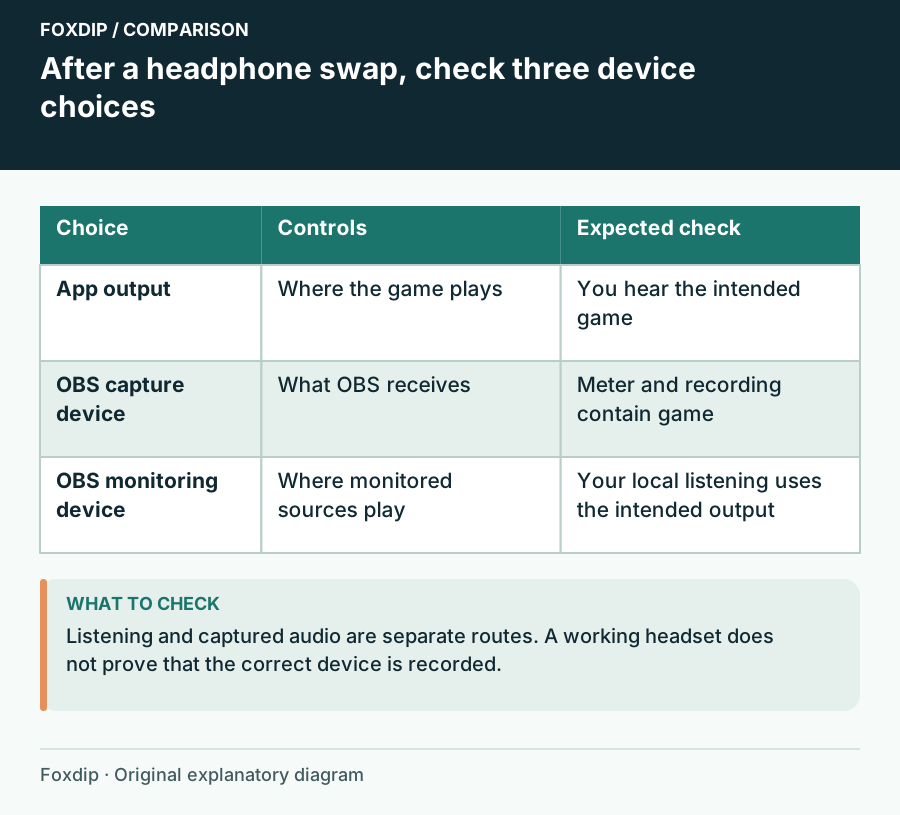
Original Foxdip schematic. Follow the labelled checks alongside the guide.
Check the app’s destination
Open the game or chat app’s audio settings and confirm its output. Some apps follow the Windows default; others remember an explicit device. Trigger sound after changing the destination, and restart the app only if its own control does not reconnect.
If you use per-application capture, the source follows the selected app rather than a headphone endpoint in the same way as Desktop Audio. If it goes silent, reopen its properties and verify the running game target. A launcher and game can have different executable identities.
Point a device capture at the intended endpoint
For Desktop Audio or Audio Output Capture, compare the device listed in OBS with the headphones now receiving the app. OBS lets audio input/output sources choose a device; a source aimed at the disconnected headset cannot represent a different output automatically.
Repair capture
Select the intended output endpoint in the affected capture source, or deliberately choose Default if following the OS default suits your workflow.
Look for: The relevant OBS meter responds to the game.
If it does not, return to the app output and virtual mixer destination.
Repair monitoring separately
Check the monitoring-device choice in Settings → Audio and the affected source’s monitoring mode. Use headphones that are actually connected.
Look for: Sources intended for monitoring reach your new headphones.
If capture is already correct, avoid adding Desktop Audio merely to hear it.
Avoid a loop while restoring your headphones
Monitoring and capture can meet on the same device. If OBS plays a source to an output that is also being captured as Desktop Audio, you can create a second copy or feedback path. Record a short check after changing devices and listen for echo.
Do not use Monitor and Output as a universal repair. It changes the monitoring route and may duplicate what the operating system already plays directly. Decide which sources need OBS monitoring, such as a media clip, and which you already hear from their original app.
Use source isolation if restoring monitoring creates an echo. Find the second audio copy ↗
Make the next switch predictable
Explicit device choices are predictable while that hardware is present. Default can be convenient when you routinely swap headphones, but a system default can move to monitor speakers after a reconnect. Choose the behaviour that matches your routine and note it.
Restart OBS once after the successful check and play the same sound again. Confirm the meter, headphone route and saved file. Keep the old device names in your setup notes until the new path survives that restart, then remove unused sources so the mixer stays easy to read.
Sources & references
Based on official product documentation reviewed on 27 October 2026. Follow the recording checks below on your own setup.
- OBS — Audio Sources ↗Checked 2026-10-27
- OBS — Application Audio Capture Guide ↗Checked 2026-10-27
Spotted something out of date? Let Alex know.
How we put our guides together ↗