
Use Hybrid MP4 or Hybrid MOV, assign Add chapter marker in Hotkeys, and stop the recording normally so the chapter list is finalized.
Mark moments while recording and check whether your player or editor reads the chapters.
In this guide
Before you start
- OBS Studio 32.2.2; Hybrid MP4 was introduced in 30.2 and Hybrid MOV in 32.0.
- A player or editor with chapter support and a safe unused shortcut.
Use markers for navigation rather than extra clips
A marker can point you to the beginning of a match, a tutorial section or a moment worth editing. It does not cut a separate highlight file. Keep recording normally and use the marker as a reminder you can revisit later.
Decide what a marker press means in your workflow. You might press once when a good moment ends, then look a little earlier during the edit. Alternatively, mark the start of each planned section. Use a consistent habit so an unnamed marker remains useful after a long session.
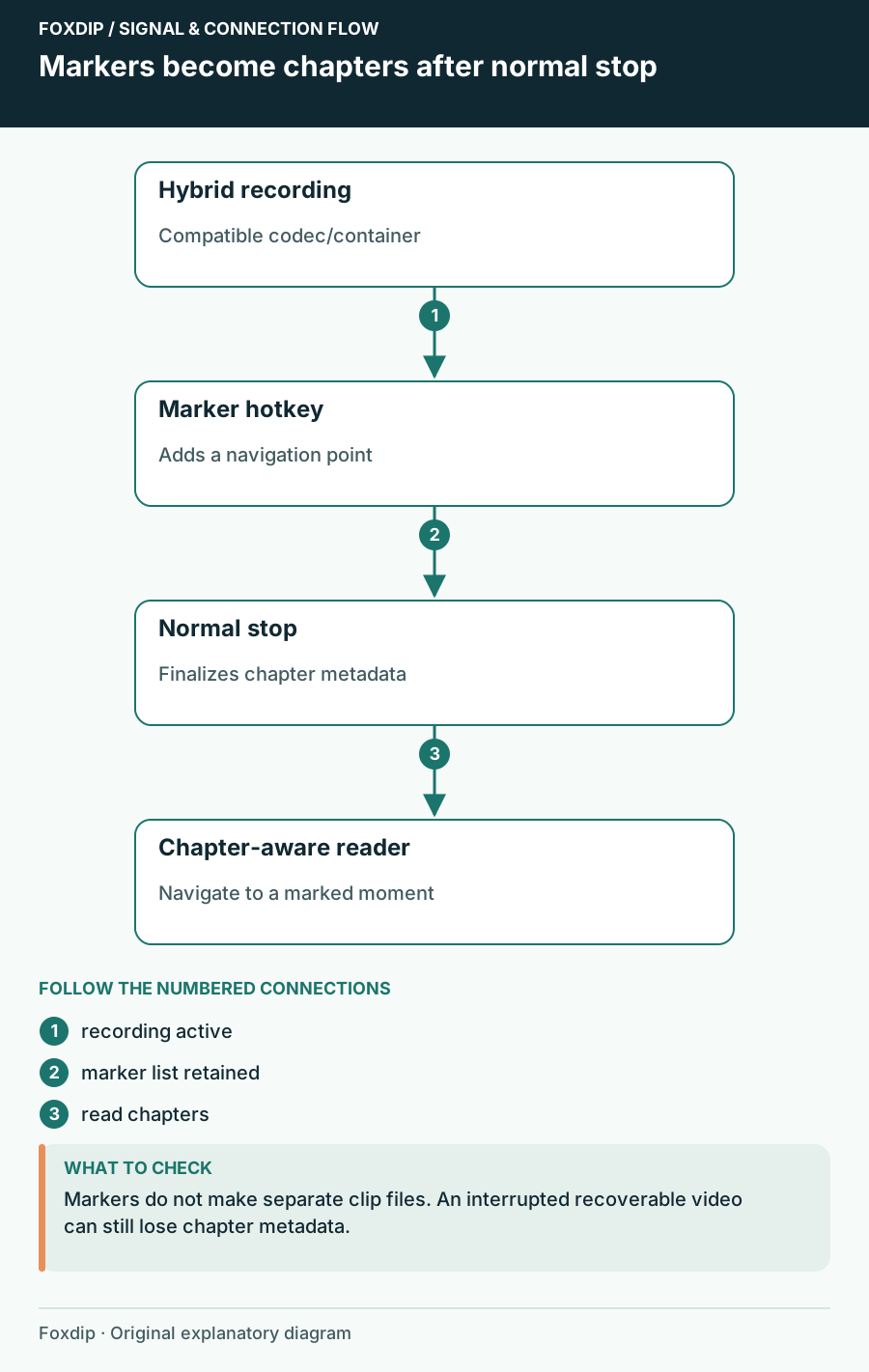
Original Foxdip schematic. Follow the labelled checks alongside the guide.
Choose the format deliberately
OBS documents chapter markers for its hybrid recording formats. Choose the format and codecs your editor already accepts; changing the container does not make an unsupported video codec compatible. If your normal recording is MKV, use a duplicated profile for this experiment and keep the existing setup available.
Hybrid MP4 and Hybrid MOV have different codec support. Make a short compatibility check before committing a long show to either. Normal stopping matters for chapters: OBS writes the marker list during finalization, so a recoverable interrupted video can still lose its chapter metadata.
Assign and prove the marker action
Set the shortcut
In Settings → Hotkeys, find Add chapter marker and choose a combination that does not control the game, chat or recording start/stop. Apply it.
Look for: The action has one intentional shortcut.
If your keyboard requires an Fn layer, check the actual combination you will press during play.
Make a three-moment recording
Start recording, say Section one, press the marker key, wait, then repeat for Sections two and three. Stop recording normally.
Look for: The saved file contains recognizable spoken reference points.
If recording did not start or stop as expected, resolve the output before assessing chapters.
Open the chapter list
Open the file in a chapter-aware player or editor and inspect its navigation or chapter panel.
Look for: Marker entries appear near your reference points.
If the video works but the list is absent, compare a second chapter-aware tool before assuming OBS failed.
Expect names and editor support to vary
The native hotkey creates numbered unnamed chapters. OBS also exposes ways for integrations to provide custom names, but you do not need an automation service to begin marking moments. A separate note can associate marker order with what happened during the session.
The OBS developer’s format explanation notes that chapter support differs among editing applications. Do not promise a marker panel in every editor merely because the file imports. Your compatibility check should include seeking to chapters, not only playing the video.
Keep a fallback for valuable sessions
For an important event, keep a simple timestamp note as well. Markers make review faster, but they do not replace recording, backup or editorial judgment. If you miss a key press, the moment is still in the continuous recording.
After the first successful check, try the shortcut while the real game has focus. Confirm you can use it without changing the game state. Save the profile name, format and successful reader in your notes. This gives you a dependable navigation tool while preserving the rest of your recording workflow.
Sources & references
Based on official product documentation reviewed on 27 October 2026. Follow the recording checks below on your own setup.
- OBS — Hybrid MP4 & Hybrid MOV Formats ↗Checked 2026-10-27
- OBS developer — Writing an MP4 Muxer for Fun and Profit ↗Checked 2026-10-27
Spotted something out of date? Let Alex know.
How we put our guides together ↗