
This message almost always means OBS can't open the file. Maybe it was moved, it's still inside a ZIP, or OBS just doesn't like the format. Try these one at a time, and check if it plays after each step.
- Unzip the download first. Then open the Media Source settings and pick the file again.
- Try playing the file in a normal video player. If it doesn't play there either, the file itself is the problem. Export it again as an MP4.
- In the Media Source settings, switch "Use hardware decoding when available" on (or off if it was on), then test again.
- Video plays once and vanishes? Tick "Loop" and untick "Show nothing when playback ends".
- Only breaks when you switch scenes? Play with "Restart playback when source becomes active" and "Close file when inactive".
- Still nothing? Use a VLC Video source instead. You'll need VLC installed (64-bit, same as OBS).
Your clip plays once or loops as intended, and you can tell a playback setting from a file or layout problem.
In this guide
Before you start
- The extracted video or animation, not just its ZIP download.
- A test scene where you can add one Media Source.
- The file location and any installation notes included with the download.
Check the exact file and source
Find the extracted media file rather than its ZIP download or pack thumbnail. Open it in a suitable local player and watch it through. If it stops at the same moment outside OBS, start with the file or its export. If it plays there, you've made a useful comparison, but it doesn't prove every playback path will handle it identically.
In OBS, create a separate test scene. Add one Media Source and select that local file again, especially if you renamed or moved the download. OBS documents GIF and WebM among its supported media inputs. A still image, hosted alert URL and local video use different source types. Keep those separate while you troubleshoot.
| What happens? | Start with |
|---|---|
| The clip never starts | Reselect the extracted local file; compare another clip. |
| It stops exactly at its end | Loop and the intended one-shot end state. |
| It fails after a scene change | Restart playback and Close file when inactive. |
| It freezes before the end | File comparison, source visibility and normal workload. |
“Media source is not playable”: isolate the file first
Use the error wording to find the failing checkpoint, not as a reason to change every playback option. Add one extracted local clip to a new Media Source in a simple test scene. Browse to the file again after a move or rename. Compare another small known-working clip in that same source, keeping scene load unchanged.
If the replacement plays, investigate the first file or its codec rather than Loop or scene visibility. If neither plays, check the selected path and source properties before adding effects. The OBS documentation lists supported containers, but a filename ending in .mp4 does not establish which encoded streams are inside it.
| Observation | Next change | Expected result |
|---|---|---|
| One local clip fails and another plays in the same source | Inspect or re-export the failing file to a supported combination | A file-specific problem becomes reproducible |
| The clip plays once then disappears | Check its end-of-playback behaviour and whether looping is intended | Distinguish normal completion from a playback failure |
| The clip starts after a pause when you return to the scene | Compare Close file when inactive with the same clip | Determine whether reloading explains the delay |
| The clip plays normally alone but stalls in the full scene | Compare active sources and rendering workload | Investigate scene load without blaming the file extension |
Use the transparency branch only when playback works but the background is wrong. Overlay Background Not Transparent in OBS? Check the File and Layers ↗
Extract downloaded assets before selecting their local paths. Inside an Emote ZIP: Find the File You Actually Need ↗
Match the setting to the behaviour you want
Open the Media Source properties. Decide whether the file is a repeating background or a clip that should play once. The relevant controls solve different parts of that behaviour; enabling every option can make the result harder to understand.
For a repeating background, enable Loop
Enable Loop, apply the change and stay in the test scene longer than the full clip duration.
Look for: The file starts again after reaching its end.
If it stalls before the end, move to the file and load comparisons below.
For a new start on activation, check Restart playback when source becomes active
Enable this if you want playback to begin again when the source is in the current scene and visible.
Look for: Activating the source starts it again.
Test activation separately from continuous looping.
Choose what happens after a one-shot ends
Check Show nothing when playback ends if the finished source should disappear. Leave it unchecked only if keeping the final frame is intentional.
Look for: The end state matches your plan.
A disappearing source after a complete play isn't, by itself, evidence of a crash.
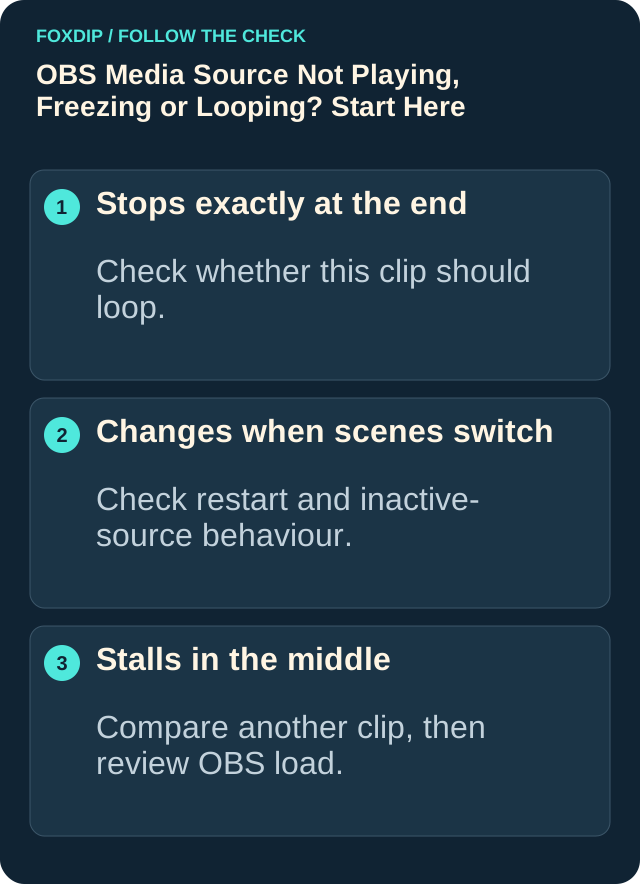
Illustration: follow the branch that matches what you see; menu paths are explained in the steps below.
Test leaving and returning separately
Let the clip run, switch to a scene that doesn't contain it, wait a moment and return. Then try hiding and showing it with the eye control. Note whether it restarts, resumes, disappears or remains still. If you reuse the source in several scenes, a scene change alone isn't a useful proof that it became inactive; use the empty comparison scene.
Close file when inactive unloads hidden media to free memory, and OBS notes that reloading can cause a brief absence. If the only problem is a gap when returning, compare with that option off. If it changes nothing, restore your previous choice. Keep this distinct from Loop: unloading between scenes and repeating at the end are separate decisions.
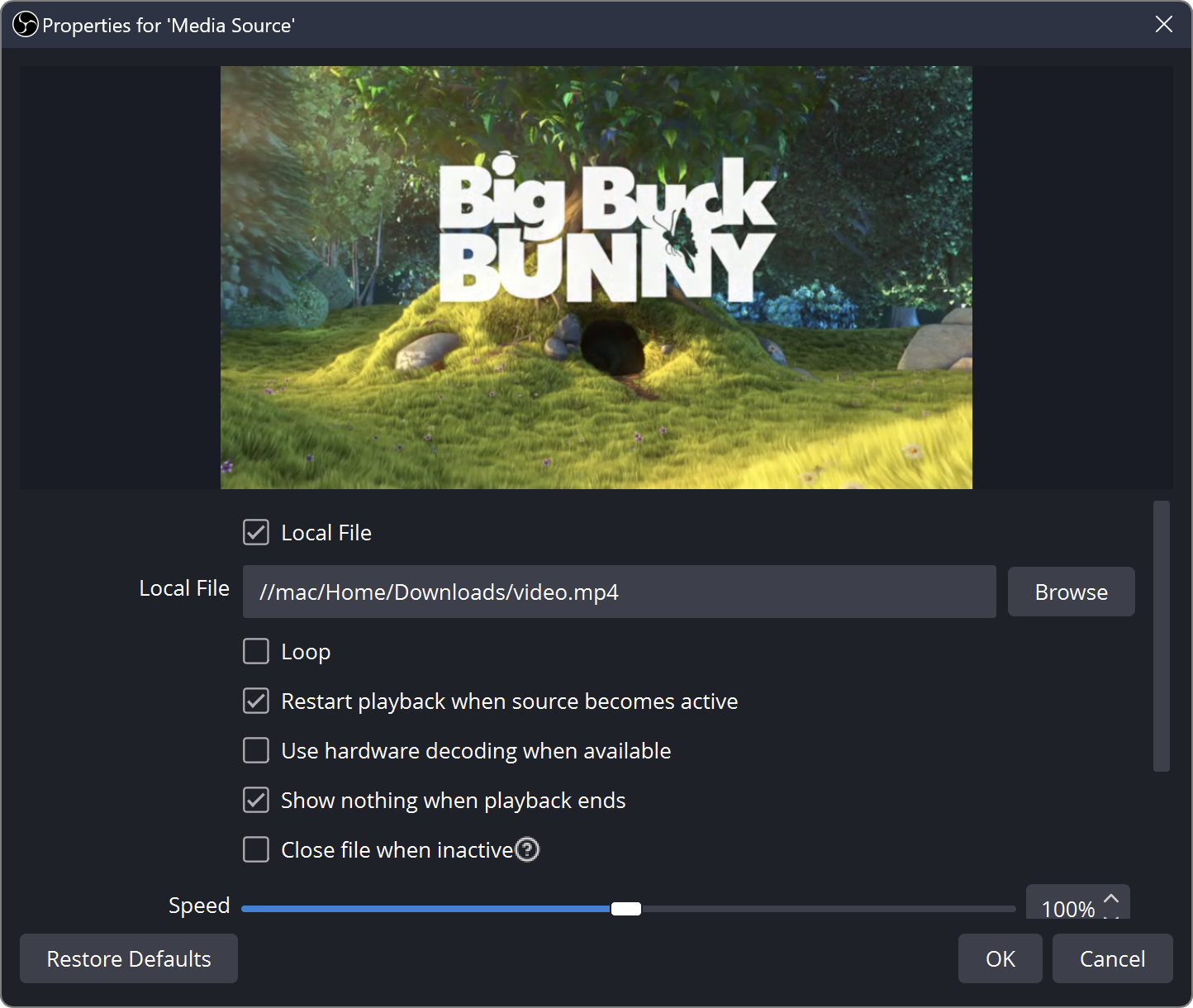
Local File, Loop and Restart playback when source becomes active are different controls. The official example uses Big Buck Bunny as sample media.
If it looks frozen, check what is actually visible
Hide the other sources in the test scene. In your normal scene, a larger item above the animation may be covering it, or a still preview may be mistaken for the video. Check the file path and which source you selected before changing playback settings again.
Watch the whole clip and note the approximate stopping point. Does it always stop at its full duration? Does motion stop halfway through while other elements continue? Does the entire preview stutter? Those observations give the next comparison a purpose. A short recording also lets you compare the preview with the saved output.
If the file still won't open, compare VLC Video
VLC Video is another supported OBS source type. It uses an installed copy of VLC for additional media support. Match the architectures: 64-bit OBS needs 64-bit VLC. Add it in your temporary scene and select the same local clip.
If that source plays the clip while Media Source doesn't, you've narrowed the comparison to a playback path. It isn't a guarantee that every file will decode, and it doesn't explain a scene that only stutters under a heavy game load. Keep the original file and check its intended format before converting it.
Compare one file and one workload
Use a second local file that you already know plays correctly. Load it through the same temporary source, with the same behaviour settings. If only the original stalls, return to its export or ask its creator about the intended format. If both stall, compare in the simple scene with the game and unnecessary browser sources closed.
If the simple scene plays smoothly but your normal setup doesn't, add the usual workload back gradually. OBS recommends smaller media resolutions where appropriate, fewer expensive sources and filters, and leaving GPU capacity for scene rendering. Cap the game's frame rate or lower its graphics settings for a comparison. Keep the change that actually improves the same playback sequence; don't replace all your settings at once.
Save a result you can repeat
Before returning to your live layout, watch at least two complete loops and repeat the leave-and-return check. For a one-shot, confirm the intended starting point and final state instead. Then make a short recording with the normal workload. A clip working alone is the starting point for that fuller check.
If it still stalls, reproduce the problem and retain the OBS log for that session. The official Log Analyzer can flag common configuration issues. When asking for help, include the OBS version, operating system, exact file, whether it stops mid-clip or at the end, and whether it works alone. Keep missing recorded sound on the audio troubleshooting branch.
Still stuck?
The clip disappears after one play.
Check Loop and Show nothing when playback ends, then watch through its full duration.
It plays in an empty scene, but not the main one.
Check whether another layer covers it, then check visibility and placement. Continue with this guide ↗
The picture works, but the recording has no sound.
Follow the source into the recorded tracks and check playback. Continue with this guide ↗
Sources & references
Based on the official support references below. Choose the steps that match your message, operating system and current app controls. November 2026 addition: documentation-based diagnostic examples; no new hands-on hardware result or platform upload test is claimed.
- OBS — Media Sources ↗Checked 2026-11-04
- OBS — Sources Guide ↗Checked 2026-10-23
- OBS — OBS Studio Overview Guide ↗Checked 2026-10-23
- OBS — Encoding Performance Troubleshooting ↗Checked 2026-11-04
- OBS — Standard Recording Output Guide ↗Checked 2026-10-23
- OBS — Log Analyzer ↗Checked 2026-10-23
- OBS — Audio/Video Formats Guide ↗Checked 2026-11-04
Spotted something out of date? Let Alex know.
How we put our guides together ↗