
Prove the shortcut with OBS focused, then compare desktop and game focus. Check Hotkey Focus Behavior, exact modifiers, game conflicts and platform permissions in that order.
Compare the same shortcut in OBS, on the desktop and in the game before changing permissions.
In this guide
Before you start
- A harmless action such as showing a temporary text source.
- A note of current shortcuts and focus settings so you can undo the comparison.
Choose an action you can see safely
Use a temporary text source named HOTKEY CHECK and assign its show/hide action. Avoid testing with Start Streaming or Stop Recording, where a missed or doubled press has a real consequence. Apply the shortcut and click out of its entry field before trying it.
Test once with OBS focused, once with a normal desktop app focused and once in the game. Write down which cases work. A shortcut that fails even in OBS needs assignment or key-input checks first. One that works on the desktop but not in a single game points toward that game’s context.
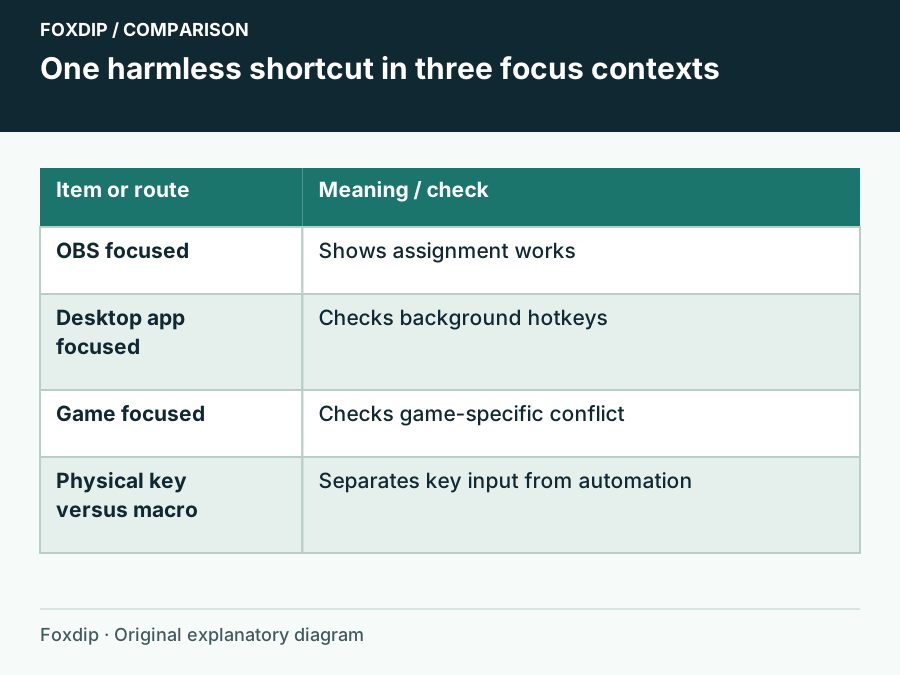
Original Foxdip schematic. Follow the labelled checks alongside the guide.
Use a three-context result table
Use the harmless HOTKEY CHECK source from the first step and record whether its physical shortcut works with OBS, an ordinary desktop app and the game focused. Change only one setting between runs. A table of three yes/no results narrows the problem more than repeatedly assigning new combinations.
If a keyboard-remapping tool is involved, repeat with the physical keys before the macro. OBS exposes both focus behaviour choices and duplicate-assignment warnings; those controls are useful only after you establish which context fails. Record the installed OBS version with the results if the documented controls differ.
| Observation | Next change | Expected result |
|---|---|---|
| Fails in all three contexts | Inspect the assignment, physical keys and conflicts | Establish one working action before game-specific changes |
| Works in OBS only | Inspect Hotkey Focus Behavior and platform permission | Check whether background activation is allowed |
| Works on desktop but fails in one game | Compare that game’s bindings and execution context | Keep the issue scoped to the failing application |
| Physical keys work but macro fails | Inspect the remapper’s emitted keys/modifiers | Avoid rebuilding OBS for an upstream macro difference |
Verify buffer state separately when the final action is saving a replay. Set Up OBS Replay Buffer and Save a Clip with One Key ↗
Check the assignment and exact keys
Look for the same combination assigned to several OBS actions. Also inspect game, voice-chat, GPU overlay and keyboard-software shortcuts. Use a deliberate combination you can physically press while playing, rather than a common movement or chat key.
OBS release notes document strict modifier matching: an extra modifier can change whether the action matches. Laptop Fn layers, keyboard remaps and software-generated keys add other variables. Try the physical key combination before investigating a macro tool.
Let the focus setting match your intention
Inspect focus behaviour
In Settings → Advanced, find Hotkey Focus Behavior. If you want shortcuts while the game is active, choose the option that allows hotkeys when OBS is not focused, then Apply.
Look for: The temporary text responds while a normal desktop app has focus.
If it still fails, investigate platform permission or input mapping rather than the game.
Compare the game context
Use the same physical shortcut inside the game and then after switching back to the desktop.
Look for: You can tell whether the failure is specific to the game.
If the game consumes the shortcut, choose another combination and repeat the harmless check.
Use the permission branch for your platform
On macOS, open OBS’s Review App Permissions and follow the hotkey-related permission it requests. Current OBS wording identifies Input Monitoring; older installations may appear under Accessibility. Grant access only to the OBS application you intend to use, then relaunch if requested.
On Windows, check whether the game is running with elevated privileges while OBS is not. Prefer running the game normally when supported. If elevation is required, a controlled OBS administrator comparison can establish whether the privilege difference matters; it is not a reason to elevate every application permanently.
Restore your real actions after the check
Once the harmless source responds in the real game, assign the intended recording, replay or scene action and verify it once. For Replay Buffer, confirm the buffer is running as well as the shortcut: a successful key press cannot save material that was never buffered.
Remove the temporary assignment so it cannot conflict later. Keep the working shortcut and focus behaviour in your setup notes. If only a keyboard macro fails while the physical combination works, bring that distinction to the macro tool’s support rather than rebuilding OBS scenes.
A plain test source makes shortcut behaviour easier to observe. Use a simple visible source for checks ↗
Sources & references
Based on official product documentation reviewed on 27 October 2026. Follow the recording checks below on your own setup. November 2026 addition: documentation-based diagnostic examples; no new hands-on hardware result or platform upload test is claimed.
- OBS — OBS Studio Overview Guide ↗Checked 2026-10-27
- OBS — OBS Studio 28 Release Notes ↗Checked 2026-10-27
- OBS — Official frontend English strings ↗Checked 2026-11-04
- Apple — Allow accessibility apps to access your Mac ↗Checked 2026-10-27
Spotted something out of date? Let Alex know.
How we put our guides together ↗