
Double audio means OBS is picking up the same sound twice, or you're hearing it twice in your headphones. First, record 10 seconds and listen back. If the recording sounds doubled, something is captured twice. If the recording sounds fine, it's only your headphones.
- Record a quick test and play it back. Doubled in the file? Keep going. Fine in the file? Skip to step 4.
- Check if your mic is added twice: once in Settings > Audio and once as a source in your scene. Keep only one.
- Check if your game or browser is captured twice: once by "Desktop Audio" and once by its own capture. Mute one of them.
- Open Advanced Audio Properties and set "Audio Monitoring" to "Monitor Off" for anything you don't need to hear.
- If you use an audio interface, turn on monitoring in one place only: either on the interface or in OBS.
- Using Discord? Its sound can come in through Desktop Audio and a separate capture at the same time. Remove one.
One copy of your voice in the recording, with a listening setup that doesn’t add an unwanted second copy.
In this guide
Before you start
- An OBS scene where your microphone meter already moves.
- Headphones and the names of your microphone or audio-interface devices.
- A note of your current routing; stop broadcasting before changing it.
1. Is the second voice in the file or just your headphones?
Close any player that could be playing your voice back: your stream dashboard, a call preview or an old recording. Put on headphones, record one sentence and stop. Turn OBS monitoring off, then listen to the saved file.
Does the file contain the extra voice, or do you hear it only while talking live? Make a note of the answer. A doubled headphone mix doesn’t necessarily mean viewers hear two copies, and muting the recorded microphone won’t fix a separate listening problem.
| Your comparison | Next check |
|---|---|
| The saved file has one voice; headphones have two | Direct monitoring, OBS monitoring and open playback. |
| The saved file contains two copies | Duplicate captures and monitored sound returning to an output capture. |
Check nested scenes and upstream mixes
If muting the obvious microphone row still leaves your voice in the file, stop searching only for a second source with “mic” in its name. A nested scene or an interface loopback can already contain voice. Label one candidate at a time and record the same short phrase while muting that route.
When the remaining voice vanishes, inspect what else disappeared. A combined source may carry both the unwanted microphone copy and wanted game audio. Replace or change that mix deliberately before deleting it, then repeat the normal scene transition to ensure the duplicate does not return.
| Observation | Next change | Expected result |
|---|---|---|
| Voice survives muting the dedicated mic | Mute a suspected combined or nested route for a local check | Locate the route carrying the second copy |
| Voice and game vanish together | Inspect the upstream mix or replace it with separate captures | Keep game audio while removing duplicate voice |
| One scene is clean and the next is doubled | Compare shared scenes and active audio sources | Each scene contains the intended voice once |
Use isolated game capture when replacing a combined desktop mix. Capture Only Your Game Audio in OBS on Windows ↗
2. Look for the same microphone in two places
Open Settings → Audio, then inspect the audio sources in your scene. Compare their device names. OBS warns that a microphone captured globally and added again as an Audio Input Capture source can create echo.
Choose which arrangement suits your scenes: one global microphone, or a scene-level source where you need it. Disable the overlap and keep a note of what you changed. You don’t need to delete the whole scene collection to find one duplicated input.
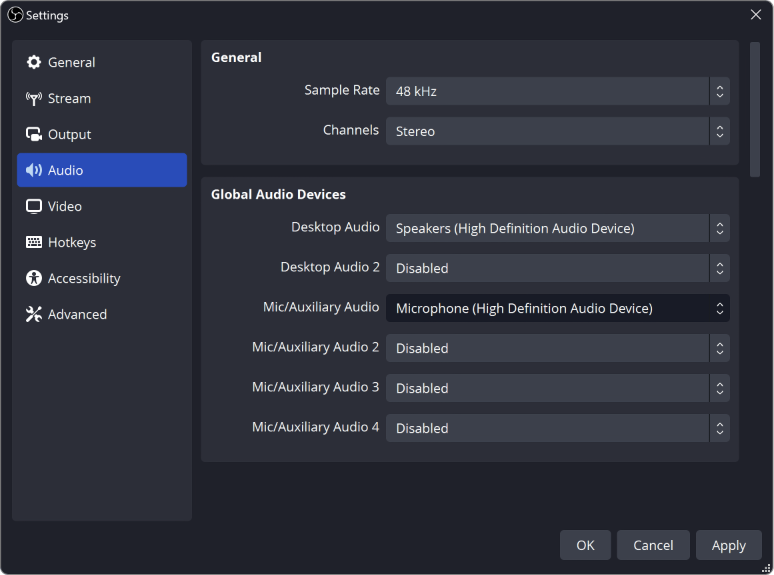
Settings → Audio contains the global capture devices. Choose the microphone deliberately; an enabled device here can overlap a scene-specific Audio Input Capture.
If a saved file is missing sound rather than doubled, follow its tracks. OBS Recording Has No Audio? Check the Tracks ↗
3. Change one route and record the same sentence
Temporarily mute one suspected copy and make another recording. Name it after the change, such as “global mic muted”. If you want to check a different route, restore the first one before trying the next. Otherwise, it becomes hard to tell which change helped.
Listen for one voice with the extra copy gone. If all speech disappears, restore the route you just muted: it was the only working output in that take. If the file is merely quieter but still sounds doubled, keep investigating rather than treating the volume change as the fix.
If only your headphones have the extra voice, compare the two ways to monitor. Direct Monitoring vs OBS Monitoring: Know What You Are Hearing ↗
4. Separate listening from recording
Monitoring sends a source to your listening device. Output mute controls whether that source goes to the output. They’re different controls in OBS, even if your release presents them differently. Turning monitoring off shouldn’t be confused with removing the mic from the recording.
If the file is clean, check whether both OBS monitoring and your microphone or interface’s direct monitoring are active. If the file is doubled, look at the monitoring destination too. A monitored voice sent to a device captured as desktop audio may be coming back into the mix. Test that route on its own.
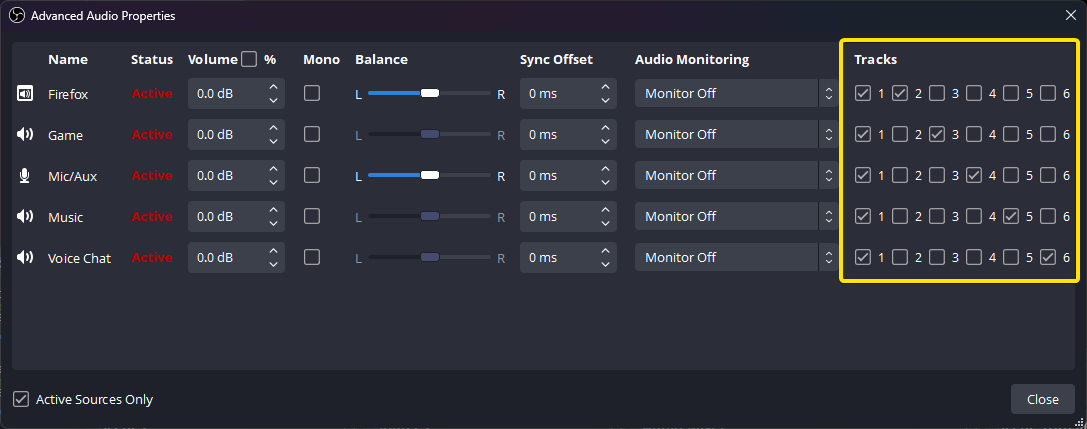
Audio Monitoring and Tracks are separate columns. This example shows Monitor Off; use the full-size view to inspect the controls, then follow the listening/recording check above.
5. If it’s the game or a call that’s doubled
Treat that sound separately from the physical microphone. On supported Windows setups, an application source can capture the game or call while global Desktop Audio captures it again.
On supported Windows setups, inspect Game Capture and Window Capture properties too. Their Capture Audio option can bring in the application's sound without a separate Application Audio Capture source. That option was added in OBS 30.1. Compare it with the routes already active in your scene before turning off a global device.
OBS’s application-capture guide recommends disabling the overlapping global Desktop Audio when using per-application sources. First make sure those sources include the sounds you actually want. After the change, record the game, call and alerts again so you don’t solve an echo by accidentally dropping something else.
6. Check the full scene and save your setup note
Record speech, a short pause, some game or application audio and a scene change. Stop, turn live monitoring off and play the file. Keep the change if your voice appears once and the rest of your intended sound is still there.
Save a short note with the microphone device, global or scene capture, monitoring destination and application captures. Compare it if the problem comes back after a device or scene change. Once the routing behaves, you can judge whether noise suppression, compression or a different mic position would improve the sound.
Still stuck?
The file is clean, but you hear two voices in headphones.
Compare OBS monitoring, hardware direct monitoring and any open player. Check monitoring separately from output mute.
Muting a suspected duplicate makes your voice disappear.
Restore it: that was the only working output in that take. Record another sentence while checking a different route.
The microphone meter doesn’t move at all.
Start with the input checks before looking for duplicate audio. Continue with this guide ↗
Sources & references
This walkthrough follows the audio capture and monitoring controls in OBS’s official guides. November 2026 addition: documentation-based diagnostic examples; no new hands-on hardware result or platform upload test is claimed.
- OBS: Audio Sources ↗Checked 2026-10-18 · Published January 11, 2022
- OBS: Audio Mixer Guide ↗Checked 2026-10-18 · Published April 3, 2026
- OBS: Application Audio Capture Guide ↗Checked 2026-10-29 · Published July 12, 2023
- OBS source: English interface labels ↗Checked 2026-10-18
- Focusrite — How to use Loopback in Focusrite Control 2 ↗Checked 2026-11-04
- OBS — Sources Guide ↗Checked 2026-11-04
Spotted something out of date? Let Alex know.
How we put our guides together ↗