
Match the mask canvas to your camera source, export the PNG, then use OBS Image Mask/Blend in Alpha Mask (Alpha Channel) mode. A mask controls visibility; it is not a decorative camera frame.
An on-device preview and downloadable result, with the limits described below.
Choose the shape. Keep the camera.
Export a white shape with a transparent outside edge for an OBS alpha mask.
JavaScript powers your local preview and download.
In OBS Image Mask/Blend, choose Alpha Mask (Alpha Channel). This file is a mask, not a decorative frame. Match its canvas to your source before testing.
No account or upload. Selected files and entered text stay on this device; exports are saved only when you ask.
In this guide
Before you start
- Use files and text you have permission to use.
- Enable JavaScript in a current browser.
Match the source before choosing the shape
Enter the dimensions of the camera image you are masking. A circle uses the shorter canvas edge as its diameter and remains centred; a rounded rectangle follows the full canvas with your chosen inset.
If you want the circle around a face, frame the source first. The mask cannot tell where your face is or recenter it automatically. Keep a copy of the scene so you can compare the unmasked result.
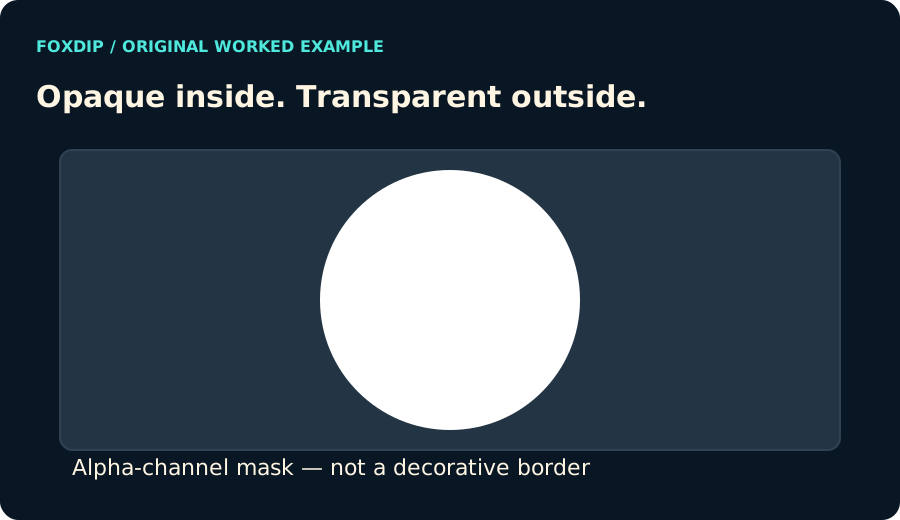
Original Foxdip diagram. The interactive tool above produces your own preview and export; this is not a platform interface screenshot.
Use the alpha-channel mode for this file
The exported PNG has an opaque white shape and a transparent outside. OBS’s Alpha Mask (Alpha Channel) uses those transparency values to keep or remove the corresponding parts of the source. Colour Channel is a different mode, so a correct PNG with the wrong filter mode can still look wrong.
For a rounded rectangle, change the corner radius and inset together. The preview clips the radius to the available shape so the corners cannot extend beyond the image. A large inset can leave little usable camera area; check the subject rather than the outline alone.
Test the mask with movement
Download the file, open it to confirm the shape, then select it in the source’s Image Mask/Blend filter. Review the source dimensions and any stretching option before assuming the mask is distorted.
Move your head and hands through the area you normally use on stream. If the shape cuts off something important, adjust the crop or choose a gentler rectangle. Add a decorative border as a separate source only if you actually have a matching frame.
Want graphics that already fit? Browse overlays with webcam frames ↗
Sources & references
Original Foxdip browser-local tool and explanatory example. Platform or file-format guidance is linked below; account upload and moderation are separate.
- OBS — Image Mask/Blend Filter ↗Checked 2026-10-27
- W3C — PNG specification ↗Checked 2026-10-27
Spotted something out of date? Let Alex know.
How we put our guides together ↗