
Read the installed version and update note, then reselect the intended Wave Link mix in each receiving app and test one route at a time.
Compare current virtual-device names, application assignments and the audience mix before assuming an update damaged your setup.
In this guide
Before you start
- Installed Wave Link version, OS and update path.
- Your current mix names and any pre-update routing notes.
Identify which update actually happened
Write down the installed Wave Link version, operating system and the last configuration you know worked. A move from Wave Link 2 to 3 is a migration, while a later Wave Link 3 driver update is a different event. Don’t combine both into an undefined “latest update” diagnosis.
Elgato’s Windows3.2.8 release note specifically warns that its audio-driver update may change how virtual devices appear in OBS and Discord. That documented warning supports checking app selections. It does not establish that every silence after every update is a driver defect.
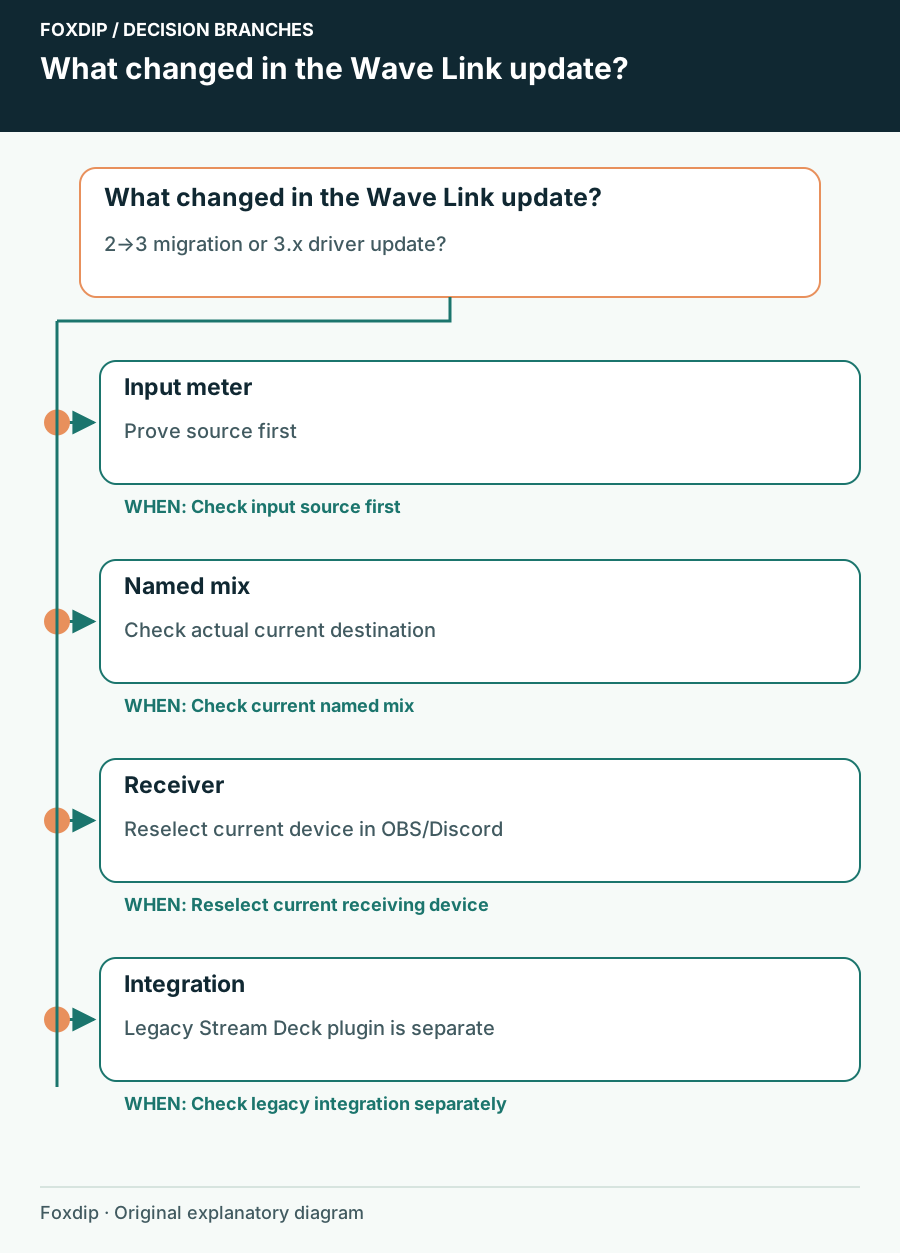
Original Foxdip schematic. Follow the labelled checks alongside the guide.
If you moved from2 to3, rebuild the intended setup
Elgato says routing, mic settings and effect chains do not migrate automatically from Wave Link 2. Installed effect plugins remain on the system but must be added again to the inputs. Use your old notes as a design reference and rebuild a small working path before recreating a complicated mix.
Stream Deck also uses a new Wave Link plugin for version 3. The Legacy plugin is for version 2, and its actions do not carry over. If the audio works in Wave Link but a dial no longer changes it, inspect the integration instead of rerouting a healthy signal.
Reselect the receiver’s current device
Open the audio settings in OBS, Discord and any other receiving app. Read the full selected name and compare it with the mix currently present in Wave Link. A remembered name or an old inactive device entry is not proof that the app is attached to the current mix.
Check Wave Link itself
Trigger one mic phrase or app sound and inspect the intended mix.
Look for: You establish whether audio exists before it leaves Wave Link.
Reselect one receiver
Choose the intended current mix in that app, then apply or confirm the selection.
Look for: The receiver’s meter or test should respond.
Repeat for the next app
Test the next receiver independently, recording its intended mix name.
Look for: One repaired route does not conceal a different wrong selection elsewhere.
Check the sending apps as well
If the mix has no game or media signal, inspect the source app’s output selection and any virtual channel it uses. If the microphone input is missing, inspect the physical connection before changing the full audience mix. Keep the hardware device, virtual channel and receiving mix as three separate entries in your notes.
On macOS, read any microphone or system-audio permission prompts. On Windows, complete an official driver prompt if one is shown. Restart only the app holding the old route once the new device exists. Avoid a full settings wipe while the signal chain is still telling you where it stops.
Repeat the pre-update show in miniature
Record microphone, game and a permitted alert through OBS. Make a separate call test for the Discord mix. Include the Stream Deck control if that was part of the symptom. Restore normal levels before going live; an emergency gain boost can survive the repair and clip the next broadcast.
Save the corrected device labels and actual version with the date. If the fault remains, give Elgato the installed build, OS, update path and the first point where signal disappears. Prefer that reproducible description to reinstalling repeatedly or calling an unconfirmed issue a known bug.
Sources & references
Based on the official documentation linked beside the relevant sections. Follow the checks on your own setup; no hardware measurements or account tests are claimed.
- Elgato — Wave Link3.2.8 Windows Release Notes ↗Checked 2026-10-27
- Elgato — Upgrade Wave Link2 to3 ↗Checked 2026-10-27
- Elgato — Wave Link 3.0 Software Overview ↗Checked 2026-10-27
- Elgato — Current software downloads ↗Checked 2026-10-27
- Elgato — Wave Link3.3 Windows Release Notes ↗Checked 2026-10-27
Spotted something out of date? Let Alex know.
How we put our guides together ↗