
OBS is probably grabbing everything your headphones play, Discord included. Capture only the game instead, turn off Desktop Audio, and keep Discord playing in your headphones. You'll hear your friends. Your viewers won't.
- Add an Application Audio Capture source and pick your game.
- Go to Settings → Audio and set Desktop Audio to Disabled.
- Remove or mute any Audio Output Capture pointed at your headphones.
- Leave Discord's output on your headphones. Don't add Discord to OBS.
- Do a 30-second test recording while a friend talks. Play it back.
- Want friends on stream later? Add Discord as its own source, with their OK.
Separate your headphone mix from the sources OBS sends to viewers.
In this guide
Before you start
- OBS application audio capture on compatible Windows; headphones.
- A friend who agrees to a short check, or a Discord sound you can safely use.
Hearing and broadcasting are different routes
Your headphones can play a conversation that never enters OBS. The difficulty appears when Desktop Audio captures the same playback device: it takes the combined result, including friends, game and notifications. Muting Discord inside OBS is only possible after Discord has its own source.
Decide whether voice chat must be excluded throughout the show or only in selected scenes. For complete exclusion, do not add it as a broadcast source. For occasional inclusion, create a clearly named source and a deliberate mute control so the choice is visible.
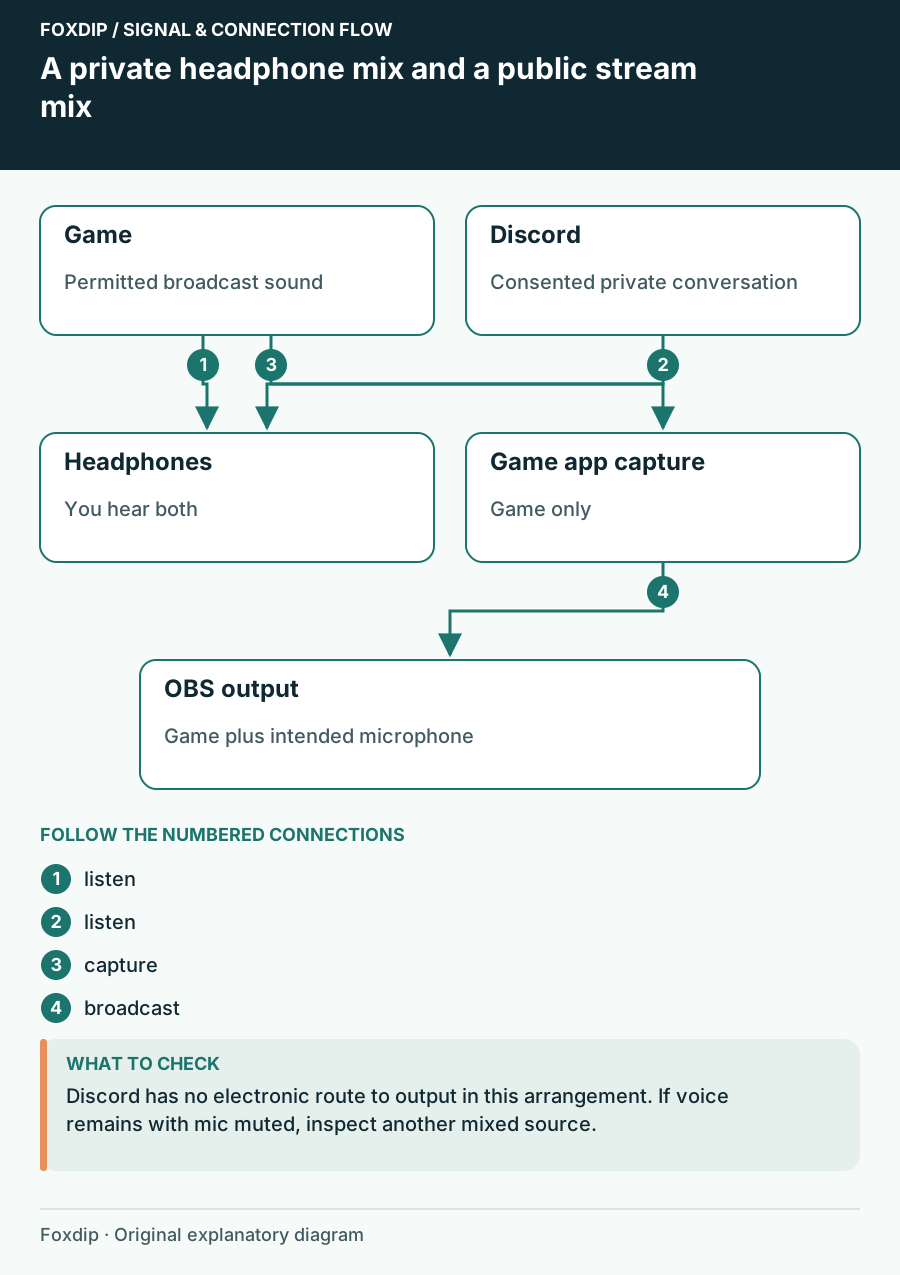
Original Foxdip schematic. Follow the labelled checks alongside the guide.
Replace the combined headphone capture
Take a screenshot or write down the current device choices before changing them. Add the game as an application source and make sure it works before removing the old combined source.
Build the permitted mix
Add Application Audio Capture for the running game. Add any other app you explicitly want viewers to hear as a separate source.
Look for: Each intended app has a recognizable meter.
If an app is silent, solve that source before proceeding.
Disable the combined feed
Disable Desktop Audio in Settings → Audio and remove or mute any Audio Output Capture aimed at your headphone device. Leave Discord output set to those headphones.
Look for: You still hear friends, but their voices no longer move a desktop-output meter.
If they still appear, inspect virtual mixers and capture-card audio for a second combined feed.
Do a consented conversation check
Tell your friend the recording is a routing check and ask them to count while you stay quiet. Then speak your own name and trigger the game sound. Save a short local recording and play it back. You should hear your microphone and game, with your friend absent. Delete the check if it contains anything you do not need.
If a faint version remains, mute your microphone for another check. A voice that disappears with the microphone is probably reaching it acoustically from speakers or loud headphone leakage. A voice that remains belongs to an electronic route. This split gives you a much smaller problem to investigate.
Look beyond a source named Discord
A virtual mixer stream output may already contain chat. A capture card connected to a second computer can carry the whole second computer mix. A browser-based call can also be included in captured browser audio. Source labels describe your choices, but they do not guarantee what the upstream device contains.
Temporarily mute one suspected combined source at a time while your friend counts. Stop as soon as you identify the route, then exclude chat in that mixer or replace it with a more specific source. Avoid changing Discord input permissions when the problem is what OBS receives.
Handle the moment you want friends on air
Ask before bringing the conversation onto the broadcast. If you use a dedicated Discord capture source, give it a name such as Voice chat — on-air permission required and keep its mute state obvious. Record another check after adding it so game sound is not captured twice.
A local recording verifies your selected OBS tracks; it does not retrospectively remove voices already broadcast. Use this routing before the session begins, and repeat it after changing virtual mixers or headphones.
Use source isolation when a conversation persists after the obvious source is muted. Find a second copy of an audio route ↗
Sources & references
Based on official product documentation reviewed on 27 October 2026. Follow the recording checks below on your own setup.
- OBS — Application Audio Capture Guide ↗Checked 2026-10-27
- OBS — Audio Sources ↗Checked 2026-10-27
Spotted something out of date? Let Alex know.
How we put our guides together ↗