
First check where the sound disappears: the Streamlabs event itself, your headphones or the saved stream mix. An alert can reach the mixer without reaching your listening device, and you can hear a preview that never enters the recording. Use one test event all the way through.
- Platform
- Windows PC · macOS
- App / launcher
- Streamlabs Desktop / OBS Studio
- Scope
- Use the current dashboard and the upload mode or source described below.
In this guide
Choose one event and save a known sound
In your Streamlabs dashboard, open Streaming essentials → Alert Box. Select the platform and the event that's silent. A Twitch follow and a subscription have separate settings, so editing one doesn't prove the other has sound. Confirm the active widget theme matches the one your scene uses.
Find Sound, select a short stock sound and set its volume above zero. Save Settings before leaving the page. This temporary comparison separates your custom file from the rest of the alert route. Streamlabs documents MP3, OGG and WAV for uploaded audio; if stock audio works, check your custom file and upload it again in a supported format.
Send the exact alert you are checking
Use the test dropdown at the top right of the Alert Box page and choose that event. In Streamlabs Desktop, Test Widgets also lets you choose an event. If the problem concerns a variation, open that variation and use Test Variation; testing the basic event doesn't exercise every special condition.
Watch the alert in the streaming application's scene and watch its audio meter. Close extra alert preview pop-outs after the comparison so their playback doesn't confuse the next check. Also confirm that alert sounds aren't muted in Recent Events. If no visual alert arrives either, check paused alerts and moderation before treating this as an audio-only failure.
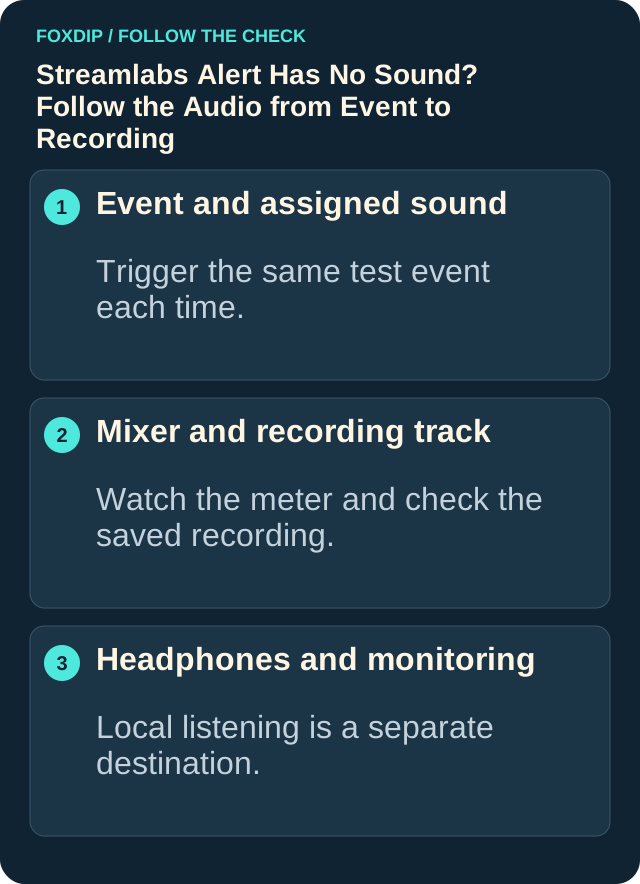
Illustration: follow the branch that matches what you see; menu paths are explained in the steps below.
Image: Foxdip · original explanatory illustration
Open full-size image : Event and assigned sound: Trigger the same test event each time.. Mixer and recording track: Watch the meter and check the saved recording.. Headphones and monitoring: Local listening is a separate destination. (opens in a new tab)Give the alert a visible route into the mixer
Identify your installation before copying a control name. Streamlabs Desktop uses its Alert Box widget. OBS Studio without the Streamlabs plugin uses the Widget URL as a Browser Source. The Streamlabs plugin is another installation path. A clip uploaded to the dashboard isn't automatically a separate Media Source in OBS.
In Streamlabs Desktop
Right-click the Alert Box, open Properties and its Sources settings, then check Route Audio to OBS as described in Streamlabs support. Send the same test again.
Look for: The routed Alert Box audio responds in the mixer.
If the meter stays still, return to the event's selected sound, volume and variation.
In OBS Studio with a Browser Source
Open that Browser Source’s properties and enable Control audio via OBS for a direct source route. Send the same test and find that source in the Audio Mixer.
Look for: You can follow the alert on its own mixer entry.
If it responds, check output and listening separately below.
Separate your headphones from the outgoing mix
Check the alert's mute control and fader first. Monitoring sends sound to your listening device; output sends it toward the stream or recording. If the meter responds but your headphones are silent, check the monitoring device and its volume. Turning up a source that already records correctly won't repair a wrong listening device.
In layouts with Audio Monitoring choices, Monitor Off leaves the source available to output without local monitoring. Monitor and Output provides both routes. Monitor Only (Mute Output) deliberately mutes the direct output route. Streamlabs recommends it for some desktop-capture setups, but don't assume it will reach viewers in yours: confirm which device is captured and listen to a recording.
If your monitoring device is also captured as Desktop Audio, the monitored alert can enter the mix again. Use one intended route for the final mix and repeat the test. A louder or doubled alert after enabling monitoring is a routing clue, not a reason to keep turning the fader down.
If you hear it but the recording is silent
Check source-to-track assignment and the audio tracks enabled for your output. Streamlabs support says the Alert Box must be assigned to every track where you want it heard. In OBS, Advanced Audio Properties assigns sources, while Settings → Output enables the tracks written into a recording.
Remember that ordinary video players usually play one audio track at a time. Your alert may be on a different recorded track from the one you're listening to. Keep a complete mix on the track you use for quick playback, and verify that the intended streaming track includes the alert too. A local preview sound isn't evidence that either output contains it.
Retest the event, variation and normal scene
Start a short recording, trigger the alert once, stop recording and play the saved file. Listen for one complete sound at a sensible level alongside your voice and game. Repeat with any variation that originally failed, then switch through the scenes where the alert should be available.
If the same test still fails, keep the platform, event, theme, installation method and the point where the meter stops responding. Those details help support distinguish a silent event from an output route. Avoid resetting your API token as an early experiment: Streamlabs notes that doing so requires updating all your widget URLs.
Sources & references
Based on the official support references below. Choose the steps that match your message, operating system and current app controls.
- Streamlabs — Setting up Your Streamlabs Alerts ↗Checked 2026-10-23
- Streamlabs — How to Change Streamlabs Alert Box Sounds ↗Checked 2026-10-23
- Streamlabs — Alerts/Widget Troubleshooting ↗Checked 2026-10-23
- Streamlabs — How to Fix Alert Echoing ↗Checked 2026-10-23
- OBS — Browser Source English control labels ↗Checked 2026-10-23
- OBS — Audio Mixer Guide ↗Checked 2026-10-23
- OBS — Video Call Streaming Tutorial (monitoring and output definitions) ↗Checked 2026-10-23
- OBS — Multiple Audio Track Recording Guide ↗Checked 2026-10-23
Spotted something out of date? Let Alex know.
How we put our guides together ↗