
Fix an uneven backdrop before increasing Similarity. A stronger key can hide green patches by removing parts of you as well.
In this guide
Give the key a fair starting point
Stand or sit far enough from the backdrop that your normal movement does not throw a large shadow across it. Light the green surface evenly, then light your face for the camera. Creases, bright hotspots and dark corners ask the filter to treat several different colours as the same background.
Add the camera as a Video Capture Device and check its picture without a key. Keep a short test repeatable: turn your head, raise a hand and move a little toward the edge of your usual position. The filter needs to survive those moments, not only a perfectly still pose.
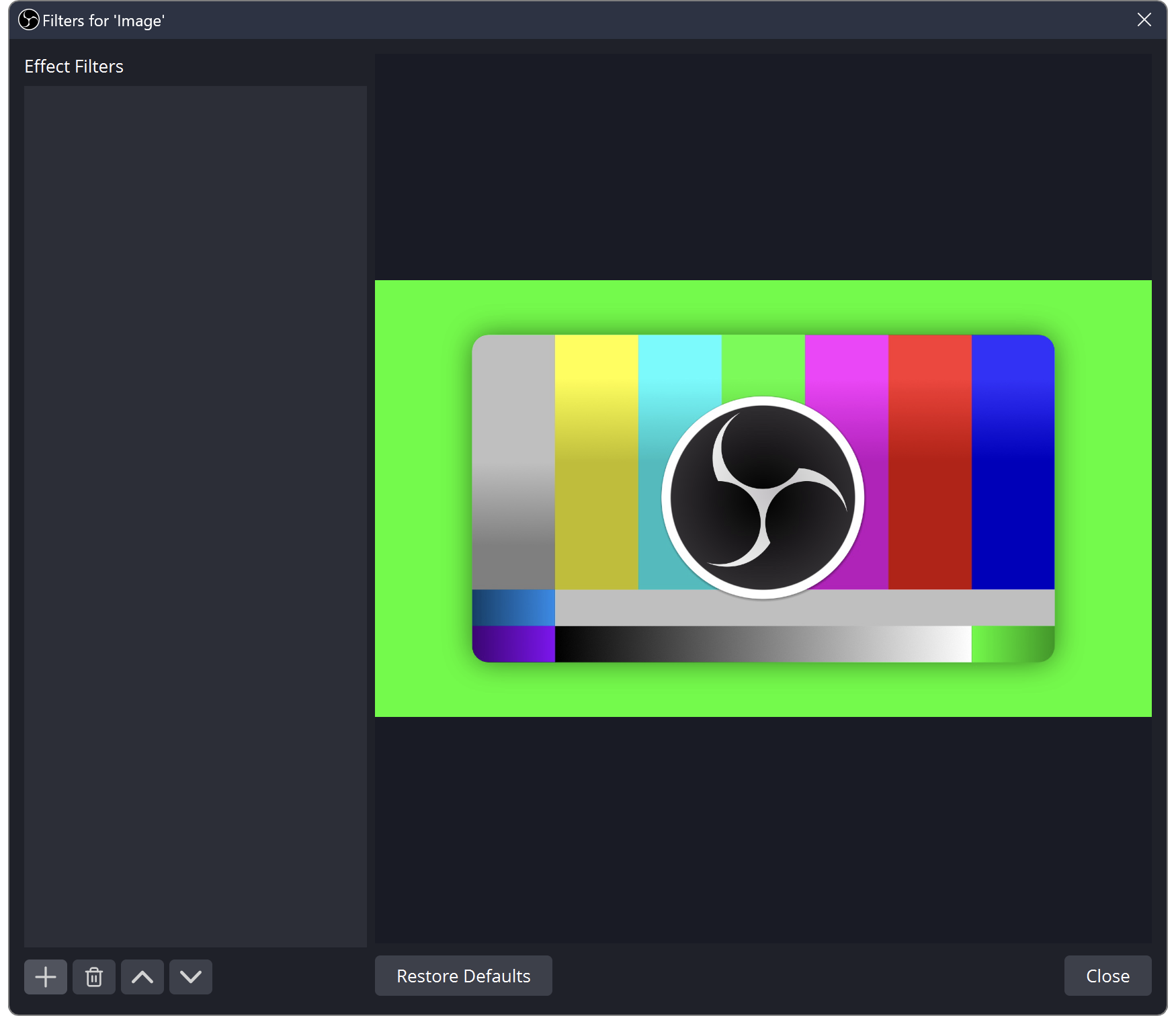
Before the key: OBS shows the green area that the filter will remove.
Add Chroma Key to the camera
Select the camera source
Open Filters on the camera. Under Effect Filters, add Chroma Key and choose the backdrop colour.
Look for: The chosen background starts becoming transparent rather than turning into a painted black rectangle.
Adjust Similarity while watching the subject
Move the threshold gradually until the backdrop clears. Stop if clothing, fingers or hair start disappearing.
Look for: The background is removed while important subject detail survives.
If a dark patch remains behind you, improve that patch of lighting before pushing the threshold further.
Check the edge and spill separately
Use Smoothness for the edge transition and Spill Reduction for remaining green contamination. Change one control, then repeat the same movement.
Look for: You can identify which change improved the edge without sacrificing the whole outline.
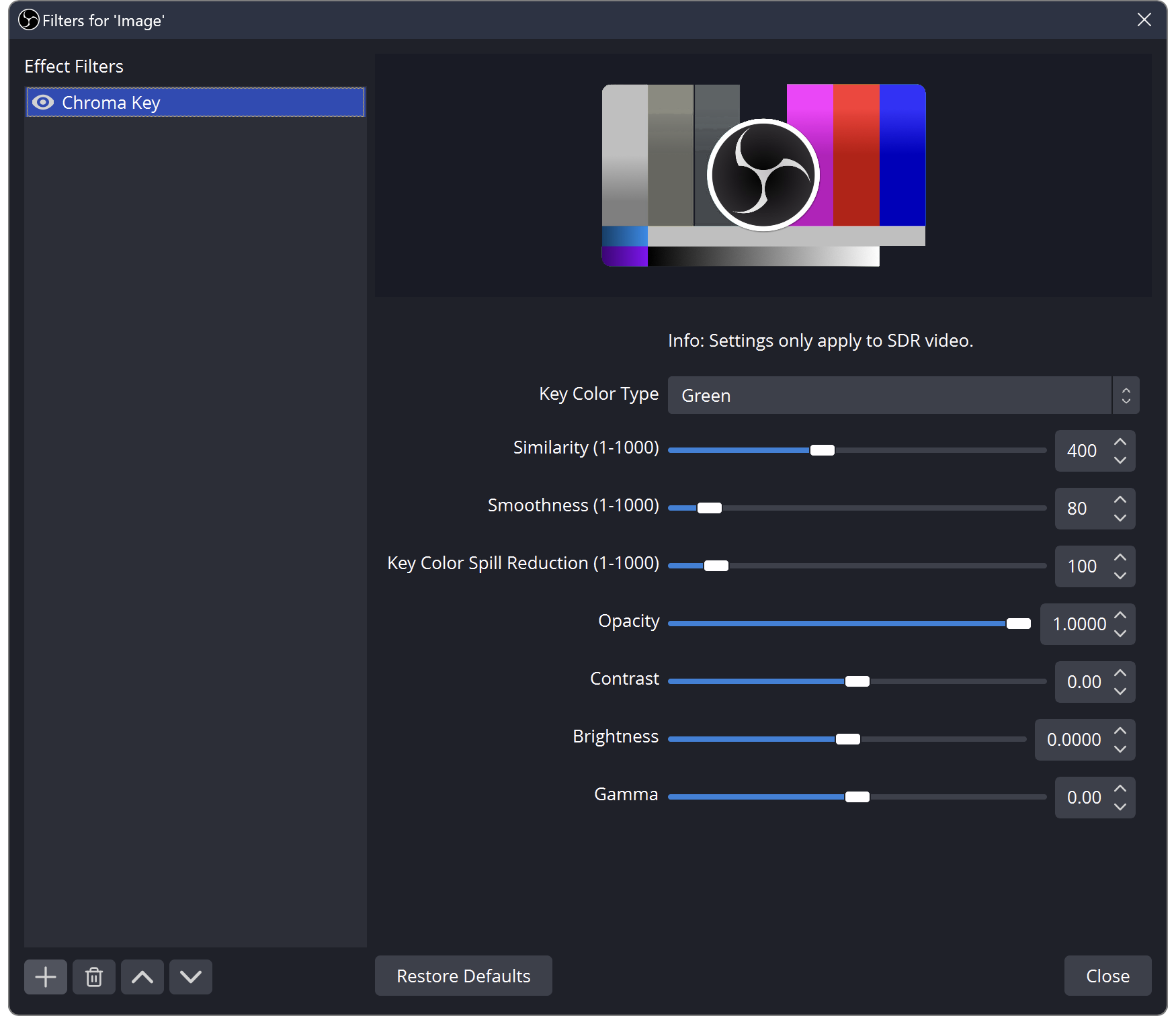 123
These are separate controls. The numbers in this OBS documentation example are not a preset for your room.
- Key colour
- Similarity threshold
- Edge softness and colour spill
Judge it over the background you will use
Place a dark colour behind the keyed camera, then a light one. A fringe that disappears against a dark room can become obvious against pale artwork. Try the actual scene as well; a busy background can make a technically clean edge feel distracting.
A green shirt or prop can vanish with the backdrop. If that object matters, change the backdrop colour or the object rather than chasing a universal slider combination. Graphics with a flat colour background may call for Color Key instead; that is a different task from a camera view of cloth, shadows and reflections.
Save a short clip before the live
Record the same movements at the final output size and watch the clip. Look for transparent holes, green edges and changes when you lean forward. Keep the most useful original camera settings nearby so you can undo a filter experiment quickly.
If the outline still looks wrong, turn off Chroma Key and inspect the unfiltered camera. Blurred focus or clipped highlights need attention upstream. A filter cannot bring back edge detail the camera did not record.
Once the edge is stable, adjust its size and position. Place the keyed camera in your layout ↗
Work through the existing room-lighting guide when the camera picture is the limiting step. Plan the light before buying another backdrop ↗
Sources & references
The filter controls and test-pattern images come from OBS’s Chroma Key documentation. Room lighting and camera settings still determine how your own edge behaves.
- OBS — Chroma Key Filter ↗Checked 2026-10-27
- OBS — Color Key Filter ↗Checked 2026-10-27
- OBS — Add a webcam ↗Checked 2026-10-27
- OBS — Filters Guide ↗Checked 2026-10-27
Spotted something out of date? Let Alex know.
How we put our guides together ↗