
OBS audio: inputs, routes, filters and tracks
Trace missing, doubled or quiet OBS audio. Choose an input, monitoring, filter or recording-track check before changing the whole setup.
Find your starting point.
Start with the signal that is wrong: your voice, one app, the recording or what you hear in headphones. Those are different checkpoints, even when they share a device.
Keep one short reference recording and change one route at a time. The guides below separate capture, monitoring and processing so that a louder meter does not become the only success check.
- The microphone is missing. Find where its signal stops before adding filters.
- The voice is doubled. Check duplicate capture and monitoring paths.
- The editor needs separate tracks. Confirm the track layout in a test file.
Inputs and routing
Find the source first, then decide which scene or application should receive it.
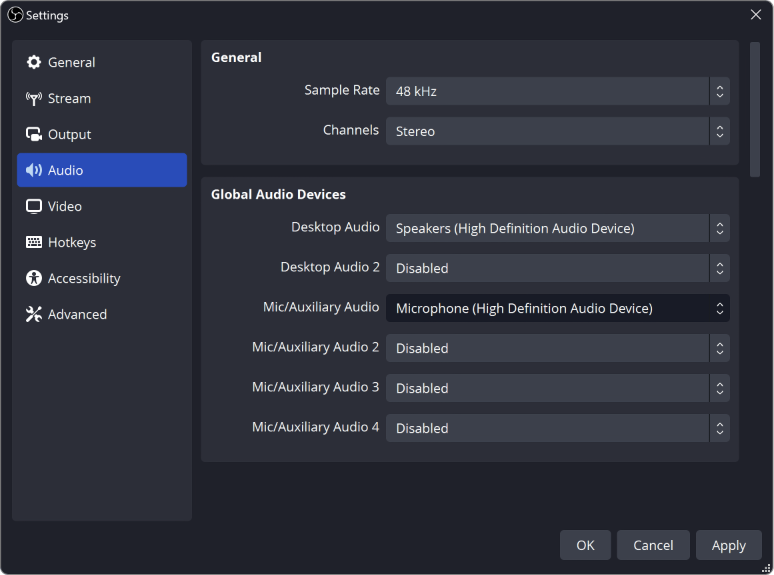
OBS Not Picking Up Your Mic? Here's How to Fix It
Your mic works everywhere except OBS? Check these in order: your computer's sound settings, mic permission, the device OBS uses, and the audio mixer.
Why Is My Audio Doubled in OBS? (Easy Fix)
Hearing your voice or game twice in OBS? Usually the same sound is being picked up two times. Here's how to find the extra one and turn it off.

Capture Mac Desktop or App Audio in OBS Without an Extra Driver
Use the native macOS audio source on supported versions, choose all desktop sound or one application, and verify what the recording includes.
Make OBS Audio Scene-Specific for a BRB or Presentation Scene
Plan which sounds belong in each scene, choose global or scene-specific device capture, and verify the transitions in a saved recording.
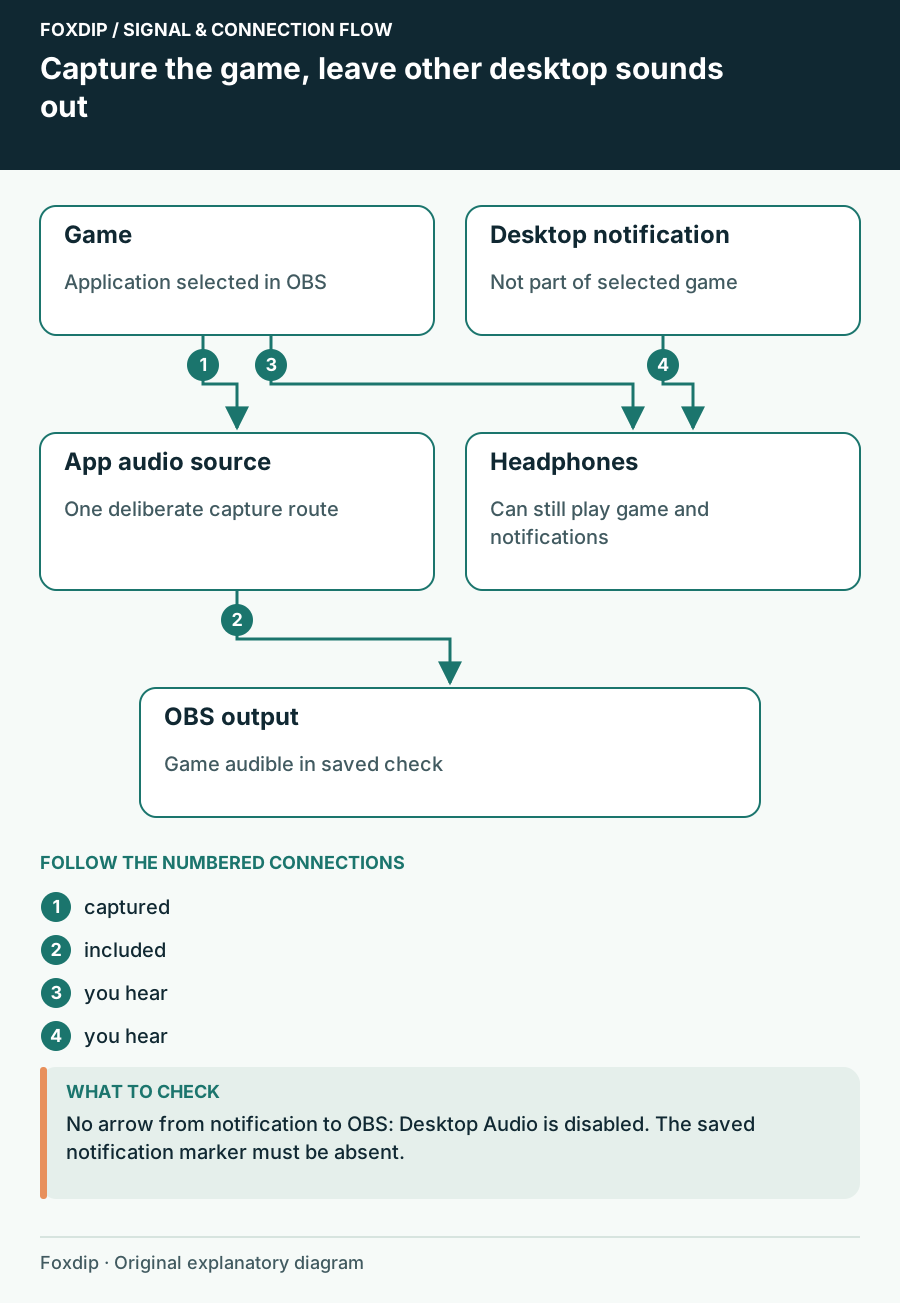
How to Capture Only Game Audio in OBS (No Discord or Music)
Send only your game's sound to the stream. No notifications, no Discord, no Spotify.
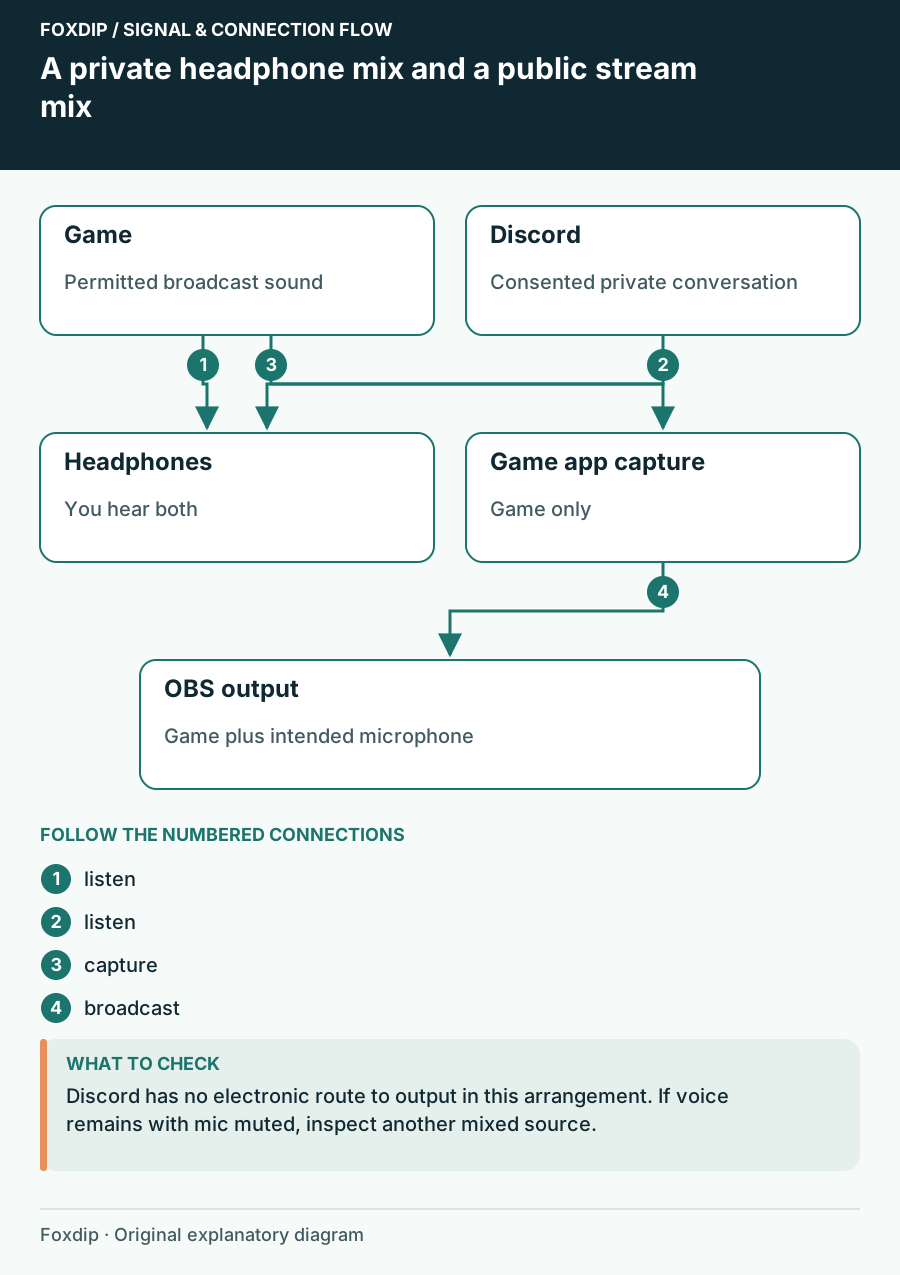
How to Keep Discord Out of Your OBS Stream (and Still Hear Friends)
Your viewers hear your Discord call? Here's how to stop it in OBS while you keep talking to your friends.
Voice level and filters
Compare a recorded sentence before and after one processing change.
A Quiet OBS Microphone: Check Input Gain Before Adding Boost
Find where a microphone becomes quiet, separate input gain from mix balance, and raise level without hiding distortion in a louder result.
Tune an OBS Expander for Natural Pauses Between Words
Reduce low-level room sound with a gentle expander while checking quiet speech, sentence endings and the transition back into conversation.
VST Plugin Missing in OBS: Check Format Before Reinstalling
Distinguish VST2 from unsupported plugin formats, check the documented search location, and test one audio plugin without rebuilding the whole chain.
Set Up OBS Push-to-Talk or Push-to-Mute and Test the Output
Choose the microphone behavior you need, assign an unambiguous key, and verify held, released and application-focused states in a recording.
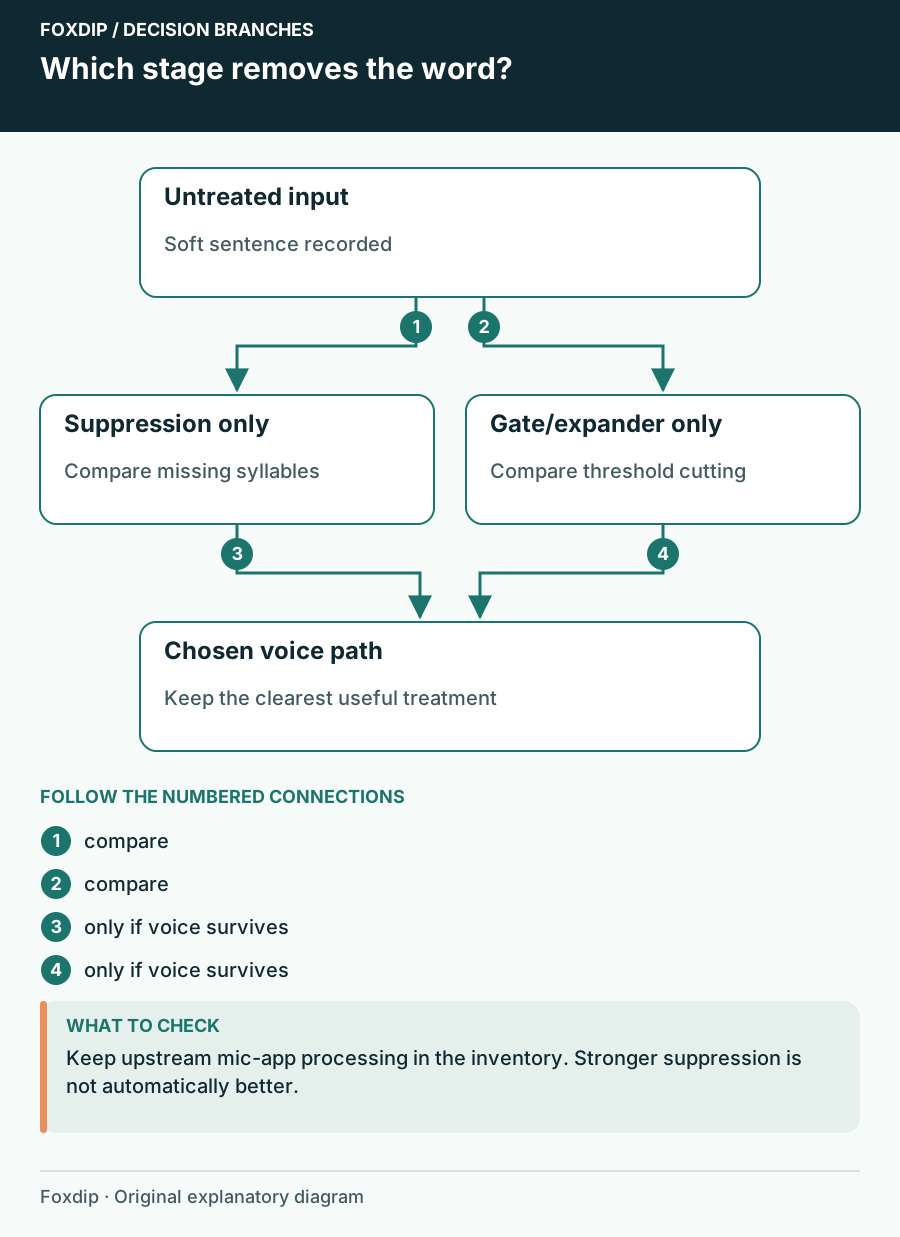
OBS Noise Suppression Cuts Off Words: Recover Your Voice
Find the processing stage removing syllables and choose a less destructive noise treatment.
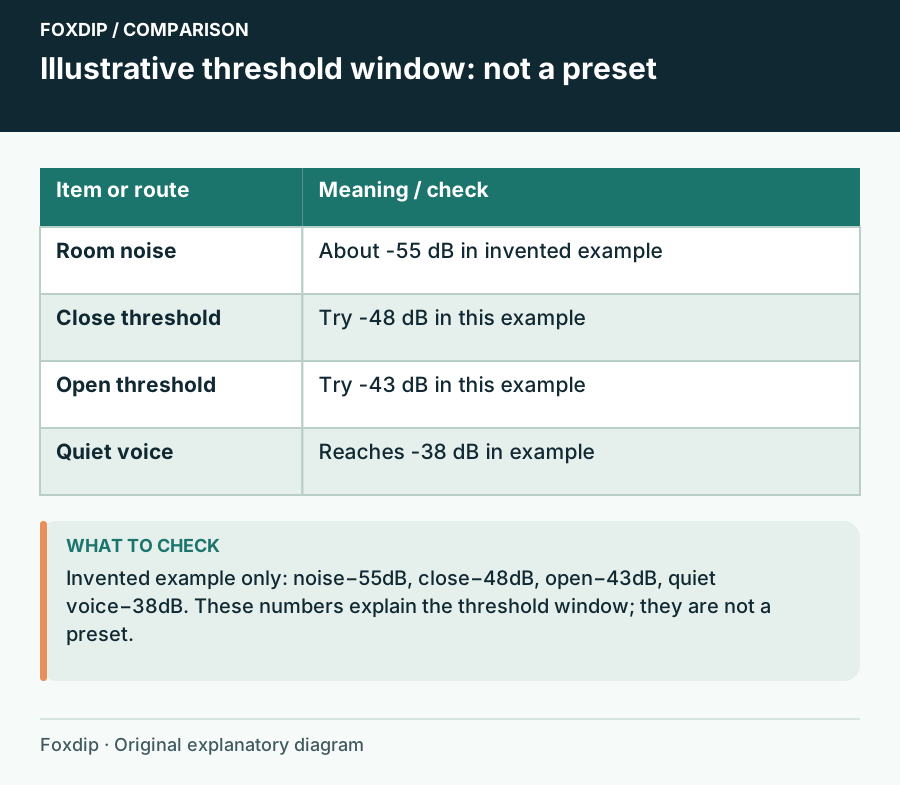
Your OBS Noise Gate Swallows Quiet Speech: Tune Both Thresholds
Use room noise and soft speech to set the gate instead of copying another streamer’s numbers.
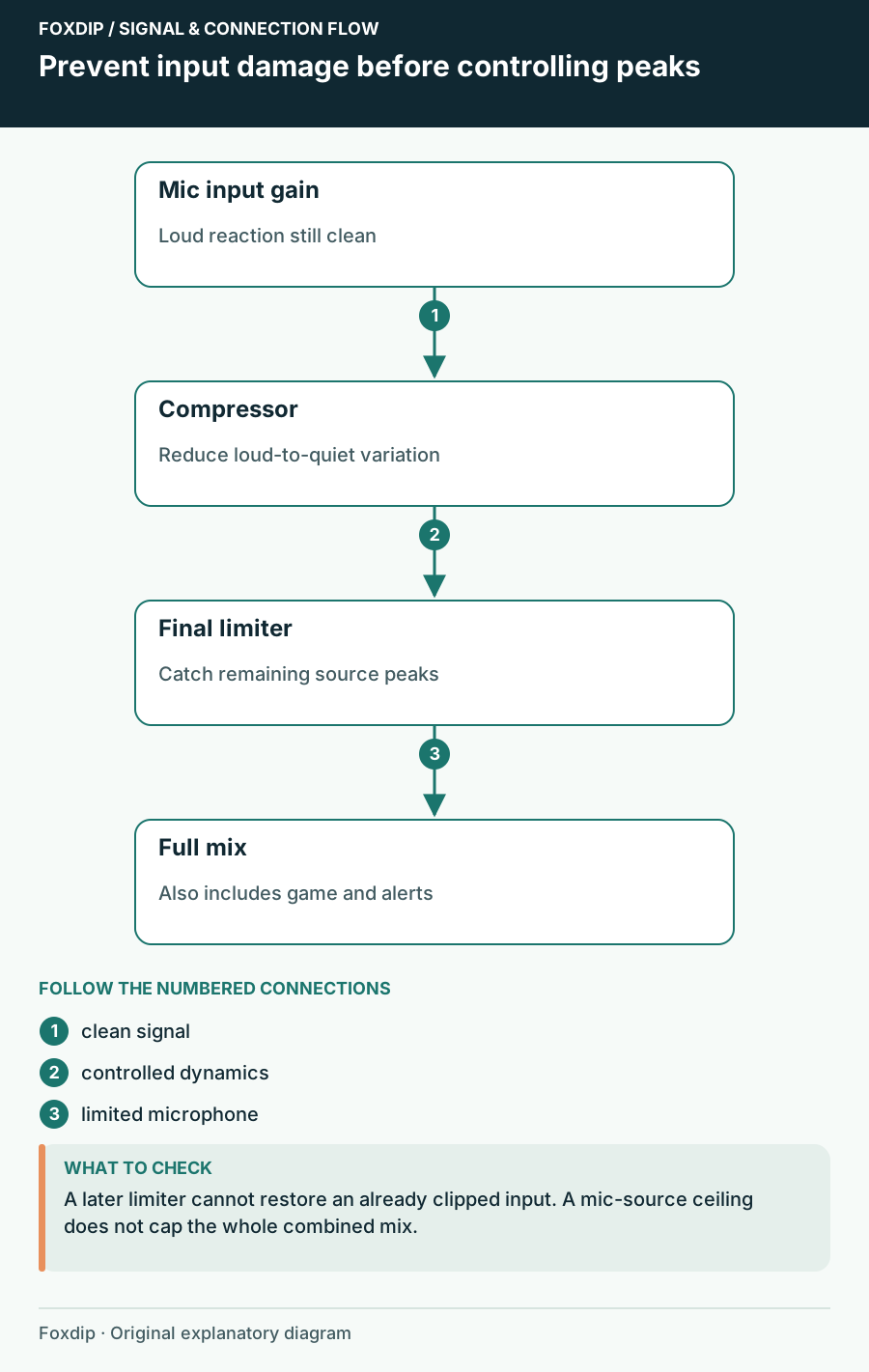
OBS Compressor Settings: Keep Loud Reactions From Clipping
Set your mic gain first, then add a compressor and a limiter in OBS, in that order. A quick shout test shows if loud moments stay clean on stream.
Tracks and timing
Separate the saved file from monitoring, then check whether a delay stays constant.
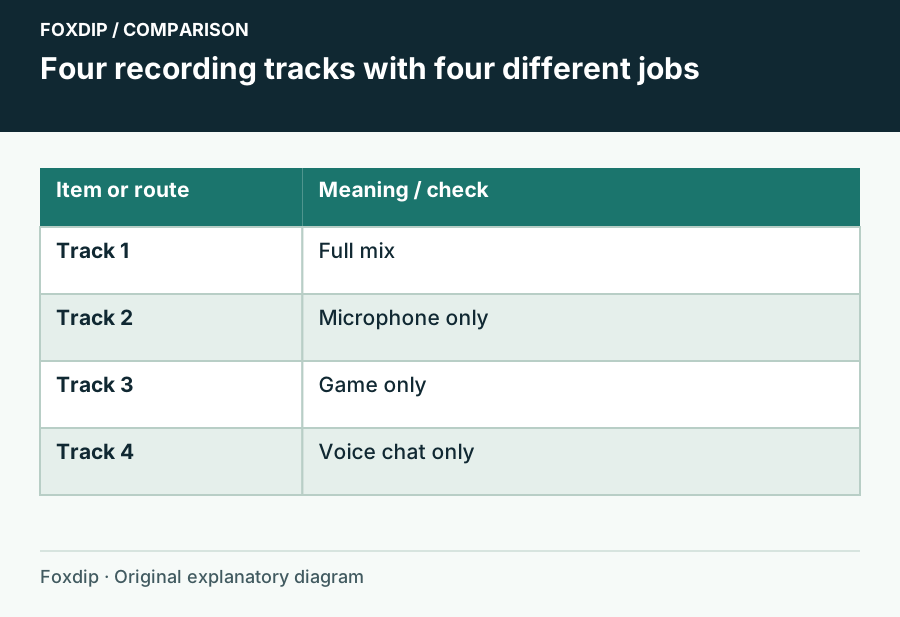
Record Mic, Game and Voice Chat on Separate OBS Tracks
Create a playable full mix and isolated editing tracks without confusing tracks with audio channels.
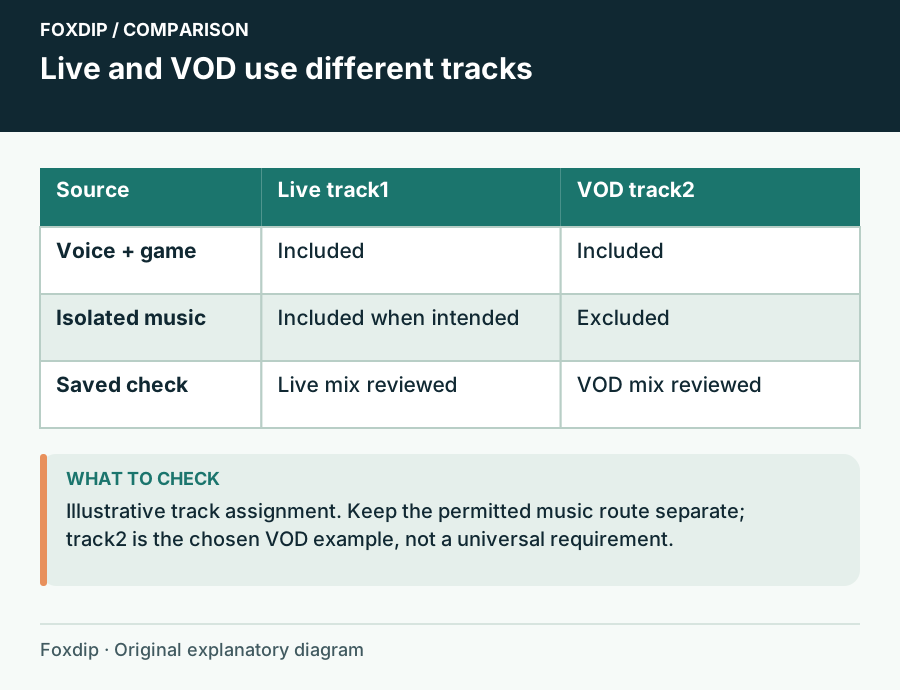
Keep Music Out of a Twitch VOD with OBS Audio Tracks
Send music to the live mix and exclude it from the VOD track while preserving voice and game audio.
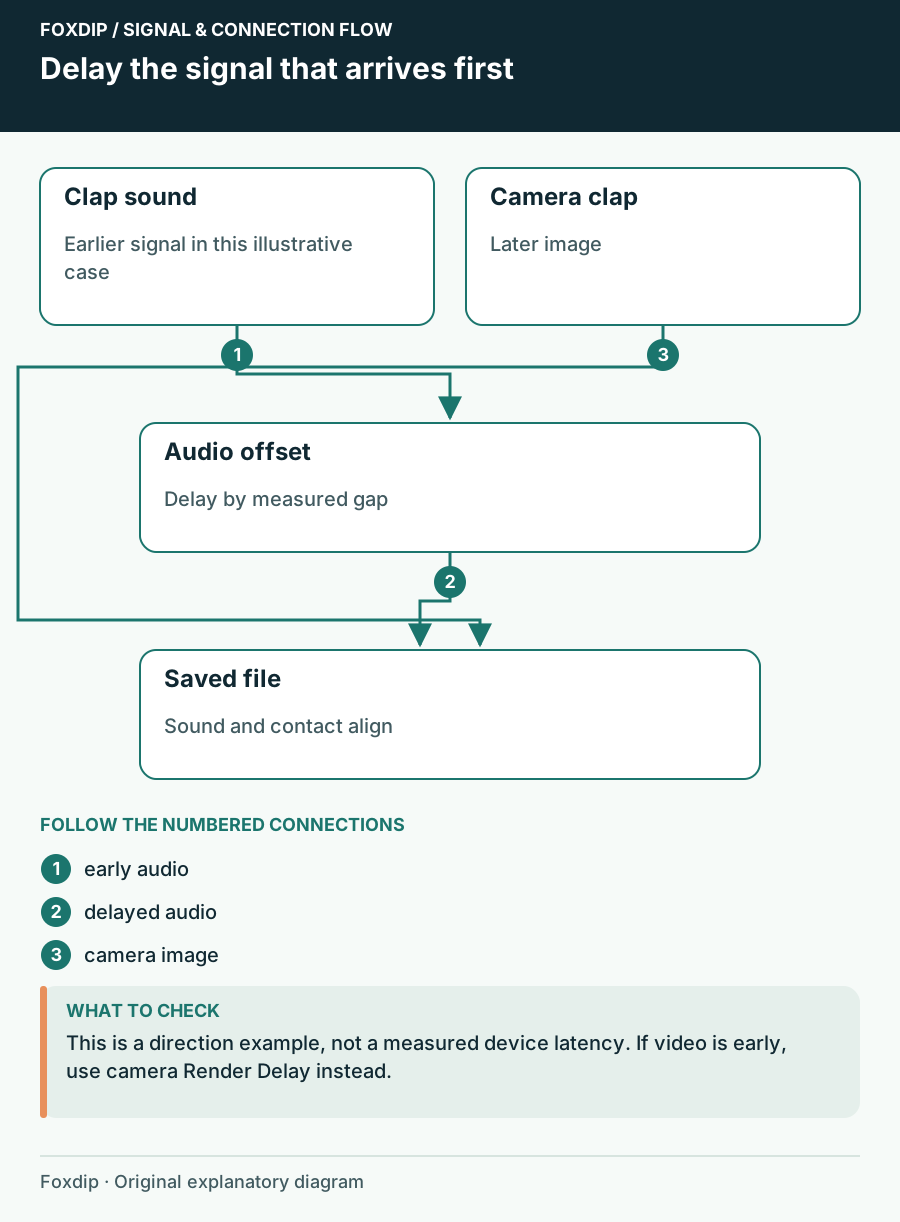
Fix a Constant Camera and Microphone Delay in OBS
Measure which signal arrives first, delay that signal and check the saved result.
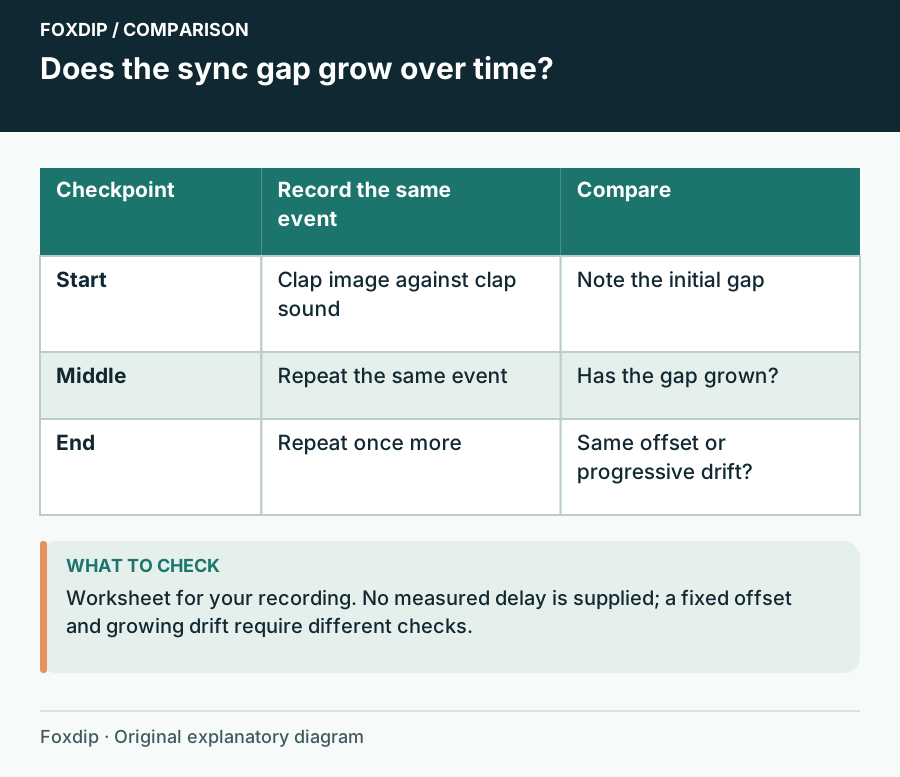
Audio Drifts During Long OBS Recordings: Find the Changing Gap
Compare timing at several points and isolate the capture path that changes over time.
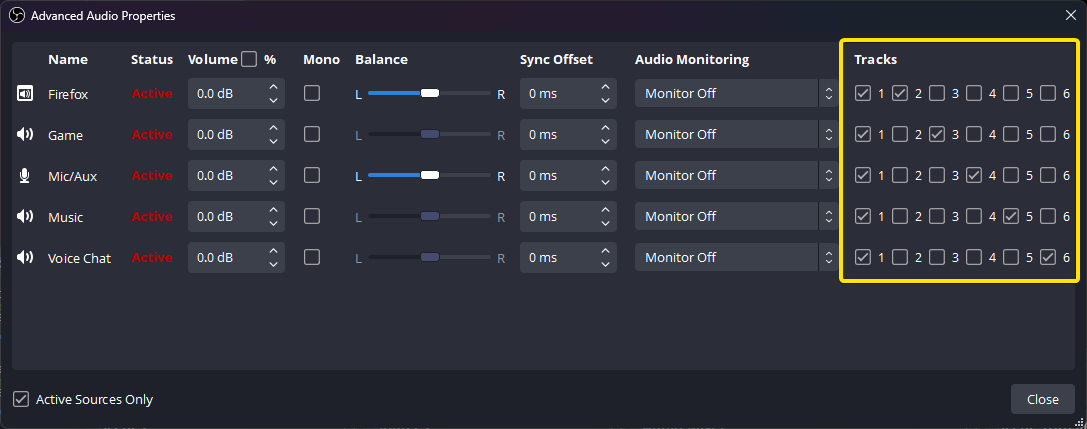
OBS Recording Has No Sound? Check Your Audio Tracks
The meters move but your OBS recording is silent? Follow the sound from your mic and desktop to the recorded track, then play the right track back.
More in this collection.
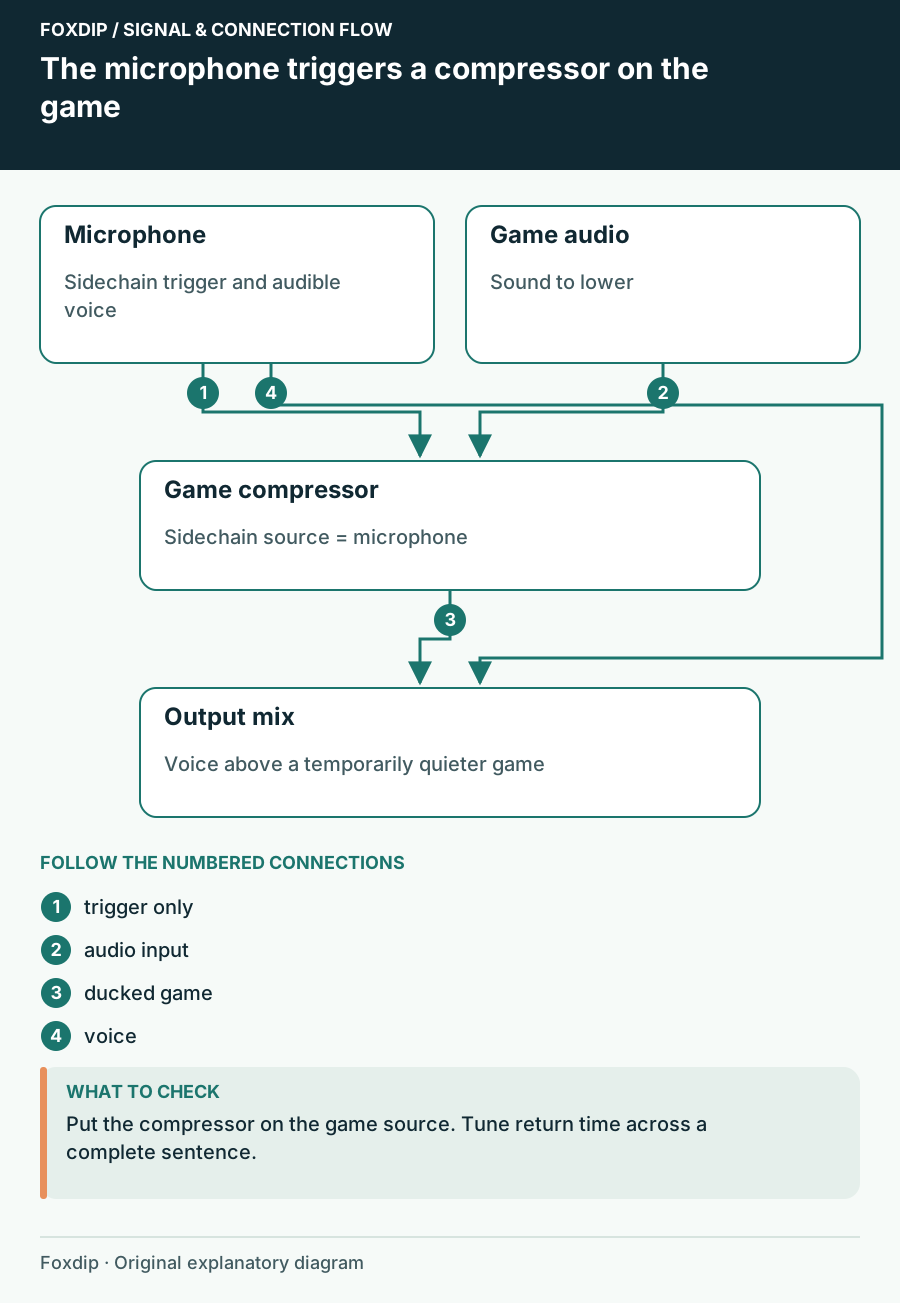
Make Game Audio Duck When You Speak in OBS
Use the microphone as a sidechain trigger and keep the game audible between phrases.
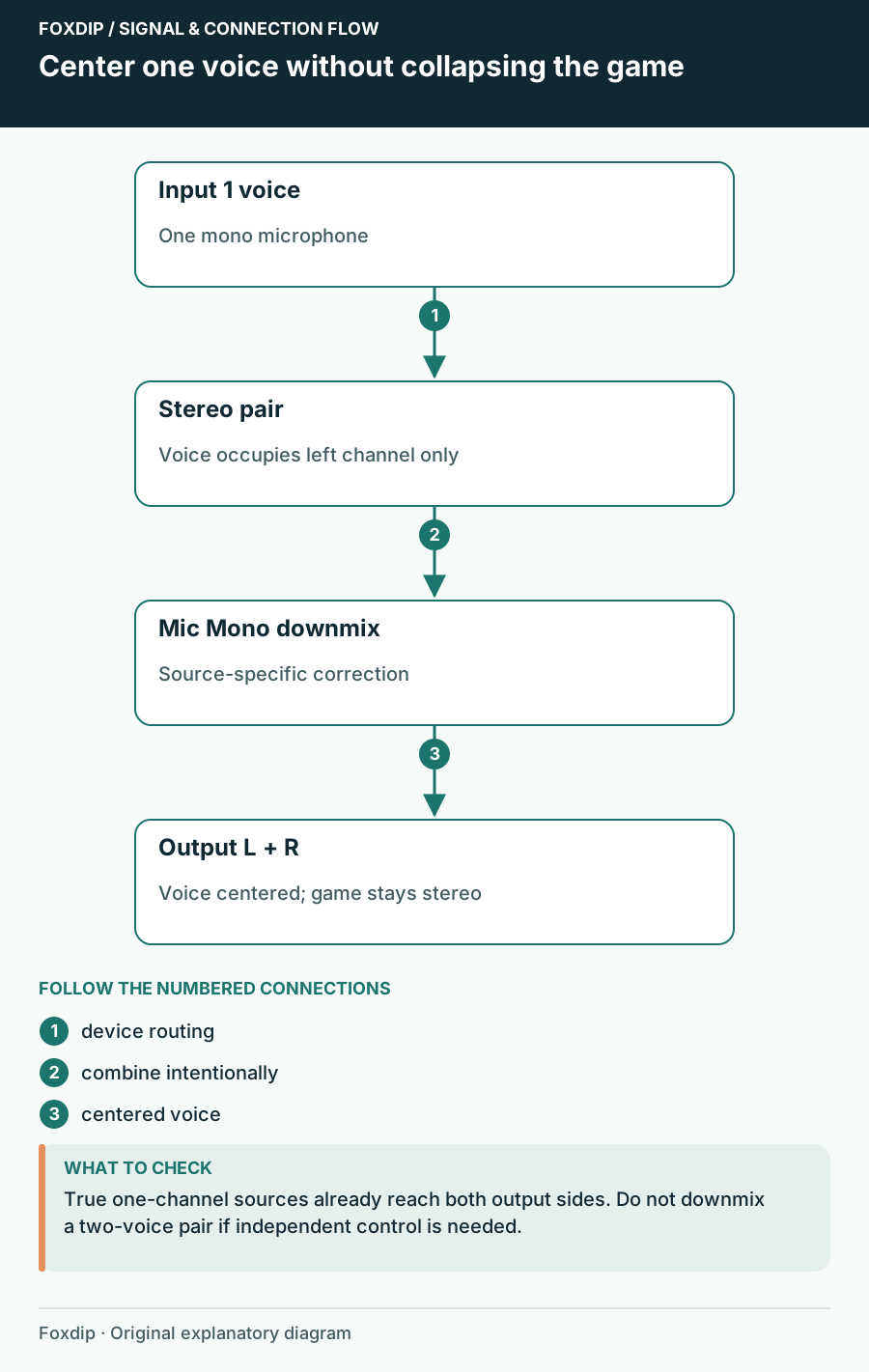
Mic Only in One Ear in OBS? Here's the Fix
If your voice only comes out of the left side, one checkbox in OBS fixes it. Your game sound stays stereo.
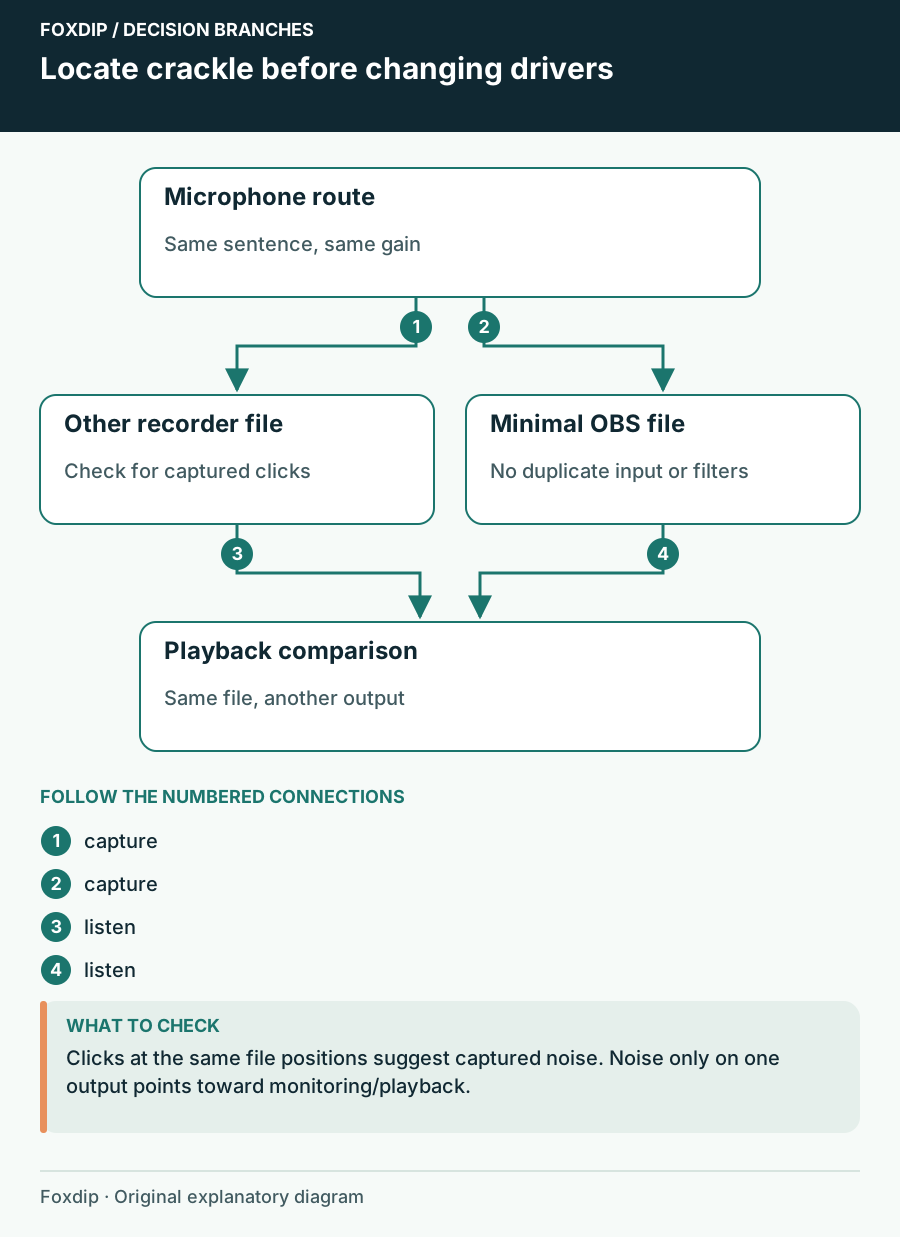
USB Microphone Crackles in OBS: Find Where the Noise Starts
Compare the saved input, USB route and headphone playback before changing drivers.
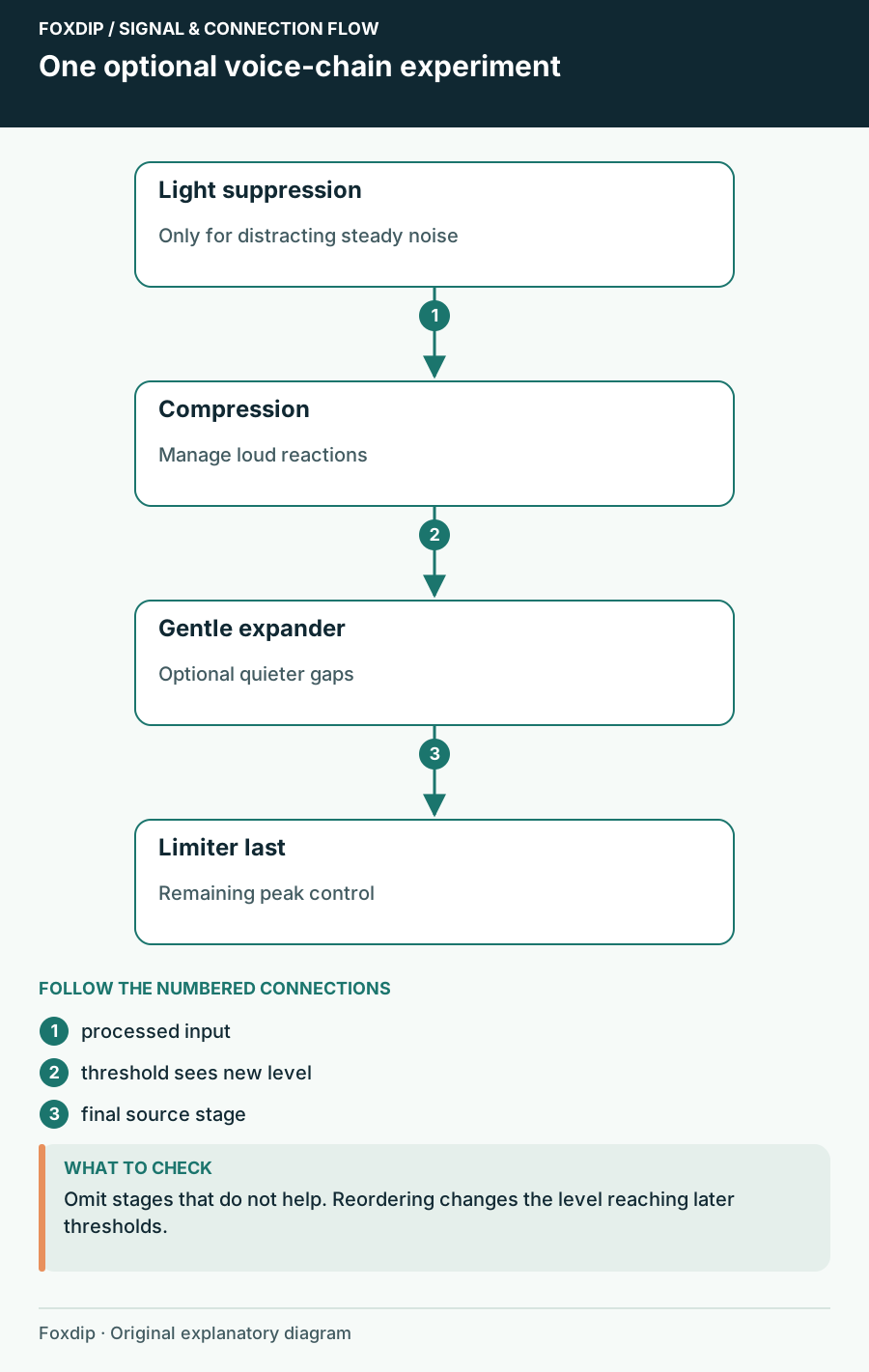
OBS Audio Filter Order: Hear What Each Stage Changes
Build a microphone chain around specific problems and retune thresholds after moving filters.
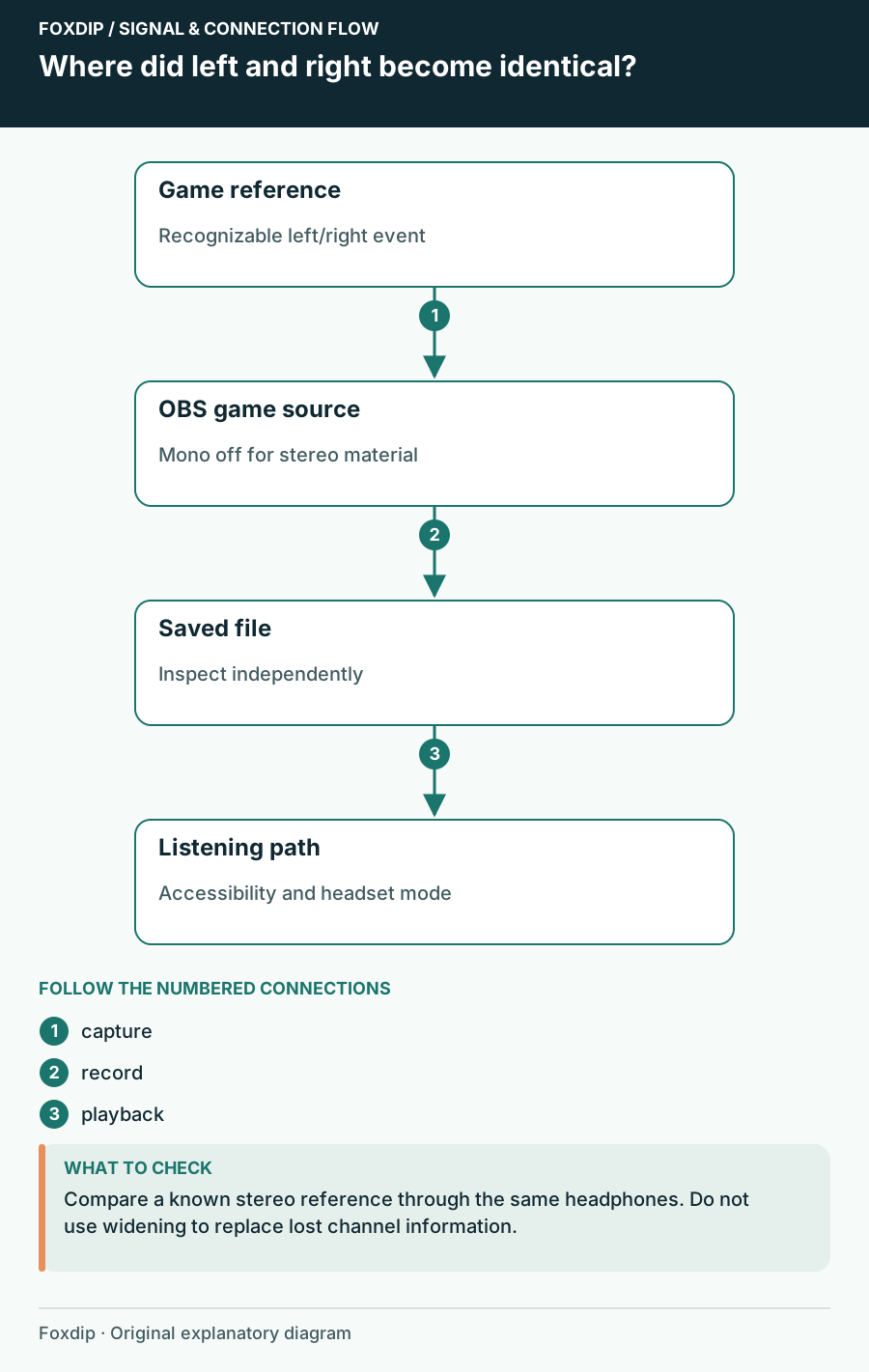
Stereo Game Audio Sounds Narrow in OBS: Trace the Channels
Find the point where left and right become identical before trying a widening effect.
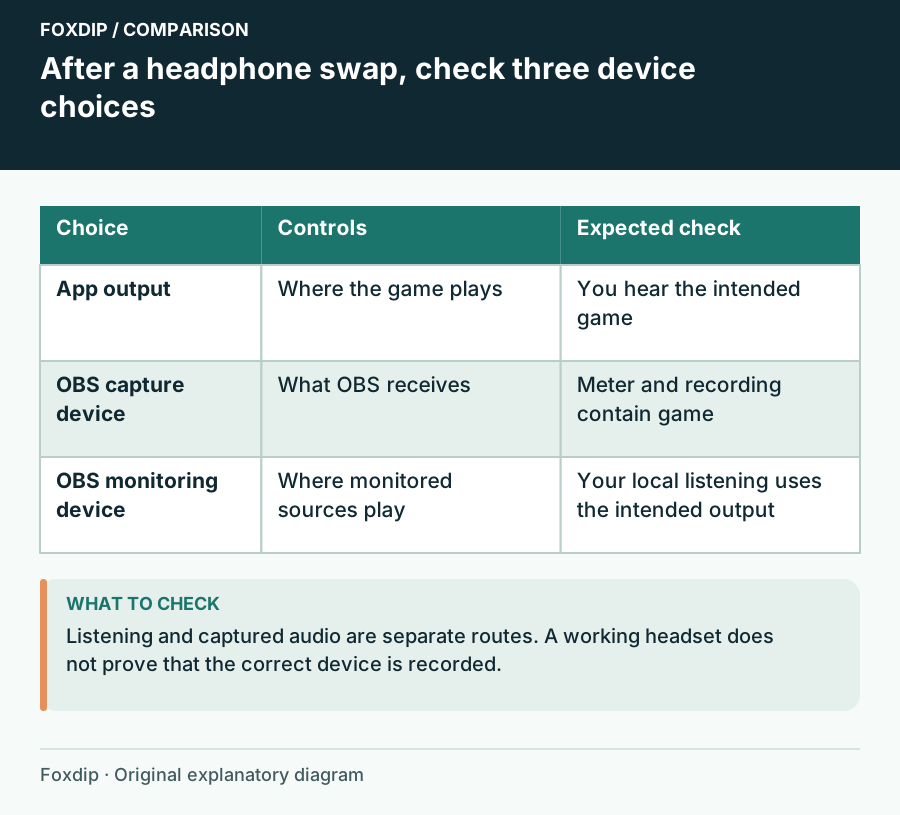
OBS Audio Disappears After You Change Headphones
Follow Windows playback, device capture and OBS monitoring as three separate choices.