
OBS scenes and sources: capture, reuse and display
Choose an OBS capture source, reuse scene elements and troubleshoot media, browser, text and image behaviour.
Find your starting point.
Identify which source supplies the picture before adjusting the whole scene. A game, a window, a browser widget and a local file have different controls and failure points.
Build a small test scene and keep a copy of the working collection. When reusing a source, check which changes should be shared and which should stay local.
- A local media file will not play. Check the file and playback source first.
- Choose how to capture the game. Match the capture method to the application.
- Reuse an element across scenes. Decide which properties should stay shared.
Scenes and shared elements
Prepare the picture and scene changes before showing them to an audience.

OBS Studio Mode: Rehearse Preview and Program Before Going Live
Practice staging the next scene, checking what viewers currently see, and making a deliberate transition with OBS Studio Mode.
Use Nested OBS Scenes for a Shared Overlay
Build one reusable overlay scene, place it inside two output scenes, and check which changes should propagate across the show.
OBS Add Existing vs Duplicate: Keep Source Changes Predictable
Reuse a camera or capture source across scenes, distinguish placement from shared properties, and test independent visual treatments safely.
OBS Projector Output: Send a Clean Picture to a Second Screen
Choose a source, scene or Program projector, route it to the intended monitor, and confirm what an audience-facing screen actually shows.
OBS Multiview: Monitor Several Scenes Without Losing Program
Arrange a multiview that helps an operator check cameras and upcoming scenes while keeping the current output unmistakable.
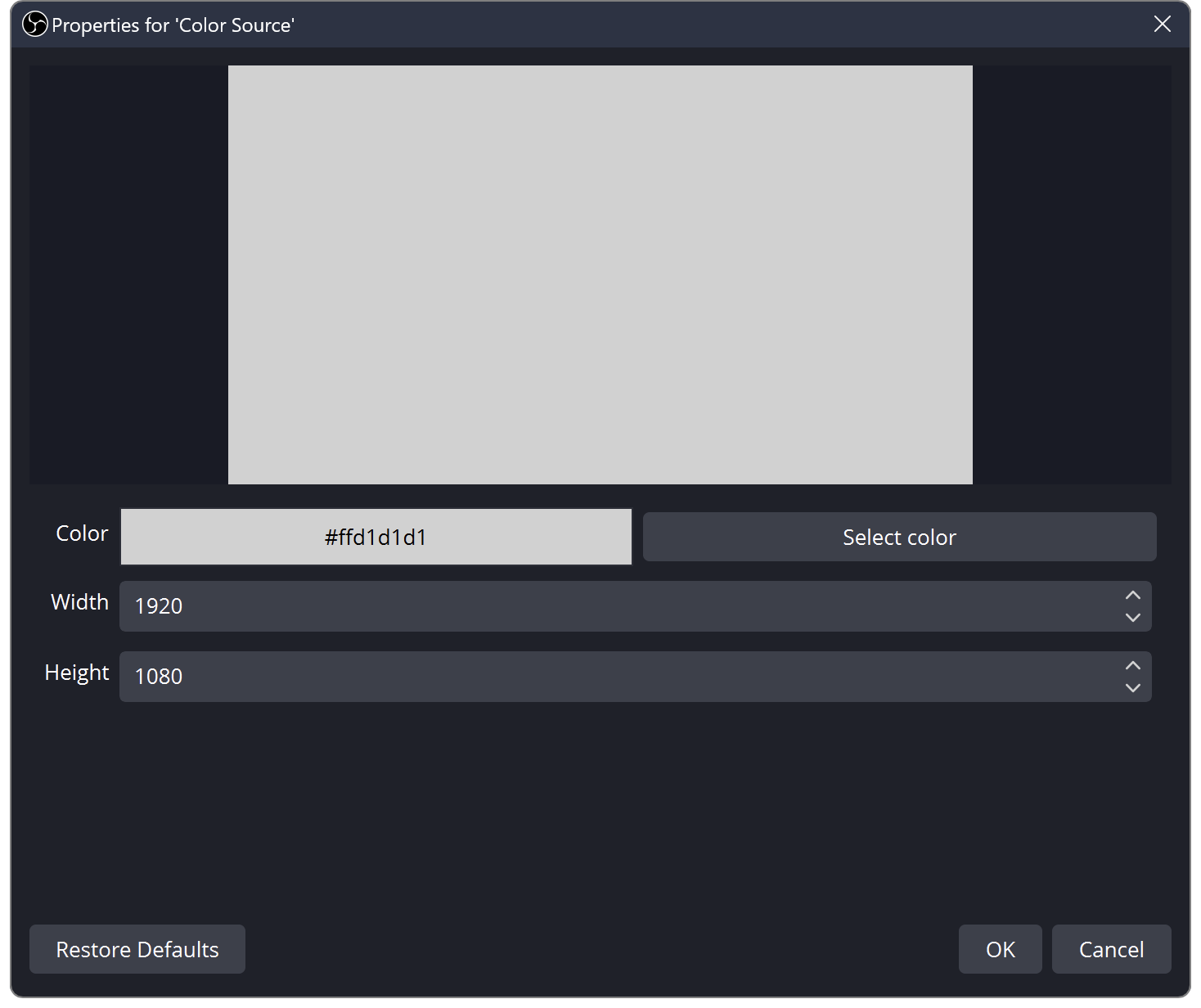
OBS Source Order: Learn Layers with Three Colour Blocks
Find out why sources cover each other in OBS. Build a three-layer scene and practise order, visibility and scene changes.
Game and window capture
Use the documented capture route for the application and operating system.
Choose the Right OBS Game Capture Mode on Windows
Match fullscreen, specific-window or hotkey capture to the way you launch games, then test focus changes without exposing the desktop.
Capture CS2 or Destiny 2 in OBS with the Documented Window Route
Use a borderless or windowed game and a targeted Window Capture when OBS documents that Game Capture cannot hook the title.
OBS Cannot Capture Minecraft Java on a Laptop: Check the Java GPU
Find the Java executable used by the running game, select its high-performance GPU, and retest the matching OBS capture.
Capture the League of Legends Lobby and Match in Separate OBS Scenes
Use the correct source for the League client and the active game, then rehearse manual or automatic scene switching through a full practice cycle.
OBS Window Capture Selects the Wrong Window: Check Matching Rules
Choose a window-matching rule deliberately and test document changes, relaunches and other windows from the same application.
OBS macOS Screen Capture: Choose a Display, Window or App
Select the appropriate ScreenCaptureKit scope on a Mac, review permissions, and test which windows appear in the recorded picture.
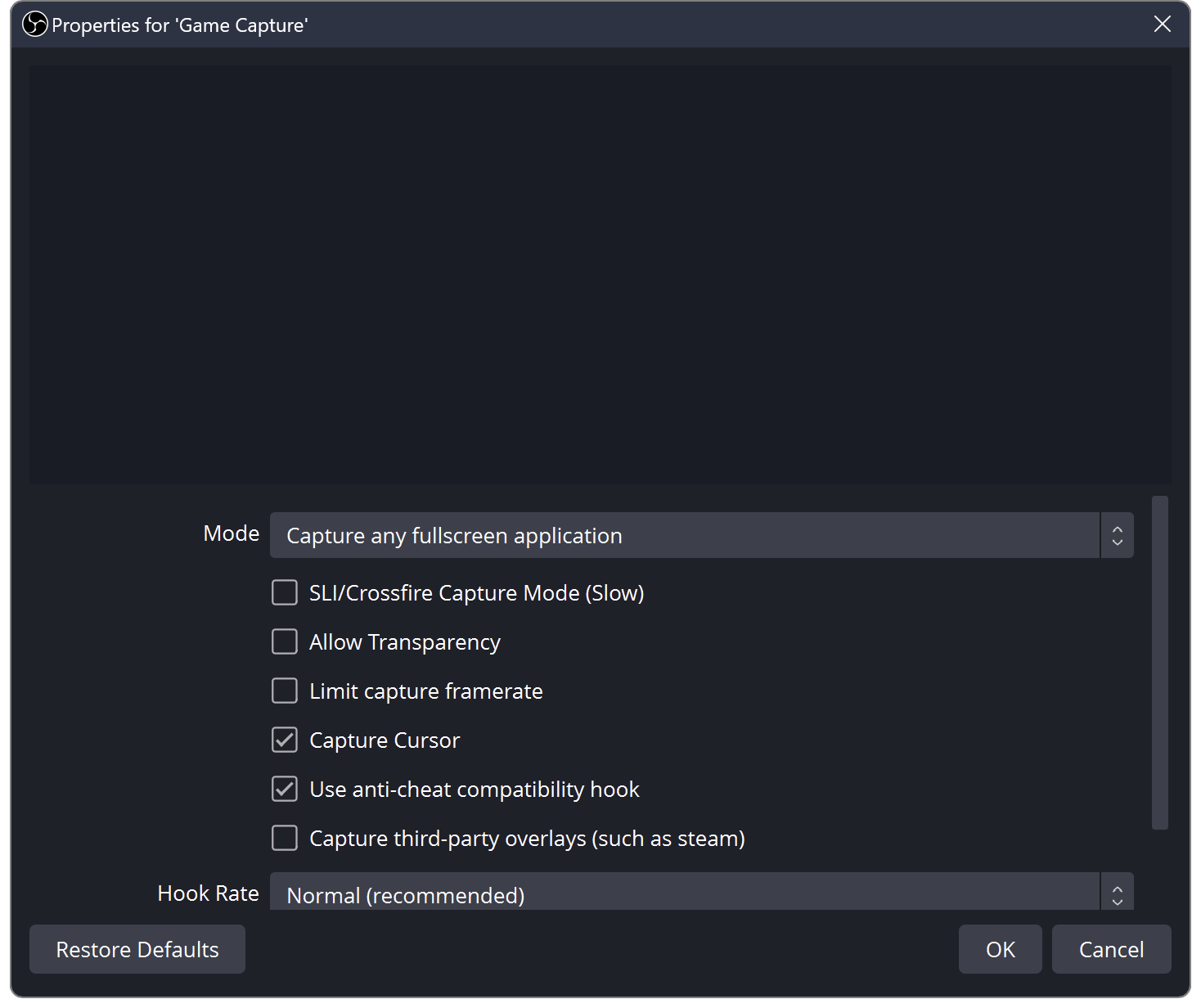
OBS Black Screen? How to Fix Game, Window and Display Capture
OBS shows black instead of your game or screen? Try these quick checks for Windows and Mac.
Media and changing content
Test the source dimensions and playback behaviour independently of the surrounding layout.
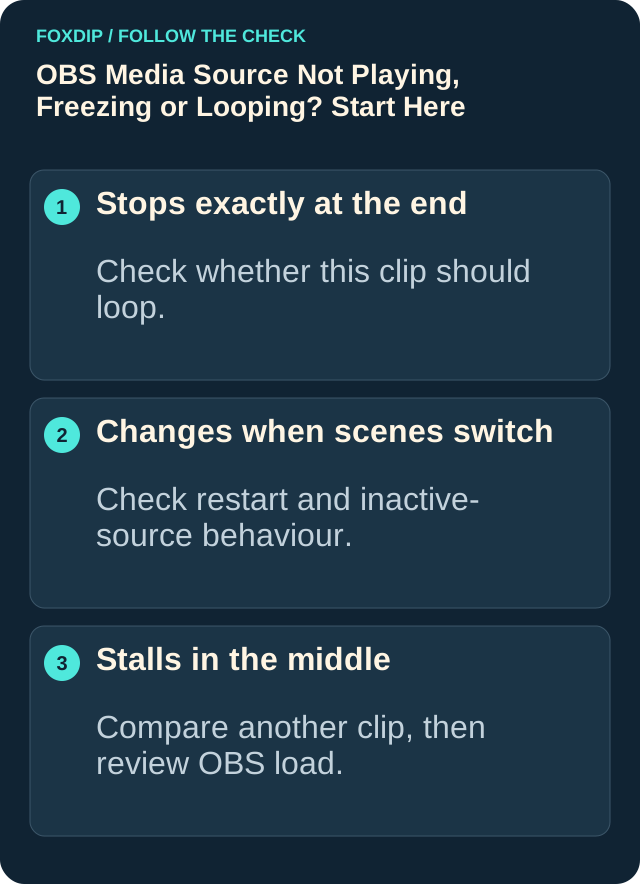
OBS Says "Media Source Is Not Playable"? Here's the Fix
Seeing "media source is not playable" in OBS? It usually means OBS can't open that file. Here's how to find out why and get your video playing.
OBS Browser Source Is Cut Off: Check Viewport Before Scaling
Distinguish a web page rendered in the wrong viewport from an OBS transform crop, then test long labels and full alert animations.
Update an OBS Text Label from a Local File
Connect a text source to a plain-text file, verify saved changes, and keep long labels inside a readable layout.
Build an OBS Image Slideshow That Resumes the Way You Expect
Choose slide order, timing and hidden-scene behavior, then rehearse leaving and returning to the slideshow before using it on stream.
Play a Video Playlist in OBS with VLC Video Source
Make an ordered video playlist, select its loop and hidden-scene behavior, and verify audio and the transition between files.
Source appearance
Keep text and foreground content legible while changing one visual treatment.
Dim One OBS Source While Keeping Text and Camera Clear
Use Color Correction on the intended visual source, keep explanatory text outside that treatment, and check the result over light and dark content.
OBS Luma Key: Remove a Black or White Background Carefully
Test brightness-based keying on a graphic, preserve intentional dark or light details, and decide when an original transparent export is the better fix.
Make a Readable OBS Scrolling Text Ticker
Build a short text ticker, control its visible area and loop behavior, and choose a speed that can be read at the final output size.
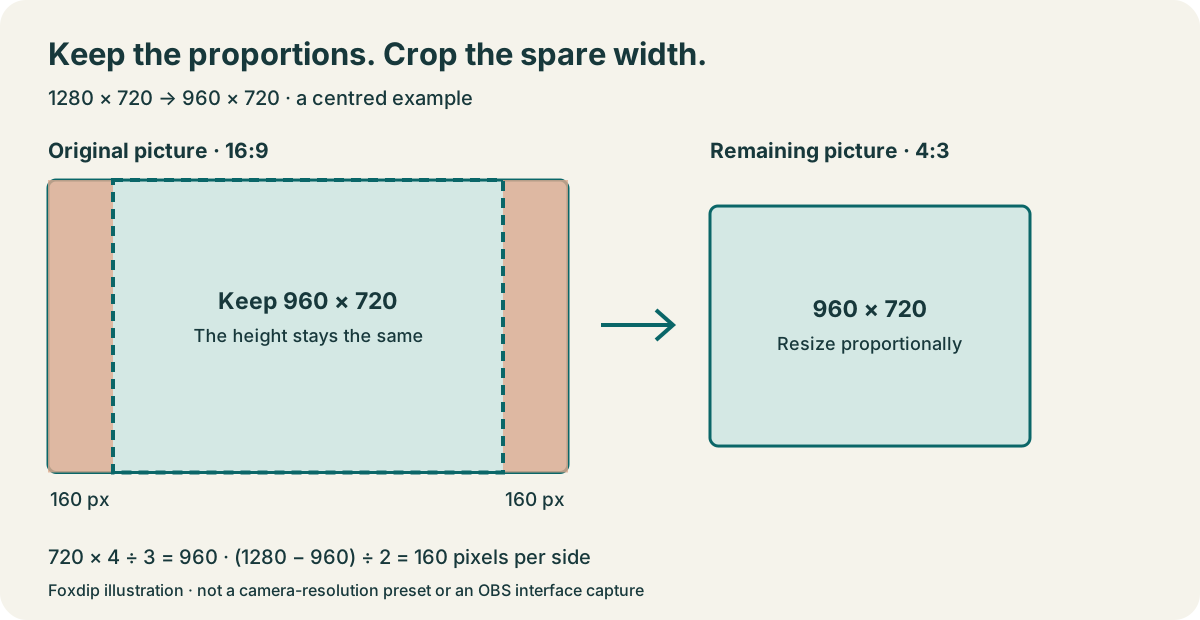
How to Crop Your Webcam in OBS (Without Stretching It)
The quick way to crop your webcam in OBS: hold Alt (Option on Mac) and drag the edge. Here's how to keep your face from looking stretched.