
Audio apps and microphone controls
Match Sonar, Wave Link and microphone controls to the connection and version you use.
Let’s get it working.
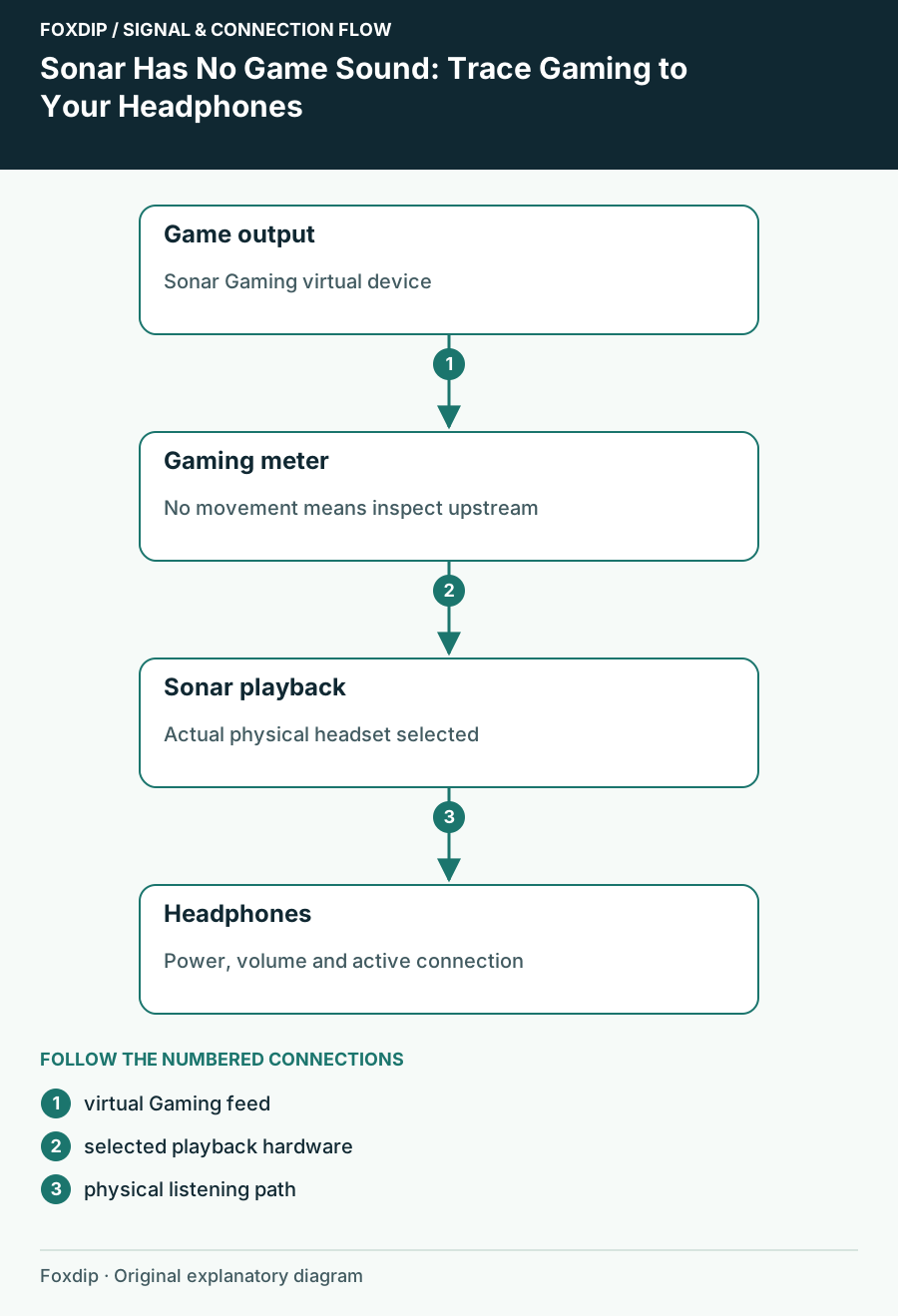
Sonar Has No Game Sound: Trace Gaming to Your Headphones
Follow the game output, Sonar channel and physical playback device in order before changing effects.
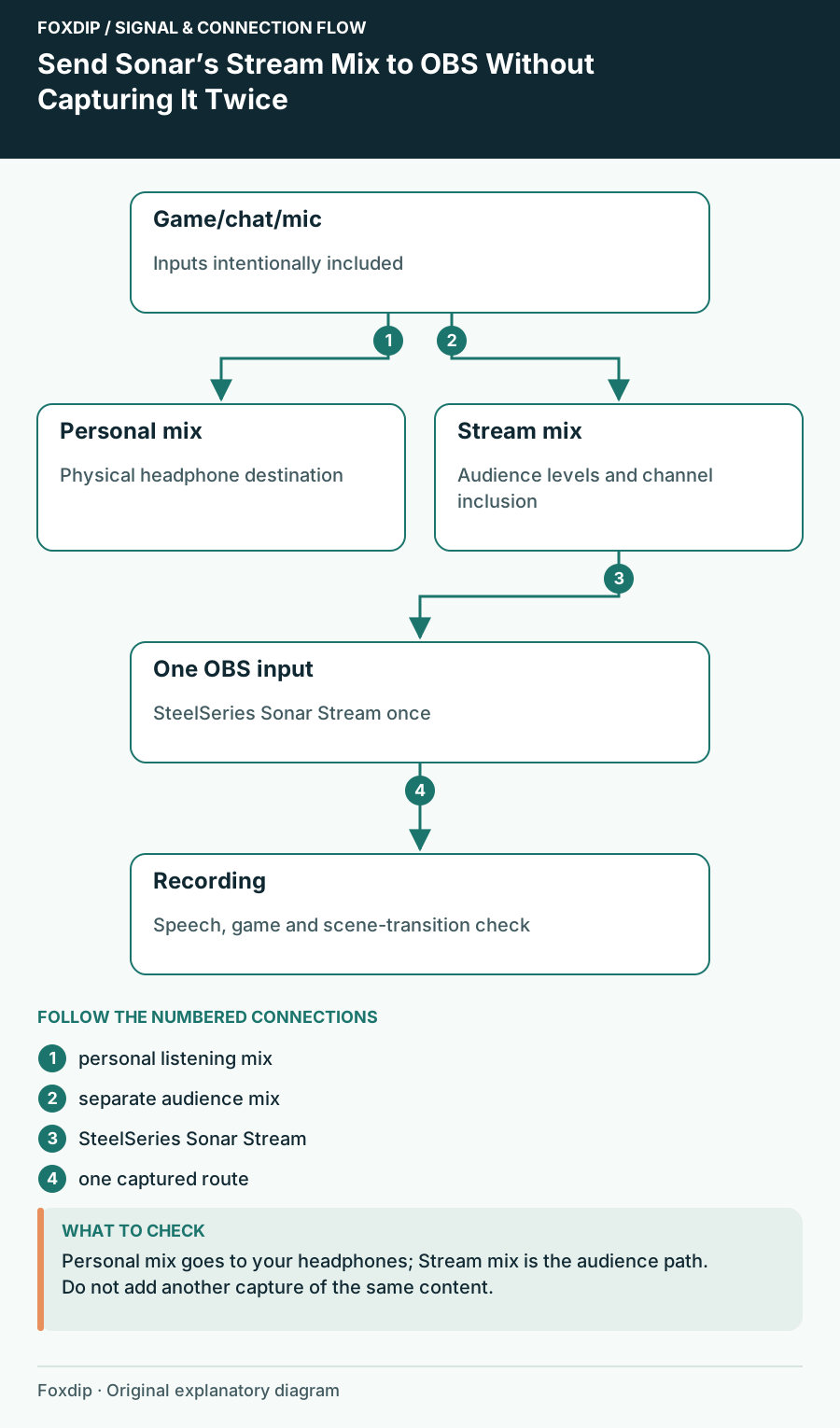
Send Sonar’s Stream Mix to OBS Without Capturing It Twice
Build the audience mix separately from your headphones and check for duplicate inputs in an OBS recording.
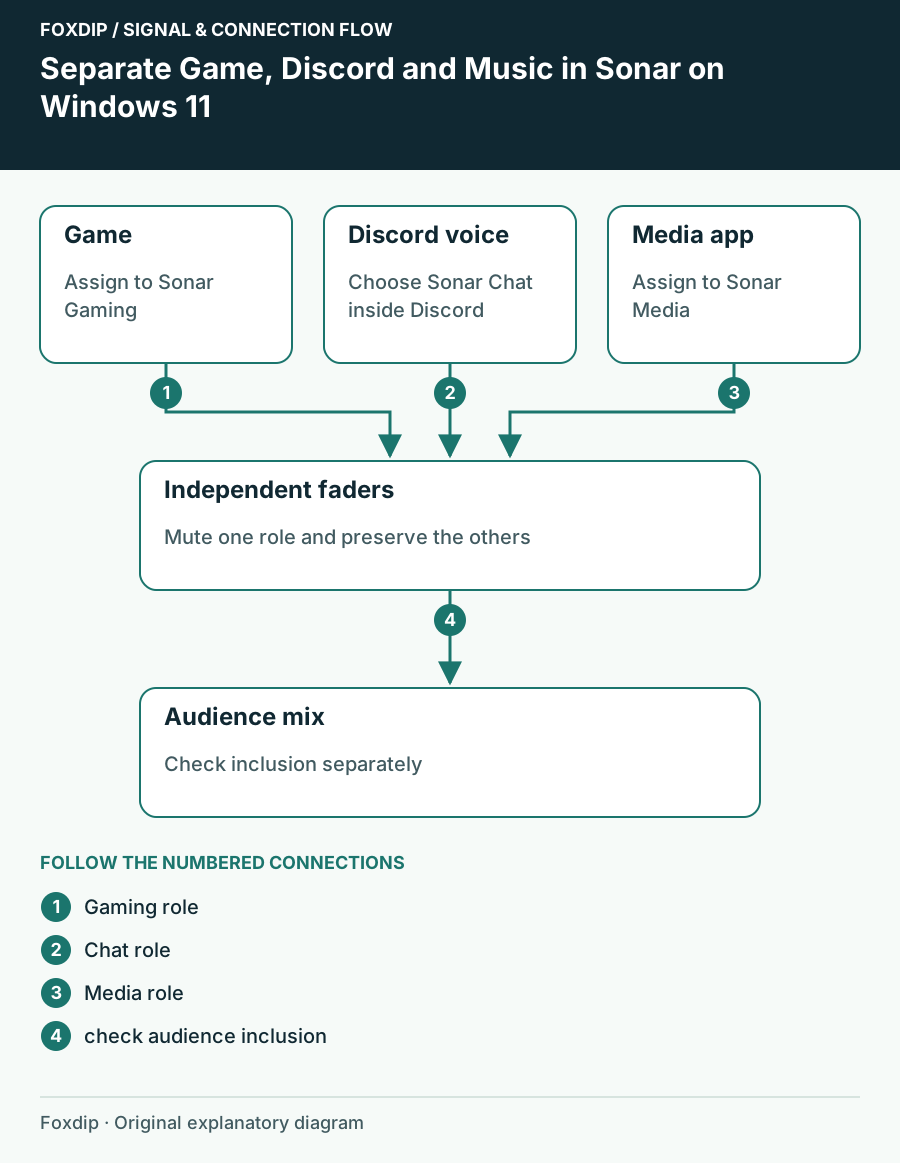
Separate Game, Discord and Music in Sonar on Windows 11
Assign applications to Gaming, Chat and Media and confirm each moves the expected Sonar channel.
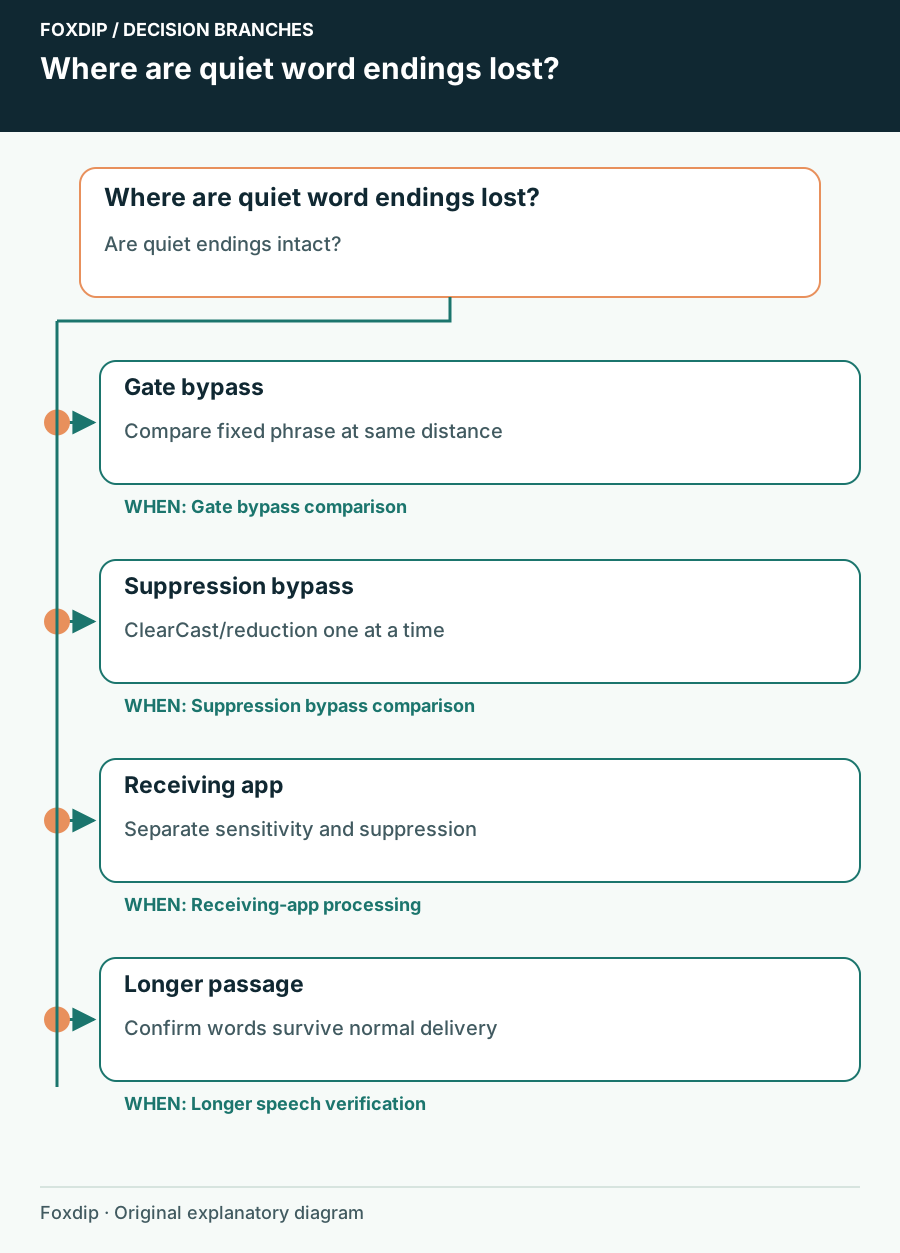
Sonar Cuts Off Quiet Speech: Find the Processing Stage
Compare raw and processed speech, then adjust the gate or suppression stage that removes words.
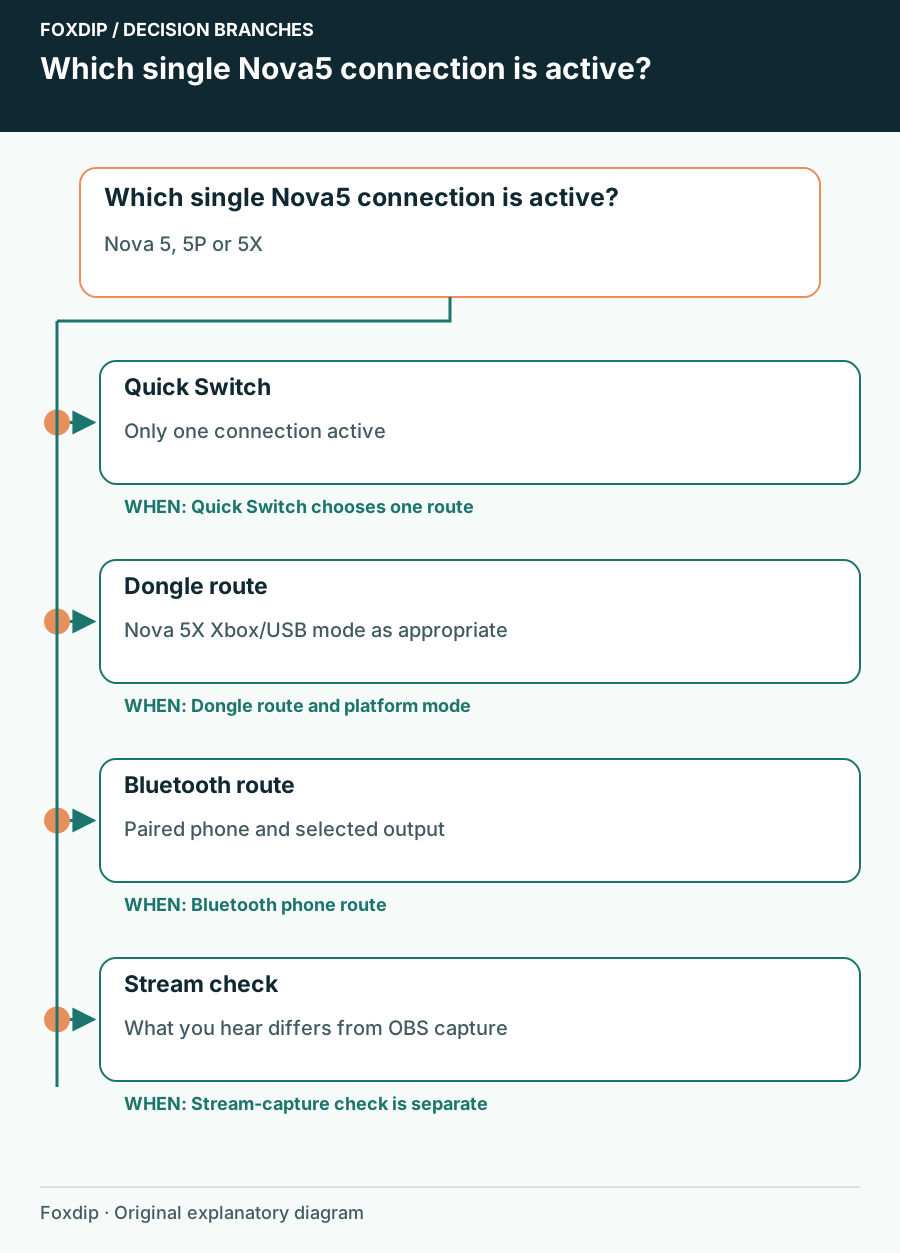
Nova 5 Bluetooth or Dongle: Check Which Connection Is Active
Identify the active Nova 5 connection before repairing a headset that may simply be listening to the other device.
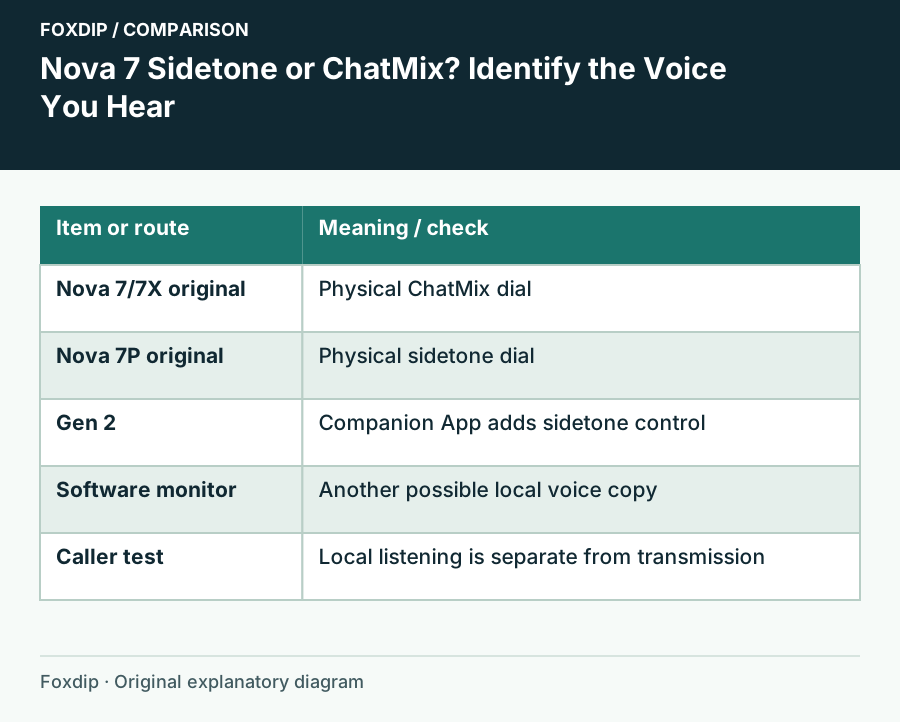
Nova 7 Sidetone or ChatMix? Identify the Voice You Hear
Separate local mic monitoring from game/chat balance and remove only the unwanted copy of your voice.
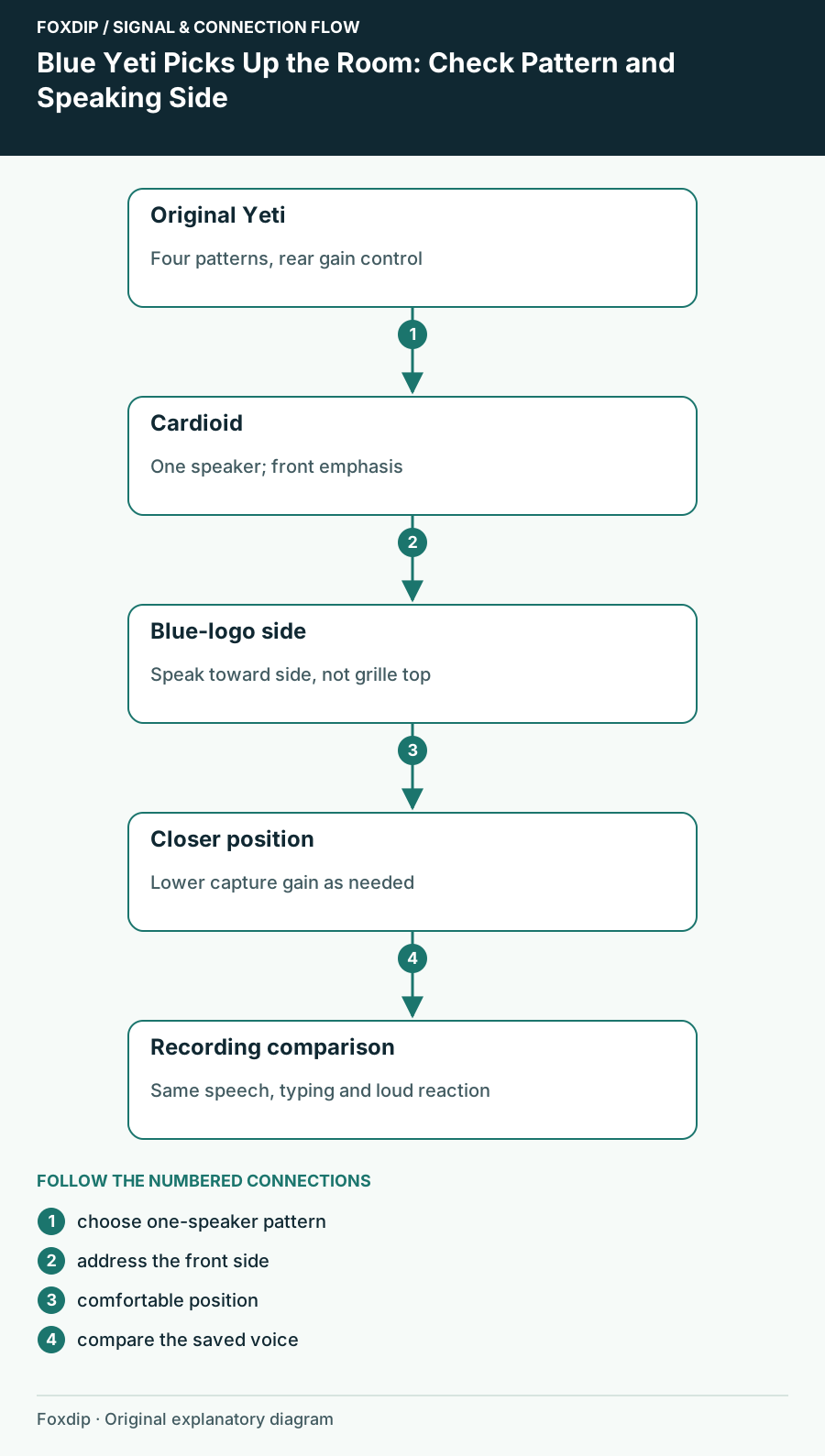
Blue Yeti Picks Up the Room: Check Pattern and Speaking Side
Set the original four-pattern Blue Yeti for one speaker and compare placement before adding stronger suppression.
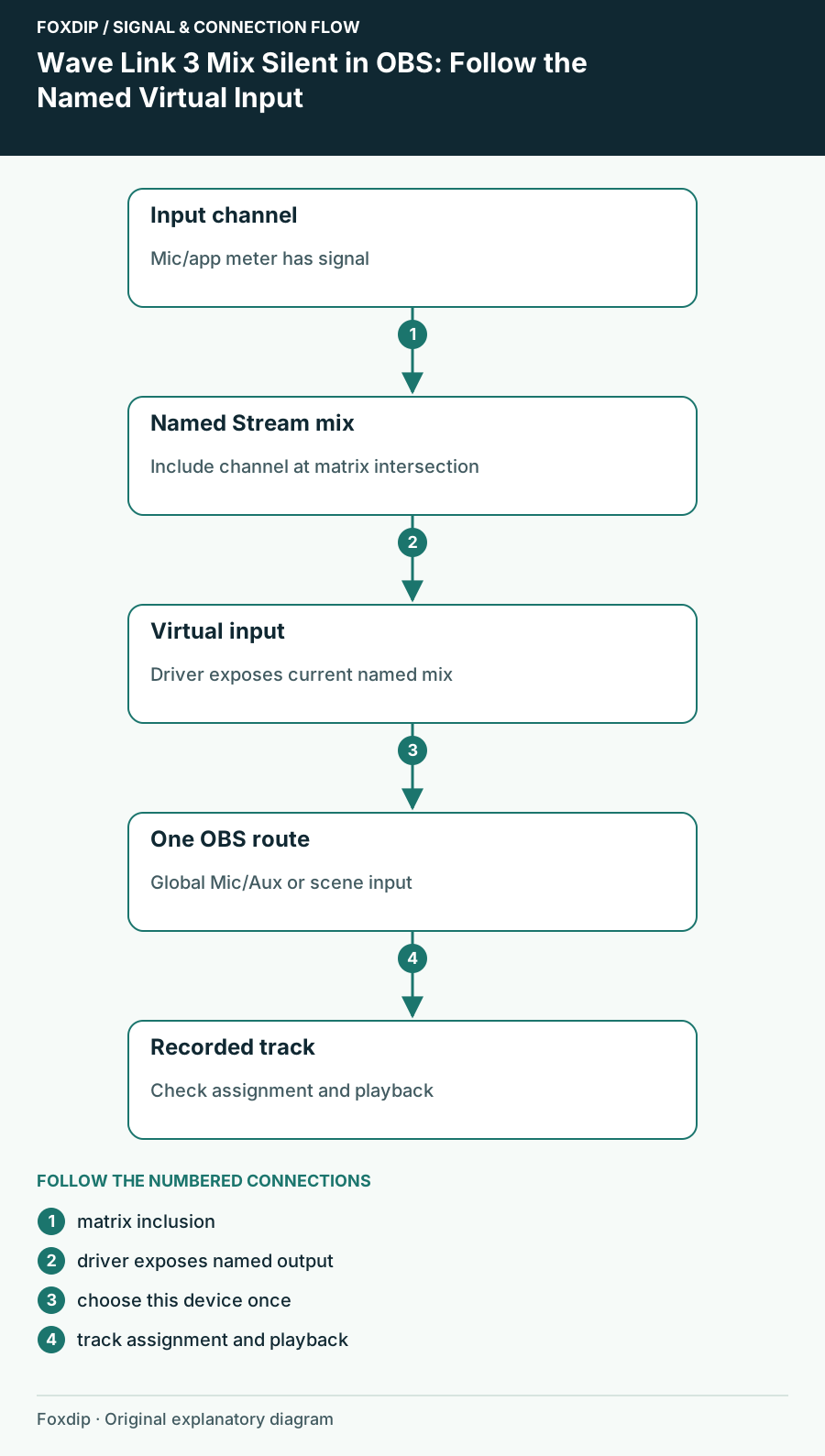
Wave Link 3 Mix Silent in OBS: Follow the Named Virtual Input
Find the mix you actually created in Wave Link 3 and trace it into one OBS input instead of relying on an old device label.
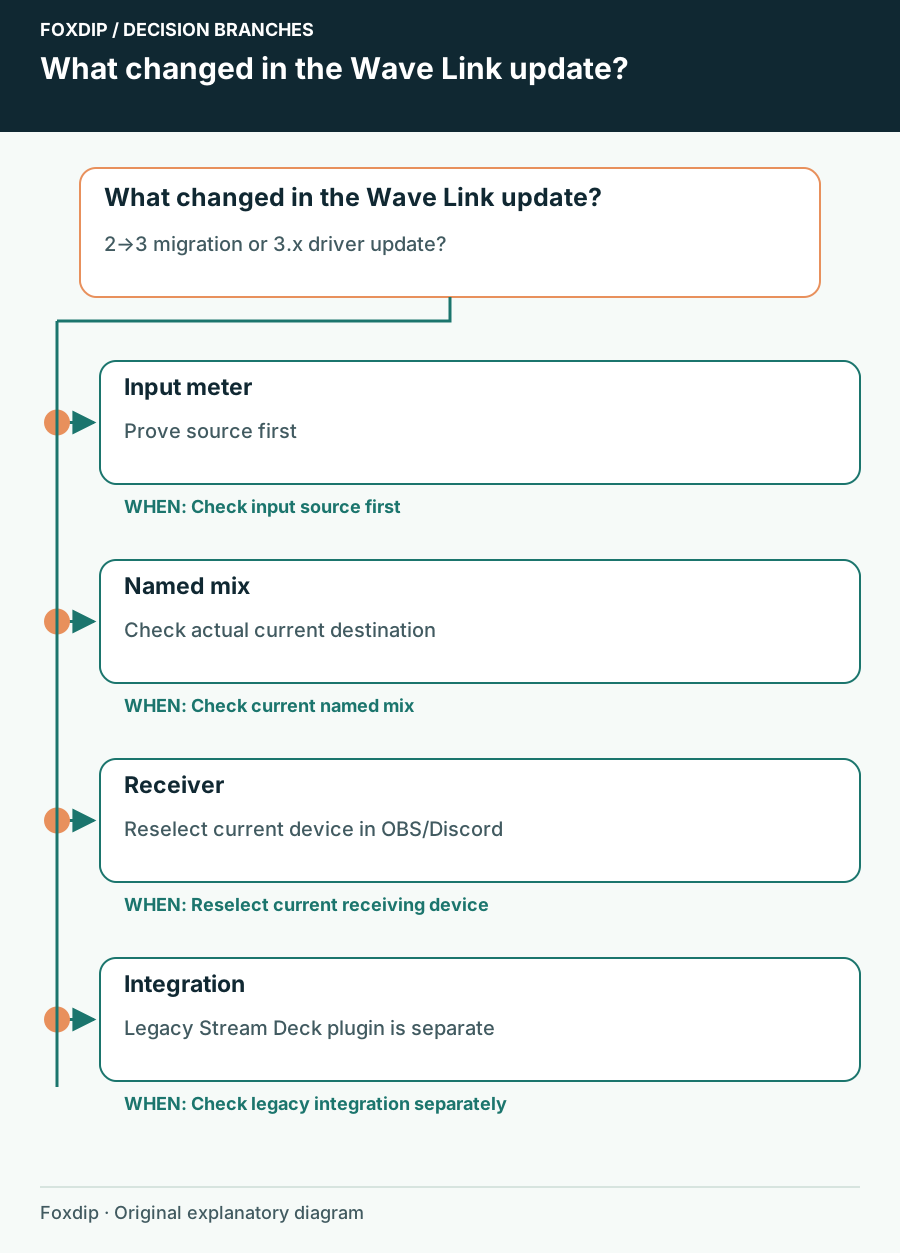
Wave Link 3 Audio Changed After an Update: Recheck the Route
Compare current virtual-device names, application assignments and the audience mix before assuming an update damaged your setup.
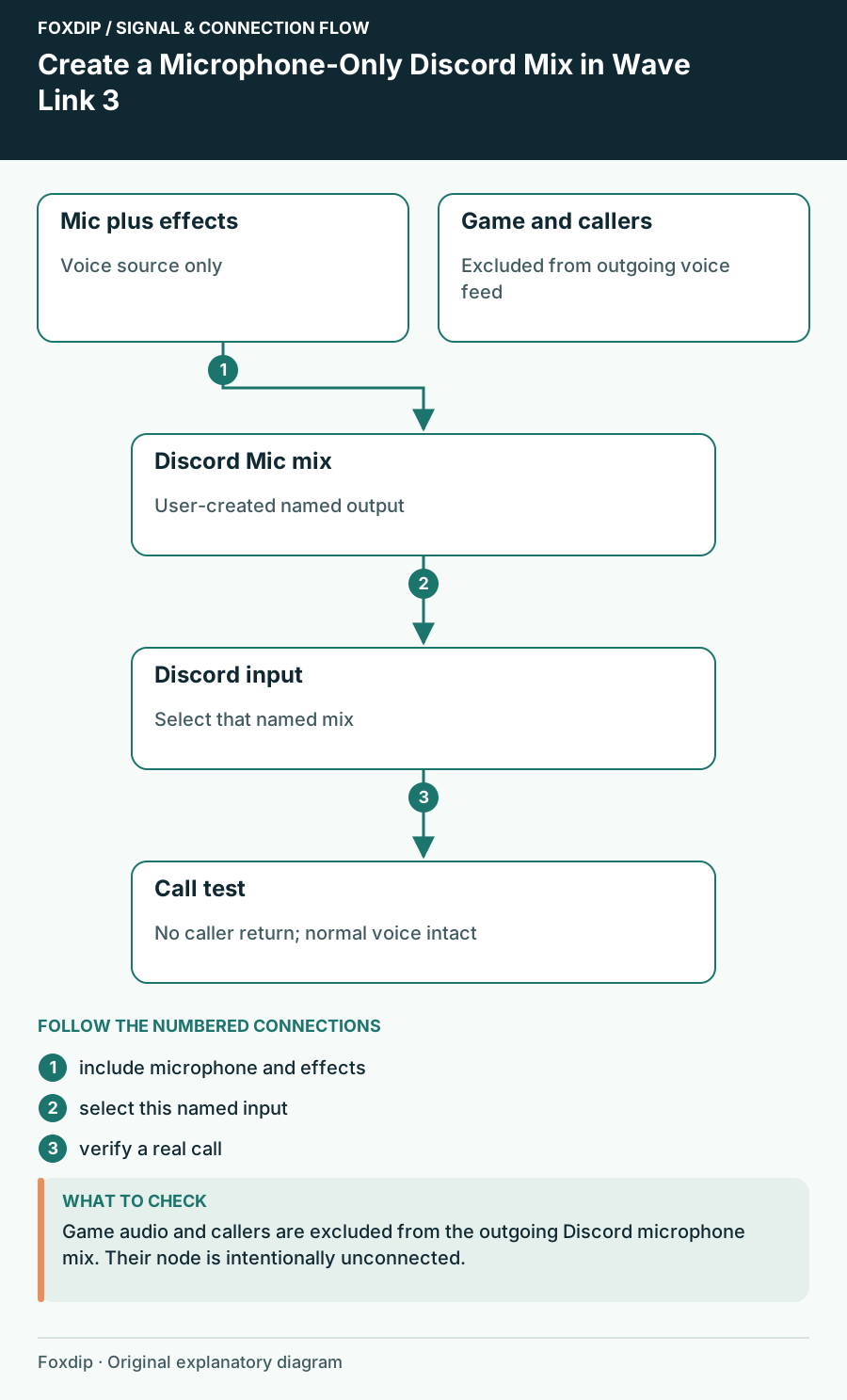
Create a Microphone-Only Discord Mix in Wave Link 3
Send your processed voice to Discord while keeping callers, game sound and the audience mix out of its microphone input.
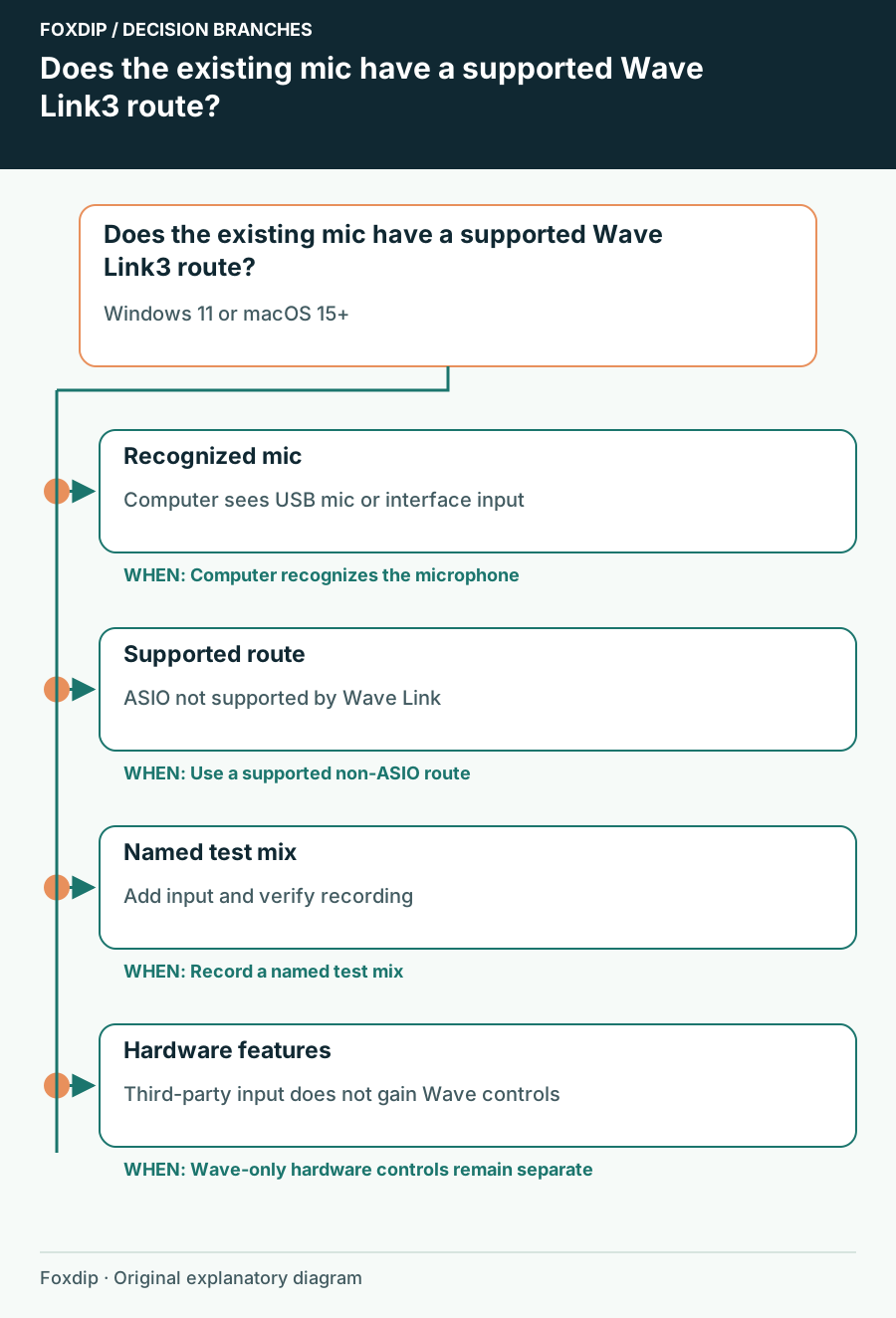
Can Your Existing USB Mic Work with Wave Link 3?
Check computer recognition, operating-system requirements and the difference between mixing support and hardware-specific controls.