
Twitch, YouTube and Discord
Set up your channel, read the available platform controls and keep a test stream separate from a live audience.
Let’s get it working.
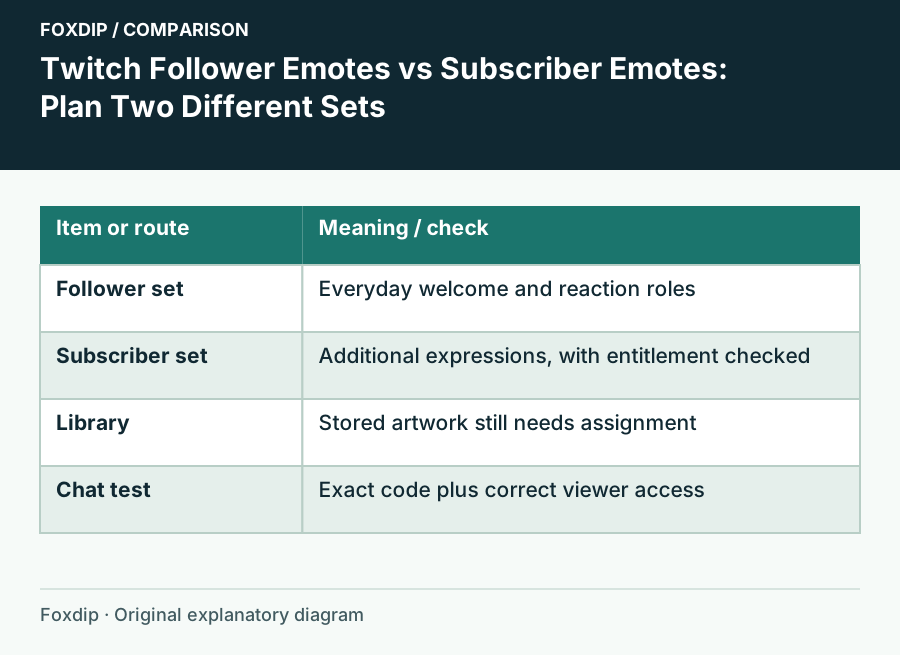
Twitch Follower Emotes vs Subscriber Emotes: Plan Two Different Sets
Choose which reactions belong in your free follower slots and which belong in a subscriber set, then check the viewer’s access.
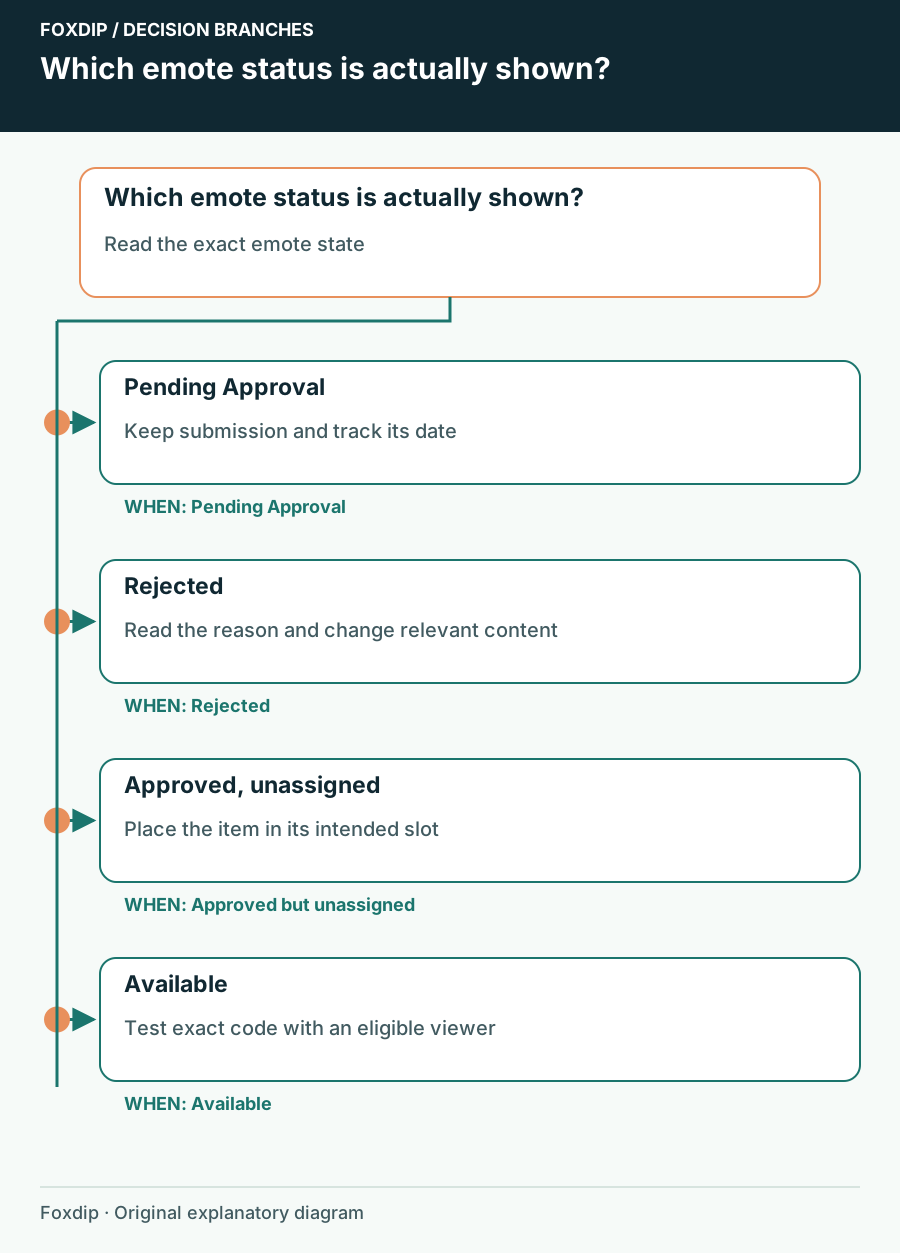
Twitch Emotes Pending Approval: Check Status Before Uploading Again
Identify a pending review, distinguish it from an unassigned emote and prepare the right information if you need support.
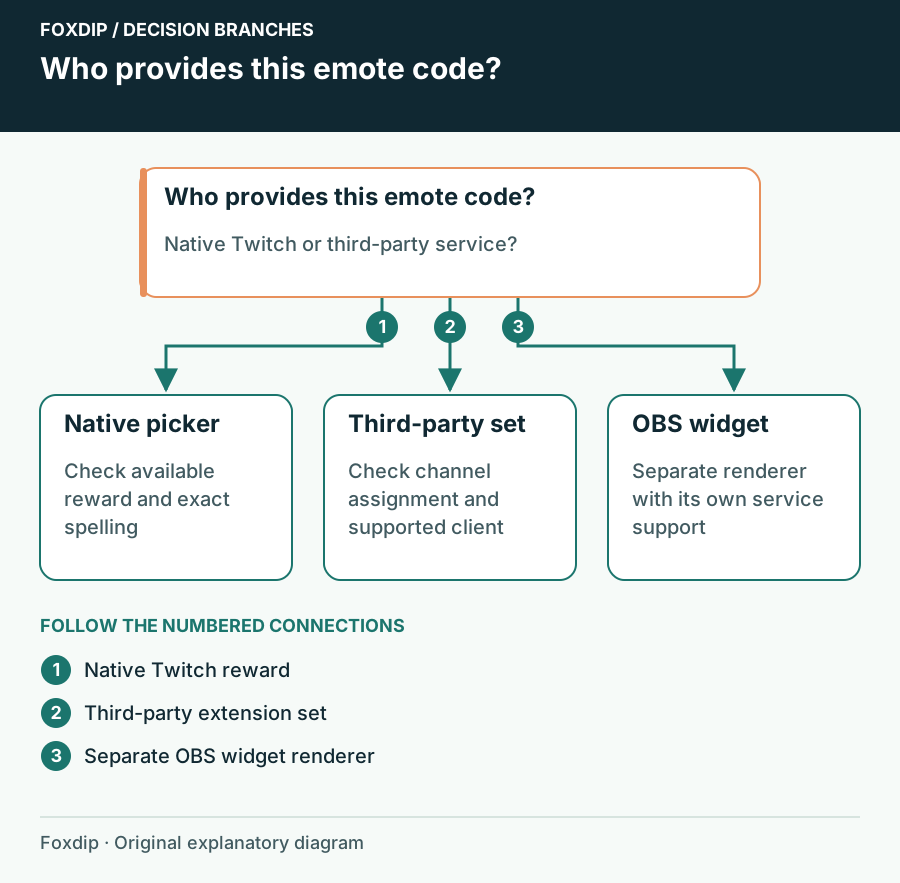
Twitch Emotes Show as Text: Native Reward or Browser Extension?
Find out which service owns the missing emote before changing Twitch rewards, extensions or chat overlays.
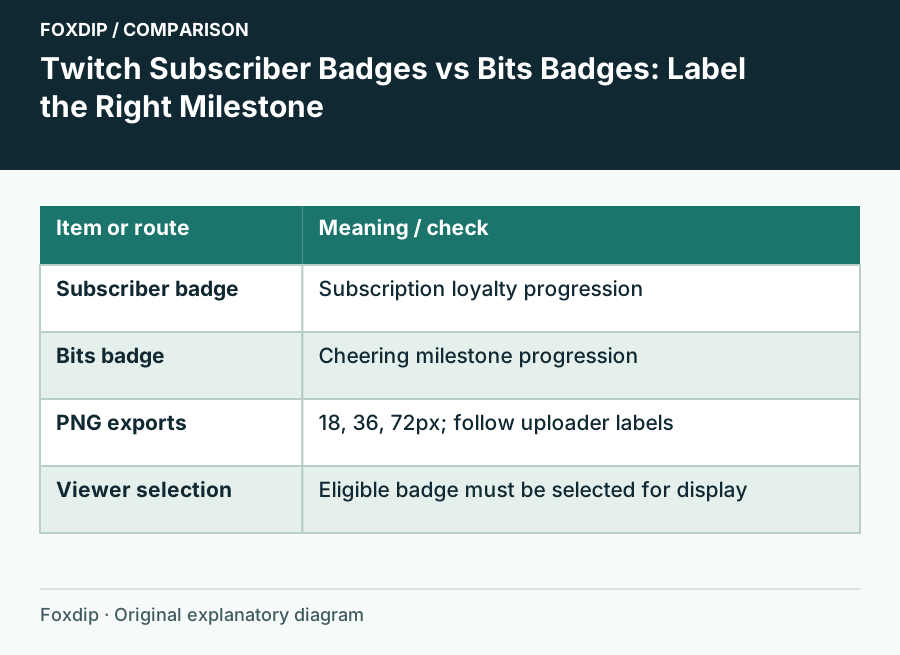
Twitch Subscriber Badges vs Bits Badges: Label the Right Milestone
Plan two readable badge progressions and upload each to its own Twitch reward system.
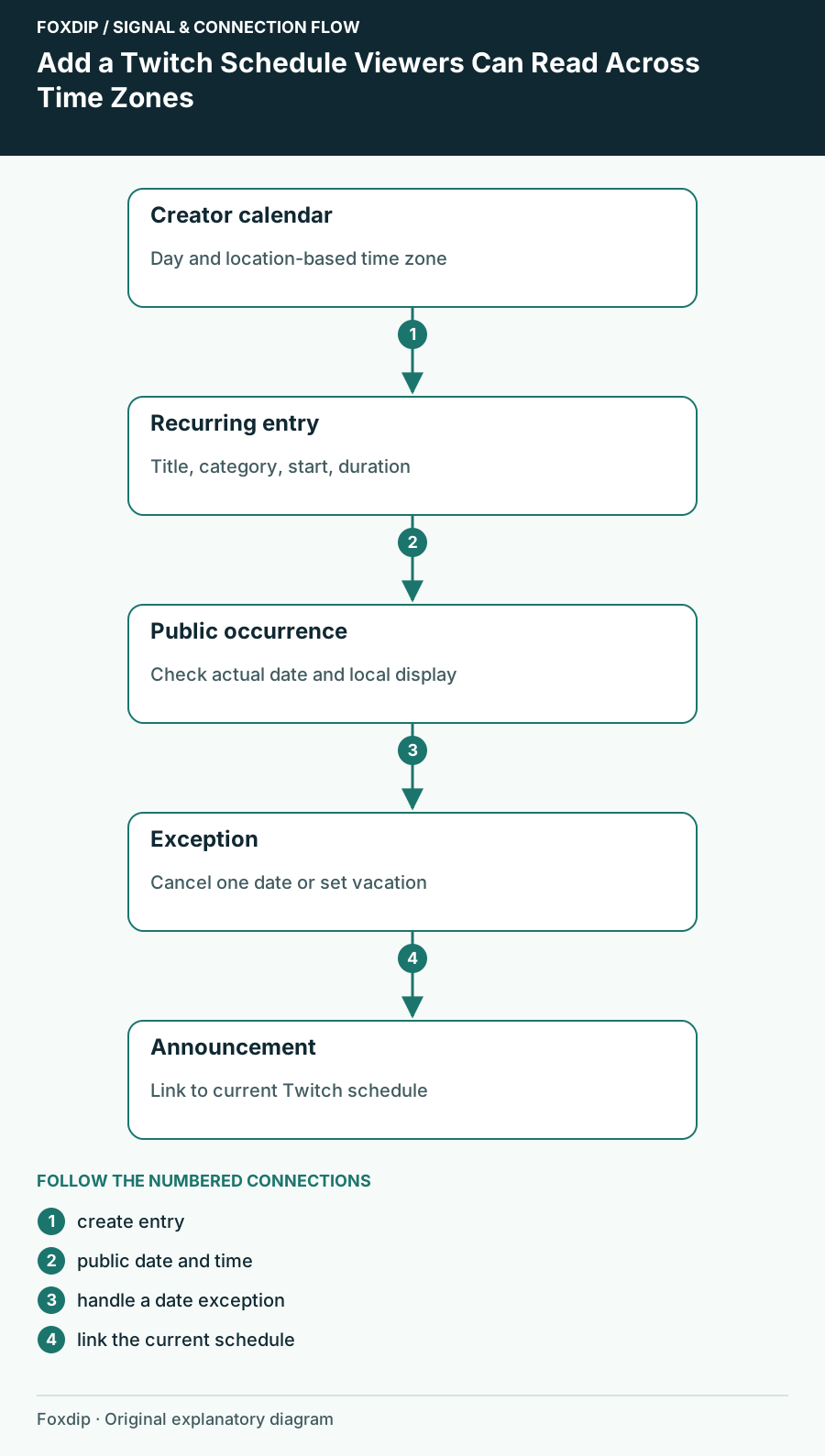
How to Set Up Your Twitch Schedule and Time Zone
Add a recurring Twitch schedule in Creator Dashboard, set the right time zone, check the public Schedule tab, and mark days off without stale dates.
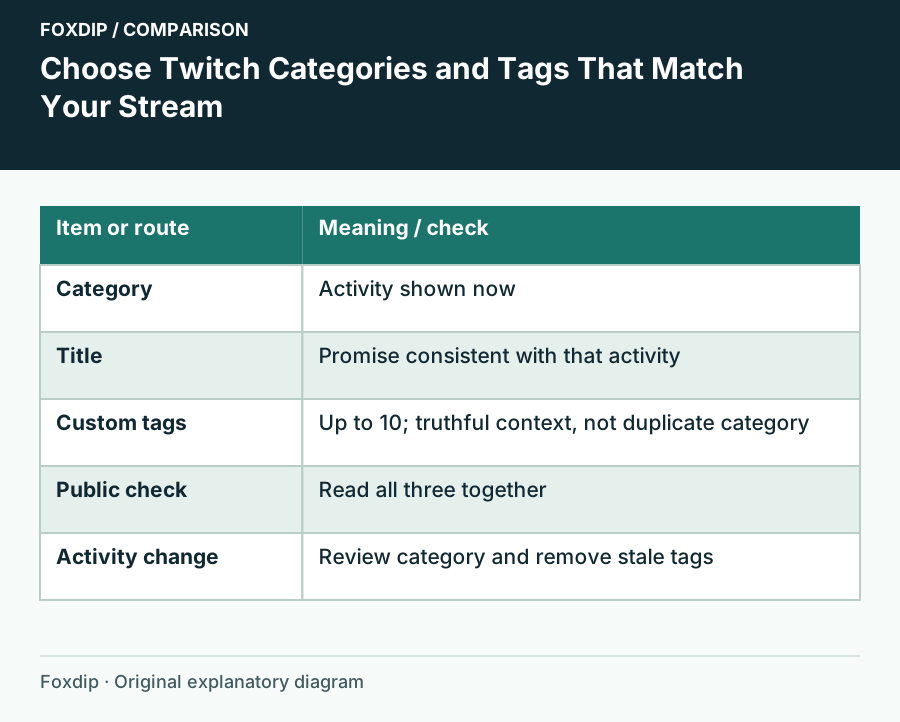
Choose Twitch Categories and Tags That Match Your Stream
Set an accurate activity category and a few informative tags, then update them when the broadcast changes.
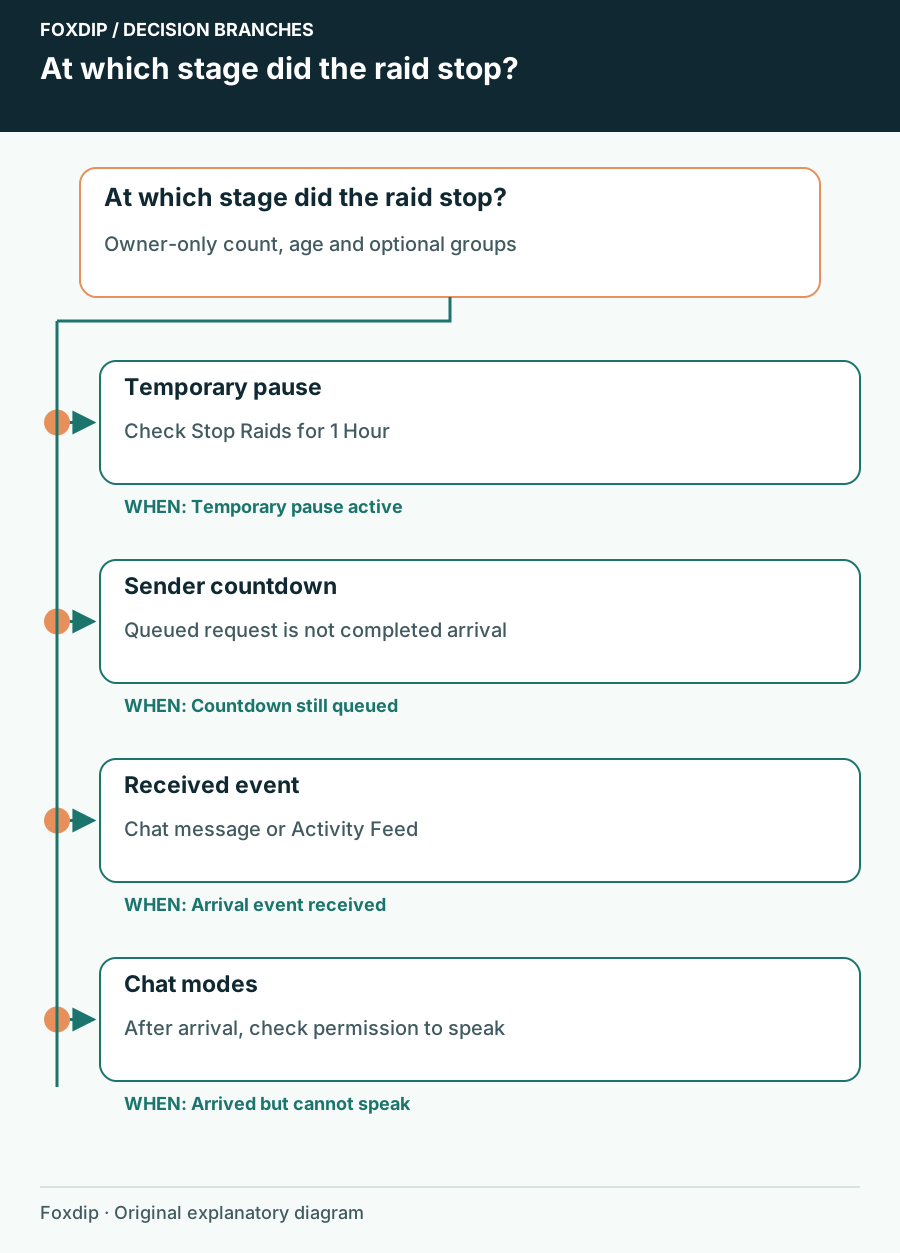
Twitch Raids Not Reaching You: Check Incoming Raid Controls
Separate an incoming raid restriction from the raid countdown or a chat restriction after viewers arrive.
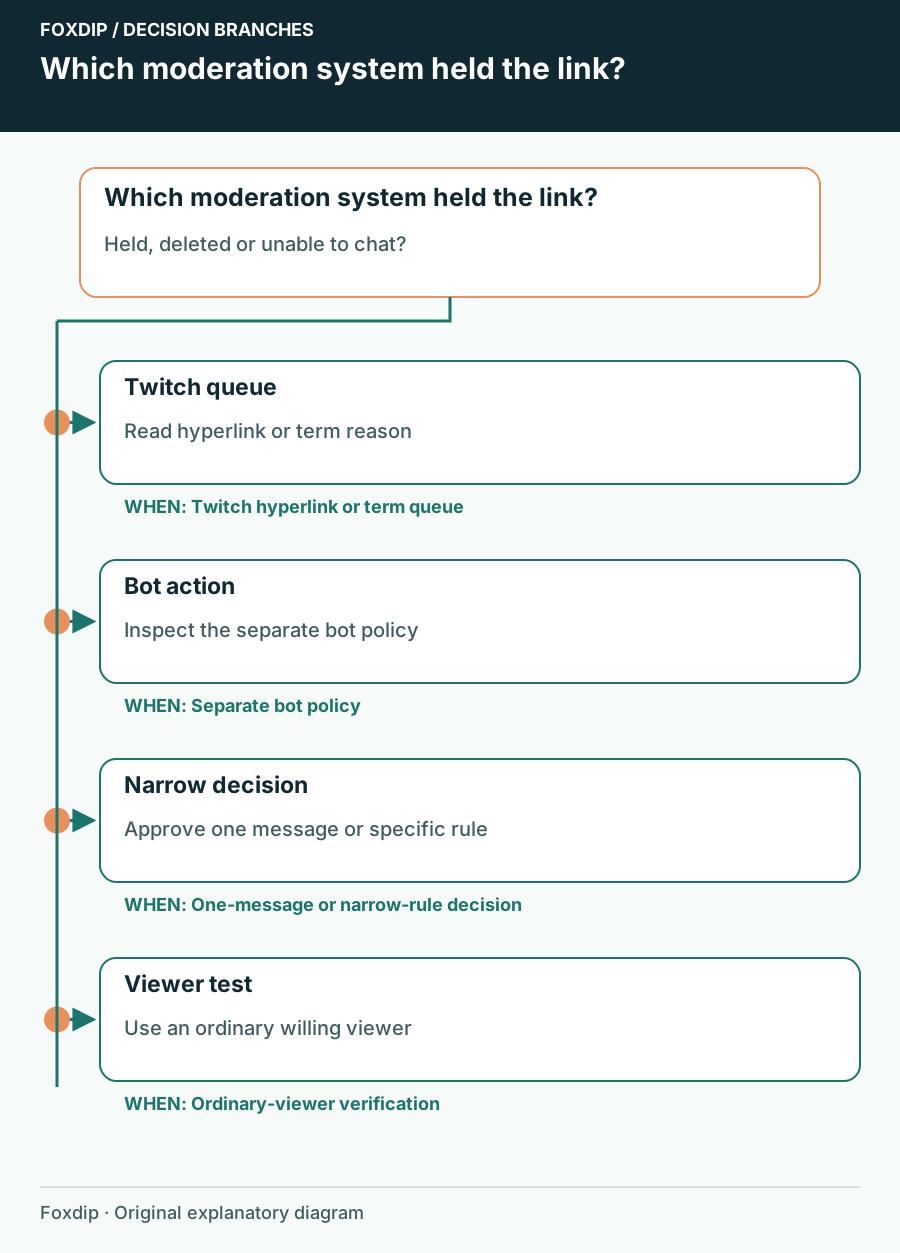
Twitch Chat Holds a Link: Follow the Moderation Reason
Identify whether Twitch AutoMod or a separate bot held a link, then approve only the message or rule you intend.
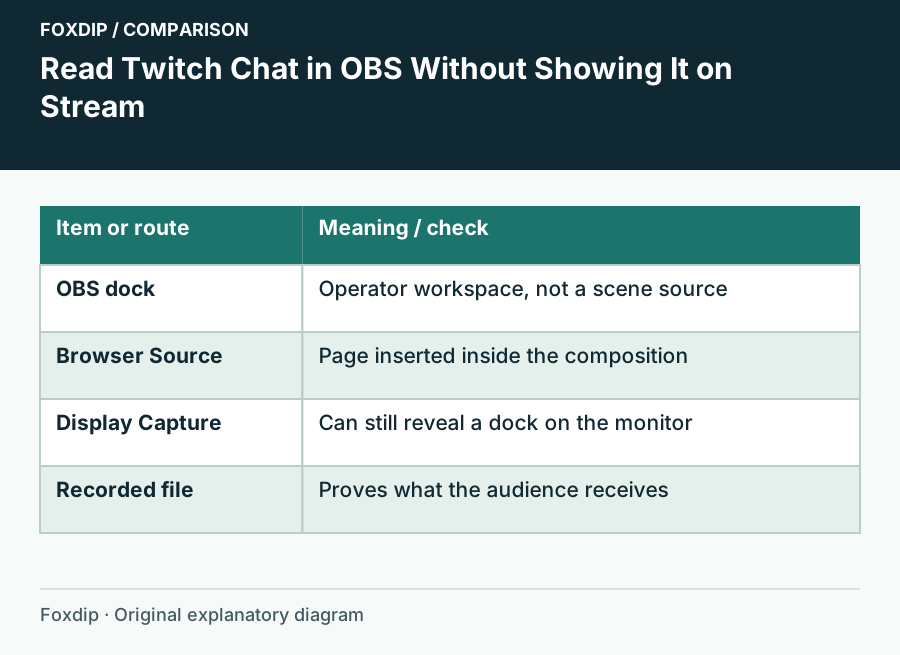
See Twitch Chat in OBS Without Showing It on Stream
Add Twitch chat as an OBS dock so only you see it while you stream, plus the quick check that keeps chat from slipping into your capture by mistake.
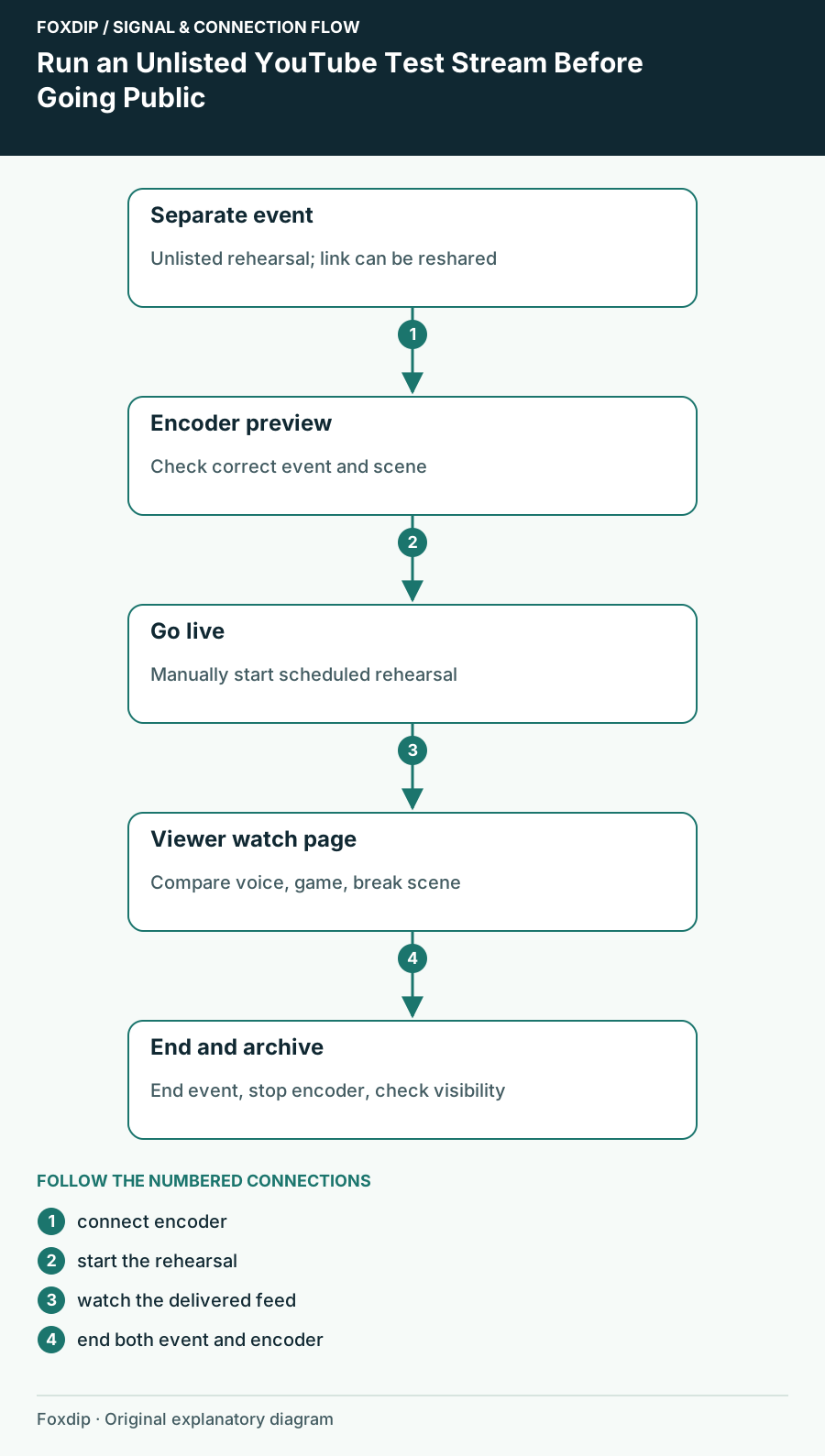
Run an Unlisted YouTube Test Stream Before Going Public
Create a separate unlisted rehearsal and check your real watch page, audio, scenes and ending procedure.
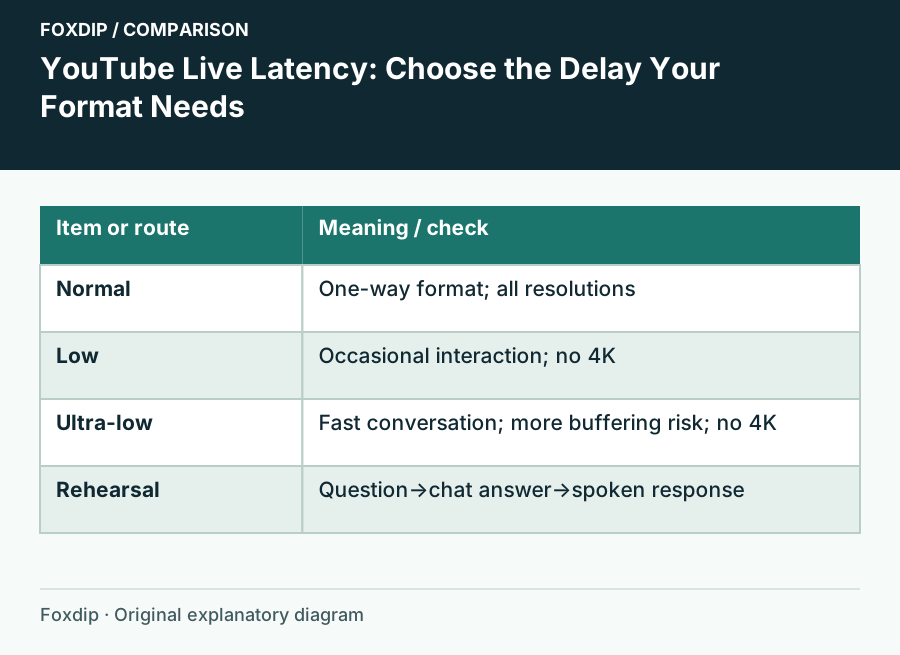
YouTube Live Latency: Choose the Delay Your Format Needs
Choose Normal, Low or Ultra-low latency for an encoder stream and rehearse the full viewer-response loop.
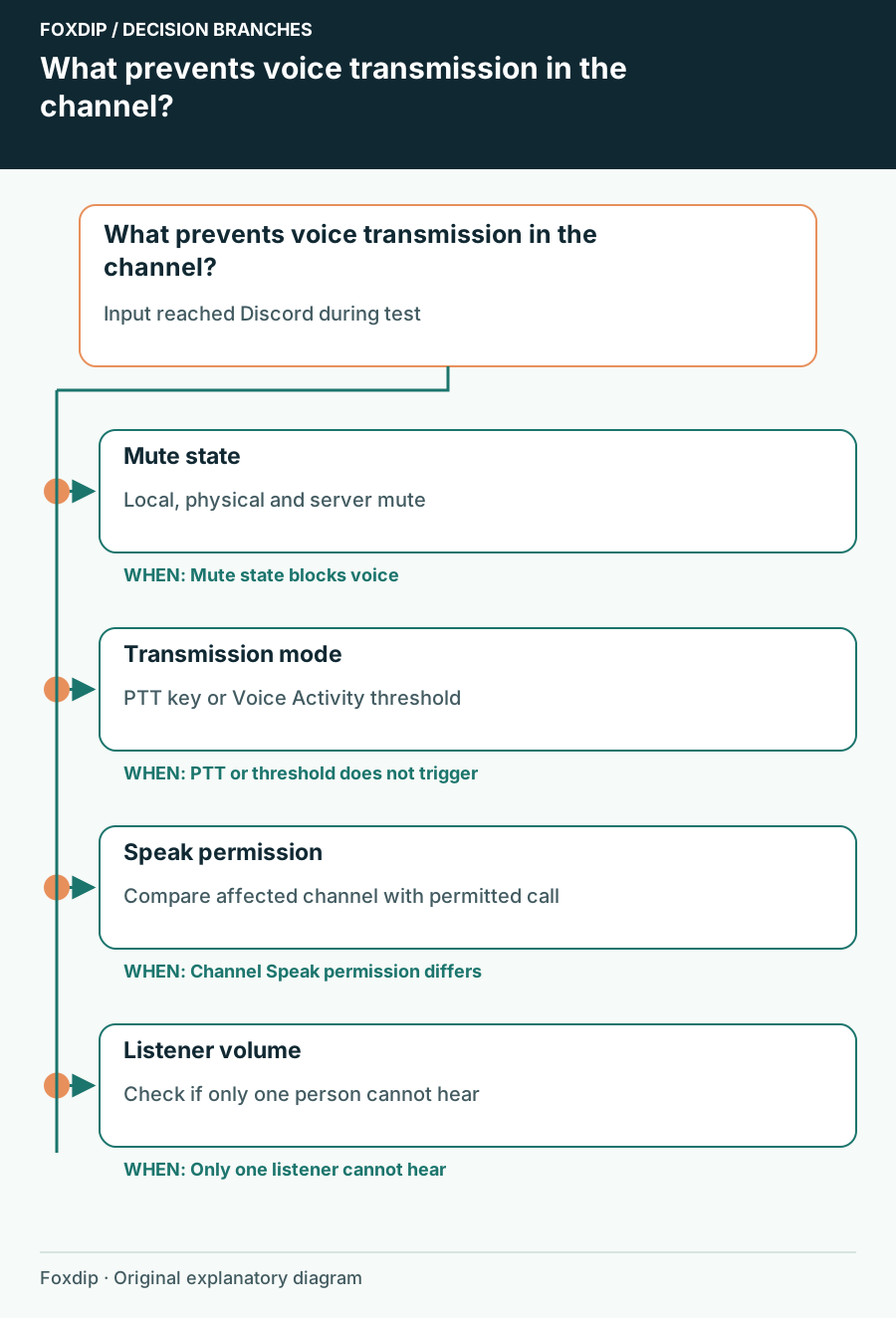
Discord Mic Test Works but Nobody Hears You in a Channel
Check transmission mode, mute state and channel permission after proving that Discord can receive your microphone.
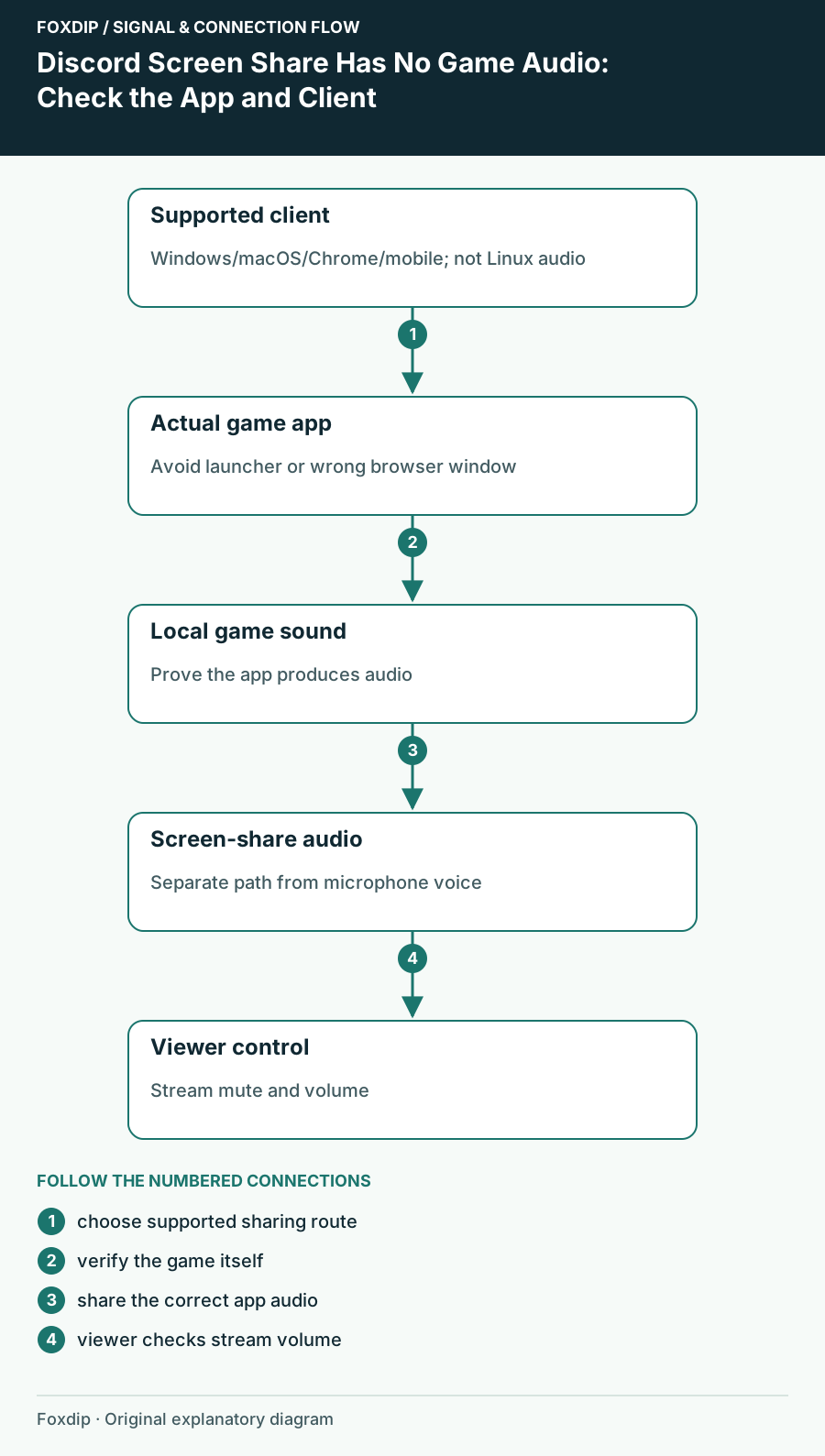
Discord Screen Share Has No Game Audio: Check the App and Client
Check audio-sharing support for your Discord client, select the game itself and verify sound from a viewer’s side.
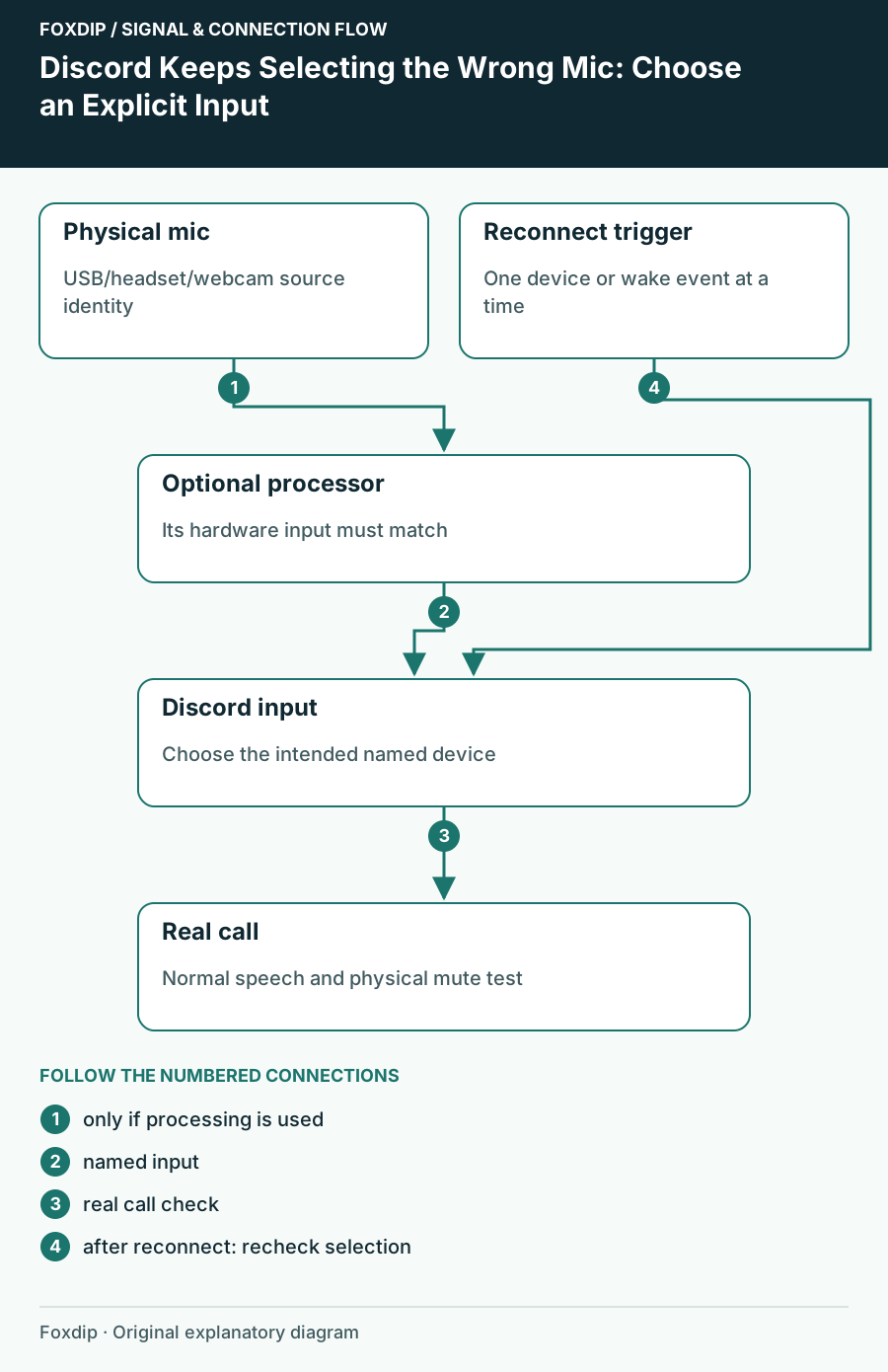
Discord Keeps Selecting the Wrong Mic: Choose an Explicit Input
Stop relying on an ambiguous default and trace whether the device changed in Discord, Windows or an audio mixer.
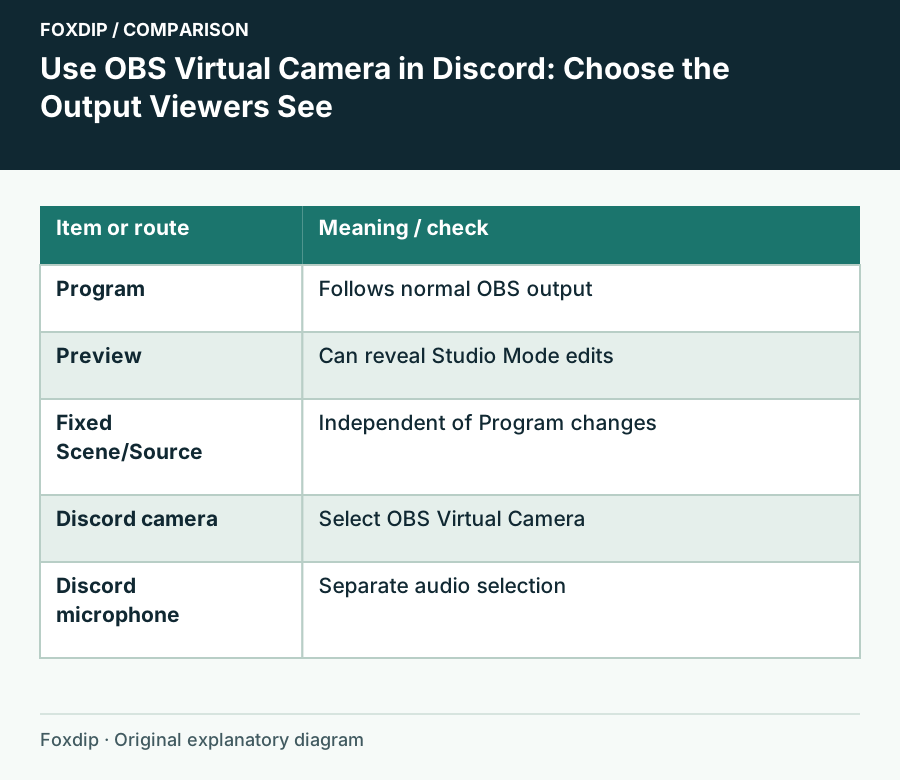
OBS Virtual Camera on Discord: How to Set It Up
Start OBS Virtual Camera, pick it as your camera in Discord, and choose what Discord sees: the whole program, one scene or one source. Set the mic apart.