
Add the schedule in Creator Dashboard, choose the correct local time zone, then check the public Schedule tab and any copied announcements.
Create a recurring Twitch schedule, check its date and time zone, and handle an absence without leaving stale promises.
In this guide
Before you start
- Your intended recurring days, start time, duration and location-based zone.
- Access to Creator Dashboard and the channel Schedule tab.
Anchor the schedule to your actual week
Start with the time you can reliably go live in your own location. Write down the day, local start, approximate duration and what happens on stream. A dependable two-day schedule is easier for viewers to plan around than five optimistic entries you frequently cancel.
Use a location-based time zone when the interface offers one. A fixed UTC offset and a local zone are not interchangeable through daylight-saving changes. Twitch’s schedule API explicitly records a time zone alongside the start time; your public wording should also make the intended location clear, without requiring viewers to guess which “CST” you mean.
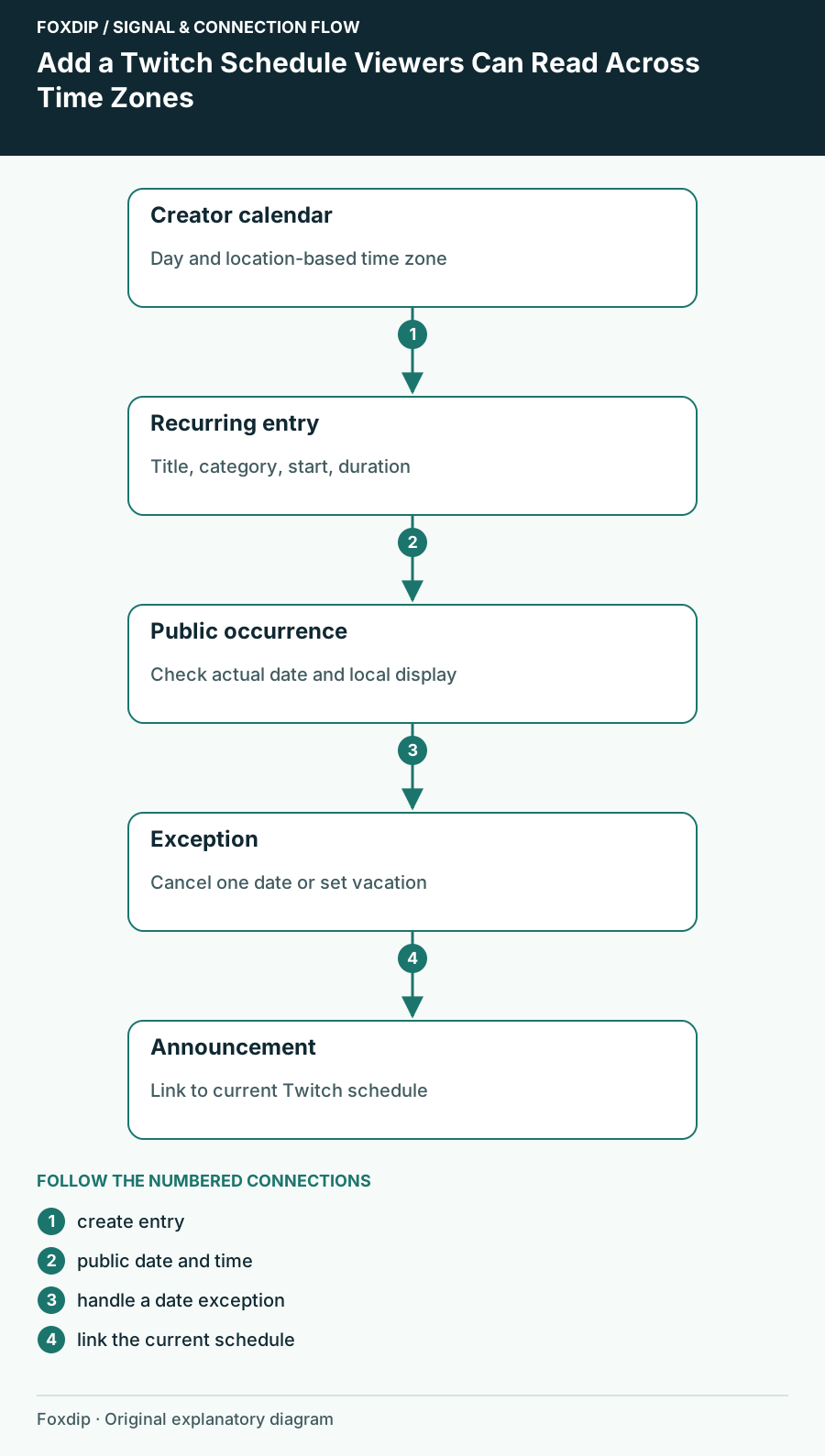
Original Foxdip schematic. Follow the labelled checks alongside the guide.
Build the recurring entry
Twitch documents schedule creation under Creator Dashboard → Settings → Channel → Schedule. Select Add Stream and enter the title, category, start time, estimated duration and recurrence. Specific-date scheduling has account eligibility restrictions, so use the controls available to your account rather than treating a missing option as a browser failure.
Name the session
Use a concrete title such as “Co-op campaign evening” and choose the actual game or activity category.
Look for: Viewers can tell what the appointment is for.
Set time and recurrence
Choose your local start and the intended recurring days, checking the selected time zone before saving.
Look for: The schedule contains the right weekly pattern.
Inspect the public entry
Open your channel’s Schedule tab and read the next occurrence, including its calendar date.
Look for: A one-day or time-zone mistake is visible before you announce it.
Check a date, not just a clock time
Compare the public occurrence with your own calendar. Near midnight, a viewer elsewhere may see a different day as well as a different hour. “Friday at eight” is therefore weaker than a link to the schedule with a location-based explanation. Ask a viewer in another zone to confirm the date they see if you are planning an international event.
Keep written examples clearly labelled. For instance, “I stream on Tuesday evenings in Europe/London; the Schedule tab shows the next session” avoids promising one UTC offset all year. Don’t manually convert a whole season of dates using a single summer or winter offset.
Cancel the exception without losing the pattern
For one missed session, edit that occurrence and use Twitch’s cancellation control, then save. For a longer break, set Vacation Mode with the start and end dates. Deleting the entire recurring schedule is a larger change and makes you rebuild a pattern that may still be correct.
If the usual start changes permanently, update the recurring entry and inspect the next few dates. If only one date moves, edit that date instead. This distinction prevents an event next week from silently shifting every future session.
Make every other surface point to the schedule
Update the schedule panel, Discord announcement and any starting-screen text that repeats the old time. Prefer linking to the current schedule rather than maintaining several independent weekly tables. If a graphic includes a time, add the location-based zone and revise it when your pattern changes.
Before the next stream, read the next public occurrence once more. The useful result is agreement between your calendar, Twitch’s next date and the message viewers receive. A saved entry alone doesn’t prove all three agree, especially after a daylight-saving change or a one-off cancellation.
Sources & references
Based on the official documentation linked beside the relevant sections. Follow the checks on your own setup; no hardware measurements or account tests are claimed.
- Twitch — Channel Page Setup ↗Checked 2026-10-27
- Twitch Developers — Channel Stream Schedule API ↗Checked 2026-10-27
Spotted something out of date? Let Alex know.
How we put our guides together ↗