
Test a native Twitch emote first, then identify whether the missing code belongs to Twitch or a separate service such as 7TV.
Find out which service owns the missing emote before changing Twitch rewards, extensions or chat overlays.
In this guide
Before you start
- The exact affected code and the service where it was added.
- A Twitch chat client and, if relevant, the overlay widget settings.
Find the owner of the code
An emote code appearing as text doesn’t always mean Twitch rejected an upload. Native Twitch rewards and third-party emote services have separate libraries and rendering support. Start by asking where the emote was added: Creator Dashboard, or another service’s channel emote set? The answer determines which settings can affect it.
For example, 7TV provides an emote platform and an extension or other supported tools. Adding an image there does not turn it into a native Twitch subscriber reward. A viewer’s chat client and an on-stream chat widget may therefore show different results for exactly the same message.
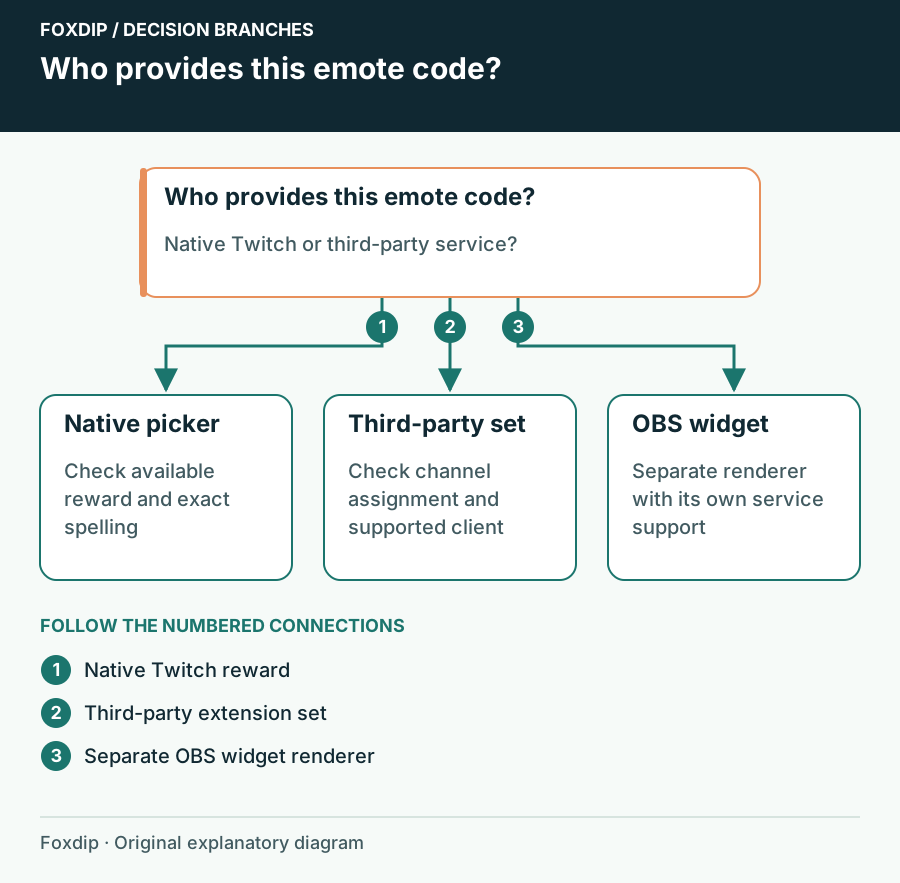
Original Foxdip schematic. Follow the labelled checks alongside the guide.
Establish a native Twitch baseline
Open Twitch chat in a normal browser tab and use the native emote picker to select an emote your account can use. Then compare that message with the missing code. Ask another viewer what they see in the same channel, rather than comparing two different channels with different reward access.
Use the picker
Select an available native emote rather than manually typing a remembered code.
Look for: The inserted code is spelled correctly and belongs to an available set.
Compare the missing reaction
Send the affected code once and note whether the picker includes it.
Look for: You can separate a native entitlement check from an extension-set check.
Compare clients
Have a willing viewer report their browser or app and whether the native and affected reactions render.
Look for: You know whether the failure follows one client or everyone in that channel.
For native emotes, follow the reward
If you manage the channel, confirm the exact prefix and suffix, current assignment and approval state in Viewer Rewards → Emotes. A library image without an active slot won’t behave like an assigned reward. If you’re a viewer, check that you are signed into the account with the relevant follow or subscription access.
Follower emotes also have a location rule: a non-subscribed follower uses them in the originating channel, while subscribers can use them more broadly. A reaction that works at home and fails elsewhere may be behaving as designed. Don’t buy or gift subscriptions merely to test a suspected browser issue.
For third-party emotes, follow the client
Check that the code is actually assigned to the channel’s current emote set in the relevant service. Then check whether the viewer’s chosen browser extension or chat client supports that service and is enabled on Twitch. Use the provider’s own download route if you decide to install its extension, and review the permissions it requests.
Test a browser profile without extra extensions for the native baseline, then restore your normal setup. An extension-free profile will not magically render every third-party set; its purpose is to show whether native Twitch chat works independently. Avoid changing multiple extensions at once, because you lose the comparison.
Treat the broadcast chat box as another client
If viewers see the emote in chat but your OBS chat box shows text, inspect the widget provider’s supported emote services. The overlay is a separate renderer. Changing the streamer’s browser extension may have no effect on a remote widget loaded as an OBS Browser Source.
After correcting the relevant setting, send one native reaction and one affected reaction again. Watch the actual broadcast recording or preview containing that chat box. You’re finished when the intended clients render the intended set, with any unsupported client limitation explained to viewers.
Sources & references
Based on the official documentation linked beside the relevant sections. Follow the checks on your own setup; no hardware measurements or account tests are claimed.
- 7TV — The Emote Platform for All ↗Checked 2026-10-27
- Twitch — How to Use Emotes ↗Checked 2026-10-27
- Twitch — Subscriber Emote Guide ↗Checked 2026-10-27
- Twitch — Follower Emotes ↗Checked 2026-10-27
Spotted something out of date? Let Alex know.
How we put our guides together ↗