
Share the actual game or application from a client that supports audio capture, then test one recognizable sound with a viewer.
Check audio-sharing support for your Discord client, select the game itself and verify sound from a viewer’s side.
In this guide
Before you start
- A Discord client that supports shared audio.
- The actual game/app running and a willing viewer.
Check support before adding audio cables
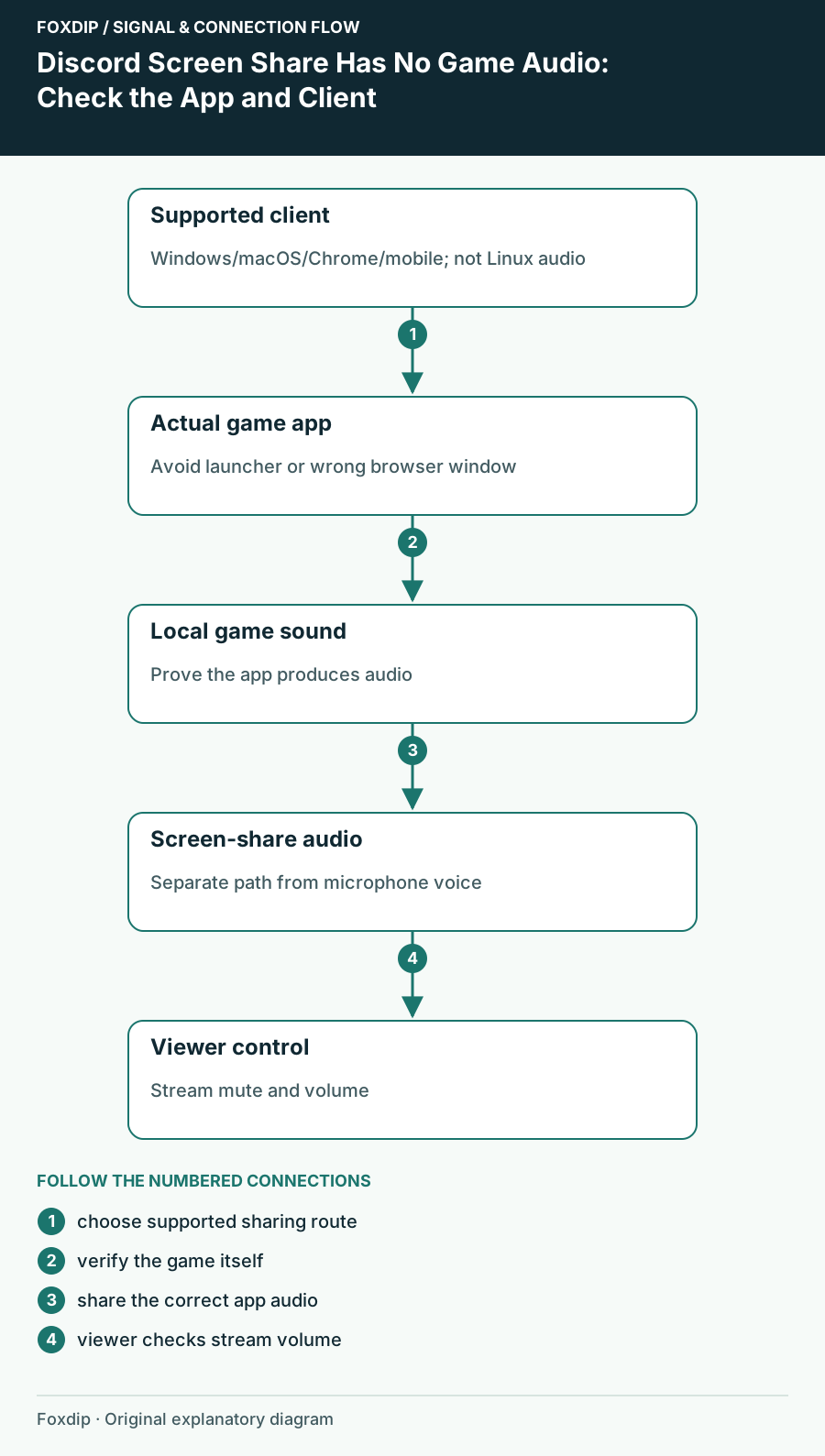
Discord’s current screen-share guide lists audio capture for Windows desktop, macOS desktop, Chrome and mobile clients, and says it is unavailable on Linux. That means an old tutorial claiming only Windows can share sound is incomplete. It also means Linux troubleshooting should not begin by changing ten unrelated Windows settings.
For macOS, Discord’s dedicated guidance supports application and game audio on macOS 13 and later. Check your system version first. Don’t install an old audio helper from a historical guide just because it appears in a screenshot. Current permissions and capture behavior should match your actual macOS and Discord versions.
Choose the process making the sound
Open the game and make sure it produces sound locally. In the call, open Screen Share and choose the game or application you intend to share. A launcher window, a browser containing a different tab, and the actual game process are not the same source. Close unrelated material before exposing a window list.
If the game is missing from detection, Discord documents adding it manually under Game Activity. After selecting it, read any audio-sharing control in the share dialog. Use the exact app as your first comparison even when your client also offers whole-screen audio options.
Run one short sound test
Ask a willing viewer to watch while you play a recognizable menu sound or another sound you have permission to share. Tell them when you trigger it. Keep the microphone test separate: hearing your commentary says nothing about the shared application’s sound.
Confirm local playback
Play the chosen sound and check that the game itself is not muted in its own settings or the OS mixer.
Look for: The app has a real signal to share.
Start the selected app share
Choose the game window and enable the available sound-sharing option if your dialog presents one.
Look for: The share is tied to the intended content.
Check the viewer controls
Have the viewer check stream volume and mute state separately from your voice volume.
Look for: A local viewer mute is separated from absent capture.
Keep the game output separate from the mic input
If you use Sonar, Wave Link or another mixer, note the game’s selected playback device before changing anything. You can hear an app through one route while Discord’s chosen share is attached to another app or capture path. Return to a simple app test before rebuilding a complex mixer setup.
Avoid selecting the complete stream mix as your Discord microphone merely to restore game sound. That can send callers their own voices, notifications and music through the voice channel. Use screen-share audio for the app and a microphone input for your voice unless you have deliberately designed another route.
Use the failure pattern to choose the next check
If one app shares sound and another does not, record the two app names, Discord client and system version. If all supported shares are silent, capture the selected source and available audio controls for a support report, with private windows removed. A failing app comparison is more useful than a claim that all Discord audio is broken.
After the correction, restart only the affected share and replay the same sound. Ask the viewer to confirm the game and voice balance. Keep the successful app selection with your setup notes so the next session starts from a known route rather than a new set of guesses.
Sources & references
Based on the official documentation linked beside the relevant sections. Follow the checks on your own setup; no hardware measurements or account tests are claimed.
- Discord — macOS Screen Share with Audio ↗Checked 2026-10-27
Spotted something out of date? Let Alex know.
How we put our guides together ↗