
Use Normal for a mostly one-way show, Low for occasional interaction, and Ultra-low when a fast conversation matters enough to accept more buffering risk.
Choose Normal, Low or Ultra-low latency for an encoder stream and rehearse the full viewer-response loop.
In this guide
Before you start
- An encoder-based YouTube event with latency settings.
- An unlisted rehearsal and a willing viewer.
Choose for the conversation you plan to have
A tutorial where viewers listen for several minutes has different needs from a quiz where you wait for the next answer. Pick the latency mode around that interaction. Ultra-low is not an automatic quality upgrade: less player buffering leaves viewers more exposed to delivery interruptions.
YouTube describes most Low-latency viewers as seeing under ten seconds and most Ultra-low viewers under five. Those are platform descriptions, not promises for every viewer or measurements of your connection. A delayed chat reply also includes the viewer noticing your question, typing and waiting for you to read it.
According to YouTube’s current guidance, Normal supports all resolutions and live features; Low and Ultra-low do not support 4K. If your show requires 4K, settle that conflict before configuring a public event. A latency dropdown cannot make incompatible requirements disappear.
| Mode | Good starting situation | Trade-off to rehearse |
|---|---|---|
| Normal | Presentation or show without quick audience responses | More delay before a viewer sees the action |
| Low | Occasional questions and polls | Less player buffer than Normal |
| Ultra-low | Frequent direct conversation | More sensitivity to delivery interruptions |
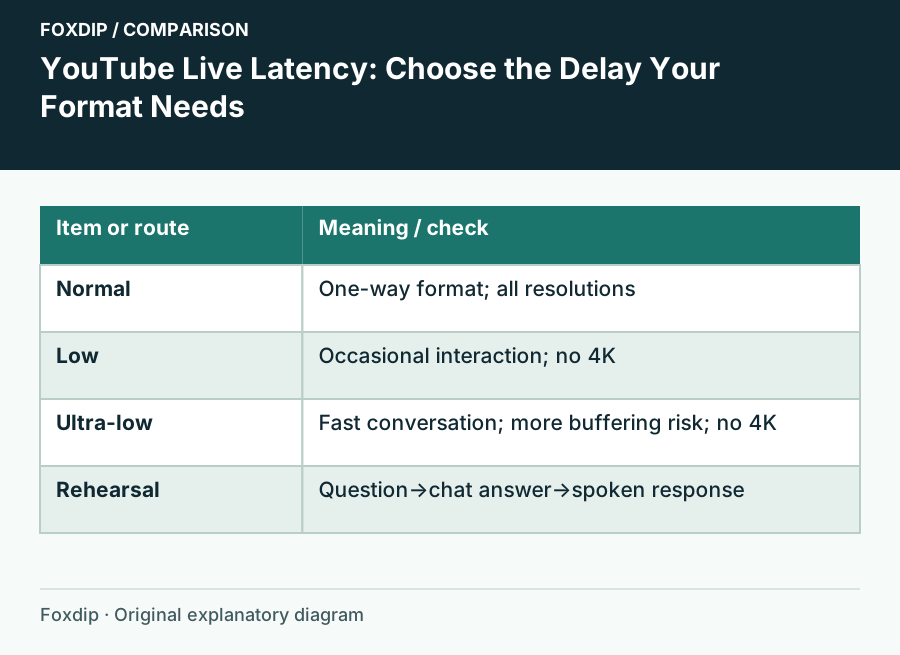
Original Foxdip schematic. Follow the labelled checks alongside the guide.
Set the mode before your rehearsal
In Live Control Room, open the intended encoder stream under Stream or Manage. Under Stream Settings, find Stream latency and select the mode. Confirm you are editing the actual event you will use, especially if you have several tests or scheduled broadcasts.
These manual choices apply to the documented encoder workflow. YouTube handles webcam and mobile streams for interactivity without the same selectable latency control. If you cannot find the option, check the streaming method before following an encoder tutorial button for button.
Identify the event
Read the event title and visibility, then open its stream settings.
Look for: You will not change the wrong scheduled show.
Choose the requirement
Select the latency that fits both interaction and resolution, before beginning the test.
Look for: The event has an intentional mode.
Write the choice down
Record the mode with your encoder output settings and test date.
Look for: A later comparison can reproduce the same conditions.
Test a question and an answer
Run an unlisted rehearsal with a trusted viewer. Say a distinctive short question, let the viewer reply in chat, and respond aloud when you see it. Ask whether that pace feels comfortable for the planned format. Repeat the same exchange if you compare another mode.
Have the viewer watch from a connection typical of the audience, if possible. A watch page running beside the encoder on the same network is useful, but it does not represent every mobile or remote viewer. Note visible buffering separately from how long the conversation felt; they are related experiences with different symptoms.
Use the result to change the show or the mode
If the conversation is too slow but playback is stable, try the next lower-latency choice in a separate rehearsal. If playback breaks up, compare a mode with more buffering and inspect encoder delivery or stream health. Avoid changing bitrate, resolution and latency together, because the result won’t tell you which change mattered.
You can also adapt the format: finish one explanation before reading chat, leave a deliberate answer window, or show the question on screen. Once the chosen mode supports both watchability and the response pace, keep the setting with that show’s notes and recheck it when reusing an old event.
Sources & references
Based on the official documentation linked beside the relevant sections. Follow the checks on your own setup; no hardware measurements or account tests are claimed.
- YouTube — Understand live streaming latency ↗Checked 2026-10-27
- YouTube — Manage live stream settings ↗Checked 2026-10-27
Spotted something out of date? Let Alex know.
How we put our guides together ↗