
If Mic Test works, next check whether you are allowed to transmit in that channel and whether your chosen input mode actually opens the mic.
Check transmission mode, mute state and channel permission after proving that Discord can receive your microphone.
In this guide
Before you start
- Discord desktop and a microphone that responds in Mic Test.
- A willing listener and access to a permitted comparison call.
Use the successful test to narrow the question
A successful Mic Test tells you Discord received a signal during that test. It doesn’t prove you are unmuted in the call, allowed to speak in that channel, or meeting a voice-activation threshold. Keep the working input selected while checking the transmission stage.
Write down whether the problem happens in every server, one channel, or only one game-focused session. Then ask one willing listener to help. Several people saying “I can’t hear you” without comparing the same moment and channel can lead you toward a hardware replacement that has little connection to the symptom.
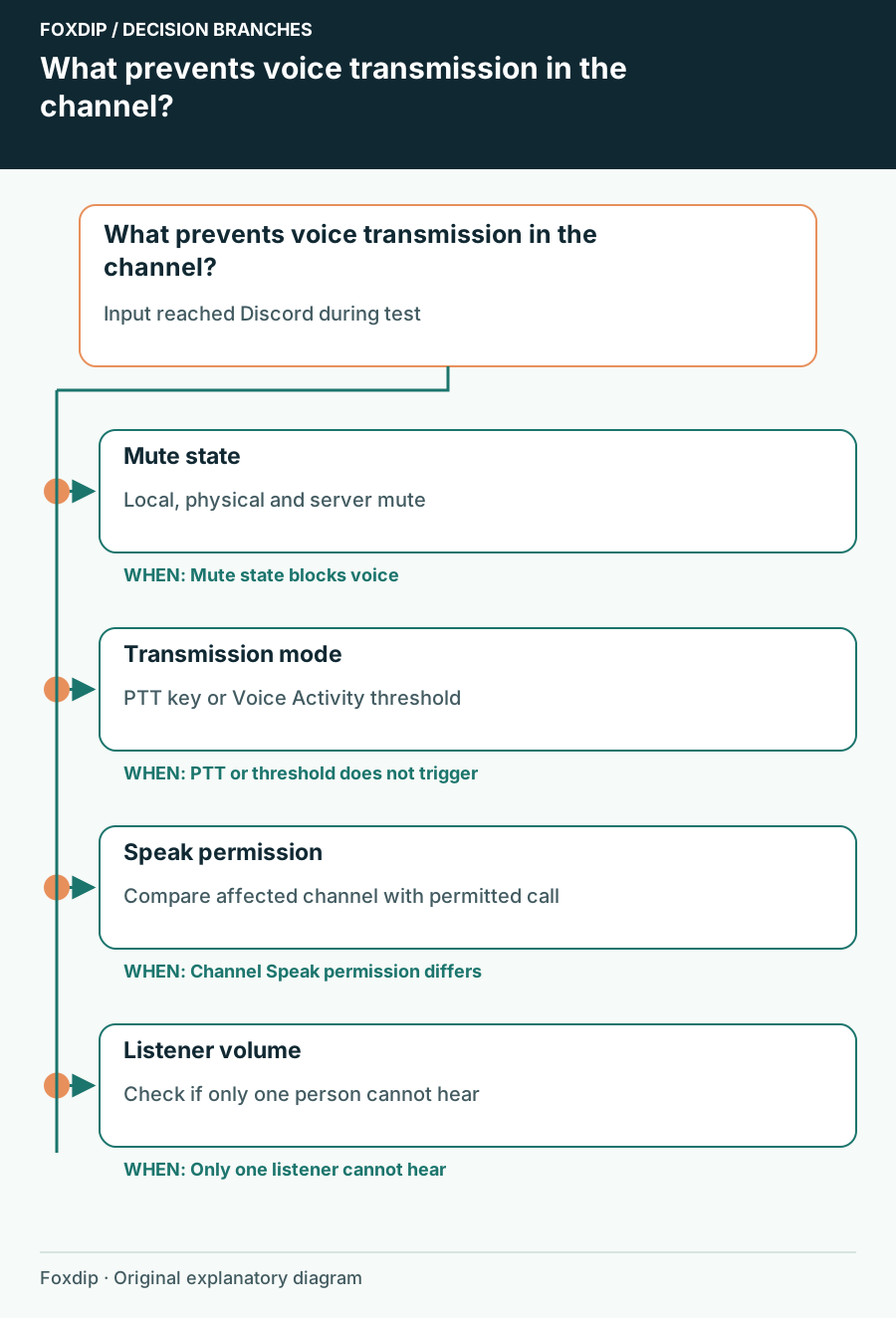
Original Foxdip schematic. Follow the labelled checks alongside the guide.
Look at local and server mute state
Check the microphone and deafen icons beside your Discord account, plus any physical mute button on the microphone or headset. A successful test made before you touched a mute switch isn’t evidence about its current state. Unmute deliberately and speak a short sentence.
If Discord shows that an administrator has server-muted you, changing your gain or reinstalling the app will not remove that restriction. Ask the server owner or an administrator to review the state. Don’t try to bypass a moderation decision by reconnecting repeatedly.
Make the transmission trigger obvious
Open Voice & Video and inspect Input Mode. For Push to Talk, note the assigned key and hold it while speaking. For Voice Activity, compare soft speech with silence and check whether the threshold opens for your normal voice. A meter moving during settings playback does not guarantee the selected mode transmits in the channel.
Check the active mode
Confirm Voice Activity or Push to Talk rather than assuming the mode from yesterday.
Look for: You know what action should transmit speech.
Perform one controlled phrase
Hold the assigned PTT key, or speak above a suitable voice-activity threshold without shouting.
Look for: The call’s speaking indication should respond.
Compare game focus
Repeat with Discord focused and then with the game focused.
Look for: A focus-dependent PTT problem is separated from a channel-wide silence.
Compare with a permitted call
With the listener’s agreement, try a direct call or a second channel where you know you can speak. If that works while one channel fails, ask an administrator to inspect the affected channel’s Connect and Speak permissions, including role overrides. Being able to join is not the same as having permission to speak.
If the speaking indicator activates and only one listener cannot hear you, ask that listener to inspect your individual user volume and their output selection. Don’t raise your microphone to distortion because one person has turned you down locally.
Change the input only if the evidence points back to it
If Mic Test now fails too, revisit the explicit input device and physical connection. If the settings test still works, preserve that working route and report the channel, mode, mute state and speaking-indicator result when seeking help. That evidence is more specific than a generic microphone complaint.
Finish with a short real conversation in the original channel. Ask the listener to confirm normal speech and quiet sentence endings. Restore any temporary input-mode changes you do not want to keep, and note the permission or trigger change that actually restored communication.
Sources & references
Based on the official documentation linked beside the relevant sections. Follow the checks on your own setup; no hardware measurements or account tests are claimed.
- Discord — Voice and Video Troubleshooting ↗Checked 2026-10-27
- Discord — Voice Input Modes 101 ↗Checked 2026-10-27
Spotted something out of date? Let Alex know.
How we put our guides together ↗