
Choose the intended microphone by name in Discord, then reconnect it and verify whether that exact input remains available.
Stop relying on an ambiguous default and trace whether the device changed in Discord, Windows or an audio mixer.
In this guide
Before you start
- The intended microphone’s exact device name.
- Access to any mixer used upstream of Discord.
Choose the device you can identify
Open User Settings → Voice & Video and choose the intended input from Input Device. If you have a webcam mic, headset mic and USB mic, “Default” hides an important decision. Select an explicit name for the first test and say a short phrase while watching the input response.
If you use a virtual microphone, its name identifies software, not necessarily the physical capsule. For example, selecting a mixer’s microphone output still requires that mixer to receive the right hardware input. Write down both names so you can tell a wrong Discord selection from a wrong upstream mixer selection.
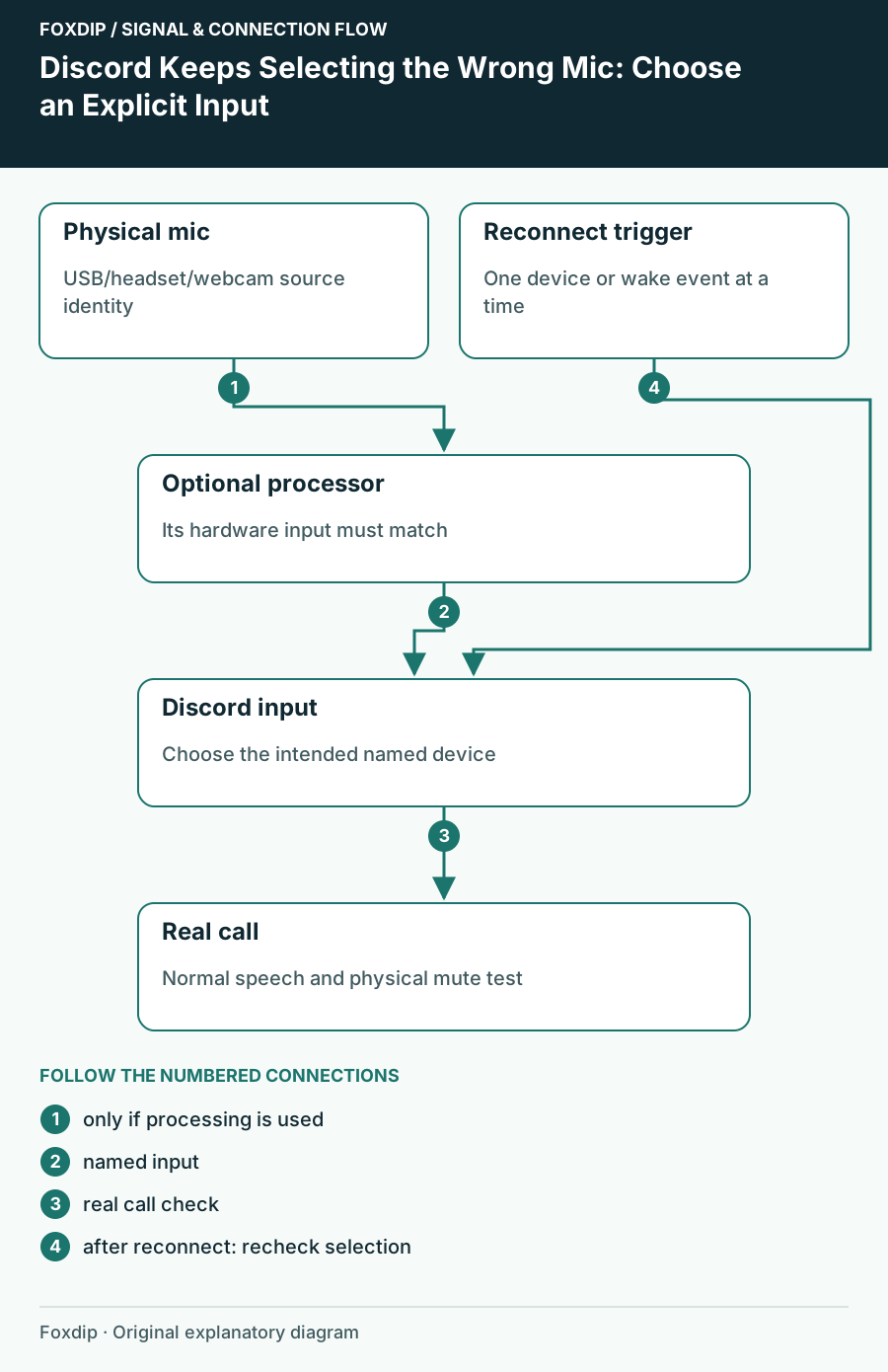
Original Foxdip schematic. Follow the labelled checks alongside the guide.
Prove which microphone is responding
Mute or move away from the intended microphone briefly and observe the response, then restore it. If speech still arrives from a webcam or headset, the selected route is not the one you thought. Do this at a comfortable level; tapping or shouting into several microphones adds little useful information.
Check your intended physical mic in another recording app when you need a baseline. If it is absent there too, solve connection or system visibility before returning to Discord. If it works elsewhere and Discord shows the correct name, retain that evidence and test a real call rather than resetting every setting.
Test the event that triggers the switch
Reproduce one normal change: unplug and reconnect the USB mic, wake the computer, or connect the headset. Do not do all three before checking the input list. A different result after one event gives you a specific trigger to track.
Record the starting route
Note the exact Discord Input Device and the physical source selected in any mixer.
Look for: The intended route is reproducible.
Make one connection change
Reconnect the relevant device using the normal cable and port, then wait for the OS to list it.
Look for: You can see whether the same device name returns.
Reopen Discord input settings
Inspect the selected name and run Mic Test again.
Look for: You know whether Discord changed selection or the selected route became unavailable.
Decide whether you actually want Default
An explicit selection makes sense for a fixed desk mic. Default can make sense if you intentionally want Discord to follow the system’s chosen input when switching between a laptop and a dock. Choose that behavior deliberately. Changing the system default will not necessarily alter an app already pinned to another device.
If an update or new connection adds similar device names, inspect the complete label before choosing. A stream mix, loopback device and processed microphone can all appear as inputs while carrying very different content. Keep game sound out of the voice input unless you mean to send it.
Confirm the input in a real conversation
Ask a trusted listener to hear normal speech, a quiet ending and a deliberate physical mute. They should hear your intended mic and then silence when it is muted. Stop the test playback before the conversation so you don’t mistake the settings monitor for a second live voice.
Save a private setup note with the device name and the event that caused the change. If the explicit selection still fails repeatedly, report your Discord version, operating system, exact device label and reproducible trigger. Those details help support distinguish disappearing hardware from a preference that is not being retained.
Sources & references
Based on the official documentation linked beside the relevant sections. Follow the checks on your own setup; no hardware measurements or account tests are claimed.
- Discord — Voice, Video & Streaming Guide ↗Checked 2026-10-27
Spotted something out of date? Let Alex know.
How we put our guides together ↗